> This is part 1 of 2 of the full documentation (pages 1–100 of 127).
> The content is paginated: fetch every part to see all of it.
> Next part: https://docs.elven.com/v3/llms-full.txt/1
> Page index: https://docs.elven.com/v3/llms.txt

# 开始使用

## 账号与系统配置

<table data-card-size="large" data-view="cards"><thead><tr><th></th><th></th><th data-hidden></th><th data-hidden data-card-target data-type="content-ref"></th></tr></thead><tbody><tr><td><strong>开始使用 Elven</strong></td><td>了解如何注册并设置您的 Elven 账号</td><td></td><td><a href="/v3/chinese/settings/kai-shi-shi-yong-elven">开始使用 Elven</a></td></tr><tr><td><strong>创建项目和主体</strong></td><td>了解如何在 Elven 中新建项目，并在项目里添加和管理多个主体</td><td></td><td><a href="/v3/chinese/settings/xiang-mu-he-zhu-ti">项目和主体</a></td></tr><tr><td><strong>邀请成员</strong></td><td>邀请协作成员并为不同的成员赋予不同的权限</td><td></td><td><a href="/v3/chinese/settings/yao-qing-cheng-yuan">邀请成员</a></td></tr><tr><td><strong>查看操作记录</strong></td><td></td><td></td><td><a href="/v3/chinese/settings/cha-kan-cao-zuo-ji-lu">查看操作记录</a></td></tr></tbody></table>

## 财务配置

<table data-card-size="large" data-view="cards"><thead><tr><th></th><th></th><th data-hidden></th><th data-hidden data-type="number"></th><th data-hidden data-card-target data-type="content-ref"></th></tr></thead><tbody><tr><td><strong>配置会计科目</strong></td><td></td><td>配置会计科目表</td><td>null</td><td><a href="/v3/chinese/financial-settings/pei-zhi-kuai-ji-ke-mu">配置会计科目</a></td></tr><tr><td><strong>配置业务活动</strong></td><td></td><td>配置业务活动</td><td>null</td><td></td></tr><tr><td><strong>配置辅助核算</strong></td><td></td><td>配置辅助核算字段</td><td>null</td><td></td></tr><tr><td></td><td></td><td></td><td>null</td><td></td></tr></tbody></table>


# 开始使用 Elven

欢迎来到 Elven - 专业的加密资产财务软件。Elven 可以帮您简化加密货币交易的记账、生成财务报表以及将交易数据同步到传统财务软件。为帮助您免费开始使用,以下是设置 Elven 账户的步骤。

## 创建您的账户

前往 [app.elven.com](https://app.elven.com) 或点击 Elven 主页上的"免费试用"。

使用Google帐号注册或输入您的电子邮件收取一次性密码。

<figure><img src="https://3644585726-files.gitbook.io/~/files/v0/b/gitbook-x-prod.appspot.com/o/spaces%2Fgq0d5M2WNXGfXUM1gfsx%2Fuploads%2FtY0wrVgLnPx3K5P89K5F%2F17000530.png?alt=media&amp;token=637687c3-ae3d-459d-a538-1579bde4dd5c" alt=""><figcaption></figcaption></figure>

## 创建第一个项目

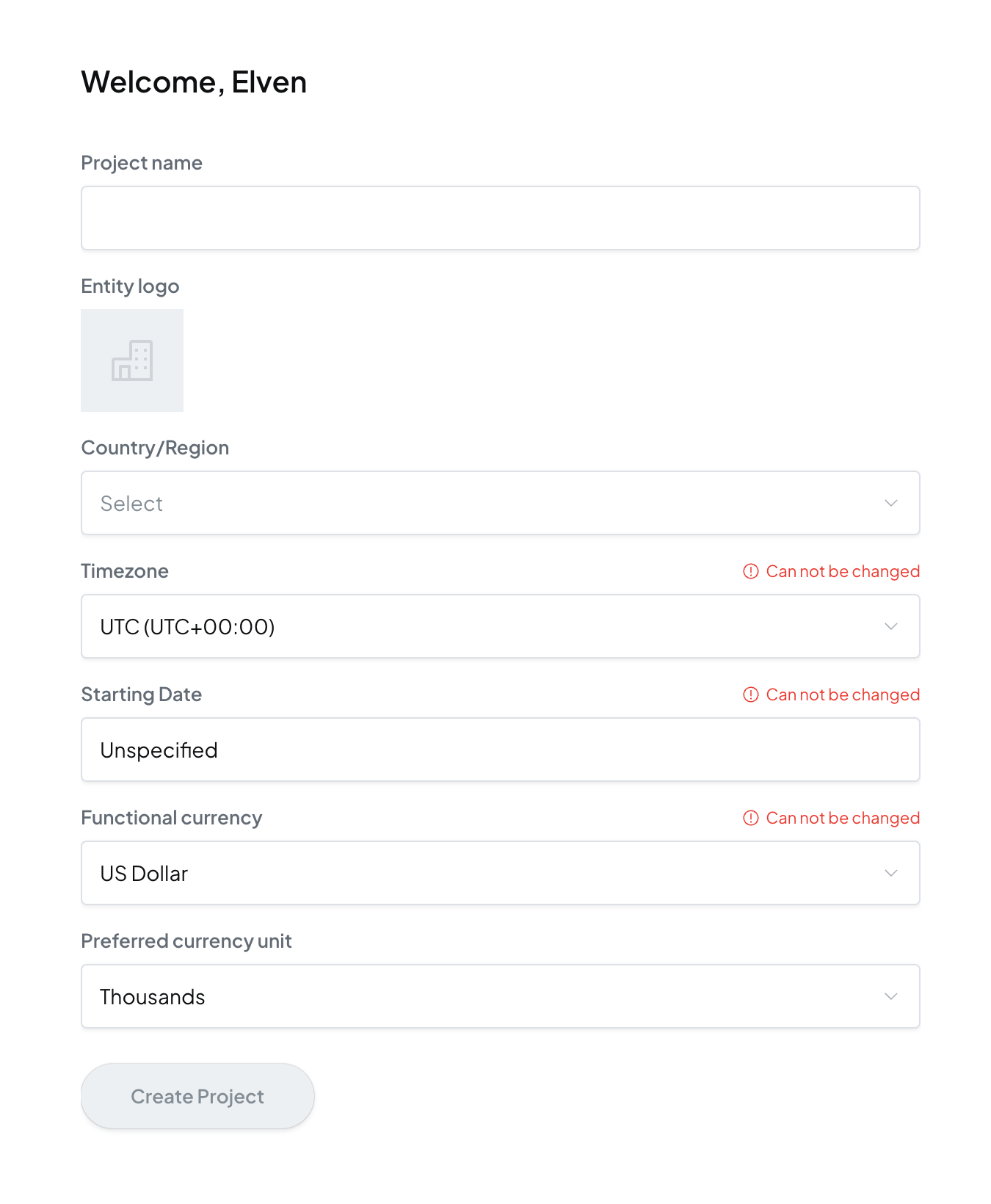
输入您的项目名称，并设置项目图标、时区、功能货币（(如果您的资产以美元为单位,请选择美元)等信息后，即可完成第一个项目的创建。

<figure><img src="https://3644585726-files.gitbook.io/~/files/v0/b/gitbook-x-prod.appspot.com/o/spaces%2Fgq0d5M2WNXGfXUM1gfsx%2Fuploads%2Fe0m2oE2vCy066OOPMCrx%2F17000827.png?alt=media&amp;token=3a2f00d3-4107-4966-a7ac-19d0d7fbea73" alt=""><figcaption></figcaption></figure>

重要提示：一些项目属性一旦选择了，就无法在后续使用过程中更改。

## 免费账户可获得的功能

* 添加账户与交易
* 交易管理与打标签
* 自定义会计科目
* 自定义业务活动标签
* 试算平衡表与明细
* 财务三张表
* 加密资产披露表

## 升级您的账户

如需处理更多交易，或者添加多个主体、使用对账等高级功能，您需要将项目升级到高级版本，请向我们索要演示，我们将针对您的具体需求提供支持。

请通过 <hi@elven.com> 与我们联系。


# 项目和主体

{% hint style="info" %}
本帮助文档介绍了项目和主体的关系，以及如何创建、修改和删除主体。
{% endhint %}

## 项目与主体的管理

您可以在一个项目中创建多个主体，用于分别处理不同主体的财务数据。

* 每个主体都拥有自己的数据源、交易和报表，所有主体之间的数据是完全隔离的。
* 项目用于对主体基础信息、成员权限、操作日志等进行管理。

## 创建新的主体

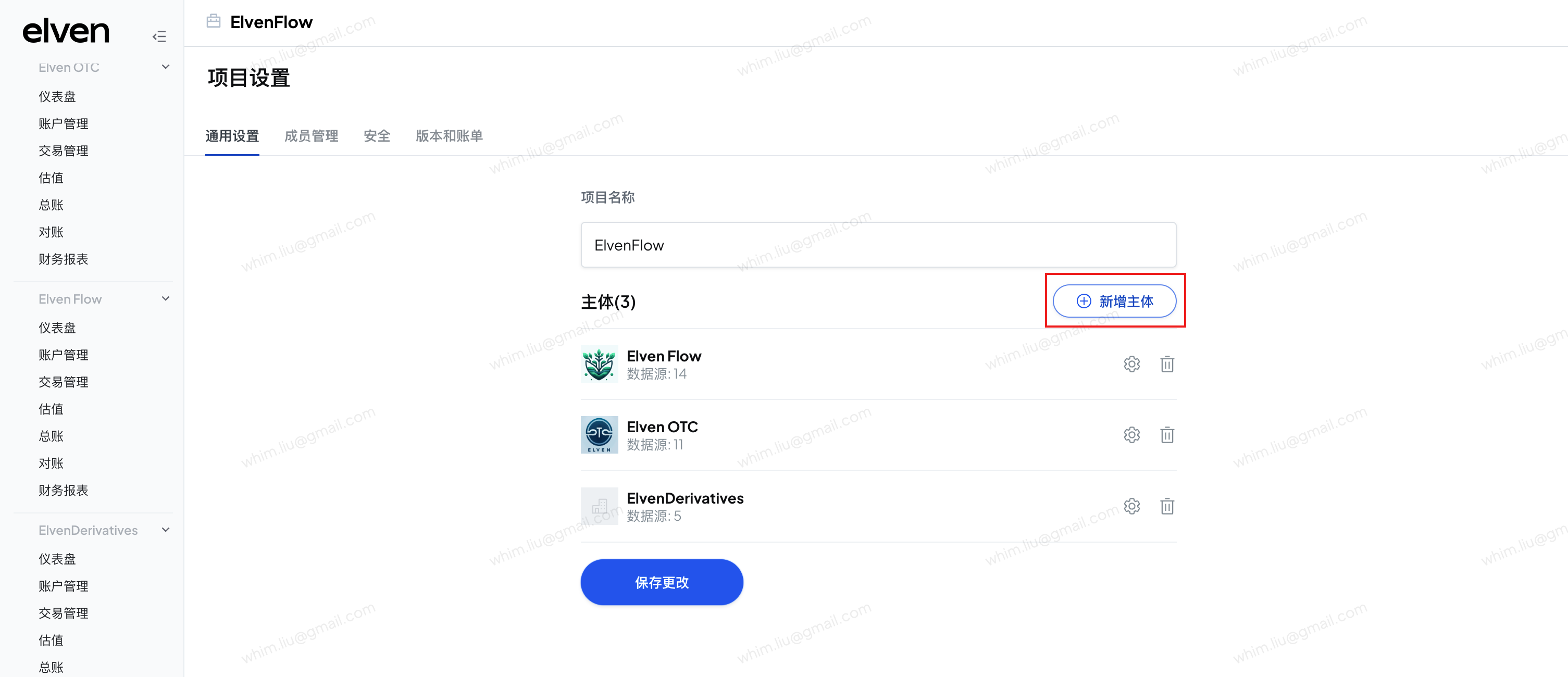
1. 导航到 项目设置-通用设置。
2. 点击 新增主体 ，按照要求填写主体基础信息，即可创建新的主体。

<figure><img src="https://3644585726-files.gitbook.io/~/files/v0/b/gitbook-x-prod.appspot.com/o/spaces%2Fgq0d5M2WNXGfXUM1gfsx%2Fuploads%2F0QkQfe5vNP1T5j8NBUVf%2Fimage.png?alt=media&amp;token=621c764a-7759-4986-a6de-dd5f2d1a3525" alt=""><figcaption></figcaption></figure>

## 修改主体基础信息

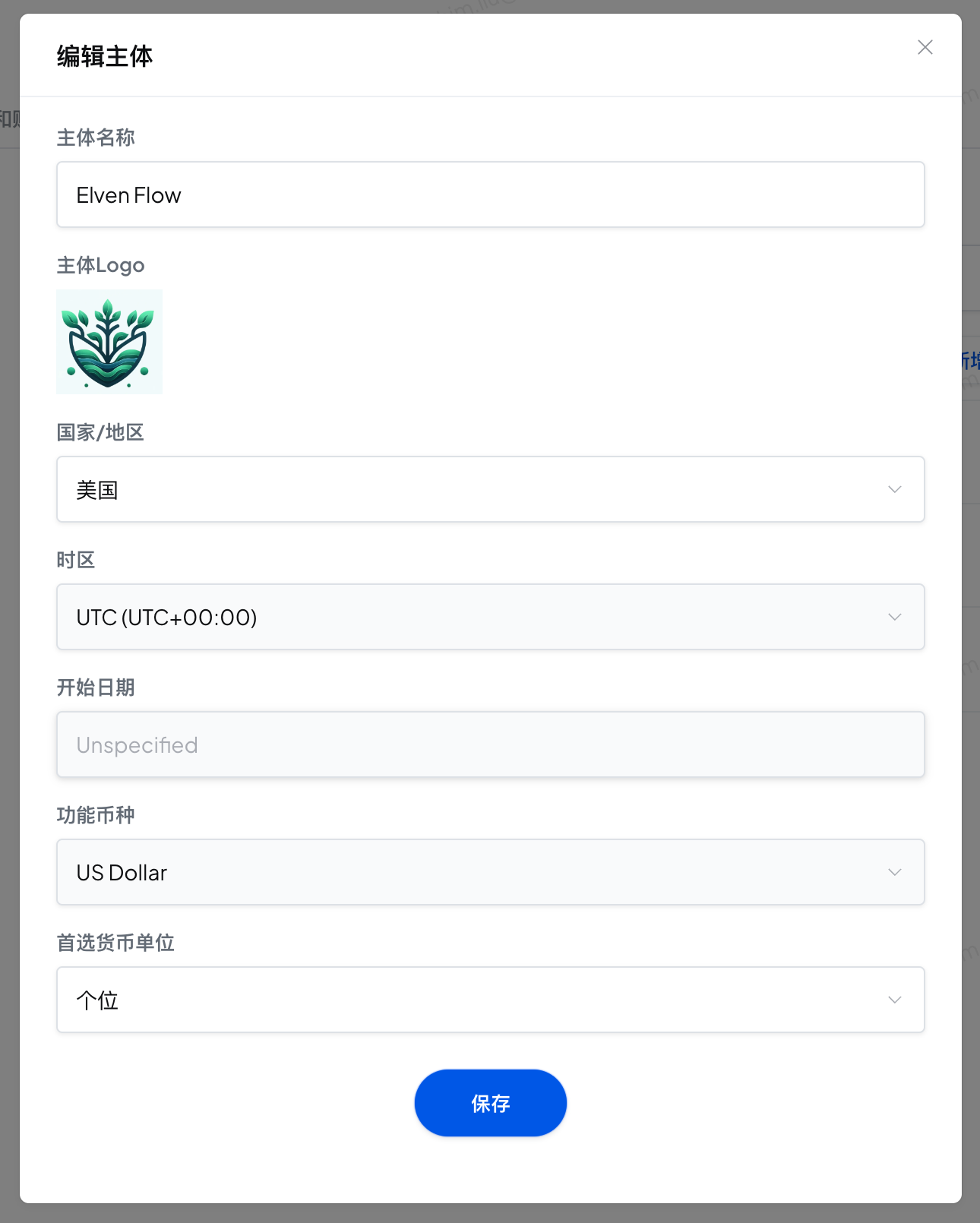
1. 导航到 项目设置-通用设置。
2. 在主体列表，点击主体右侧的 设置 图表，即可修改主体信息。
3. 补充说明：主体的时区、开始日期、功能币种，在创建完成后就不允许进行修改了。

<figure><img src="https://3644585726-files.gitbook.io/~/files/v0/b/gitbook-x-prod.appspot.com/o/spaces%2Fgq0d5M2WNXGfXUM1gfsx%2Fuploads%2Fw1toZRlj4ccFXlck75u9%2Fimage.png?alt=media&amp;token=5bbb8cea-da94-4602-8938-2631b545e029" alt="" width="375"><figcaption></figcaption></figure>

## 删除主体

1. 导航到 项目设置-通用设置
2. 在主体列表，点击主体右侧的 删除 图表，在弹窗内进行确认后，即可删除主体。
3. 此操作无法恢复，请谨慎操作。


# 选择会计起始日期

## 概述

在 Elven 中，最重要的决策之一是选择你的会计起始日期。 &#x20;

{% hint style="info" %}
**什么是会计起始日期？** &#x20;

会计起始日期是你开始在 Elven 中进行记账那一天。在此日期之前的所有内容都通过设置期初余额的方式在 Elven 中体现，Elven 只会导入从此日期之后的交易明细。换句话说，这一天是你从旧系统过渡到在 Elven 开展业务的开始。 &#x20;
{% endhint %}

{% hint style="warning" %}
注意：一旦设定了会计起始日期，以后就无法更改，请谨慎选择！ &#x20;
{% endhint %}

## 影响

一旦设置了会计起始时间，会产生以下影响

### 数据接入

Elven 不会获取早于这个时间的历史交易。

例如您设置了会计开始时间是2024年1月1日，当您添加一个钱包账户到 Elven 系统中时，即使这个钱包中包含了早于2024年1月1日的历史交易，Elven 也只会获取2024年1月1日之后的交易。

{% hint style="info" %}
针对这种情况，为了确保账户的余额校验能够正确通过，您需要手动输入2024年1月1日的钱包的余额数据
{% endhint %}

### 会计科目期初余额

如果您的主体在所选择的会计起始日期之前已经有账务数据，例如您是从旧的财务系统迁移到 Elven，您需要手动输入 2024年1月1日的会计科目期初余额。（[如何录入期初余额](https://docs.elven.com/v3/chinese/financial-settings/lu-ru-ke-mu-qi-chu-yu-e)）


# 邀请成员

{% hint style="info" %}
本帮助文档将详细介绍如何邀请成员加入您的项目，包括邀请入口、权限设置、邮件确认以及成员管理等步骤。
{% endhint %}

## 1. 进入成员管理界面

1. 通过左侧导航指定项目下的“项目设置”链接进入项目管理页面

<figure><img src="https://3644585726-files.gitbook.io/~/files/v0/b/gitbook-x-prod.appspot.com/o/spaces%2Fgq0d5M2WNXGfXUM1gfsx%2Fuploads%2FSOMe0unZSRYgDISdZEUb%2F01233734.png?alt=media&amp;token=80b15dfd-d548-4f82-a7ee-777116604ac1" alt="" width="202"><figcaption></figcaption></figure>

2. 通过“成员”选项卡进图到成员管理界面<br>

<figure><img src="https://3644585726-files.gitbook.io/~/files/v0/b/gitbook-x-prod.appspot.com/o/spaces%2Fgq0d5M2WNXGfXUM1gfsx%2Fuploads%2FdyCoURkYXdi5ogLnsSeX%2F01233843.png?alt=media&amp;token=ff471b02-5f26-4c31-ab30-34e331a4cd65" alt="" width="563"><figcaption></figcaption></figure>

## 2. 新增成员

1\. 在成员管理页面，找到右上角的“新增成员”按钮并点击。

<figure><img src="https://3644585726-files.gitbook.io/~/files/v0/b/gitbook-x-prod.appspot.com/o/spaces%2Fgq0d5M2WNXGfXUM1gfsx%2Fuploads%2F986wA53414fKPUYR5OAV%2F01234144.png?alt=media&amp;token=c4aa4312-ab28-49ed-a301-77b65ccb0f36" alt="" width="563"><figcaption></figcaption></figure>

## 3. 输入被邀请者信息并设置权限

1\. 在弹出的邀请窗口中，输入被邀请者的邮箱地址。

<figure><img src="https://3644585726-files.gitbook.io/~/files/v0/b/gitbook-x-prod.appspot.com/o/spaces%2Fgq0d5M2WNXGfXUM1gfsx%2Fuploads%2Fs2BEgpIgdHFTl56fKpr6%2F01234233.png?alt=media&amp;token=5ff81fa7-830f-4c38-8e26-addbdd8ca292" alt="" width="563"><figcaption></figcaption></figure>

2\. 勾选被邀请者需要权限的功能模块。被邀请者只能访问您勾选的模块功能，未勾选的模块将无法访问。

<figure><img src="https://3644585726-files.gitbook.io/~/files/v0/b/gitbook-x-prod.appspot.com/o/spaces%2Fgq0d5M2WNXGfXUM1gfsx%2Fuploads%2FaGlUalfxGCrPMHJLiVeC%2F01234233.png?alt=media&amp;token=6f2449f1-0f21-4127-89cf-b487d45dc8db" alt="" width="563"><figcaption></figcaption></figure>

## 4. 设定为管理员（可选）

1\. 如果希望被邀请者拥有最高权限，可以直接勾选 Set as administrator 选框，无需逐一勾选每个模块。

<figure><img src="https://3644585726-files.gitbook.io/~/files/v0/b/gitbook-x-prod.appspot.com/o/spaces%2Fgq0d5M2WNXGfXUM1gfsx%2Fuploads%2FEXq18snndsStjm6aEzBf%2F01234233.png?alt=media&amp;token=aaa05244-82a9-41e1-bc52-c1828fc98b38" alt=""><figcaption></figcaption></figure>

## 5. 提交邀请

1\. 填写完信息和权限设置后，点击“添加”按钮提交邀请。

<figure><img src="https://3644585726-files.gitbook.io/~/files/v0/b/gitbook-x-prod.appspot.com/o/spaces%2Fgq0d5M2WNXGfXUM1gfsx%2Fuploads%2Fqrk3hAfkSzqssx7yRyZm%2F01234233.png?alt=media&amp;token=14765d7e-64ce-4361-8257-91bd99d18ecd" alt=""><figcaption></figcaption></figure>

2\. 被邀请者会收到一封确认邀请的邮件。

## 6. 邀请确认

1\. 被邀请者需要点击邮件中的确认链接才能激活邀请。

<figure><img src="https://3644585726-files.gitbook.io/~/files/v0/b/gitbook-x-prod.appspot.com/o/spaces%2Fgq0d5M2WNXGfXUM1gfsx%2Fuploads%2FjwqiDx8EK59ZUTdm41zd%2F01234524.png?alt=media&amp;token=3da847be-04d7-42e9-9d3f-9660939f6869" alt="" width="563"><figcaption></figcaption></figure>

2\. 确认链接将引导被邀请者完成注册或登录，并加入项目。

## 7. 管理已邀请的成员

1\. 您可以在成员管理页面中查看所有已邀请的成员。

2\. 点击成员右侧的编辑按钮，调整其模块权限。

<figure><img src="https://3644585726-files.gitbook.io/~/files/v0/b/gitbook-x-prod.appspot.com/o/spaces%2Fgq0d5M2WNXGfXUM1gfsx%2Fuploads%2FqMAtbcWEaHWjWWwRr3cy%2F01234908.png?alt=media&amp;token=2c19df89-9b2f-46ab-a64c-2e9c668a38c6" alt="" width="563"><figcaption></figcaption></figure>

3\. 如需移除成员，点击成员右侧的删除按钮。

<figure><img src="https://3644585726-files.gitbook.io/~/files/v0/b/gitbook-x-prod.appspot.com/o/spaces%2Fgq0d5M2WNXGfXUM1gfsx%2Fuploads%2FypXFumRCnJoKUyXdAT4W%2F01234908.png?alt=media&amp;token=4094661c-19c0-4cb5-80e9-750e7bb3801f" alt="" width="563"><figcaption></figcaption></figure>

通过以上步骤，您可以顺利邀请成员加入到您的项目，并根据需要管理他们的权限。


# 查看操作记录

{% hint style="info" %}
本帮助文档介绍了如何在项目安全管理模块中查看操作记录，包括操作内容、时间、主体、成员等信息，并支持按活动类型、主体、成员进行筛选。
{% endhint %}

## 1. 进入项目安全管理

1. 在项目首页，导航到“项目设置”页面。
2. 找到并点击“安全”选项。

## 2.查看操作记录

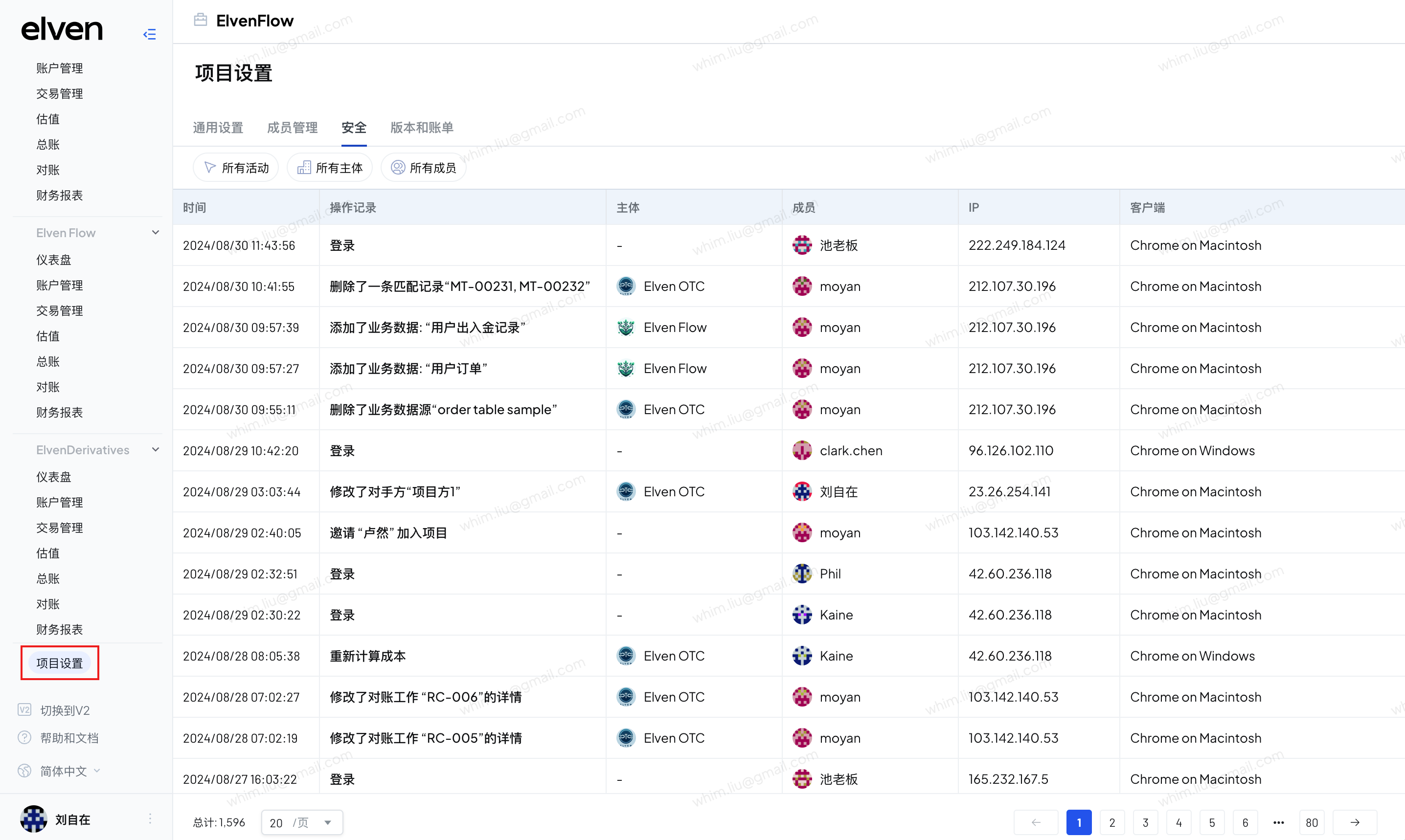
1. 系统记录了操作内容、时间、主体、成员、ip、客户端信息

<figure><img src="https://3644585726-files.gitbook.io/~/files/v0/b/gitbook-x-prod.appspot.com/o/spaces%2Fgq0d5M2WNXGfXUM1gfsx%2Fuploads%2FudW5chnArYQEQYcR976Z%2Fimage.png?alt=media&amp;token=a5de4870-c183-4dc0-b605-ae86c48fd5c5" alt=""><figcaption></figcaption></figure>

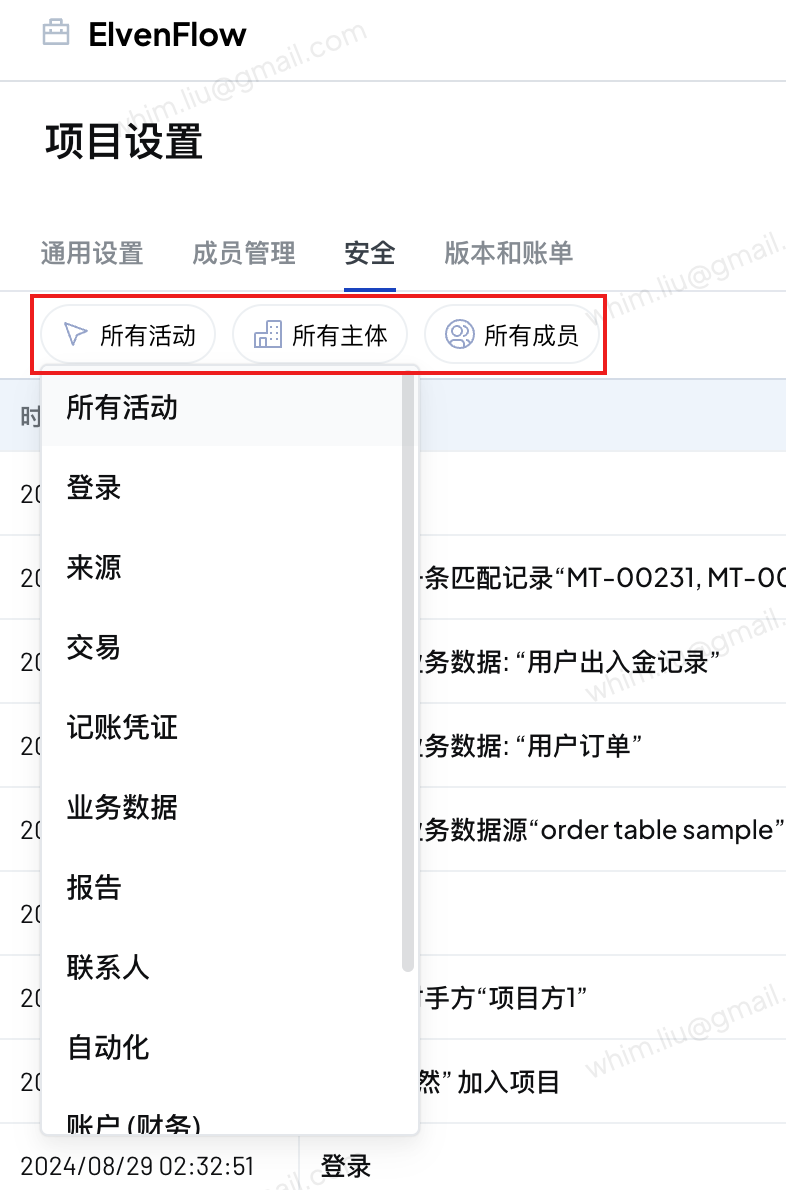
2. 您可以按照活动类型、主体、成员进行筛选

<figure><img src="https://3644585726-files.gitbook.io/~/files/v0/b/gitbook-x-prod.appspot.com/o/spaces%2Fgq0d5M2WNXGfXUM1gfsx%2Fuploads%2FfhG87WLgnEEg38Ed6vCc%2Fimage.png?alt=media&amp;token=30336a9b-3518-44f8-bc01-6a8e02f6b698" alt="" width="375"><figcaption></figcaption></figure>


# 配置会计科目

{% hint style="info" %}
本帮助文档介绍了如何在会计科目管理模块中新增、编辑和删除会计科目。包括设置科目类型、编码、名称以及与科目相关的特定属性，如原始币种记账和是否为现金科目，及处理已用于记账的科目的限制。
{% endhint %}

## 1. 进入会计科目管理

1. 在项目首页，导航到项目的“**总账”**&#x9875;面。
2. 在“**总账”**&#x9875;面中，找到并点击&#x4FA7;**“会计科目表”**&#x9009;项。

<figure><img src="https://3644585726-files.gitbook.io/~/files/v0/b/gitbook-x-prod.appspot.com/o/spaces%2Fgq0d5M2WNXGfXUM1gfsx%2Fuploads%2F4gS7wHJZjNCGcZb3oOUU%2Fimage.png?alt=media&amp;token=8adced09-4dfb-47b0-983d-d5ef08d598f6" alt=""><figcaption></figcaption></figure>

## 2. 新增会计科目

1. 找到右上角的“**新增”**&#x6309;钮并点击，弹出新增科目窗口。

<figure><img src="https://3644585726-files.gitbook.io/~/files/v0/b/gitbook-x-prod.appspot.com/o/spaces%2Fgq0d5M2WNXGfXUM1gfsx%2Fuploads%2FiFPDXQA1JybElhEvowH5%2Fimage.png?alt=media&amp;token=d2fee37a-41f6-4e78-bfc4-97d7bd6e230b" alt="" width="375"><figcaption></figcaption></figure>

2. 选择科目类型。
3. 填入科目编码，支持输入数字，不允许与其他科目编码重复。
4. 填入科目名称。
5. 选择科目的余额方向。
6. 添加辅助核算字段，支持选择。
7. 是否启用原始币种记账：资产/负债科目，勾选该选项后支持按照交易的原始币种记账。
8. 是否为现金科目：资产科目勾选该选项后，现金流量表会统计该科目的法币余额变动。

## 3. 编辑会计科目

1. 在会计科目右侧找到“编辑”按钮，点击打开编辑科目信息弹窗。

   <figure><img src="https://3644585726-files.gitbook.io/~/files/v0/b/gitbook-x-prod.appspot.com/o/spaces%2Fgq0d5M2WNXGfXUM1gfsx%2Fuploads%2FwEiUDKTXXpk0SsIPb92n%2Fimage.png?alt=media&amp;token=c1a231eb-cf29-4a30-b262-8033a6e7dbf6" alt="" width="375"><figcaption></figcaption></figure>
2. 支持编辑科目编码、名称、是否现金科目。
3. 尚未参与记账的科目支持编辑余额方向、辅助核算、原始币种记账等属性。

## 4. 删除会计科目

1. 在会计科目右侧找到“删除”按钮，点击删除科目。
2. 已经参与记账的会计科目不支持删除。


# 配置多级会计科目

{% hint style="info" %}
本帮助文档介绍了如何在会计科目表中添加子科目、查看科目层级以及管理科目层级关系。
{% endhint %}

## 1. 给科目添加子科目

1. 在“会计科目&#x8868;**”**&#x9875;面中，点击“更多”按钮，选择“添加子科目”，可以给当前科目增加子科目：

<figure><img src="https://3644585726-files.gitbook.io/~/files/v0/b/gitbook-x-prod.appspot.com/o/spaces%2Fgq0d5M2WNXGfXUM1gfsx%2Fuploads%2FgDVA17FCRsVuPY7X8c4P%2Fimage.png?alt=media&amp;token=f518b7cc-cadc-4bff-84a8-8a1dcadf40ff" alt=""><figcaption></figcaption></figure>

2. 创建子科目时，可以灵活的配置科目编码、名称、科目方向、辅助核算等配置。

{% hint style="warning" %}
科目编码支持输入数字、符号或英文文本，最长支持 50 位。
{% endhint %}

<figure><img src="https://3644585726-files.gitbook.io/~/files/v0/b/gitbook-x-prod.appspot.com/o/spaces%2Fgq0d5M2WNXGfXUM1gfsx%2Fuploads%2FaqeWAmf75jlrbVyQaO7D%2Fimage.png?alt=media&amp;token=91dc42ea-36b5-4919-baf2-0ce42bd5d5b6" alt="" width="375"><figcaption></figcaption></figure>

3. 仅末级科目可用于记账：当首次为 A 科目添加子科目 a 时，系统会将 A 科目的记账数据和配置同步至 a；之后为 A 科目添加更多子科目时则不再同步。
4. 最多可创建至 9 级科目，第 9 级科目无法继续创建子科目。

## 2. 科目层级查看

1. 会计科目表按父子层级关系展示，可折叠或展开查看。

<figure><img src="https://3644585726-files.gitbook.io/~/files/v0/b/gitbook-x-prod.appspot.com/o/spaces%2Fgq0d5M2WNXGfXUM1gfsx%2Fuploads%2FAhwmH5wvicwrbI77goVh%2Fimage.png?alt=media&amp;token=efde0286-0fd4-40aa-a26a-6fc260a87acf" alt=""><figcaption></figcaption></figure>

2. 支持通过编码或名称搜索，快速定位所需科目。

<figure><img src="https://3644585726-files.gitbook.io/~/files/v0/b/gitbook-x-prod.appspot.com/o/spaces%2Fgq0d5M2WNXGfXUM1gfsx%2Fuploads%2F1emDzWKyd09FYwz6dVwp%2Fimage.png?alt=media&amp;token=99e670cb-f8da-4787-8178-e91384c19e71" alt=""><figcaption></figcaption></figure>

## 3. 管理科目的层级关系

1. 编辑科目时可调整其“父级科目”。保存后，该科目及其子科目都会移动至新的父级科目节点下。

<figure><img src="https://3644585726-files.gitbook.io/~/files/v0/b/gitbook-x-prod.appspot.com/o/spaces%2Fgq0d5M2WNXGfXUM1gfsx%2Fuploads%2FWPNvLfAPEitakeUu9hW7%2Fimage.png?alt=media&amp;token=88d5fb94-2ed4-4084-bd13-5e169d15c044" alt="" width="375"><figcaption></figcaption></figure>


# 批量导入会计科目

{% hint style="info" %}
本帮助文档介绍了如何在会通过 CSV 批量添加会计科目。
{% endhint %}

## 1. 下载科目导入模板，填入会计科目信息

1. 在“会计科目&#x8868;**”**&#x9875;面点击“批量导入科目”，打开导入科目弹窗

   <figure><img src="https://3644585726-files.gitbook.io/~/files/v0/b/gitbook-x-prod.appspot.com/o/spaces%2Fgq0d5M2WNXGfXUM1gfsx%2Fuploads%2FnueNVPn1PzcFEaeSzxe9%2Fimage.png?alt=media&amp;token=b2776a39-c141-4927-bf0f-cc04bd388d43" alt=""><figcaption></figcaption></figure>
2. 下载科目导入模板

<figure><img src="https://3644585726-files.gitbook.io/~/files/v0/b/gitbook-x-prod.appspot.com/o/spaces%2Fgq0d5M2WNXGfXUM1gfsx%2Fuploads%2FtV4TSoF5AZ2eFQt1Bor6%2Fimage.png?alt=media&amp;token=69a2191b-ccf6-49d4-bb87-423070084dcc" alt="" width="375"><figcaption></figcaption></figure>

3. 按照模板格式要求填入会计科目信息：
   1. Account No. : 填入科目编号，支持数字、英文、特殊符号，最长50位
   2. Account Name：填入科目名称
   3. Type：填入 Assets/Liabilities/Equity/Revenue/Expenses/Other income and expenses
   4. Balance Type：填入科目方向，Dr/Cr
   5. Original Currency：该科目是否开启原始币种核算，开启填入“True”，不开启填入“False”
   6. Cash Account：该科目是否为现金科目，是现金科目填入“True”，不是填入“False”
   7. Auxillary Code：填入辅助核算字段的名称，支持多个，以“;” 分隔
   8. Parent Account No.：填入该科目的父科目编号。

## 2. 上传 CSV 文件

1. 上传填写完成的 CSV 文件。

<figure><img src="https://3644585726-files.gitbook.io/~/files/v0/b/gitbook-x-prod.appspot.com/o/spaces%2Fgq0d5M2WNXGfXUM1gfsx%2Fuploads%2FkrIG4msL8VPx85sk9D4u%2Fimage.png?alt=media&amp;token=292ceef2-5a75-4afb-b207-b57fe1ba407e" alt="" width="375"><figcaption></figcaption></figure>

2. 不符合要求导入失败的会计科目，支持下载查看失败原因。

   <figure><img src="https://3644585726-files.gitbook.io/~/files/v0/b/gitbook-x-prod.appspot.com/o/spaces%2Fgq0d5M2WNXGfXUM1gfsx%2Fuploads%2F0SfurMlVgt9nq7kRwl7W%2Fimage.png?alt=media&amp;token=bde7f1b7-1fc7-4719-8c2b-44380d42cda0" alt=""><figcaption></figcaption></figure>


# 配置凭证模板

{% hint style="info" %}
本帮助文档提供了在凭证模板管理模块中如何新增、编辑和删除凭证模板的详细操作指南。包括设置模板名称、编码、科目，以及处理已用于记账的模板限制。
{% endhint %}

## 1. 进入凭证模板管理

1. 在项目首页，导航到项目的“**总账”**&#x9875;面。
2. 在“**总账”**&#x9875;面中，找到并点击&#x4FA7;**“凭证模板”**&#x9009;项。

<figure><img src="https://3644585726-files.gitbook.io/~/files/v0/b/gitbook-x-prod.appspot.com/o/spaces%2Fgq0d5M2WNXGfXUM1gfsx%2Fuploads%2FCbrJv4yTn7uiFyzWKVdJ%2Fimage.png?alt=media&amp;token=ab07a3d9-d71c-4be1-838f-9c1a9b67e97f" alt=""><figcaption></figcaption></figure>

## 2. 新增凭证模板

1. 找到右上角的“**新增”**&#x6309;钮并点击，弹出新增凭证模板窗口。

<figure><img src="https://3644585726-files.gitbook.io/~/files/v0/b/gitbook-x-prod.appspot.com/o/spaces%2Fgq0d5M2WNXGfXUM1gfsx%2Fuploads%2F2kLrDqv48lZAllVLprGj%2Fimage.png?alt=media&amp;token=23078bc5-55e7-4807-9a2e-22b80e05696a" alt=""><figcaption></figcaption></figure>

2. 填入凭证模板名称。
3. 填入模板编码，支持输入数字，不可与其他凭证模板编码重复。
4. 填入凭证前缀。
5. 选择凭证模板所属现金流量表活动类型。
6. 选择凭证模板的 OTC 库存类型。
7. 添加凭证模板的借方科目和贷方科目。
8. 保存凭证模板。

## 3. 编辑凭证模板

1. 在凭证模板右侧找&#x5230;**“编辑”**&#x6309;钮，点击打开编辑凭证模板信息窗口。

   <figure><img src="https://3644585726-files.gitbook.io/~/files/v0/b/gitbook-x-prod.appspot.com/o/spaces%2Fgq0d5M2WNXGfXUM1gfsx%2Fuploads%2FfnDQqizfEbegHdIILUZS%2Fimage.png?alt=media&amp;token=7251cfbb-c10f-4953-8213-851a0f8bec24" alt=""><figcaption></figcaption></figure>
2. 支持编辑凭证模板的名称、编码、科目等。
3. 如果凭证模板已经参与记账，不支持编辑凭证模板的借贷方科目。

## 4. 删除凭证模板

1. 在凭证模板右侧找&#x5230;**“删除”**&#x6309;钮，点击删除凭证模板
2. 已经参与记账的凭证模板不支持删除


# 配置辅助核算

{% hint style="info" %}
本帮助文档介绍了如何在辅助核算管理模块中新增、编辑和删除辅助核算字段。包括设置字段类型，添加自定义选项，以及处理已用于记账的字段。
{% endhint %}

## 1. 进入辅助核算管理

1. 在项目首页，导航到项目的“**总账”**&#x9875;面。
2. 在“**总账”**&#x9875;面中，找到并点击&#x4FA7;**“辅助核算”**&#x9009;项。

<figure><img src="https://3644585726-files.gitbook.io/~/files/v0/b/gitbook-x-prod.appspot.com/o/spaces%2Fgq0d5M2WNXGfXUM1gfsx%2Fuploads%2FhDWN14YkyZUd0uLBf3Q1%2Fimage.png?alt=media&amp;token=efd30b80-a724-41de-b21a-c37cf803748f" alt=""><figcaption></figcaption></figure>

## 2. 新增辅助核算字段

1. 找到右上角的“**新增”**&#x6309;钮并点击，打开添加辅助核算窗口。

   <figure><img src="https://3644585726-files.gitbook.io/~/files/v0/b/gitbook-x-prod.appspot.com/o/spaces%2Fgq0d5M2WNXGfXUM1gfsx%2Fuploads%2FLyVbW7UHVaS6OWOoLFML%2Fimage.png?alt=media&amp;token=75921582-daa9-4631-a90f-d82dbc9f21ae" alt=""><figcaption></figcaption></figure>
2. 填入辅助核算字段名称。
3. 选择辅助核算类型：支持创建以对手方数据为选项的辅助核算字段和自定义选项的辅助核算字段。
4. 创建自定选项的辅助核算字段，需要手动填入选项值。

   <figure><img src="https://3644585726-files.gitbook.io/~/files/v0/b/gitbook-x-prod.appspot.com/o/spaces%2Fgq0d5M2WNXGfXUM1gfsx%2Fuploads%2FAjLgFDSudy4yNusV4oYx%2Fimage.png?alt=media&amp;token=906a7d1a-b029-4e44-b9a3-33dbfdce8ef6" alt=""><figcaption></figcaption></figure>
5. 保存辅助核算字段。

## 3. 编辑辅助核算字段

1. 在辅助核算字段右侧找到“编辑”按钮，点击打开编辑辅助核算字段弹窗。

   <figure><img src="https://3644585726-files.gitbook.io/~/files/v0/b/gitbook-x-prod.appspot.com/o/spaces%2Fgq0d5M2WNXGfXUM1gfsx%2Fuploads%2FgTKtwtW55ySrZrinm6Np%2Fimage.png?alt=media&amp;token=c8a3bfaa-e189-4ca2-848d-de0af53bd3e6" alt=""><figcaption></figcaption></figure>
2. 对手方类型的辅助核算字段仅支持更改名称。
3. 自定义选项类型的辅助核算字段可以更改名称、添加选项。

## 4. 删除辅助核算字段

1. 在辅助核算字段右侧找到“删除”按钮，点击删除辅助核算字段。
2. 已经参与记账的辅助核算字段不支持删除。


# 录入科目期初余额

{% hint style="info" %}
本帮助文档介绍了如何在总账系统中设置会计科目的期初余额，包括进入路径、选择科目、录入数据和平衡校验等操作步骤。
{% endhint %}

## 1. 进入会计科目管理

1. 在项目首页，导航到项目的“**总账”**&#x9875;面。
2. 在“**总账”**&#x9875;面中，找到并点击&#x4FA7;**“会计科目表”**&#x9009;项。
3. 点击右上&#x89D2;**“期初余额”**&#x6309;钮，开始录入科目期初余额。

<figure><img src="https://3644585726-files.gitbook.io/~/files/v0/b/gitbook-x-prod.appspot.com/o/spaces%2Fgq0d5M2WNXGfXUM1gfsx%2Fuploads%2FcXzSMWZ2GVk5FR1Mjych%2Fimage.png?alt=media&amp;token=3af75ea1-a3ae-4e32-bd08-f0b7775dd5b6" alt=""><figcaption></figcaption></figure>

## 2. 录入科目期初余额

1. 选择资产、负债、权益类科目，录入科目的期初余额。
2. 支持按照原始币种录入金额。
3. 支持区分辅助核算字段录入期初余额。
4. 录入的期初余额满足 资产=负债+所有者权益 时，点&#x51FB;**“保存”**&#x6309;钮即可完成期初余额录入。

<figure><img src="https://3644585726-files.gitbook.io/~/files/v0/b/gitbook-x-prod.appspot.com/o/spaces%2Fgq0d5M2WNXGfXUM1gfsx%2Fuploads%2FRYVp1Pe2yrIIrBmap2Ln%2Fimage.png?alt=media&amp;token=083fdb1f-d05a-45fc-b2cb-9ba8065a392a" alt=""><figcaption></figcaption></figure>


# 导入余额数据

{% hint style="info" %}
本帮助文档介绍了如何通过批量导入余额功能，实现多个账户、多个币种、多个时间点的余额数据录入。
{% endhint %}

1. 在Accounts-Treasury 列表，点击【Add Balance】，显示 Balance 列表

<figure><img src="https://3644585726-files.gitbook.io/~/files/v0/b/gitbook-x-prod.appspot.com/o/spaces%2Fgq0d5M2WNXGfXUM1gfsx%2Fuploads%2FS5jBoqO2s7XsdeYgfgy9%2Fimage.png?alt=media&amp;token=10862537-3462-4c55-9650-10fe01381a92" alt=""><figcaption></figcaption></figure>

2. 在列表中点击【Import】，按照系统模板进行填写后，上传即可进行余额数据的导入

<figure><img src="https://3644585726-files.gitbook.io/~/files/v0/b/gitbook-x-prod.appspot.com/o/spaces%2Fgq0d5M2WNXGfXUM1gfsx%2Fuploads%2FQXcBqML7sxnMHfcbUOgs%2Fimage.png?alt=media&amp;token=acec6860-9e07-44f0-bf51-2ba22561b3dc" alt=""><figcaption></figcaption></figure>

<figure><img src="https://3644585726-files.gitbook.io/~/files/v0/b/gitbook-x-prod.appspot.com/o/spaces%2Fgq0d5M2WNXGfXUM1gfsx%2Fuploads%2FhgFbeEDmDOLnYxoam3rW%2Fimage.png?alt=media&amp;token=bd649e45-6295-4737-905a-198cfa2965b4" alt=""><figcaption></figcaption></figure>

3. 您可以在余额列表查看导入进度

* 如果有导入失败的数据，您可以下载查看，修改后再次上传

<figure><img src="https://3644585726-files.gitbook.io/~/files/v0/b/gitbook-x-prod.appspot.com/o/spaces%2Fgq0d5M2WNXGfXUM1gfsx%2Fuploads%2FQiXgotP8FGtqF7pRTWRK%2Fimage.png?alt=media&amp;token=5f1a8e5c-aa30-4b04-a749-84467a263c34" alt=""><figcaption></figcaption></figure>


# 导入交易数据


# 导入普通交易数据

### 对于支持 api 获取交易的账户：

您在创建账号时，选择对应api 数据源，系统会通过 api 自动获取对应交易。

<figure><img src="https://3644585726-files.gitbook.io/~/files/v0/b/gitbook-x-prod.appspot.com/o/spaces%2Fgq0d5M2WNXGfXUM1gfsx%2Fuploads%2FrqKX7lLTPym66r3IF0wS%2Fimage.png?alt=media&amp;token=5ec04590-7d25-4b89-9cc3-bfa5b1bfc1ef" alt="" width="563"><figcaption></figcaption></figure>

### 对于尚不支持api 获取交易的账户：

您可以在创建账户后。在账户详情内通过 CSV 上传交易数据。

<figure><img src="https://3644585726-files.gitbook.io/~/files/v0/b/gitbook-x-prod.appspot.com/o/spaces%2Fgq0d5M2WNXGfXUM1gfsx%2Fuploads%2FVmb8Eg4KCpOR9QHXoDjy%2Fimage.png?alt=media&amp;token=a3429c3f-91e1-49e5-90a9-1a49b241fc0d" alt=""><figcaption></figcaption></figure>

1. **下载模板**：获取交易模板并按照指定格式处理数据。
2. **上传 CSV 文件**：完成数据处理后上传文件即可导入交易数据。

<figure><img src="https://3644585726-files.gitbook.io/~/files/v0/b/gitbook-x-prod.appspot.com/o/spaces%2Fgq0d5M2WNXGfXUM1gfsx%2Fuploads%2Fpkmx0unX2K6qJmLpH0Um%2Fimage.png?alt=media&amp;token=a90d4a2a-b73a-4bec-8b39-f4bac37d0c0b" alt="" width="563"><figcaption></figcaption></figure>

### 交易模板的使用

1. 对于不同平台，我们提供了多种模板方便您的使用。建议您使用通用模板进行数据导入

#### 标准模板格式说明：

1. 第一行是该列的字段名称，上传时请进行保留
2. 第二行是该列字段的解释说明，上传时请删除该行内容
3. 第三行是该列字段是否可以为空的说明，上传时请删除该行内容
4. 第四、第五行是示例内容，您可以删除后，填写您的真实数据
5. 上传前，请删除第一列的说明性文本

<figure><img src="https://3644585726-files.gitbook.io/~/files/v0/b/gitbook-x-prod.appspot.com/o/spaces%2Fgq0d5M2WNXGfXUM1gfsx%2Fuploads%2Fm9u1xEZJRaHbR0LmabK2%2Fimage.png?alt=media&amp;token=106b4c21-c3cb-46f3-9a94-c263665315be" alt=""><figcaption></figcaption></figure>

模板快速下载：

{% file src="/files/Tu36GQ4GUfaqhLUSFOK2" %}

{% file src="/files/k7qsHHepcW7bpHsnhAKE" %}

{% file src="/files/sPELvSuixBHn4oqO0FIh" %}

{% file src="/files/owAHuCEzOsvBwgSfKbSv" %}

{% file src="/files/CYAd64Y5NfFKLKdKcxew" %}


# 导入衍生品交易

{% hint style="info" %}
支持用户从交易所导入加密货币衍生品数据，涵盖合约的开仓、平仓，期权的买卖，以及与这些交易相关的收益和损失，从而为基于衍生品交易的记账提供必要的数据支持。
{% endhint %}

## **对于支持 API 获取衍生品的交易所**

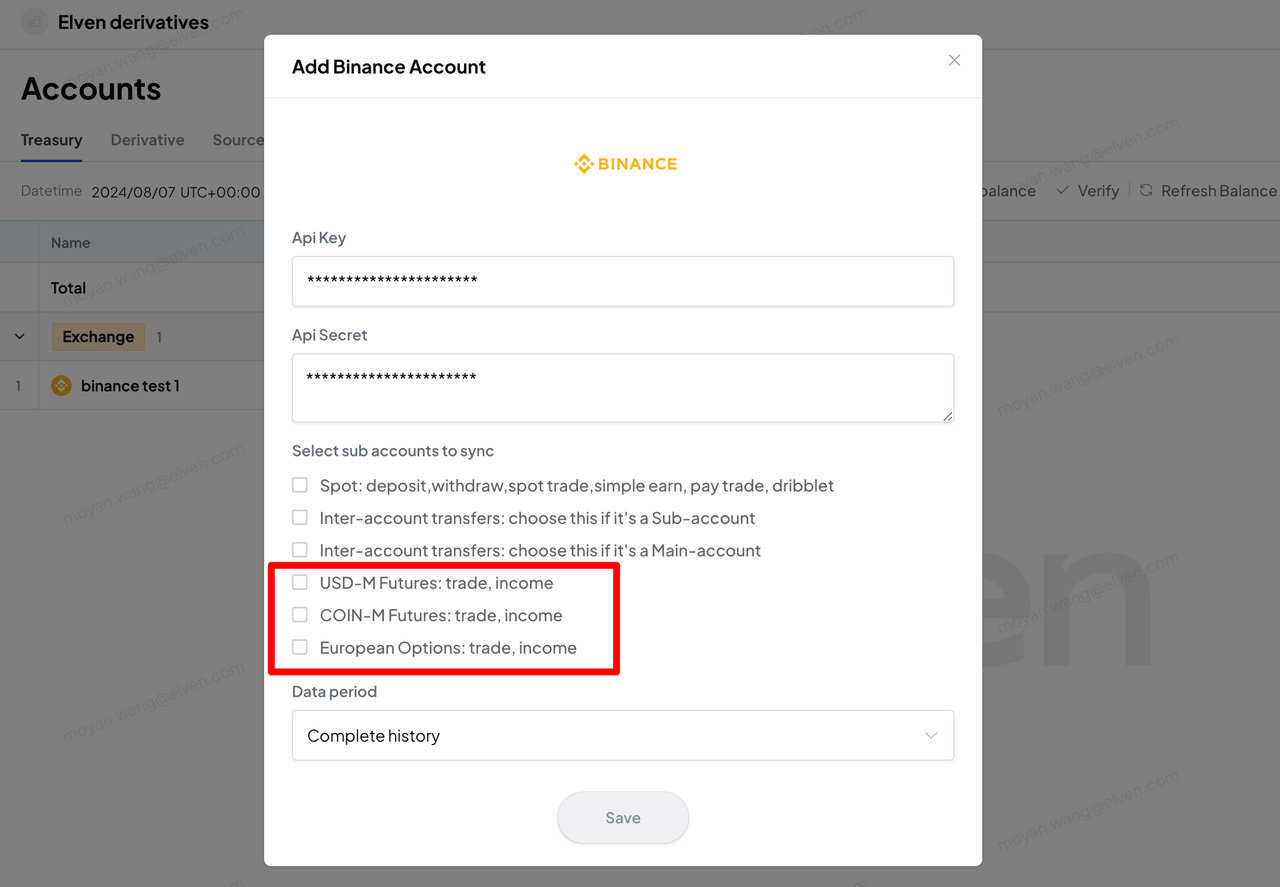
1. **添加交易所账户**：在添加账户时选择所需导入的数据范围。
2. **数据同步**：保存设置后，系统将通过 API 自动同步 U 本位合约、币本位合约、期权等衍生品交易数据。

<figure><img src="https://3644585726-files.gitbook.io/~/files/v0/b/gitbook-x-prod.appspot.com/o/spaces%2Fgq0d5M2WNXGfXUM1gfsx%2Fuploads%2Famwq7nLAARFe4lA6YJkY%2F11.PNG?alt=media&amp;token=ad497ffa-4f5c-4a4d-b70a-6b6a02963659" alt=""><figcaption></figcaption></figure>

## **对于不支持 API 获取衍生品的交易所**

可以通过导入 CSV 文件的方式导入衍生品交易。

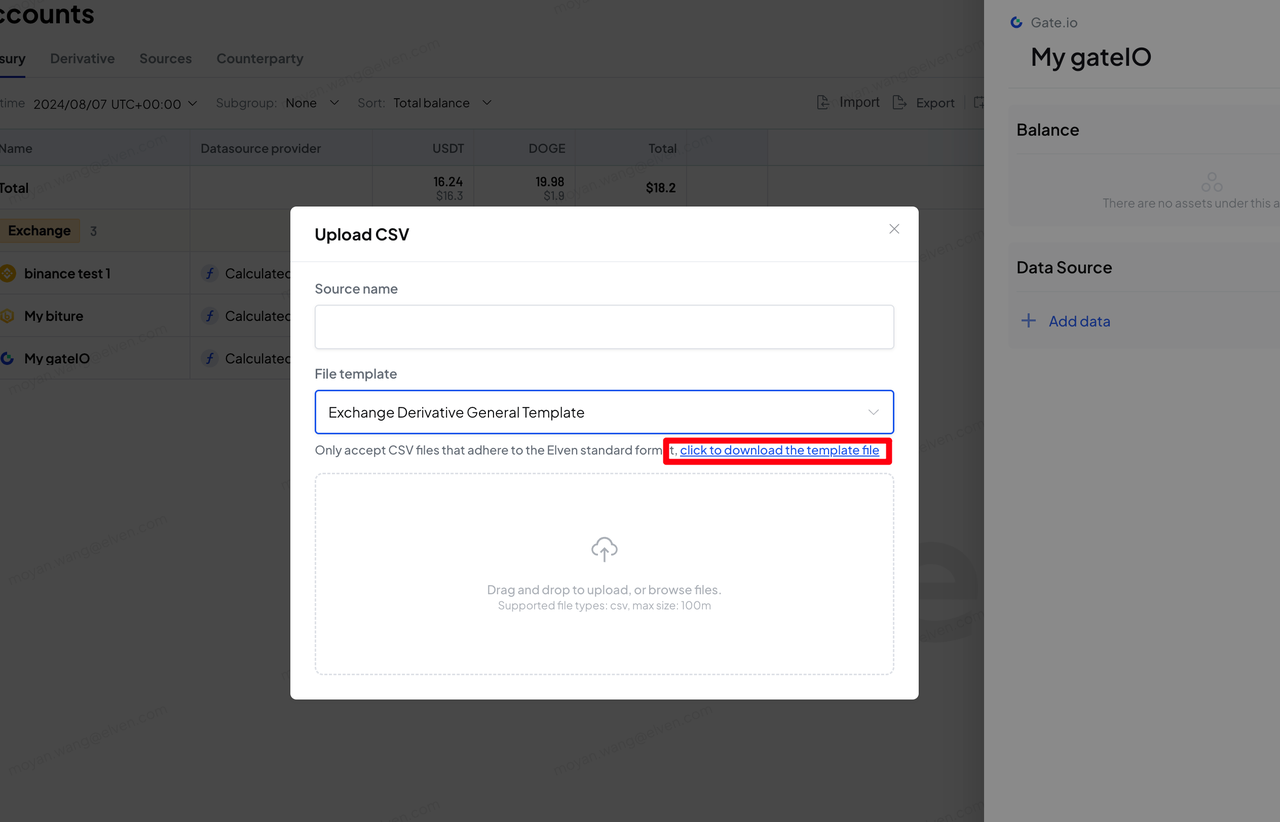
1. **下载模板**：获取衍生品交易模板并按照指定格式处理数据。
2. **上传 CSV 文件**：完成数据处理后上传文件即可导入交易数据。

<figure><img src="https://3644585726-files.gitbook.io/~/files/v0/b/gitbook-x-prod.appspot.com/o/spaces%2Fgq0d5M2WNXGfXUM1gfsx%2Fuploads%2FvPtNWzlM3ZdkACADi3mU%2F12.PNG?alt=media&amp;token=a8971ae3-a8be-4dc0-9dec-f7656861ea1a" alt=""><figcaption></figcaption></figure>

## **查看交易数据**

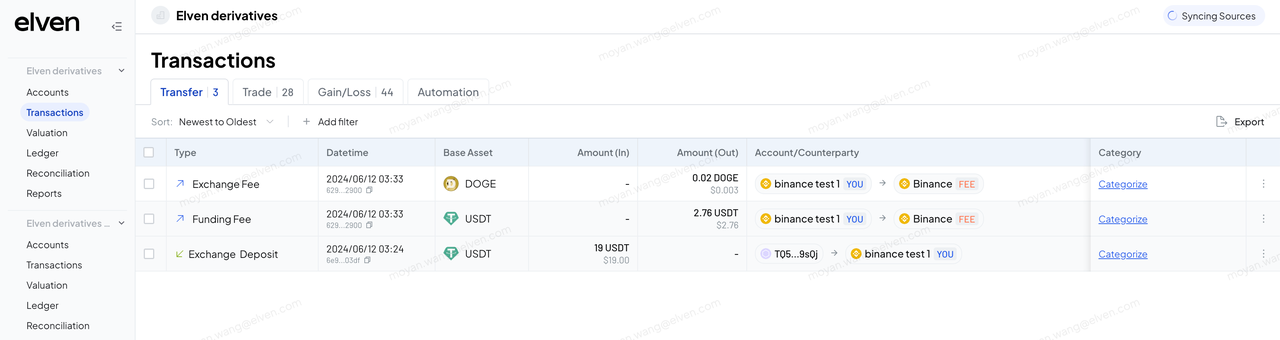
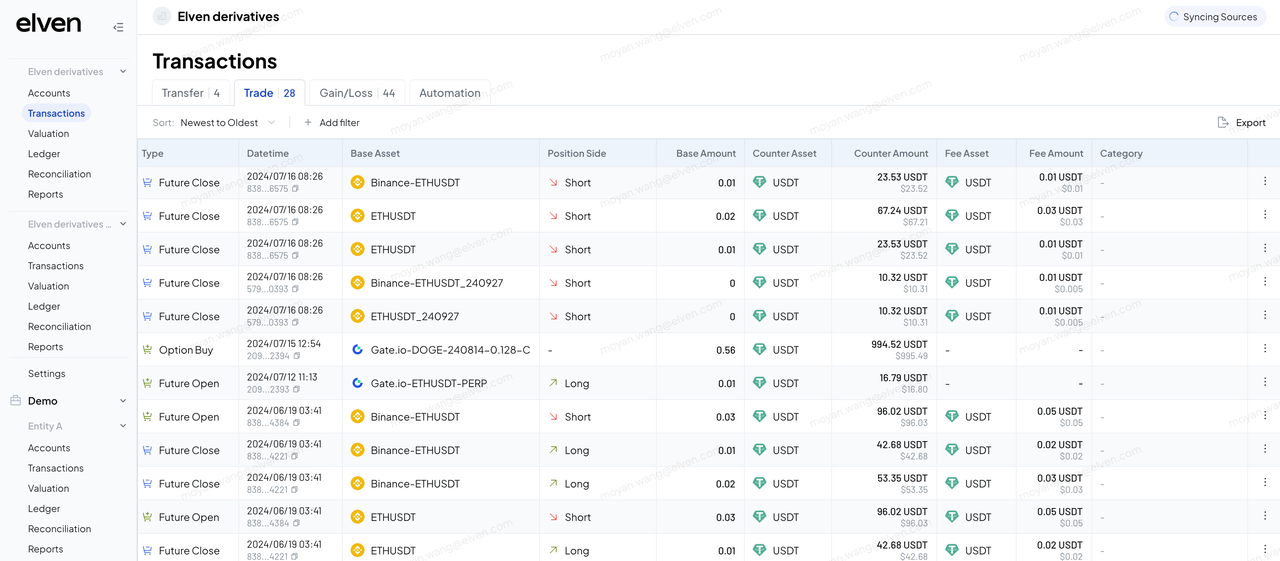
进入交易管理页面查看已导入的衍生品交易数据。

1. **Transfer 页面**：记录关于衍生品的资金费、手续费等流水数据。

   <figure><img src="https://3644585726-files.gitbook.io/~/files/v0/b/gitbook-x-prod.appspot.com/o/spaces%2Fgq0d5M2WNXGfXUM1gfsx%2Fuploads%2FBqnrhgMKxdpWREYDlWbp%2F13.PNG?alt=media&amp;token=80ee9f4a-1c10-450c-962e-8f3b58d81564" alt=""><figcaption></figcaption></figure>
2. **Trade 页面**：显示衍生品的开仓、平仓、买卖等交易数据。

   <figure><img src="https://3644585726-files.gitbook.io/~/files/v0/b/gitbook-x-prod.appspot.com/o/spaces%2Fgq0d5M2WNXGfXUM1gfsx%2Fuploads%2FIraB4kywKYEFjpHOCLHh%2F14.PNG?alt=media&amp;token=0df9e854-c693-4cf6-9d0d-1f36d27ce4b0" alt=""><figcaption></figcaption></figure>
3. **Gain/Loss 页面**：展示衍生品的收益和损失数据。

   <figure><img src="https://3644585726-files.gitbook.io/~/files/v0/b/gitbook-x-prod.appspot.com/o/spaces%2Fgq0d5M2WNXGfXUM1gfsx%2Fuploads%2FrrGJ2VHrOEbEsYabMiwB%2F15.png?alt=media&amp;token=17b63ac9-a8c3-48ed-9f90-4b1be2217cf0" alt=""><figcaption></figcaption></figure>

<figure><img src="https://elvencom.feishu.cn/space/api/box/stream/download/asynccode/?code=ZDIxZDU4MDdhMjBlYmMxZmM0NDRiZDJkZTAzMzkyMDRfanBwOVlFYmFSOVZ2NHp3c29UMzNxM2FEcHBpMzVLWGFfVG9rZW46VzNsamJpVTM4b0drSHF4dzlJRGM0bFFDbnByXzE3MjQ5Mjg4NDc6MTcyNDkzMjQ0N19WNA" alt=""><figcaption></figcaption></figure>


# 账户余额校验

{% hint style="info" %}
本帮助文档介绍了如何手动执行余额校验及查看校验结果。

\
余额校验用于验证账户在某一时间段内，起始余额 + 交易流水 = 结束余额 是否成立。

该模块支持用户指定账户和时间区间创建校验任务，系统将自动根据账户和币种颗粒度生成校验子任务，并支持在任务完成后通过邮件通知校验结果。
{% endhint %}

## 查看余额校验任务列表

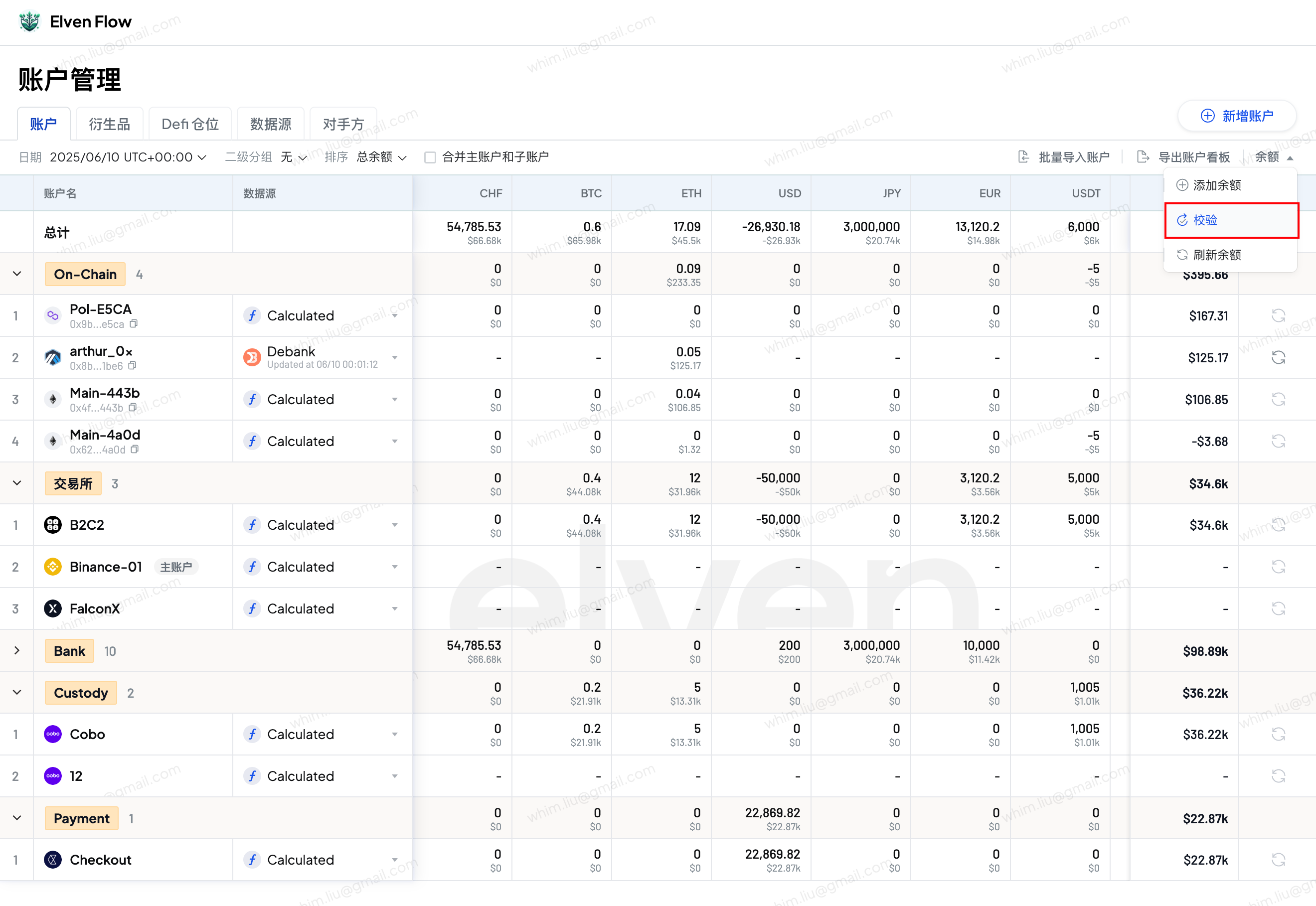
1. 在项目首页，导航到“账户管理”页面。
2. 在账户列表，点击右侧“余额”按钮，在下拉菜单选择“校验”即可打开余额校验任务列表。

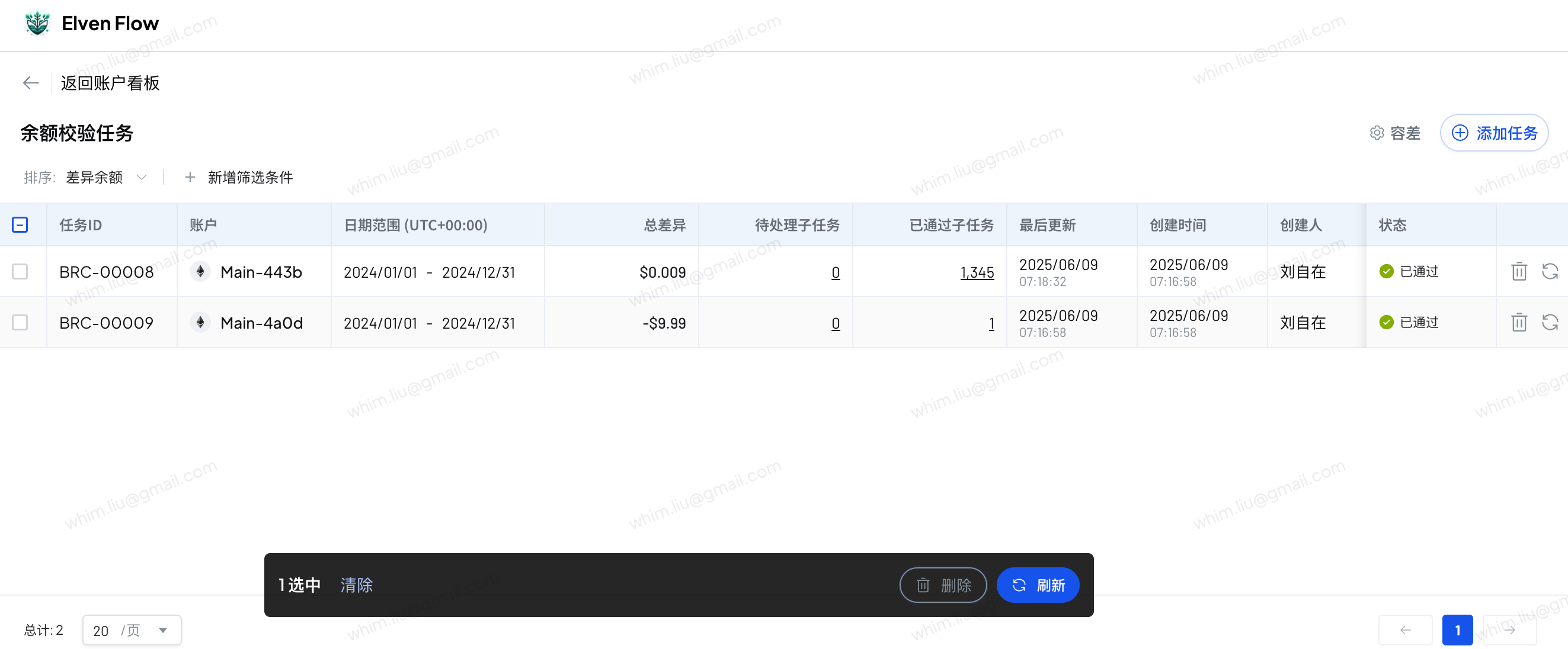
<figure><img src="https://3644585726-files.gitbook.io/~/files/v0/b/gitbook-x-prod.appspot.com/o/spaces%2Fgq0d5M2WNXGfXUM1gfsx%2Fuploads%2FF25vY65mAFGrK5Fp014d%2Fimage.png?alt=media&amp;token=5c31223c-4457-48e0-8061-3f4288429a92" alt=""><figcaption></figcaption></figure>

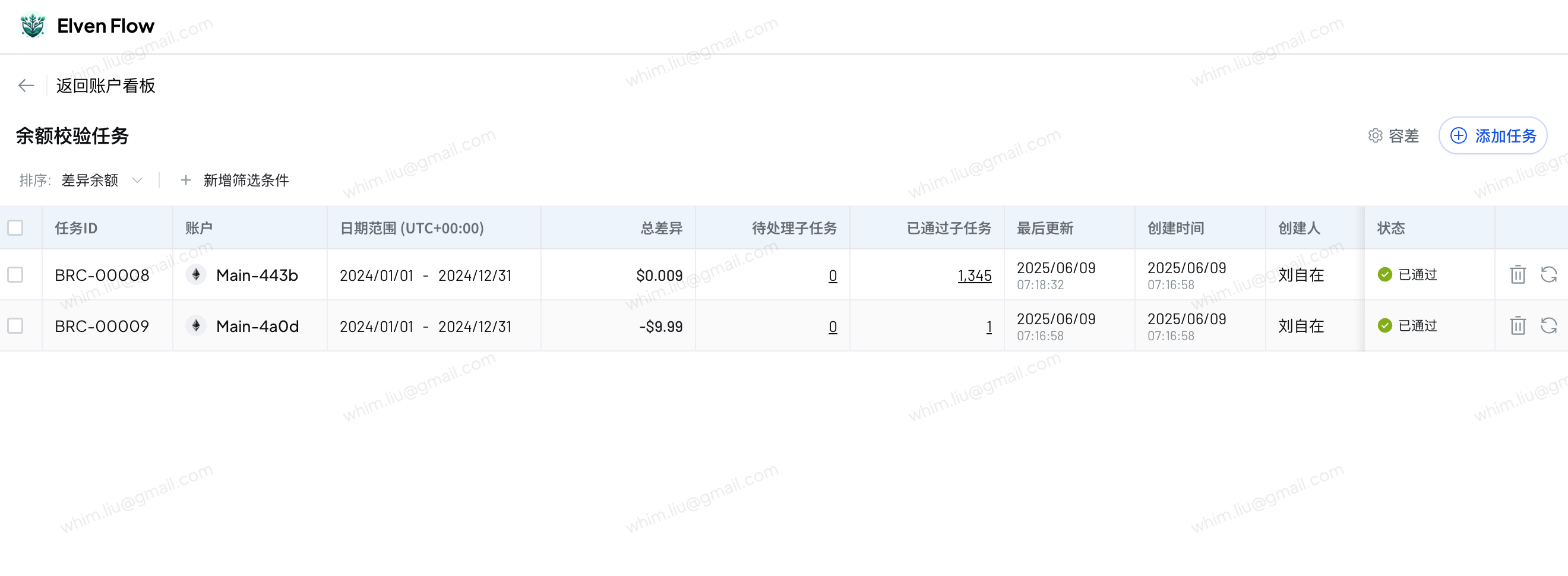
3. 列表默认展示已创建的任务，及对应校验状态。

<figure><img src="https://3644585726-files.gitbook.io/~/files/v0/b/gitbook-x-prod.appspot.com/o/spaces%2Fgq0d5M2WNXGfXUM1gfsx%2Fuploads%2FGCrbwlqvHylbc8fhp6NX%2Fimage.png?alt=media&amp;token=b7c23399-8d14-478d-b24e-ffc10b1ac1a6" alt=""><figcaption></figcaption></figure>

## 创建余额校验任务

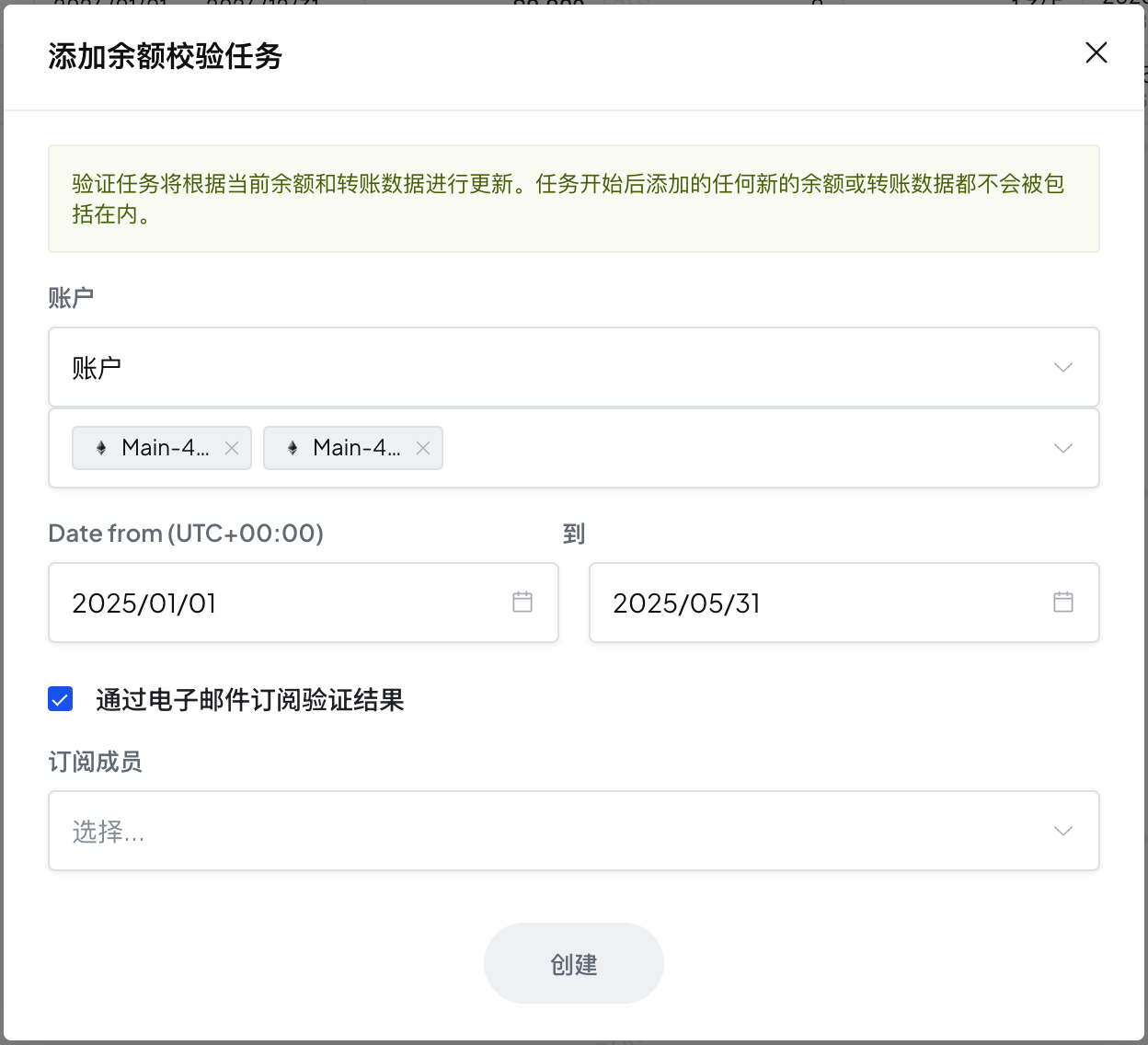
1. 点击任务列表右上角的“添加任务”按钮，打开创建任务弹窗。

<figure><img src="https://3644585726-files.gitbook.io/~/files/v0/b/gitbook-x-prod.appspot.com/o/spaces%2Fgq0d5M2WNXGfXUM1gfsx%2Fuploads%2FavIcD5xA3kOgWdY96Mds%2Fimage.png?alt=media&amp;token=9f6e6fd4-c5e9-4b87-a356-3ac4f263fd4b" alt="" width="563"><figcaption></figcaption></figure>

2. 选择您要校验的账户和时间区间。
3. 如果您希望在校验完成后，通过邮件获知校验结果，可以设置订阅成员。
4. 确认创建后，每个账户会分别创建一个指定的时间区间的校验任务，并自动开始校验。

## 查看校验任务详情

1. 在任务列表，点击即可查看对应任务的详情。
   1. 会按照所选时间下的余额快照数据，自动拆分为子任务。
   2. 子任务按照校验结果，分为待处理和已通过两个分组。

<figure><img src="https://3644585726-files.gitbook.io/~/files/v0/b/gitbook-x-prod.appspot.com/o/spaces%2Fgq0d5M2WNXGfXUM1gfsx%2Fuploads%2FgsHjPtrHCO5xtqIO8EYp%2Fimage.png?alt=media&amp;token=85394748-f866-4064-81ab-5d6813063197" alt=""><figcaption></figcaption></figure>

2. 点击子任务，可以查看子任务具体的校验过程
   1. 期初余额快照、期末余额快照是本次余额校验的原始余额记录
   2. 中间列表显示本次校验任务内的交易记录
   3. 期末余额是通过期间交易和交易记录，计算出的一个参考余额
   4. 计算得出的期末余额-期末余额快照作为本次余额校验任务的差值
   5. 如果差值在您设置的宽容度内，任务会被判断为通过，否则被判断为不通过

<figure><img src="https://3644585726-files.gitbook.io/~/files/v0/b/gitbook-x-prod.appspot.com/o/spaces%2Fgq0d5M2WNXGfXUM1gfsx%2Fuploads%2FhjShnMyCNvu8xLP4DvVx%2Fimage.png?alt=media&amp;token=f9c46680-efe9-4933-843f-bb8086764d8c" alt=""><figcaption></figcaption></figure>

2. 对于校验不通过的记录
   1. 如果是由于余额时间点不精准等原因导致，您可以进行解释，接受差异。
   2. 如果是交易缺失/错误导致，可以在修复交易数据后重新进行校验。
   3. 如果是余额数据错误，可以删除错误数据，导入正确数据后重新进行校验。

## 重新执行校验

在余额校验任务列表：

1. 可以点击某个任务上的刷新按钮，重新校验当前任务。
2. 也可以多选后，批量重新校验

<figure><img src="https://3644585726-files.gitbook.io/~/files/v0/b/gitbook-x-prod.appspot.com/o/spaces%2Fgq0d5M2WNXGfXUM1gfsx%2Fuploads%2FffwlkTEUVEko6WQ5XZc7%2Fimage.png?alt=media&amp;token=874ab496-145b-4a06-9561-41932816d9d2" alt=""><figcaption></figcaption></figure>

## 设置宽容度

1. 点击列表右上角 【容差】 按钮，即可修改余额校验宽容度。
2. 您可以按照业务场景，选择按照原始币种差值或差值报告币种金额，来进行宽容度的设置。
3. 修改宽容度后，会重新校验所有已创建的任务。

<figure><img src="https://3644585726-files.gitbook.io/~/files/v0/b/gitbook-x-prod.appspot.com/o/spaces%2Fgq0d5M2WNXGfXUM1gfsx%2Fuploads%2FnyivrnBjxhcbyEHGQSFm%2Fimage.png?alt=media&amp;token=4385d872-98f2-4645-97c7-18bc59addbcc" alt=""><figcaption></figcaption></figure>


# 对手方账户管理


# 对手方管理

{% hint style="info" %}
本帮助文档介绍了如何在“对手方”模块中管理对手方信息。用户可以查看已识别和未识别的对手方，并通过手动创建或基于未识别对手方快速创建对手方。此外，文档还说明了如何编辑、删除对手方，以及使用批量导入功能上传对手方信息。
{% endhint %}

## 对手方列表

1. 在项目首页，导航到项目&#x7684;**“账户管理”**&#x9875;面。
2. 切换到“**对手方** ”即可查看所有对手方信息。
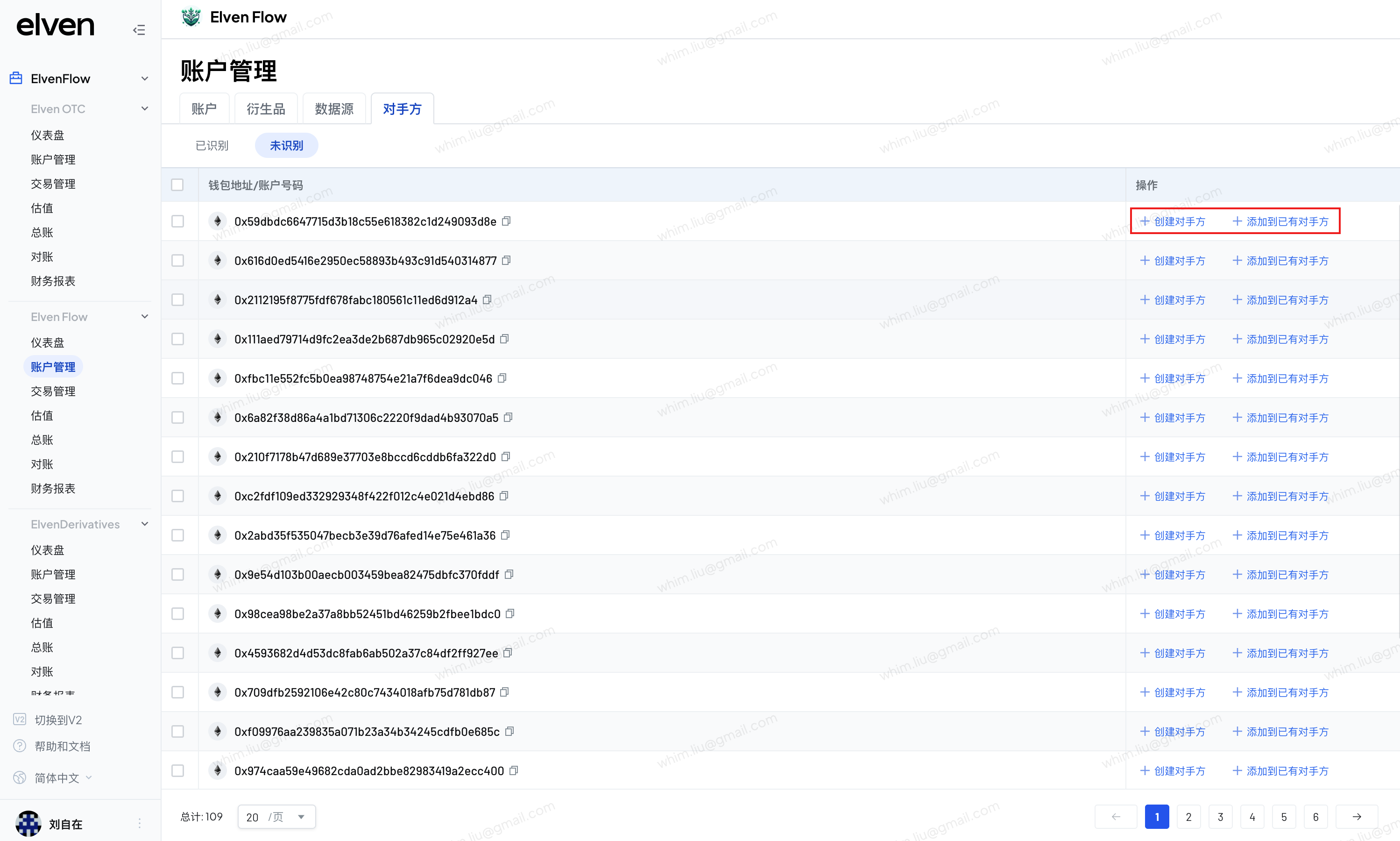
3. 对手方列表分为 “已识别” 和 “未识别” 两类：

* 已识别：已经保存的联系人，包含名称、类型（个人或组织）、账户信息、识别码、联系信息、标签及备注。&#x20;
* 未识别：从交易列表中自动读取但未保存的对手方，通常仅包含账户信息。

<figure><img src="https://3644585726-files.gitbook.io/~/files/v0/b/gitbook-x-prod.appspot.com/o/spaces%2Fgq0d5M2WNXGfXUM1gfsx%2Fuploads%2FowXM3IB2YuPCmLWXpPOI%2Fimage.png?alt=media&amp;token=86818d09-87b0-468f-8fd5-86c544c772b7" alt=""><figcaption></figcaption></figure>

## 新增对手方

1. 手动创建：您可以通过填写名称、类型、账户信息、识别码等信息手动创建对手方。系统会检查账户是否已存在，避免重复创建。&#x20;

<figure><img src="https://3644585726-files.gitbook.io/~/files/v0/b/gitbook-x-prod.appspot.com/o/spaces%2Fgq0d5M2WNXGfXUM1gfsx%2Fuploads%2FRH5Q1LAEa8qrnRvekqxy%2Fimage.png?alt=media&amp;token=048ee803-8075-4468-b4cf-a7ddcb6870ed" alt=""><figcaption></figcaption></figure>

2. 基于未识别对手方创建：可在未识别对手方基础上，填写额外信息，快速创建对手方。或将未识别手方合并到已存在的对手方。

<figure><img src="https://3644585726-files.gitbook.io/~/files/v0/b/gitbook-x-prod.appspot.com/o/spaces%2Fgq0d5M2WNXGfXUM1gfsx%2Fuploads%2FejHQBGSpHQXdGPRcWl3E%2Fimage.png?alt=media&amp;token=561f3e17-b8ec-4d99-b482-9a60d5e32fe2" alt=""><figcaption></figcaption></figure>

## 编辑对手方

1. 在已识别对手方列表，点击右侧 编辑 图标，即可进行编辑

## 删除对手方

1. 在已识别对手方列表，点击右侧 删除 图标，即可进行编辑

## 批量导入对手方

1. 点击对手方列表右上角的“批量导入”按钮，下载导入模板，按照模板填写后，即可批量导入对手方


# 对手方识别规则管理

{% hint style="info" %}
本帮助文档介绍了如何使用自定义规则识别交易对手方。内容包括通过交易备注中的识别码或账户信息来匹配对手方，以及如何手动设置和管理识别规则。
{% endhint %}

在获取到新的交易数据时，系统默认会根据交易的账户来识别对手方。如果您已在对手方管理中填写了账户信息，则大部分情况下无需特意管理。

\
以下特殊情况，系统默认的规则将无法进行正确处理。

1. **账户与对手方并非一对一匹配：**&#x6BD4;如在实际业务中，多个对手方用同一个账户进行交易。
2. **交易数据无账户信息：**&#x5F53;您通过业务数据导入交易数据时，原始业务数据不包含交易账户信息。

\
针对以上两种情况，您可以通过自定义对手方识别规则，来正确识别对手方：

1. 通过交易备注中的**识别码**来识别
   1. 对手方在交易时，在备注在中填写识别码。
   2. 在对手方管理中，为每个对手方设置识别码。（如果您已经在业务系统中进行了对手方管理，可以通过 csv 批量导入）
   3. 设置自定义规则，通过备注提取的识别码，来识别到正确的对手方。
2. 通过交易备注中的**账户**来识别
   1. 如果原始业务数据的备注信息包含交易账户。可以通过自定义规则，从备注提取账户信息，来正确识别对手方。<br>

## **使用说明：**

您可以在 **交易-自动化 -识别对手方** 中进行管理

<figure><img src="https://3644585726-files.gitbook.io/~/files/v0/b/gitbook-x-prod.appspot.com/o/spaces%2Fgq0d5M2WNXGfXUM1gfsx%2Fuploads%2F8m4J3R4UYBKM7HfgA21l%2Fimage.png?alt=media&amp;token=37648c36-7939-45c0-b403-dff0f0bdbf16" alt=""><figcaption></figcaption></figure>

1. 默认已配置了系统规则：
   1. 通过交易的账户信息，来识别对手方。没有识别到时，会标记为未识别对手方。
   2. 系统规则不可进行修改，您可以设置是否启用。
2. 您可以手动添加多个自定义规则，来对不同情况下的交易数据进行对手方识别

<figure><img src="https://3644585726-files.gitbook.io/~/files/v0/b/gitbook-x-prod.appspot.com/o/spaces%2Fgq0d5M2WNXGfXUM1gfsx%2Fuploads%2FI0uIMecHxGXEe6qwQ7Pk%2Fimage.png?alt=media&amp;token=5e4156dd-c633-49bc-ac55-6993379bcd00" alt=""><figcaption></figcaption></figure>

**为规则设置条件：**

1. 您可以通过 平台类型、平台、账户、时间 对交易设定筛选条件。实现不同规则来处理不同数据源的交易。
2. 您也可以不设置任何条件。

<figure><img src="https://3644585726-files.gitbook.io/~/files/v0/b/gitbook-x-prod.appspot.com/o/spaces%2Fgq0d5M2WNXGfXUM1gfsx%2Fuploads%2FR0A8BaBSicem8n6hGH4F%2Fimage.png?alt=media&amp;token=4f993b7d-74ae-4221-9987-27b523145e3c" alt=""><figcaption></figcaption></figure>

**为规则设置动作：**

1. 您可以设置按照账户或识别码来识别对手方。
2. 如果您选择按照账户进行识别，则需要提供从备忘中获取账户信息的正则表达式。
3. 如果您选择按照识别码进行识别，除正则表达式。因 Elven 支持为对手方设置多个识别码信息，还需要指定和系统对手方信息中哪个识别码来进行匹配。
4. 您可以设置在进行匹配时，是否大小写敏感。

<figure><img src="https://3644585726-files.gitbook.io/~/files/v0/b/gitbook-x-prod.appspot.com/o/spaces%2Fgq0d5M2WNXGfXUM1gfsx%2Fuploads%2FTtry14FTBKOllA9xagWS%2Fimage.png?alt=media&amp;token=a47676d1-3dd7-45ca-8fc3-89d0b8f83677" alt=""><figcaption></figcaption></figure>

**规则执行说明：**

1. 针对每个交易，系统会按照优先级逐个执行规则，尝试识别对手方。
2. 一旦按照某个规则成功识别到对手方，则当前交易就不再执行后续规则。
3. 获取到新的交易时，会针对新的交易执行对手方识别规则。
   1. 如果需要针对所有交易重新识别对手方，可在列表点击 执行所有规则。

<br>

**调整规则执行优先级**

1. 您可以在规则列表中，通过拖动来调整规则的优先级。
2. 列表顶部优先级最高，向下逐渐降低。


# 添加交易所主/子账户

{% hint style="info" %}
为了方便用户在交易所进行多账户管理，我们提供了主账户与子账户的支持，帮助您实现权限分离、资金分账以及更高效的账户管理。
{% endhint %}

### 一、什么是主/子账户？

* **主账户**：由用户直接创建与登录，拥有完整控制权。
* **子账户**：在主账户下创建，用于分权管理、独立交易，可独立登录但由主账户管理。

### 二、添加帐户时，选择主/子账户属性

在添加交易所账户时，可以选择所添加的账户是否为主/子账户

<figure><img src="https://3644585726-files.gitbook.io/~/files/v0/b/gitbook-x-prod.appspot.com/o/spaces%2Fgq0d5M2WNXGfXUM1gfsx%2Fuploads%2F2IUP4IkUtwpwqimXGJEY%2Fimage.png?alt=media&amp;token=4cef3f24-2426-4874-b096-69ef2090ce14" alt=""><figcaption></figcaption></figure>

当所添加的账户选择为子账户时，支持配置它的主账户信息：

<figure><img src="https://3644585726-files.gitbook.io/~/files/v0/b/gitbook-x-prod.appspot.com/o/spaces%2Fgq0d5M2WNXGfXUM1gfsx%2Fuploads%2F0q6m0div6EyUrmc8H3kM%2Fimage.png?alt=media&amp;token=6f364cd7-6f50-4737-a7c7-fcb447f0625f" alt=""><figcaption></figcaption></figure>

### 三、Elven 系统如何展示主/子账户关系？

我们在多个页面中体现了账户类型与主从关系，方便管理和分析：

#### 1. Treasury Account 页面

<figure><img src="https://3644585726-files.gitbook.io/~/files/v0/b/gitbook-x-prod.appspot.com/o/spaces%2Fgq0d5M2WNXGfXUM1gfsx%2Fuploads%2FTs9HjwGjv6Bo9nRYE8Lj%2Fimage.png?alt=media&amp;token=2eee4c47-2864-42cc-a0d3-c2816782b5a0" alt=""><figcaption></figcaption></figure>

* 展示账户的“主/子账户”标签；
* 提供“主子账户合为一组”视图选项；
* 分组展示主子关系，默认折叠，可展开查看详情；
* 导出数据时包含“账户层级（Account Level）”与“主账户（Master Account）”两列。

#### 2. Total Position 总持仓表

<figure><img src="https://3644585726-files.gitbook.io/~/files/v0/b/gitbook-x-prod.appspot.com/o/spaces%2Fgq0d5M2WNXGfXUM1gfsx%2Fuploads%2FnuQHE5x8cleSgiVUZyER%2Fimage.png?alt=media&amp;token=1db1dc78-f7fb-4e3a-9156-bb2f2324d106" alt=""><figcaption></figcaption></figure>

* 展示“主/子账户”字段与“主账户”字段；
* 明确每个账户的层级归属，方便评估子账户业绩。

#### 3. 账户详情页

<figure><img src="https://3644585726-files.gitbook.io/~/files/v0/b/gitbook-x-prod.appspot.com/o/spaces%2Fgq0d5M2WNXGfXUM1gfsx%2Fuploads%2FpWumFMmzziAMbqYDrvRd%2Fimage.png?alt=media&amp;token=dad933e3-8e83-495e-b1cf-817484456e61" alt=""><figcaption></figcaption></figure>

* 明确标示账户类型与对应的主账户信息（如有）；
* 支持回溯历史数据的主子关系修复。


# 交易总览

{% hint style="info" %}
本帮助文档介绍了如何在“交易管理”模块中汇总和管理所有账户的交易数据。
{% endhint %}

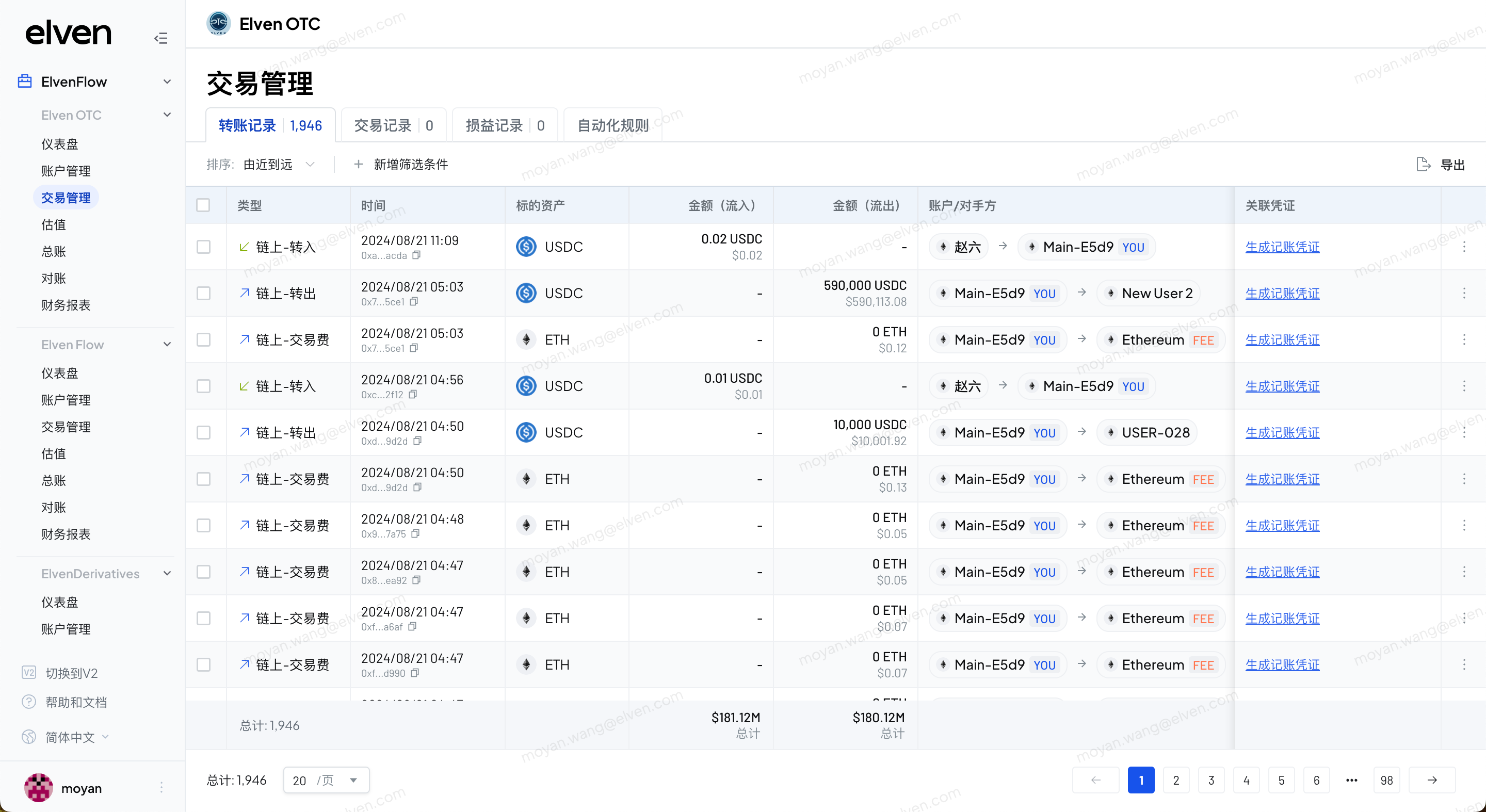
1. 系统将所有账户下的交易汇总在“交易管理”模块下进行管理。
2. 按照业务类型，系统将交易分为 3 个列表：转账记录、交易记录以及损益记录。
3. 在每个列表下，您都可以查看交易的基础信息，通过筛选快速找到交易数据。以及对交易数据进行导出。

<figure><img src="https://3644585726-files.gitbook.io/~/files/v0/b/gitbook-x-prod.appspot.com/o/spaces%2Fgq0d5M2WNXGfXUM1gfsx%2Fuploads%2FxEblMvbcUQhHHoowvoXZ%2Fimage.png?alt=media&amp;token=0929f07f-c8ca-4ebb-afbb-f81c908743a5" alt=""><figcaption></figcaption></figure>

在交易列表点击，即可查看对应交易详情。

<figure><img src="https://3644585726-files.gitbook.io/~/files/v0/b/gitbook-x-prod.appspot.com/o/spaces%2Fgq0d5M2WNXGfXUM1gfsx%2Fuploads%2FGq7BxWdRYs6KJAdQE5Di%2Fimage.png?alt=media&amp;token=a30f55ab-2b0f-42fe-99a9-5fbdfdb74232" alt=""><figcaption></figcaption></figure>

此外，您还可以在交易管理模块下，对交易相关的自动化规则进行管理。

1. [交易数据自动记账规则](/v3/chinese/bookkeeping/tong-guo-jiao-yi-shu-ju-ji-zhang/tong-guo-gui-ze-jin-xing-zi-dong-da-biao-qian)
2. [业务数据自动记账规则](/v3/chinese/bookkeeping/tong-guo-ye-wu-shu-ju-ji-zhang/ye-wu-shu-ju-tong-guo-gui-ze-zi-dong-hua-ji-zhang)
3. [交易数据对手方识别规则](/v3/chinese/accounts-management/dui-shou-fang-zhang-hu-guan-li/dui-shou-fang-shi-bie-gui-ze-guan-li)


# 通过交易数据记账


# 给交易手动打标签

{% hint style="info" %}
本帮助文档介绍了如何在交易管理模块中为交易添加、修改或清除标签，包括生成记账凭证、选择凭证模板和管理交易标签的详细步骤。
{% endhint %}

## 1. 进入交易管理模块

1. 在项目首页，导航到项目&#x7684;**“交易管理”**&#x9875;面。

   <figure><img src="https://3644585726-files.gitbook.io/~/files/v0/b/gitbook-x-prod.appspot.com/o/spaces%2Fgq0d5M2WNXGfXUM1gfsx%2Fuploads%2FW4f3RrBzKo0N7kDskiOc%2Fimage.png?alt=media&amp;token=b06fbf31-f393-40df-b71d-ee49d6a21fe0" alt=""><figcaption></figcaption></figure>

## 2. 给交易打标签

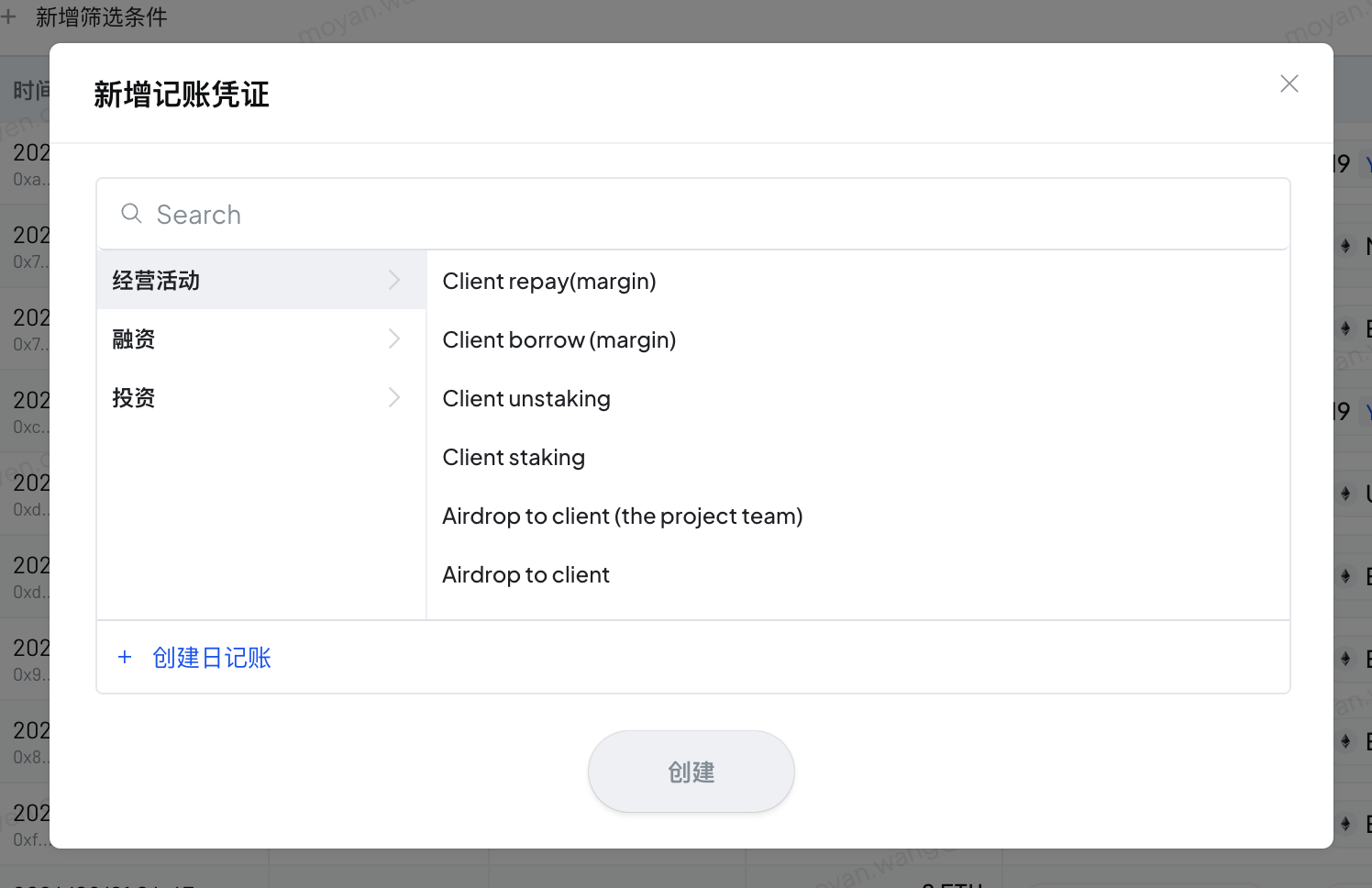
1. 点击交易右侧的“生成记账凭证”按钮。

   <figure><img src="https://3644585726-files.gitbook.io/~/files/v0/b/gitbook-x-prod.appspot.com/o/spaces%2Fgq0d5M2WNXGfXUM1gfsx%2Fuploads%2Fp06qQx2zq5vSz5dZCCjG%2Fimage.png?alt=media&amp;token=ecc37e81-0104-4cec-aa8c-813e081ef776" alt=""><figcaption></figcaption></figure>
2. 选择要生成的记账凭证类型。
3. 点击创建按钮，完成交易打标签。

## 3. 清除/更改交易标签

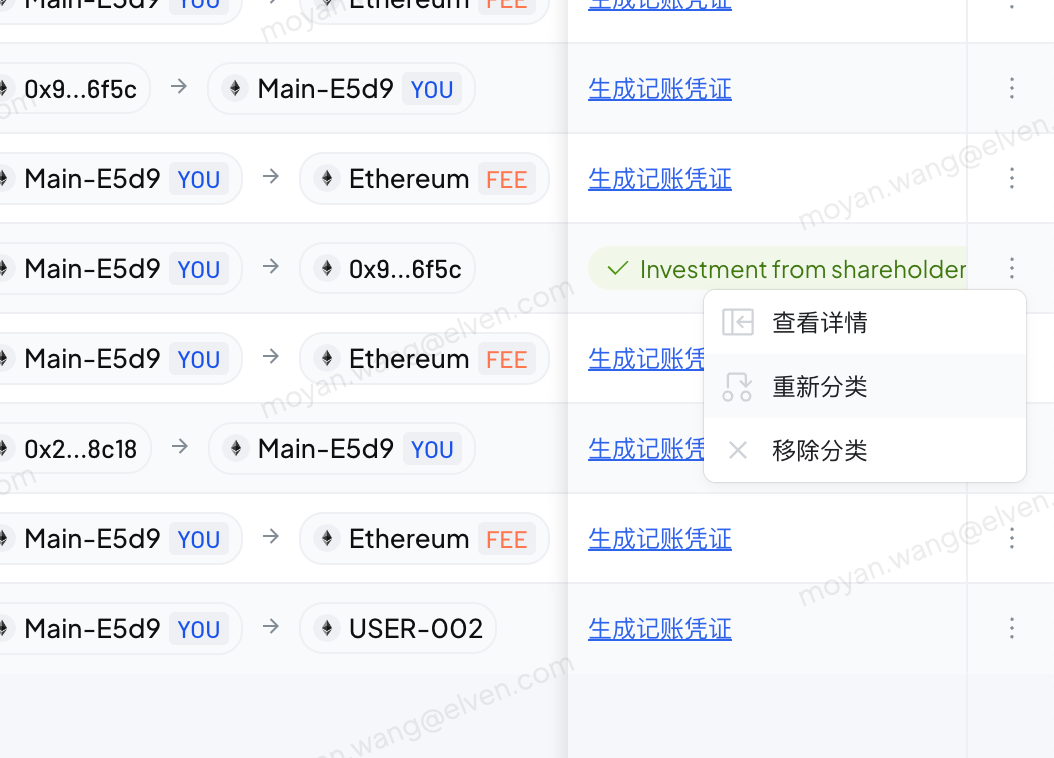
1. 点击交易右侧的“更多”按钮。

   <figure><img src="https://3644585726-files.gitbook.io/~/files/v0/b/gitbook-x-prod.appspot.com/o/spaces%2Fgq0d5M2WNXGfXUM1gfsx%2Fuploads%2Fsh88ubSdgAxO2nyWoGhk%2Fimage.png?alt=media&amp;token=62a99919-5c78-42b1-904c-570eb2ed3523" alt="" width="375"><figcaption></figcaption></figure>
2. 点击“重新分类”，即可打开凭证模板选择窗口，选择凭证模板，保存即可更改交易标签，更改交易生成的记账凭证。
3. 点击“移除分类”，即可清除交易标签，删除交易生成的记账凭证。


# 通过规则进行自动打标签

{% hint style="info" %}
本帮助文档详细说明了如何在交易数据自动化模块中创建、执行、编辑和删除自动化记账规则。包括如何通过多种条件筛选交易数据，设置规则优先级，以及管理生成的记账凭证。
{% endhint %}

## 1. 进入交易数据自动化模块

1. 在项目首页，导航到项目&#x7684;**“交易管理”**&#x9875;面。
2. &#x5728;**“交易管理”**&#x9875;面中，找到并点击&#x4FA7;**“自动化规则”**&#x9009;项。
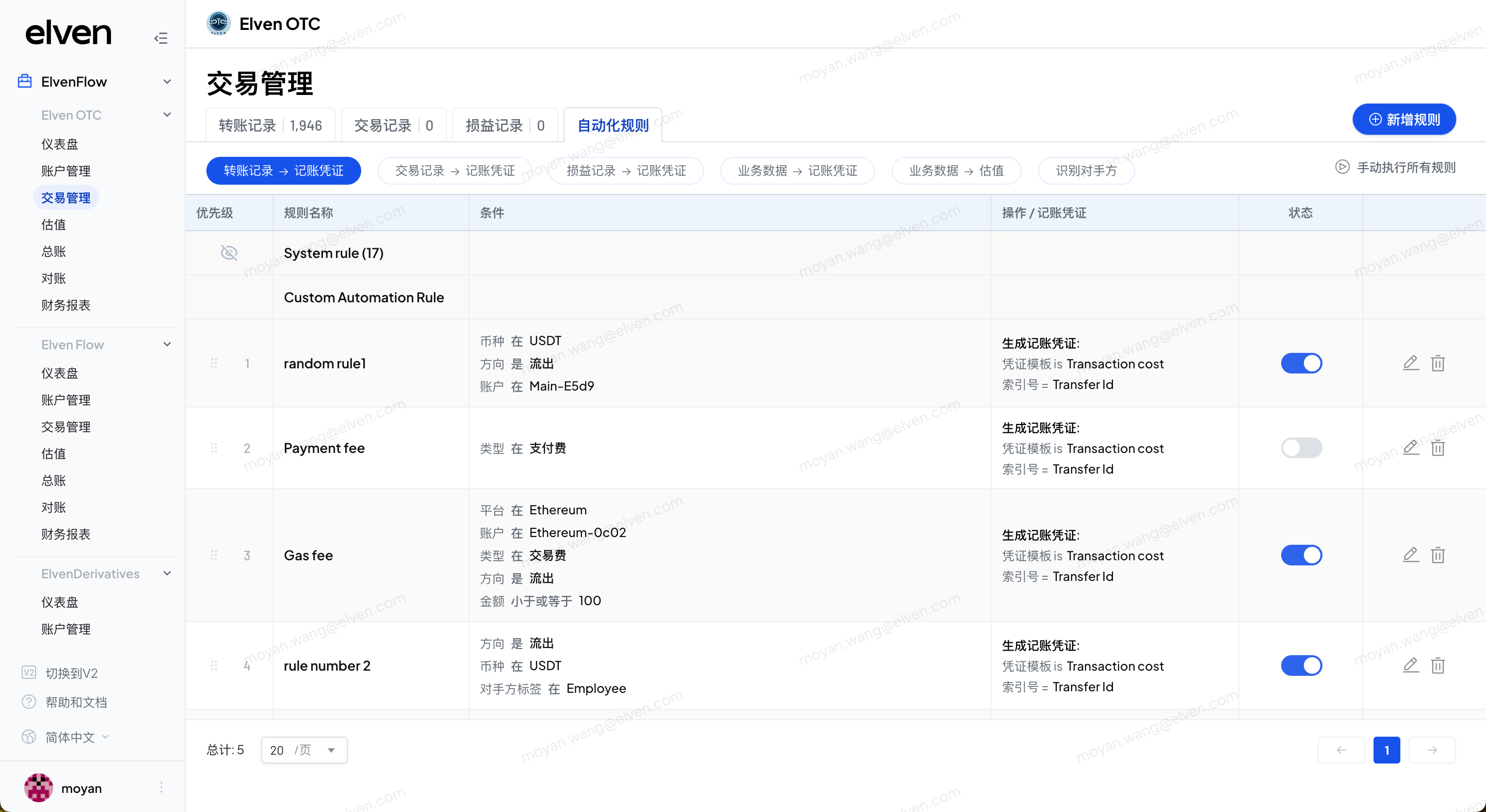
3. 选&#x62E9;**“转账记录-记账凭证”**&#x9009;项卡。

   <figure><img src="https://3644585726-files.gitbook.io/~/files/v0/b/gitbook-x-prod.appspot.com/o/spaces%2Fgq0d5M2WNXGfXUM1gfsx%2Fuploads%2FhItDN25KzjRBFgf7DZdQ%2Fimage.png?alt=media&amp;token=119cf1d2-826b-4001-81e6-a69204d27d36" alt=""><figcaption></figcaption></figure>

## 2. 新增自动化记账规则

1. 点击页面右上&#x89D2;**“新增规则”**&#x6309;钮。

   <figure><img src="https://3644585726-files.gitbook.io/~/files/v0/b/gitbook-x-prod.appspot.com/o/spaces%2Fgq0d5M2WNXGfXUM1gfsx%2Fuploads%2FsVYgwdKf1fskkZ3DKnNO%2Fimage.png?alt=media&amp;token=f90f9691-006b-4dd9-a8da-a9cc5e10302d" alt=""><figcaption></figcaption></figure>
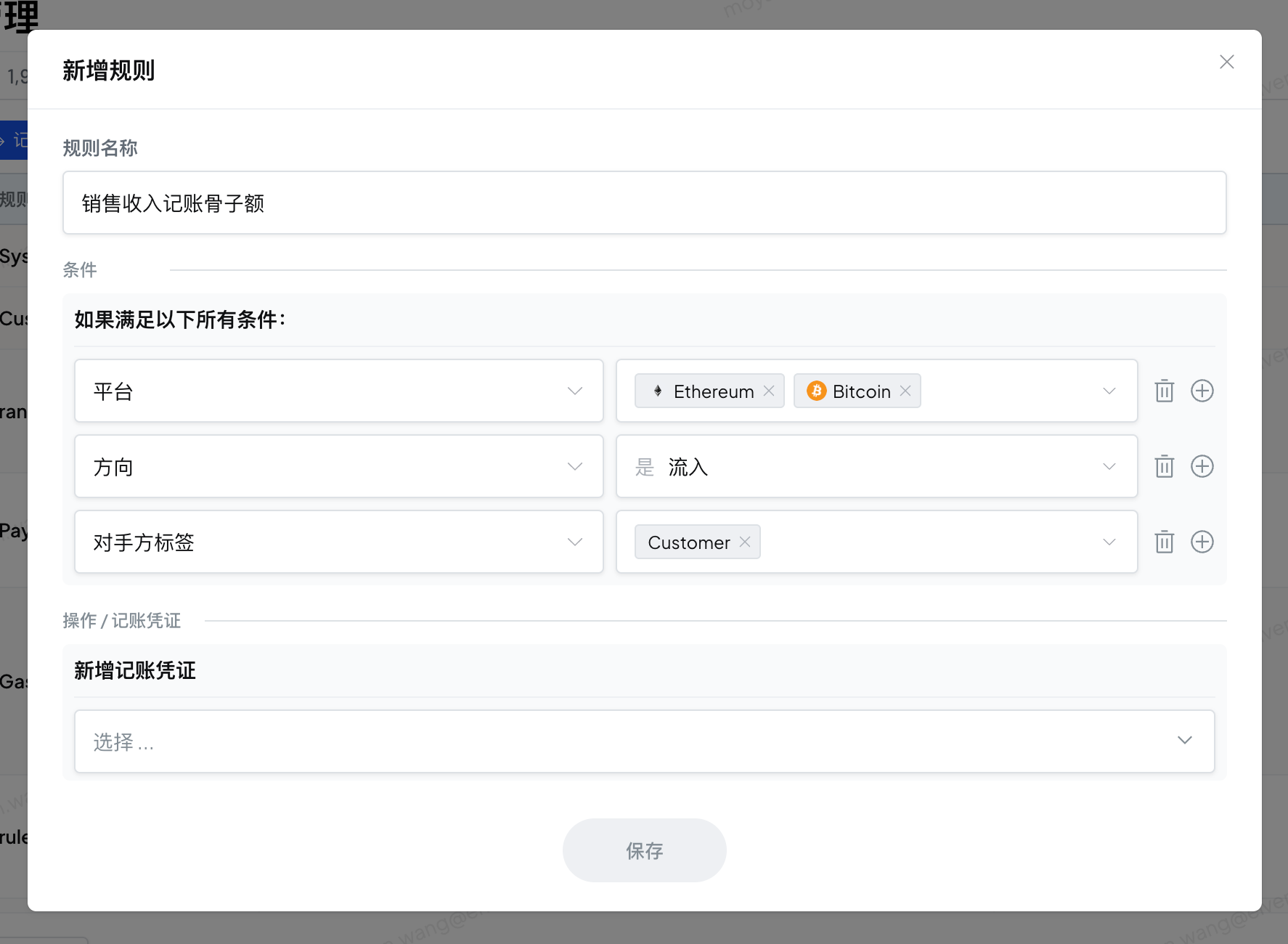
2. 输入规则名称。
3. 配置规则应用的数据范围，可以通过条件筛选出要应用该规则的交易数据。
   1. 支持基于交易方向、平台、币种、金额、时间等多种条件筛选数据。
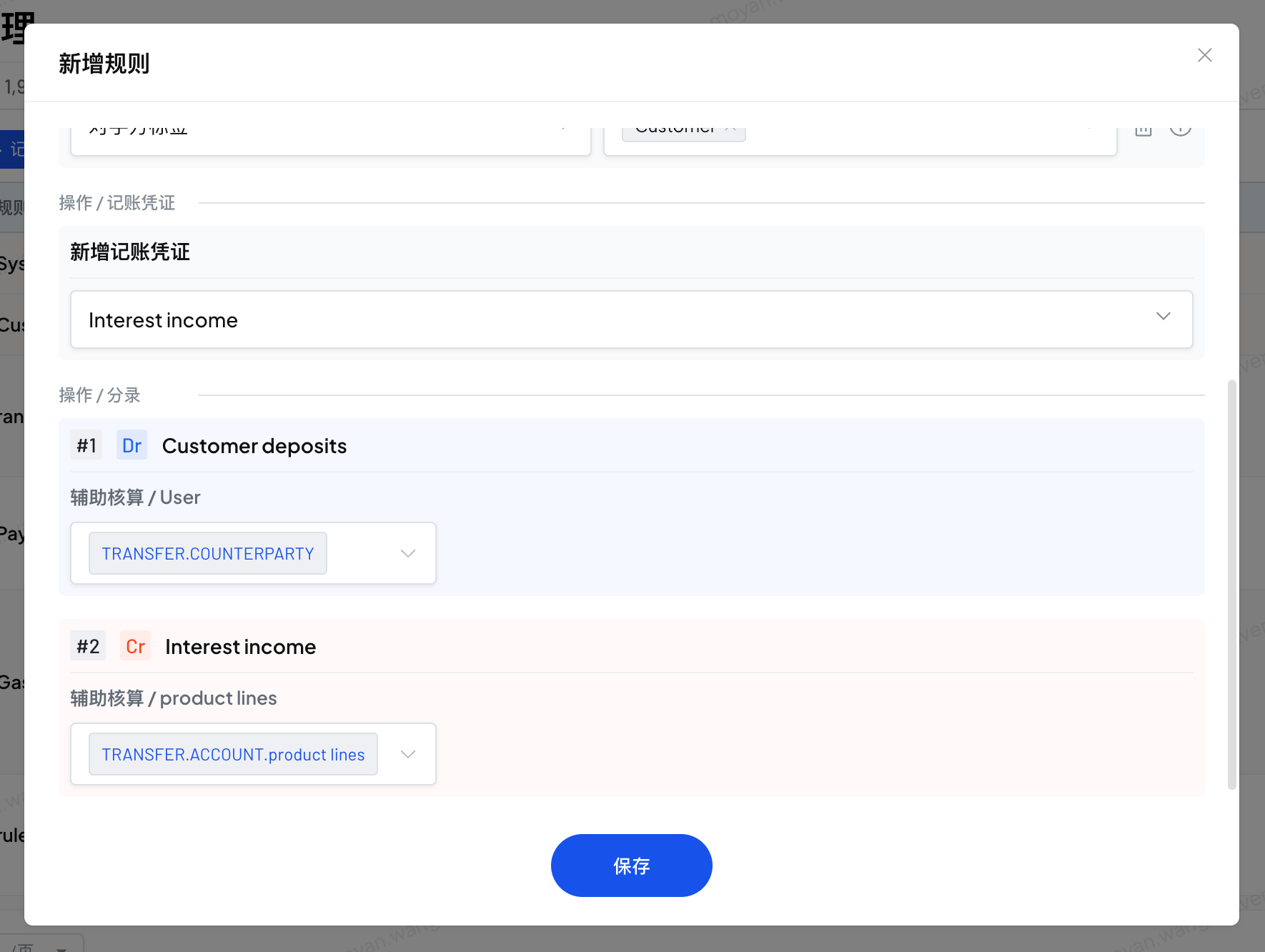
4. 选择符合条件的交易数据要创建的记账凭证类型。

   <figure><img src="https://3644585726-files.gitbook.io/~/files/v0/b/gitbook-x-prod.appspot.com/o/spaces%2Fgq0d5M2WNXGfXUM1gfsx%2Fuploads%2FpRHgm0yjVPRGO6ICf35x%2Fimage.png?alt=media&amp;token=197a5279-1705-4a94-acee-2cab0c2bb4da" alt=""><figcaption></figcaption></figure>
5. 保存自动化记账规则。

## &#x20;3. 执行自动化记账规则

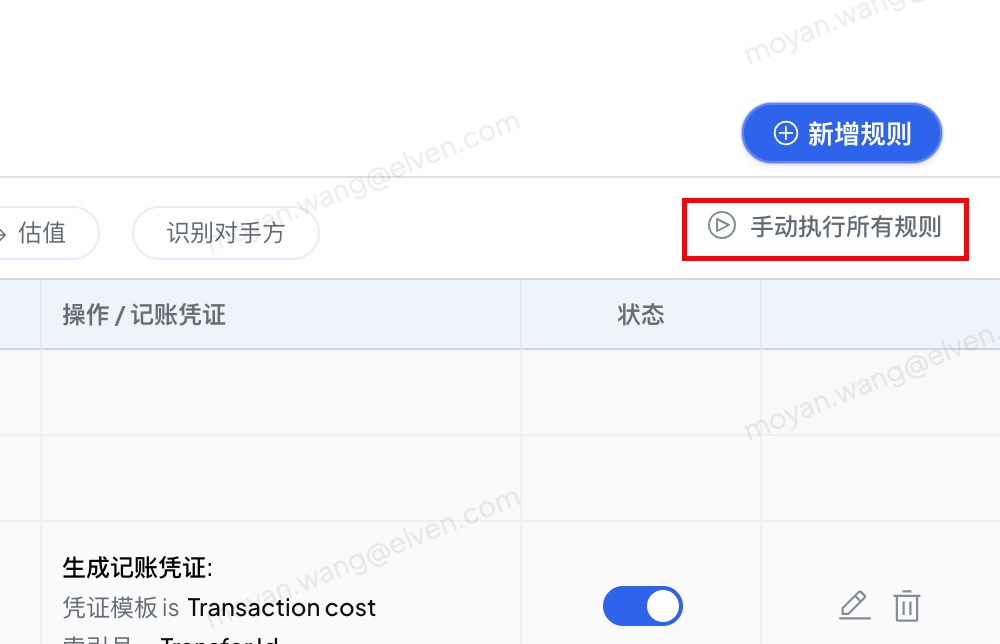
1. 点击页面右上&#x89D2;**“手动执行所有规则”**&#x5373;可执行全部规则。

   <figure><img src="https://3644585726-files.gitbook.io/~/files/v0/b/gitbook-x-prod.appspot.com/o/spaces%2Fgq0d5M2WNXGfXUM1gfsx%2Fuploads%2FvSlO4ouB1UjzpAwXsSqq%2Fimage.png?alt=media&amp;token=e7edc45f-34f4-4aa1-880d-0175f7f67021" alt="" width="375"><figcaption></figcaption></figure>
2. 交易数据自动化规则不支持单条执行，每次都需要执行全部规则，按照优先级从前到后，交易符合哪条规则就按照哪条规则生成记账凭证。

## 4. 编辑自动化记账规则

1. 点击规则后的“编辑”按钮，弹出编辑规则弹窗。
2. 更改规则后，重新运行规则，将会依照新的规则生成记账凭证，替换原有记账凭证。
3. 可以通过拖动规则名称前的拉手调整规则的优先级。

## 5. 删除自动化记账规则

1. 点击规则后的“删除”按钮，可以触发删除规则。
2. 删除规则并不会删除基于规则生成的记账凭证。


# 通过业务数据记账


# 通过 API 导入业务数据

## 接口授权的获取

登录到 Elven 系统，在需要使用 API 接入业务数据的 Entity 中，进入 Journals 页面，点击 Journals 页面右上角的 Integrations

<figure><img src="https://3644585726-files.gitbook.io/~/files/v0/b/gitbook-x-prod.appspot.com/o/spaces%2Fgq0d5M2WNXGfXUM1gfsx%2Fuploads%2FubXRXx0lx6gbYXfrRoO7%2Fimage.png?alt=media&amp;token=5881cfde-edf4-4fad-9175-cb8b39e43eb3" alt=""><figcaption></figcaption></figure>

在弹出的 Integrations 管理窗口中，点击 Add new integration 按钮

<figure><img src="https://3644585726-files.gitbook.io/~/files/v0/b/gitbook-x-prod.appspot.com/o/spaces%2Fgq0d5M2WNXGfXUM1gfsx%2Fuploads%2FXf0YVvA2RahEND1cARoQ%2Fimage.png?alt=media&amp;token=0b186eb8-e780-4743-bf2b-251633657c40" alt="" width="563"><figcaption></figcaption></figure>

为新的数据类型进行命名，然后点击 Add 按钮

<figure><img src="https://3644585726-files.gitbook.io/~/files/v0/b/gitbook-x-prod.appspot.com/o/spaces%2Fgq0d5M2WNXGfXUM1gfsx%2Fuploads%2Fj00rPwkKEwyGIWNf8fmG%2Fimage.png?alt=media&amp;token=be75c18c-194a-46a4-aa9c-2f83b54860f3" alt="" width="563"><figcaption></figcaption></figure>

当完成了数据类型的添加之后，就可以添加新数据了。点击 Add data 按钮，在下拉菜单中选择“OpenAPI Integration”

<figure><img src="https://3644585726-files.gitbook.io/~/files/v0/b/gitbook-x-prod.appspot.com/o/spaces%2Fgq0d5M2WNXGfXUM1gfsx%2Fuploads%2FUSfZffaDZBHgtcbgRfEx%2Fimage.png?alt=media&amp;token=7d1c1a32-3a07-4e07-9d42-02adaf20ea1b" alt="" width="563"><figcaption></figcaption></figure>

在弹出的 API Key/Secret 管理窗口中，点击 Create 按钮

<figure><img src="https://3644585726-files.gitbook.io/~/files/v0/b/gitbook-x-prod.appspot.com/o/spaces%2Fgq0d5M2WNXGfXUM1gfsx%2Fuploads%2FTBcyWUJPN1gZWsNuCMZ4%2Fimage.png?alt=media&amp;token=ec22a427-e4d2-4ad2-b44e-a6ac173f0d9d" alt="" width="563"><figcaption></figcaption></figure>

在下一个窗口中，为新创建的 API Key 命名

<figure><img src="https://3644585726-files.gitbook.io/~/files/v0/b/gitbook-x-prod.appspot.com/o/spaces%2Fgq0d5M2WNXGfXUM1gfsx%2Fuploads%2F79fYLWqN0havhPaLblmw%2Fimage.png?alt=media&amp;token=4d846c03-ffa1-4bb6-bc0b-16dfd4d21f70" alt="" width="563"><figcaption></figcaption></figure>

点击 Create 按钮，完成新 API Key 的创建。

您可以点击每一个 Key/Secret 后面的复制图标，将 Key/Secret 的内容复制到剪贴板中进行使用。

<figure><img src="https://3644585726-files.gitbook.io/~/files/v0/b/gitbook-x-prod.appspot.com/o/spaces%2Fgq0d5M2WNXGfXUM1gfsx%2Fuploads%2FAbTkPhL3DAj1jZ25rLHD%2Fimage.png?alt=media&amp;token=7422cc44-885b-4481-8cc6-6a8f08dd12ce" alt=""><figcaption></figcaption></figure>

## 接口授权的使用

在请求头中提供以下参数

```javascript
elven-api-key  获取到的授权 apiKey
elven-api-sign  base64格式的签名, 例如 LVT5aXA9064gpgZrPXPLJB/Aq9r45yMF10sTZQTteyE=
elven-api-timestamp 以毫秒格式的时间戳, 例如 1721209655047，过期时间是30秒
```

其他sign的算法如下, 把 时间戳, 请求方式, 请求路由拼在一起, 使用secret进行 HMAC SHA256的加密

```javascript
// crypto 采用了 https://github.com/nodejs/node/blob/v16.9.0/lib/crypto.js 库
  /**
   * 生成签名
   * apiSecret: BjGiqCWfHGCrl065dlEBWFO5vLj7Hqiexxx,
   * timestamp: 1721205912758
   * method POST
   *  path  /open/v3/businessData
   */
  buildSign(apiSecret: string, timestamp: number, method: string, path: string) {
    const str = `${timestamp}${method}${path}`
    return crypto.createHmac('sha256', apiSecret).update(str).digest('base64')
  }

```

示例效果

```javascript
[
  'D7JLJ3awwrTdNXtSrPI1GlYE', // key
  'BjGiqCWfHGCrl065dlEBWFO5vLj7Hqie', // secret
  'POST', // method 一定是大写的
  '/open/v3/businessData' // 不能带域名, 只能以 '/' 开始的的path部分
]
{
  'elven-api-key': 'D7JLJ3awwrTdNXtSrPI1GlYE',
  'elven-api-sign': 'LVT5aXA9064gpgZrPXPLJB/Aq9r45yMF10sTZQTteyE=',
  'elven-api-timestamp': 1721209655047
}
```

## 上传业务数据

```javascript
POST https://openapi.elven.com/open/v3/businessData

header
{
  elven-api-key: aaaa
  elven-api-sign: bbbbbbbbbbbb
  elven-api-timestamp: 22222222
}

body
{
       businessDataTypeName: 'Settlement', // 已经在产品中创建好了
       businessDataSourceName: 'Settlement-2024-07',// 没创建或者已创建的openapi类型的
       businessDataList: [
               {"a": 100, "b": "buy", "c": "2024-07-01 22:33:44"},
               {"a": 100, "b": "sell", "c": "2024-07-01 23:33:44"},
               {"a": 100, "b": "buy", "c": "2024-07-02 06:33:44"},
       ]
}
```


# 通过 CSV 导入业务数据

{% hint style="info" %}
本帮助文档详细说明了如何在集成管理模块中新增、编辑集成类型，上传和查看业务数据，以及管理数据的识别状态和记账凭证生成。
{% endhint %}

## 1. 进入集成管理

1. 在项目首页，导航到项目的“**总账”**&#x9875;面。
2. 在“**总账”**&#x9875;面中，找到并点击&#x4FA7;**“集成”**&#x9009;项。

<figure><img src="https://3644585726-files.gitbook.io/~/files/v0/b/gitbook-x-prod.appspot.com/o/spaces%2Fgq0d5M2WNXGfXUM1gfsx%2Fuploads%2FMtZEZ7A6Snpyse4ldMLv%2Fimage.png?alt=media&amp;token=66cac5f3-581c-43e3-b19b-cd5679a81aa2" alt=""><figcaption></figcaption></figure>

## 2. 新增/编辑集成类型

1. 点击“新增集成”按钮，填入数据名称，即可新增一个集成类型。

   <figure><img src="https://3644585726-files.gitbook.io/~/files/v0/b/gitbook-x-prod.appspot.com/o/spaces%2Fgq0d5M2WNXGfXUM1gfsx%2Fuploads%2FoRgWjScT0GYIVrfcw77T%2Fimage.png?alt=media&amp;token=20ab7066-6505-4097-adac-64fbc20f88de" alt=""><figcaption></figcaption></figure>
2. 点击“编辑”按钮，可以更改集成类型的名称。

   <figure><img src="https://3644585726-files.gitbook.io/~/files/v0/b/gitbook-x-prod.appspot.com/o/spaces%2Fgq0d5M2WNXGfXUM1gfsx%2Fuploads%2FaOIQkB6Vg2wsiCbrWQPe%2Fimage.png?alt=media&amp;token=bc851950-f242-4834-9027-790c0d44e627" alt=""><figcaption></figcaption></figure>

## 3. 添加业务数据

1. 点击“添加数据”按钮，选择 CSV 上传。

   <figure><img src="https://3644585726-files.gitbook.io/~/files/v0/b/gitbook-x-prod.appspot.com/o/spaces%2Fgq0d5M2WNXGfXUM1gfsx%2Fuploads%2FKNoTCmQbqyVr4NjAwdub%2Fimage.png?alt=media&amp;token=a69e8294-9e53-4094-9940-04f2ae27a9b2" alt=""><figcaption></figcaption></figure>
2. 在窗口中添加 CSV 数据，即可将业务数据添加到 elven 系统重。
3. 同一个集成类型下，CSV 数据格式需要保持一致，否则数据导入失败。

## 4. 查看业务数据

1. 点击数据名称后的数字即可打开业务数据窗口。

   <figure><img src="https://3644585726-files.gitbook.io/~/files/v0/b/gitbook-x-prod.appspot.com/o/spaces%2Fgq0d5M2WNXGfXUM1gfsx%2Fuploads%2F09jgddwKp3vmPxs1Tsa8%2Fimage.png?alt=media&amp;token=1d95a49c-3570-4e4a-b213-129867e48a08" alt=""><figcaption></figcaption></figure>
2. 在窗口中可以查看业务数据及业务数据的识别状态，通过业务数据记账规则完成记账的业务数据，识别状态中会展示生成的记账凭证的数量。


# 业务数据通过规则自动化记账

{% hint style="info" %}
本帮助文档提供了如何在业务数据自动化模块中设置和管理自动化记账规则的详细指导，包括新增、执行、编辑和删除规则，以及配置记账凭证的生成方式。
{% endhint %}

## 1. 进入业务数据自动化模块

1. 在项目首页，导航到项目&#x7684;**“交易管理”**&#x9875;面。
2. &#x5728;**“交易管理”**&#x9875;面中，找到并点击&#x4FA7;**“自动化规则”**&#x9009;项。
3. 选&#x62E9;**“业务数据-记账凭证”**&#x9009;项卡。

<figure><img src="https://3644585726-files.gitbook.io/~/files/v0/b/gitbook-x-prod.appspot.com/o/spaces%2Fgq0d5M2WNXGfXUM1gfsx%2Fuploads%2F0p6RFV7hA5RHg7TV7GU8%2Fimage.png?alt=media&amp;token=69b74d1f-b9ee-46e2-9ce0-703f1d7637a7" alt=""><figcaption></figcaption></figure>

## 2. 新增自动化记账规则

1. 点击页面右上&#x89D2;**“新增规则”**&#x6309;钮。

   <figure><img src="https://3644585726-files.gitbook.io/~/files/v0/b/gitbook-x-prod.appspot.com/o/spaces%2Fgq0d5M2WNXGfXUM1gfsx%2Fuploads%2FFilovxKQdozaCWjjWzCn%2Fimage.png?alt=media&amp;token=097ccef5-2063-42f0-812b-88d0e636adaf" alt=""><figcaption></figcaption></figure>
2. 输入规则名称。
3. 选择业务数据的数据类型。
4. 配置规则应用的数据范围，可以通过条件筛选出要应用该规则的业务数据。
5. 选择符合条件的业务数据要创建的记账凭证类型。
6. 填入分录所需信息的取值方法：币种、辅助核算字段等支持选择业务数据的某一列，数值类信息除了支持选择列外，还可以填入公式计算。

   <figure><img src="https://3644585726-files.gitbook.io/~/files/v0/b/gitbook-x-prod.appspot.com/o/spaces%2Fgq0d5M2WNXGfXUM1gfsx%2Fuploads%2FAV8yBJ4K0r36XOnYR0qp%2Fimage.png?alt=media&amp;token=ea2e7cdb-2dec-446a-a8fa-9bc06cfbed21" alt=""><figcaption></figcaption></figure>
7. 保存自动化记账规则。

## &#x20;3. 执行自动化记账规则

1. 点击页面右上&#x89D2;**“手动执行所有规则”**&#x5373;可执行全部规则。
2. 也支持在点击某个规则后&#x7684;**“执行规则”**&#x6309;钮，单独执行该条规则。

<figure><img src="https://3644585726-files.gitbook.io/~/files/v0/b/gitbook-x-prod.appspot.com/o/spaces%2Fgq0d5M2WNXGfXUM1gfsx%2Fuploads%2FnHpqKwKT3lL0babf55wf%2Fimage.png?alt=media&amp;token=47b50b0c-b452-4d00-85f7-089155ad89a7" alt=""><figcaption></figcaption></figure>

## 4. 编辑自动化记账规则

1. 点击规则后的“编辑”按钮，弹出编辑规则弹窗。
2. 更改规则后，重新运行规则，将会依照新的规则生成记账凭证，替换原有记账凭证。

## 5. 删除自动化记账规则

1. 点击规则后的“删除”按钮，可以触发删除规则。
2. 删除规则并不会删除基于规则生成的记账凭证。


# 记账凭证审核

{% hint style="info" %}
启用该功能后，只有通过审核的 Journal 才会被记入 Ledger（总账），同时支持草稿保存、待审核管理、批量审核等操作。
{% endhint %}

### 一、状态说明

Journal 的状态分为以下几类，具体行为如下：

#### 若启用了“Journal 审核”功能：

| 状态  | 是否可编辑 | 是否可删除 | 是否计算估值 | 是否记入总账 | 是否同步到第三方ERP |
| --- | ----- | ----- | ------ | ------ | ----------- |
| 草稿  | ✅ 是   | ✅ 是   | ❌ 否    | ❌ 否    | ❌ 否         |
| 待审核 | ❌ 否   | ❌ 否   | ❌ 否    | ❌ 否    | ✅ 是         |
| 已审核 | ❌ 否   | ❌ 否   | ✅ 是    | ✅ 是    | ✅ 是         |

> ⚠️ 注意：未回填成本的 Sale 类 Journal，即使已审核，也不会记入总账。

***

### 二、如何开启 Journal 审核

进入【Entity 设置】，可选择是否启用审核流程：

<figure><img src="https://3644585726-files.gitbook.io/~/files/v0/b/gitbook-x-prod.appspot.com/o/spaces%2Fgq0d5M2WNXGfXUM1gfsx%2Fuploads%2FcAzCkpWBJQP102faHllh%2FCleanShot%202025-03-26%20at%2012.12.21.png?alt=media&amp;token=fbef0837-8f80-41df-b93c-d4d2558d252d" alt=""><figcaption></figcaption></figure>

1. 默认未开启审核，用户可手动勾选开启；
2. 开启后，可配置“系统自动创建的 Journal 是否自动审核通过”，默认开启；
3. 若开启审核，所有新建 Journal 默认为“待审核”状态；
4. 拥有“Approve Journal”权限的用户可操作审核；
5. 历史数据支持手动迁移为已审核状态，操作人显示为“System”。

***

### 三、操作说明

#### 1. 保存为草稿

<figure><img src="https://3644585726-files.gitbook.io/~/files/v0/b/gitbook-x-prod.appspot.com/o/spaces%2Fgq0d5M2WNXGfXUM1gfsx%2Fuploads%2FEp8c8aGRAQM5a7SHOZEE%2Fimage.png?alt=media&amp;token=0f474f27-279b-4600-8ef1-a4922afdedf9" alt=""><figcaption></figcaption></figure>

* 在创建 Journal 页面，点击【保存为草稿】；
* 草稿状态不校验必填项、不生成编号；
* 草稿可编辑、可删除、不可参与估值与记账。

#### 2. 审核 Journal

<figure><img src="https://3644585726-files.gitbook.io/~/files/v0/b/gitbook-x-prod.appspot.com/o/spaces%2Fgq0d5M2WNXGfXUM1gfsx%2Fuploads%2F7qDkYgoE8n9ZpfXc2ifO%2Fimage.png?alt=media&amp;token=cdc75c47-ef15-4f03-803a-a7966c4ae4fc" alt=""><figcaption></figcaption></figure>

* 仅拥有“Approve Journal”权限的用户可进行审核操作；
* 审核通过后状态变为“已审核”，即可计入总账；
* 可取消审核，恢复为“待审核”状态，但如果已用于对账任务则无法取消。

#### 3. 列表操作

* 显示 Journal 状态；
* 支持状态筛选、待审核数量展示；
* 可勾选多条待审核 Journal，一键全部通过审核；
* 草稿和已审核状态不受影响。

#### 4. Journal 详情页操作

* 草稿状态：可编辑、删除、复制；
* 待审核：仅审核权限用户可操作审核；
* 已审核：仅审核权限用户可取消审核。


# 资产管理


# 如何通过智能合约地址添加 Token

{% hint style="info" %}

## 解决的问题

* 默认情况下，Elven 可以解析大约 3000 个在 Elven 支持列表中的 Token 的交易，这些 Token 大多是市面上流通性比较高的 Token，并且会持续增加。
* 如果用户想导入不在 Elven 默认支持列表中的 Token 的交易，可以通过该功能手动添加 Token，一旦 Token 添加完成，Elven 即可以同步该 Token 的交易，并可以在记账流程中使用这个 Token。
  {% endhint %}

## 使用步骤

登录到 Elven 系统，进入相应的项目和主体中，通过左侧导航进入到估值模块。

在该模块的导航中选择资产，可以看的该主体中已经涉及到的资产列表。

<figure><img src="https://3644585726-files.gitbook.io/~/files/v0/b/gitbook-x-prod.appspot.com/o/spaces%2Fgq0d5M2WNXGfXUM1gfsx%2Fuploads%2FFX1sJlqRfwHWV1JKSYCs%2F31104311.png?alt=media&amp;token=e235d1f8-747a-4fc7-8860-eb04e1d436d7" alt=""><figcaption></figcaption></figure>

如果需要添加新的资产到该列表中，点击列表上方的“添加”按钮，在弹出的窗口中，首先可以进行一次搜索，查看所要添加的 Token 是否已经在 Elven 的支持的 3000 个 Token 中。

<figure><img src="https://3644585726-files.gitbook.io/~/files/v0/b/gitbook-x-prod.appspot.com/o/spaces%2Fgq0d5M2WNXGfXUM1gfsx%2Fuploads%2FpHQXCrPYekYyOUPFdDLH%2Fimage.png?alt=media&amp;token=b23a26fe-5821-4812-a381-1bf85ab26adc" alt="" width="563"><figcaption></figcaption></figure>

例如输入 SOL，可以看到下拉菜单中已经包含 Solana（SOL）这个 Token，这种情况下，无需通过智能合约地址添加，直接点击即可完成 Solana Token 的添加。（这个操作并不是必要的，对于在 Elven 默认支持列表中的 Token，无需手动添加，只要您的钱包中存在该 Token 相关的交易，Token 就会自动出现在资产列表中）

<figure><img src="https://3644585726-files.gitbook.io/~/files/v0/b/gitbook-x-prod.appspot.com/o/spaces%2Fgq0d5M2WNXGfXUM1gfsx%2Fuploads%2FjxMyv4dgiZNYJT4h5VyF%2F31105024.png?alt=media&amp;token=07f85e81-27cc-4a57-be4e-a32f463bd541" alt="" width="563"><figcaption></figcaption></figure>

对于不在 Elven 支持范围之内的 Token，支持通过合约地址添加 Token，在添加资产的窗口中，点击下拉菜单的最后一项“通过合约地址添加”。

<figure><img src="https://3644585726-files.gitbook.io/~/files/v0/b/gitbook-x-prod.appspot.com/o/spaces%2Fgq0d5M2WNXGfXUM1gfsx%2Fuploads%2FTJDJMLaxLi90zeZChTvW%2F31105103.png?alt=media&amp;token=0e2058e4-32a6-4e4b-9ef0-1fd3757b76fa" alt="" width="563"><figcaption></figcaption></figure>

在接下来的窗口中，完善 Token 的基本信息，包含：

* 资产名称
* Token 代码
* Token 图标
* 合约信息（您可以为一个 Token 添加多个合约地址，每一个合约地址包含所属链、合约地址和精度）

<figure><img src="https://3644585726-files.gitbook.io/~/files/v0/b/gitbook-x-prod.appspot.com/o/spaces%2Fgq0d5M2WNXGfXUM1gfsx%2Fuploads%2FtnS5YC9kmZ1gv10DtCHn%2Fimage.png?alt=media&amp;token=cd5c15e6-512f-4d43-8c83-d26f39d93645" alt="" width="563"><figcaption></figcaption></figure>

完成上述信息的填写之后，点击添加按钮，即完成了 Token 的添加流程。如果您的钱包中包含了该 Token 的交易，这些交易将会被同步到 Elven 系统中。


# 为资产自定义价格源

{% hint style="info" %}
解决的问题

在 Elven 中，记账、计算公允价值等环节都会使用到资产的价格，一般情况下，Elven 使用 [Coingecko](https://www.coingecko.com/) 的价格作为加密资产的默认价格源，使用 [Exchangerates](https://exchangeratesapi.io/) 作为法币的默认汇率价格源。

用户也可以不使用 Elven 默认的价格源，改用其他的价格，例如从交易所导出的价格明细，或者单独维护的价格信息等，这些需求可以通过自定义价格源功能来实现。
{% endhint %}

## 使用步骤

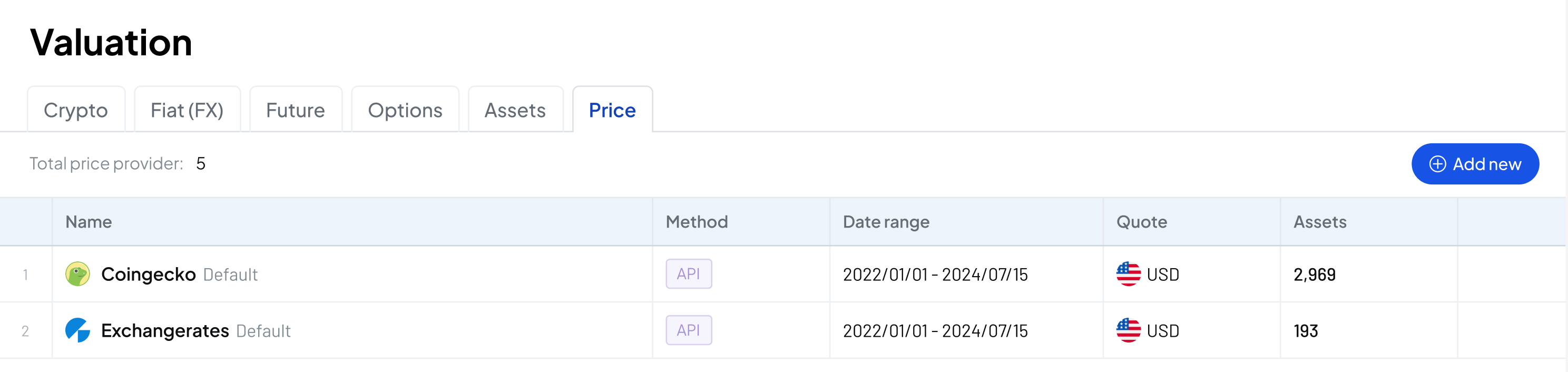
在估值模块中，通过导航中的“价格”进入价格源列表，可以看到目前系统中已经在使用的价格源。

Coingecho 是 Elven 默认使用的加密资产的价格源，Exchangerates 是法币的默认汇率价格源。

<figure><img src="https://3644585726-files.gitbook.io/~/files/v0/b/gitbook-x-prod.appspot.com/o/spaces%2Fgq0d5M2WNXGfXUM1gfsx%2Fuploads%2FDHtUdNCw59LNW1sjwHjI%2F01114548.png?alt=media&amp;token=b95c0d2d-94f7-4ad6-a0f2-da65a2fe3f38" alt=""><figcaption></figcaption></figure>

### 新建价格源

点击价格源列表右上角的添加按钮，在弹出的窗口中完善价格源信息：

<figure><img src="https://3644585726-files.gitbook.io/~/files/v0/b/gitbook-x-prod.appspot.com/o/spaces%2Fgq0d5M2WNXGfXUM1gfsx%2Fuploads%2Fb8wGEqV47VPwnd8cScEy%2Fimage.png?alt=media&amp;token=8c5d50fa-bfea-4fcc-994a-9f1b01514f78" alt="" width="563"><figcaption></figcaption></figure>

需要填写的字段包含

1. 价格源名称
2. 价格获取方式
   1. CSV：手动上传 CSV 格式的价格明细
   2. OpenAPI：通过 OpenAPI 导入价格明细 [接口文档](/v3/chinese/openapi/v3/dao-ru-jia-ge-jie-kou)
3. 价格时区：因为每一条价格信息都包含时间，您可以为这个价格源 指定一个时区信息
4. 报价币种

点击完成，即完成了新价格源的创建，在价格源的列表中，我们可以看到刚刚添加成功的新价格源。

<figure><img src="https://3644585726-files.gitbook.io/~/files/v0/b/gitbook-x-prod.appspot.com/o/spaces%2Fgq0d5M2WNXGfXUM1gfsx%2Fuploads%2Fy0iqVDlbK2Dk6EwCYqRn%2F01120533.png?alt=media&amp;token=02e92896-3aa6-404b-96f3-9a6672828512" alt=""><figcaption></figcaption></figure>

### 添加价格明细

由于我们选择了使用 CSV 上传的方式添加价格明细，所以接下来我们需要把准备好的价格文件上传到新的价格源中。

点击新添加的价格源，在右侧的详情面板中，点击“添加数据”。

<figure><img src="https://3644585726-files.gitbook.io/~/files/v0/b/gitbook-x-prod.appspot.com/o/spaces%2Fgq0d5M2WNXGfXUM1gfsx%2Fuploads%2FzSf7XLC2y8SdOJIFioNX%2F01115036.png?alt=media&amp;token=5e351d56-5b29-432a-a5d1-145270c4046f" alt="" width="375"><figcaption></figcaption></figure>

把准备好的价格明细信息拖入在弹出的文件上传窗口中，进行上传。

<figure><img src="https://3644585726-files.gitbook.io/~/files/v0/b/gitbook-x-prod.appspot.com/o/spaces%2Fgq0d5M2WNXGfXUM1gfsx%2Fuploads%2FzwbtRtK5Y8Sm1kmfnPFg%2Fimage.png?alt=media&amp;token=85427535-efb3-4784-876d-7dd2ea8de394" alt="" width="563"><figcaption></figcaption></figure>

您可以下载示例模板，用于准备价格明细，一个标准的价格信息文件如下所示：

| Assets | Datetime            | Price    |
| ------ | ------------------- | -------- |
| BTC    | 2024/07/18 16:37:00 | 64696.79 |
| ETH    | 2024/07/18 16:37:00 | 3182.73  |

各列分别表示：

1. Assets：资产的代码，例如 BTC、ETH
2. Datetime：报价的时间，格式为 YYYY/MM/DD HH:MM:SS
3. Price：价格，格式为数字

如果您上传的文件中有未能识别的行，代表该行中的字段格不正确，需要进行核查之后重新上传。

<figure><img src="https://3644585726-files.gitbook.io/~/files/v0/b/gitbook-x-prod.appspot.com/o/spaces%2Fgq0d5M2WNXGfXUM1gfsx%2Fuploads%2FofduAVmuStu3eUVFXUdS%2Fimage.png?alt=media&amp;token=5b861dca-a199-43f7-97b8-20b93018d594" alt="" width="563"><figcaption></figcaption></figure>

一旦价格明细上传成功，您可以使用这个价格源了。

### 为资产指定价格源

在估值模块中，通过导航“资产”进入资产管理界面，在该列表中可以看到该主体中已经添加或者同步过的资产。

找到你需要操作的资产，如果您想要操作的资产没有出现在列表中，可以尝试[添加资产](/v3/chinese/valuation/zi-chan-guan-li/ru-he-tong-guo-zhi-neng-he-yue-di-zhi-tian-jia-token)。

点击需操作的资产，在右侧的详情面板中，选择目标价格源。

<figure><img src="https://3644585726-files.gitbook.io/~/files/v0/b/gitbook-x-prod.appspot.com/o/spaces%2Fgq0d5M2WNXGfXUM1gfsx%2Fuploads%2F7tsJZ7ErqMdm2cWQ3iue%2F01121626.png?alt=media&amp;token=c5954364-2a1f-499e-b118-e160dce96f41" alt="" width="563"><figcaption></figcaption></figure>

{% hint style="warning" %}
请注意，如果您在修改资产的价格源时，已有交易记录使用了旧价格源，那么在切换到新价格源后，这些交易的价格不会自动更新，您需要在新价格源下手动执行价格修复。
{% endhint %}


# 加密资产公允价值与调账

{% hint style="info" %}
本帮助文档指导用户如何在公允价值调整模块中处理加密货币的成本计价、公允价值计算和记账，包括选择成本计价方法、管理资产记录、执行价值调整及导出相关计算表格。
{% endhint %}

## 1. 进入公允价值调整模块

1. 在项目首页，导航到项目&#x7684;**“估值”**&#x9875;面。
2. &#x5728;**“估值”**&#x9875;面中，找到并点击&#x4FA7;**“加密货币”**&#x9009;项。

<figure><img src="https://3644585726-files.gitbook.io/~/files/v0/b/gitbook-x-prod.appspot.com/o/spaces%2Fgq0d5M2WNXGfXUM1gfsx%2Fuploads%2Fus0go80dxCeKn7PgdOn4%2Fimage.png?alt=media&amp;token=5699f04c-44d2-4352-9c45-1fc666d7565f" alt=""><figcaption></figcaption></figure>

## 2. 调整成本计价方法

1. 找到右上角的“成本计价方&#x6CD5;**”**&#x6309;钮并点击。
2. 可以选择“先进先出 FIFO”或“加权平均”成本计价方法。

   <figure><img src="https://3644585726-files.gitbook.io/~/files/v0/b/gitbook-x-prod.appspot.com/o/spaces%2Fgq0d5M2WNXGfXUM1gfsx%2Fuploads%2F29d5b9m3EgaBHA8jTdRU%2Fimage.png?alt=media&amp;token=d4eb3718-ed34-4aeb-a177-1d52d368fb08" alt=""><figcaption></figcaption></figure>

## 3. 公允价值计算与记账

1. “获取表”记录了加密资产和负债的获取数量和成本价格。

   <figure><img src="https://3644585726-files.gitbook.io/~/files/v0/b/gitbook-x-prod.appspot.com/o/spaces%2Fgq0d5M2WNXGfXUM1gfsx%2Fuploads%2FTW6Lp5KevNTy6yc4muzN%2Fimage.png?alt=media&amp;token=55cb4e59-70cc-4230-93b6-fff38c03ed68" alt=""><figcaption></figcaption></figure>
2. “持有记录表”记录了批次的数量、成本和使用情况。

   <figure><img src="https://3644585726-files.gitbook.io/~/files/v0/b/gitbook-x-prod.appspot.com/o/spaces%2Fgq0d5M2WNXGfXUM1gfsx%2Fuploads%2Fie6eOWUyKp5o71ZzZT1k%2Fimage.png?alt=media&amp;token=113c3ce1-d9fd-4eb5-9e8b-86e6a9e18173" alt=""><figcaption></figcaption></figure>
3. “处置表”记录了加密资产和负债的处置的数量、价格、成本及已实现的损益，已实现损益会生成相应记账凭证。

   <figure><img src="https://3644585726-files.gitbook.io/~/files/v0/b/gitbook-x-prod.appspot.com/o/spaces%2Fgq0d5M2WNXGfXUM1gfsx%2Fuploads%2FyfnYtwDZxPMlpG2uUbqm%2Fimage.png?alt=media&amp;token=ef0137db-6f33-4487-a89a-c78f3a0cc22e" alt=""><figcaption></figcaption></figure>
4. “调账表”记录了由于加密货币价格变化而产生的未实现收益和损失，调账记录会生成相应记账凭证。

   <figure><img src="https://3644585726-files.gitbook.io/~/files/v0/b/gitbook-x-prod.appspot.com/o/spaces%2Fgq0d5M2WNXGfXUM1gfsx%2Fuploads%2FhDGAY8kaoWBpmjhPEhkT%2Fimage.png?alt=media&amp;token=af68324a-785a-4814-8bdf-0986bdd43cf1" alt=""><figcaption></figcaption></figure>

## 4. 执行公允价值计算

1. 点击右上角“重新计算成本”按钮，执行公允价值调账计算。

## 5. 导出公允价值计算表

1. 点击右侧“导出”按钮，导出公允价值计算相关表格。


# Valuation 表介绍

Valuation 模块的记录基于日记帐生成，主要有5组数据：

1. Summary：本表按币种列出了资产和负债的公允价值，以及相关的未实现/短期已实现/长期已实现损益
2. Acquistion 表：此表列出了所有加密资产的获取记录。每一条获取记录分配一个唯一的编号（获取编号）以进行跟踪，以及对应的存货批次编号。在此表中可以看到数量、交易时的价格以及成本基础

<figure><img src="https://elvencom.feishu.cn/space/api/box/stream/download/asynccode/?code=NzI4NzY5ZjZjMWNjYjc4YWI1MTgzZDI3NzczYTI5OTJfRVBEZ2hXWHpUU1dYWHpLQmtTWnhUUHlMSXBnbEE3cFhfVG9rZW46QWI2emJjQzZJb1FrWkt4MmVGSWNaWW8zbkdiXzE3NDE4NTQ2MTE6MTc0MTg1ODIxMV9WNA" alt=""><figcaption></figcaption></figure>

3. Lots 表：此表列出了加密资产/负债的存货，基于获取记录生成。这里包含的信息与 Acquisition 表类似，但是用户可以在此表中看到特定批次的剩余数量。

<figure><img src="https://elvencom.feishu.cn/space/api/box/stream/download/asynccode/?code=NTJlNjk0YzEyZmUyNDI3NTFjNzQ4M2QxZWFjODA3ZDdfa2dHQ1ZjOUpjeWQ1azhJYTJVY29RWVBudDU2VzVSSENfVG9rZW46RUppcmJyZkM5b1Q5U1V4MFN3UWNucWFJbm5iXzE3NDE4NTQ2MTE6MTc0MTg1ODIxMV9WNA" alt=""><figcaption></figcaption></figure>

4. Disposal 表：此表列出了所有加密资产的处置记录，并计算了已实现损益，该损益通过将实际处置价格与该加密资产的成本基础进行比较来计算的。

利润表 Gain/Loss on crypto activities 金额的计算规则：Disposal 表 STRG\LTRG 列代表已实现损益的金额，系统基于已实现损益数据记账，因此一段期间的 disposal 数据中 STRG\LTRG 之和，等于该期间利润表“Gain/Loss on crypto activities”的金额。例如 Date 在“2025年2月1日至2025年2月28日之间”的所有 disposal 记录，STRG\LTRG 两列之和应当等于2025年2月利润表中 Gain/Loss on crypto actiities 的值。

<figure><img src="https://elvencom.feishu.cn/space/api/box/stream/download/asynccode/?code=MjAwYmJmZGFmM2JhMDQ3YzdmMDhmNjExZjNlZWVlZGZfbzBJVmpjZmJTTkVqRTF6aWw5dWZCS1RWbDRZOUFMam5fVG9rZW46TFd4dmJYZlU4bzRETHp4c2p5UmNHQXN5bjdkXzE3NDE4NTQ2MTE6MTc0MTg1ODIxMV9WNA" alt=""><figcaption></figcaption></figure>

5. Adjusting：此表列出了每种货币每日的未实现损益，通过使用 coingecko 作为价格源比较科目的账面金额和公允价值的差异计算。

<br>

<figure><img src="https://elvencom.feishu.cn/space/api/box/stream/download/asynccode/?code=Mzk4YjJkOTk0Y2M2YTI0MjAwYWZmNTVhZjAwYTcyMjJfd285MmxKVnJtNkNGWDdUbUY3cWFDT0tmTWRGM0Rtb09fVG9rZW46U3dCTGJwcVRCb0ZjcGx4UEFiSGN3NmVXbkRlXzE3NDE4NTQ2MTE6MTc0MTg1ODIxMV9WNA" alt=""><figcaption></figcaption></figure>


# 法币汇兑损益调账

{% hint style="info" %}
本帮助文档介绍了如何在公允价值调整模块进行汇兑损益的计算和导出，包括生成自动记账凭证以及导出相关计算表格。
{% endhint %}

## 1. 进入公允价值调整模块

1. 在项目首页，导航到项目&#x7684;**“估值”**&#x9875;面。
2. &#x5728;**“估值”**&#x9875;面中，找到并点击&#x4FA7;**“法币”**&#x9009;项。

   <figure><img src="https://3644585726-files.gitbook.io/~/files/v0/b/gitbook-x-prod.appspot.com/o/spaces%2Fgq0d5M2WNXGfXUM1gfsx%2Fuploads%2FISIcQP15PcOBgikAjYDf%2Fimage.png?alt=media&amp;token=26f58a05-8f9f-4988-904e-7f5c5e4d9186" alt=""><figcaption></figcaption></figure>

## 2. 汇兑损益计算

1. “调账表”记录了因为汇率变动导致的外币资产/负债的收益、损失。

   <figure><img src="https://3644585726-files.gitbook.io/~/files/v0/b/gitbook-x-prod.appspot.com/o/spaces%2Fgq0d5M2WNXGfXUM1gfsx%2Fuploads%2FK4oYSVhX8YWk6txgT0QW%2Fimage.png?alt=media&amp;token=556602dd-4980-4c40-879e-7ec93b290eb4" alt=""><figcaption></figcaption></figure>
2. 系统基于调整记录自动生成调整记账凭证。

## 3. 导出汇兑损益计算表

1. 点击右侧“导出”按钮，导出汇兑损益计算相关表格。


# 衍生品未实现损益调账

{% hint style="info" %}
本帮助文档将介绍如何使用衍生品未实现损益调账功能，管理合约、期权等加密衍生品的未实现损益。支持计算主体在交易所持仓的未实现损益调整、主体作为平台运营方，其用户持仓的未实现损益调账。
{% endhint %}

## **1. 配置调账频率**

1. **调整频率**：在调账频率配置窗口，选择适合的调整频率（日、周、月）。**保存并生效**：更改设置后保存，系统将重新计算未实现损益调账记录。

   <figure><img src="https://3644585726-files.gitbook.io/~/files/v0/b/gitbook-x-prod.appspot.com/o/spaces%2Fgq0d5M2WNXGfXUM1gfsx%2Fuploads%2F3xx48PYxcnjCKl3jNmZ8%2Fimage.png?alt=media&amp;token=5e2cc21a-9a68-4b0e-9441-547a3229219b" alt=""><figcaption></figcaption></figure>

## **2. 执行和查看调账**

1. **手动触发**：用户可以通过点击“Recalculate”手动触发调账计算。
2. **查看记录**：调账记录可在“调账记录表”中查阅，显示详细的调账周期和对应衍生品的未实现损益金额变动。每个调账周期未实现损益的计算基于公式：**Beginning-Realized Pnl +Change = Ending**

   <figure><img src="https://3644585726-files.gitbook.io/~/files/v0/b/gitbook-x-prod.appspot.com/o/spaces%2Fgq0d5M2WNXGfXUM1gfsx%2Fuploads%2FH2m0qL173rEpXA4tjKQY%2Fimage.png?alt=media&amp;token=e46cfdaa-fb28-4bd3-8736-aa2dd2de3957" alt=""><figcaption></figcaption></figure>
3. **数据溯源**：点击 Ending / Realized Pnl 数字的链接按钮，可以看到数据来源。

   <figure><img src="https://3644585726-files.gitbook.io/~/files/v0/b/gitbook-x-prod.appspot.com/o/spaces%2Fgq0d5M2WNXGfXUM1gfsx%2Fuploads%2FdVtlZrb162sAlScczLqF%2Fimage.png?alt=media&amp;token=c66d4f6b-8d56-43c9-b79e-9965a86b1e0f" alt=""><figcaption></figcaption></figure>

## **3. 调账数据源**

调账数据源分为来自交易所的损益数据和来自业务数据的损益数据。

1. 来自交易所的损益数据：与交易数据中的损益数据保持同步。
2. 来自业务数据的损益数据：基于业务数据到调账损益数据的 Automation 规则实现。
   1. 在自动化配置界面，点&#x51FB;**“添加/编辑规则”**&#x8BBE;置新的数据转换规则。

      <figure><img src="https://3644585726-files.gitbook.io/~/files/v0/b/gitbook-x-prod.appspot.com/o/spaces%2Fgq0d5M2WNXGfXUM1gfsx%2Fuploads%2FiWqWvF2B9OtJ77DhyV0S%2Fimage.png?alt=media&amp;token=d56f1cd9-6634-4d15-bd8f-44e9f746a800" alt=""><figcaption></figcaption></figure>
   2. **定义转换条件**：指定源数据和目标数据的条件，如数据类型和触发事件。

      <figure><img src="https://3644585726-files.gitbook.io/~/files/v0/b/gitbook-x-prod.appspot.com/o/spaces%2Fgq0d5M2WNXGfXUM1gfsx%2Fuploads%2FJ46PT5IbQ1qkX7myoKZ2%2Fimage.png?alt=media&amp;token=cd400f55-d10a-419c-81f0-1a9545d48eed" alt=""><figcaption></figcaption></figure>
   3. **手动触发转换**：选择执行单个或全部规则，立即生成或更新 Raw Data。


# Broker 业务存货管理

{% hint style="info" %}
本帮助文档详细介绍了如何在Broker业务存货管理模块操作，包括选择成本计价方法、管理加密货币买卖记录、执行公允价值计算，并导出相关数据表格。
{% endhint %}

## 1. 进入 Broker 业务存货管理模块

1. 在项目首页，导航到项目&#x7684;**“估值”**&#x9875;面。
2. &#x5728;**“估值”**&#x9875;面中，找到并点击&#x4FA7;**“OTC 库存管理”**&#x9009;项。

   <figure><img src="https://3644585726-files.gitbook.io/~/files/v0/b/gitbook-x-prod.appspot.com/o/spaces%2Fgq0d5M2WNXGfXUM1gfsx%2Fuploads%2F7eqn8ka8D2gkyfv1JEnq%2Fimage.png?alt=media&amp;token=1c2fc4d2-ce4f-4b92-bf86-a3adfc924181" alt=""><figcaption></figcaption></figure>

## 2. 调整成本计价方法

1. 找到右上角的“成本计价方&#x6CD5;**”**&#x6309;钮并点击。

   <figure><img src="https://3644585726-files.gitbook.io/~/files/v0/b/gitbook-x-prod.appspot.com/o/spaces%2Fgq0d5M2WNXGfXUM1gfsx%2Fuploads%2FhgzdL79Gsa2LC2y0iyNd%2Fimage.png?alt=media&amp;token=6b3d216b-08c3-4c48-8dc4-76f533a2a4b2" alt=""><figcaption></figcaption></figure>
2. 可以选择“先进先出 FIFO”、“加权平均”或“指定 ID”等成本计价方法。
3. 使用“指定 ID”成本计价方法时，可以配置匹配规则。

   <figure><img src="https://3644585726-files.gitbook.io/~/files/v0/b/gitbook-x-prod.appspot.com/o/spaces%2Fgq0d5M2WNXGfXUM1gfsx%2Fuploads%2F9FrEnefjpGVX4dxsZlzc%2Fimage.png?alt=media&amp;token=e1a0e074-84b4-405f-9b73-f2e89e074651" alt=""><figcaption></figcaption></figure>

## 3. Broker 存货管理计算与记账

1. “加密货币买入”记录了买入加密货币相关的记账凭证、买入价格、数量。

   <figure><img src="https://3644585726-files.gitbook.io/~/files/v0/b/gitbook-x-prod.appspot.com/o/spaces%2Fgq0d5M2WNXGfXUM1gfsx%2Fuploads%2F98eqWab7POAVREN6Li7m%2Fimage.png?alt=media&amp;token=9a7bd32f-a3e3-4664-9e8a-e95b1f5658c6" alt=""><figcaption></figcaption></figure>
2. “加密货币库存”记录了加密货币库存的剩余数量、成本。

   <figure><img src="https://3644585726-files.gitbook.io/~/files/v0/b/gitbook-x-prod.appspot.com/o/spaces%2Fgq0d5M2WNXGfXUM1gfsx%2Fuploads%2FaG0Knc3STeQBKYeoh3mp%2Fimage.png?alt=media&amp;token=17072043-5482-4198-924e-f9e1f746abfd" alt=""><figcaption></figcaption></figure>
3. “加密货币销售”记录了卖出加密货币相关的记账凭证、关联的库存记录。

   <figure><img src="https://3644585726-files.gitbook.io/~/files/v0/b/gitbook-x-prod.appspot.com/o/spaces%2Fgq0d5M2WNXGfXUM1gfsx%2Fuploads%2FVJ4dBqLMlU0upgYxVPWV%2Fimage.png?alt=media&amp;token=fafdc5aa-baf7-41ba-a704-da7d166940fe" alt=""><figcaption></figcaption></figure>

## 4. 执行公允价值计算

1. 点击右上角“重新计算成本”按钮，执行公允价值调账计算。

## 5. 导出公允价值计算表

1. 点击右侧“导出”按钮，导出 Broker 存货管理计算相关表格。


# 交易对账

{% hint style="info" %}
本帮助文档介绍如何在对账模块内设置和执行对账工作，包括创建对账任务、配置自动化对账规则、手动匹配交易，以及执行匹配过程。
{% endhint %}

## 1. 进入交易对账模块

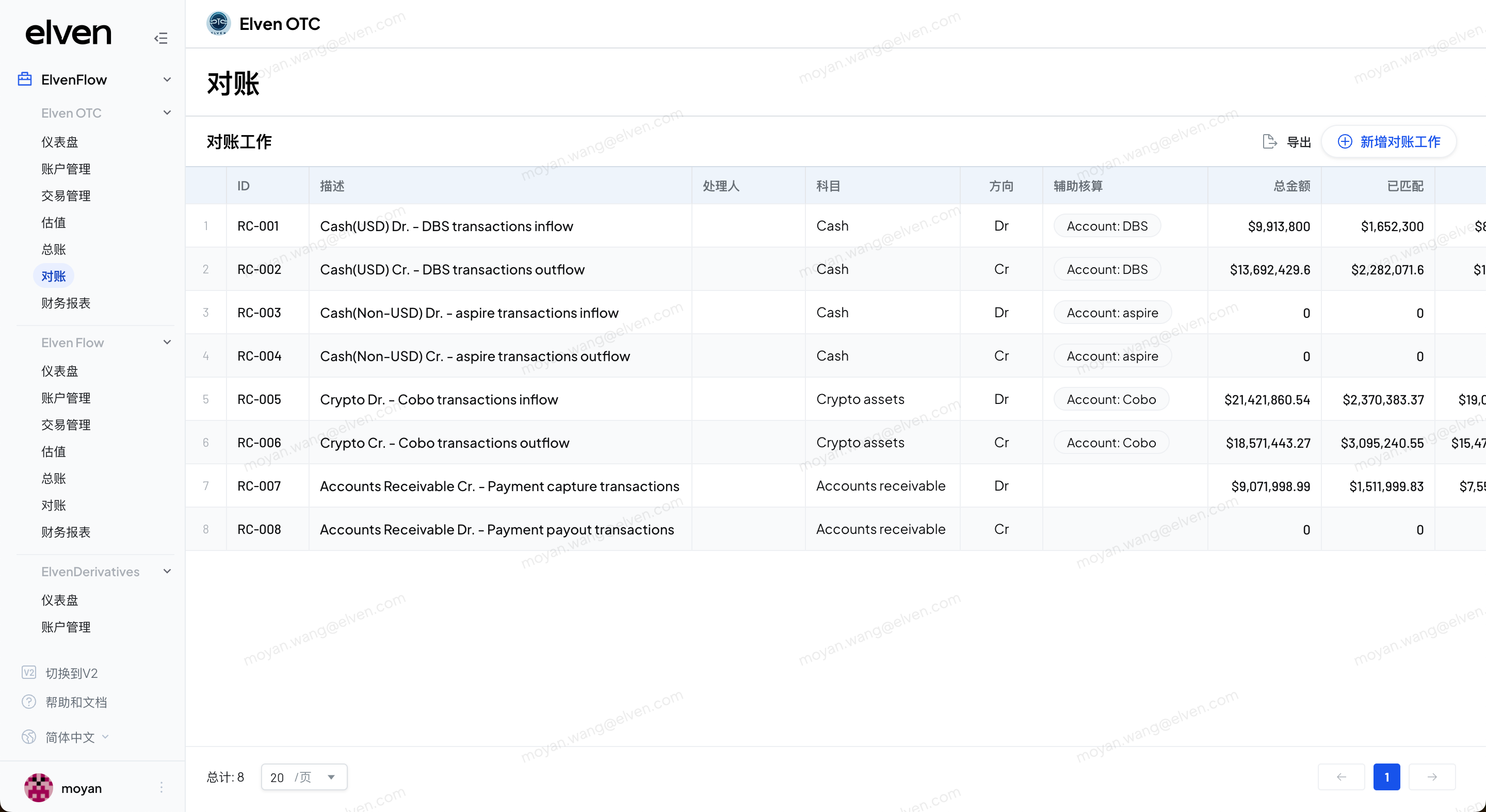
1. 在项目首页，导航到项目&#x7684;**“对账”**&#x9875;面。

   <figure><img src="https://3644585726-files.gitbook.io/~/files/v0/b/gitbook-x-prod.appspot.com/o/spaces%2Fgq0d5M2WNXGfXUM1gfsx%2Fuploads%2FzRUrErNSdggNCSMLmL4b%2Fimage.png?alt=media&amp;token=55fd739e-3aaa-4be3-b9dc-d78b5e836907" alt=""><figcaption></figcaption></figure>

## 2. 新增对账工作

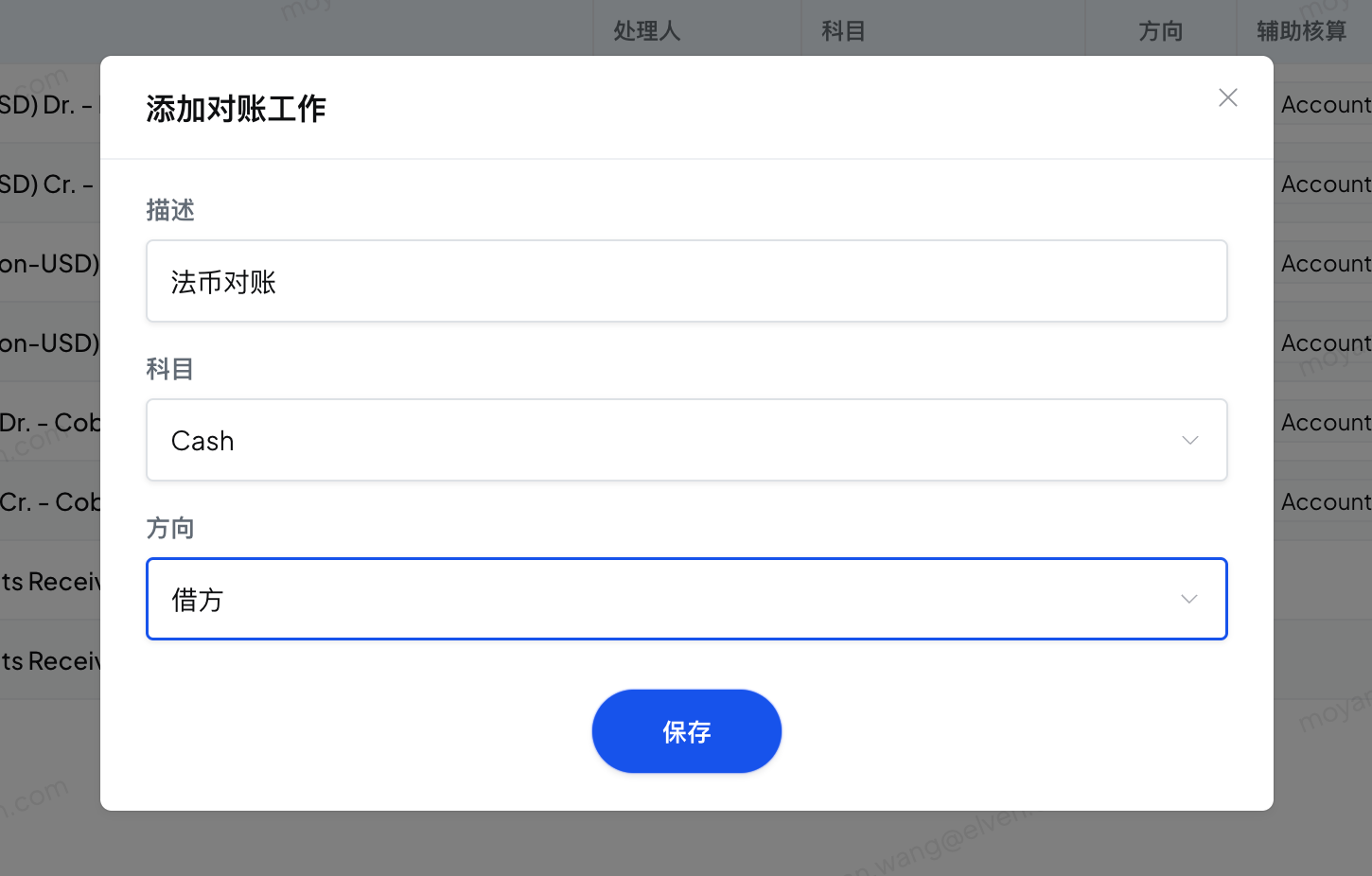
1. 找到右上角的“新增对账工&#x4F5C;**”**&#x6309;钮并点击。

   <figure><img src="https://3644585726-files.gitbook.io/~/files/v0/b/gitbook-x-prod.appspot.com/o/spaces%2Fgq0d5M2WNXGfXUM1gfsx%2Fuploads%2FGFPXmF6F3prqUz56GbYb%2Fimage.png?alt=media&amp;token=3a629a45-a7c8-4a98-a19a-9371785fb9e9" alt=""><figcaption></figcaption></figure>
2. 填入对账工作说明。
3. 选择对账工作的会计科目、方向。
4. 在对账工作详情页，调整筛选器、选择用于对账的交易数据和记账数据。

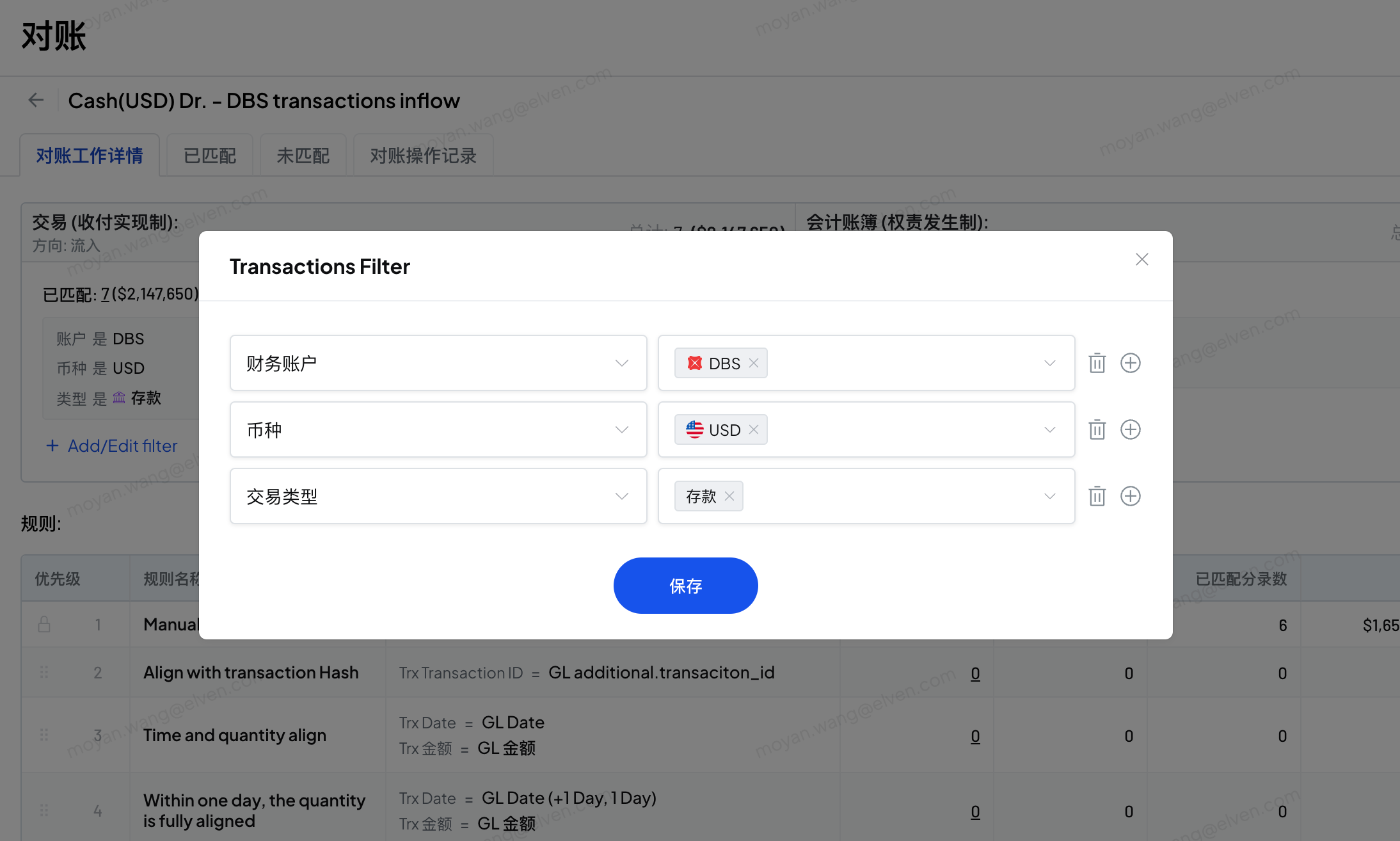
   <figure><img src="https://3644585726-files.gitbook.io/~/files/v0/b/gitbook-x-prod.appspot.com/o/spaces%2Fgq0d5M2WNXGfXUM1gfsx%2Fuploads%2Fzmnwg6twvps8RI0Wrax8%2Fimage.png?alt=media&amp;token=f9135e30-a778-47d4-a490-9ef03c11bc08" alt=""><figcaption></figcaption></figure>

## 3. 自动化对账规则

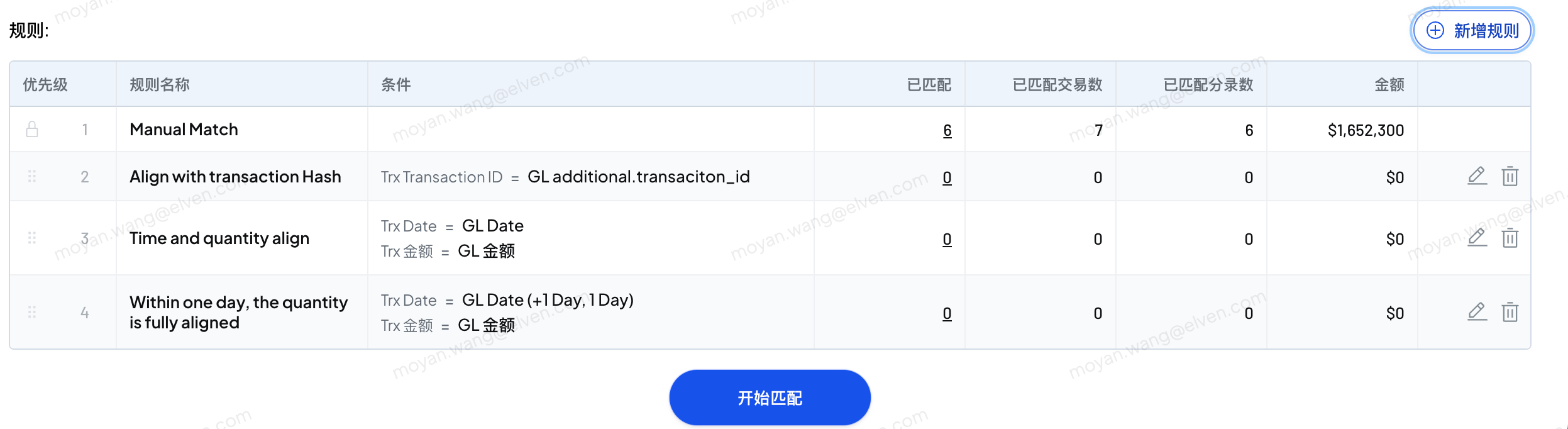
1. 在对账工作详情页，点击“新增规则”按钮，配置自动化对账规则。
2. 支持按照金额、时间、id、账户等匹配对账双方数据。

   <figure><img src="https://3644585726-files.gitbook.io/~/files/v0/b/gitbook-x-prod.appspot.com/o/spaces%2Fgq0d5M2WNXGfXUM1gfsx%2Fuploads%2F3XBI3xj4pdFitkkSy8Ph%2Fimage.png?alt=media&amp;token=9fc6dd09-5d09-4569-b824-e495ca0bb8f5" alt=""><figcaption></figcaption></figure>
3. 点击“开始匹配”按钮，执行自动化对账规则。

## 4. 手动对账

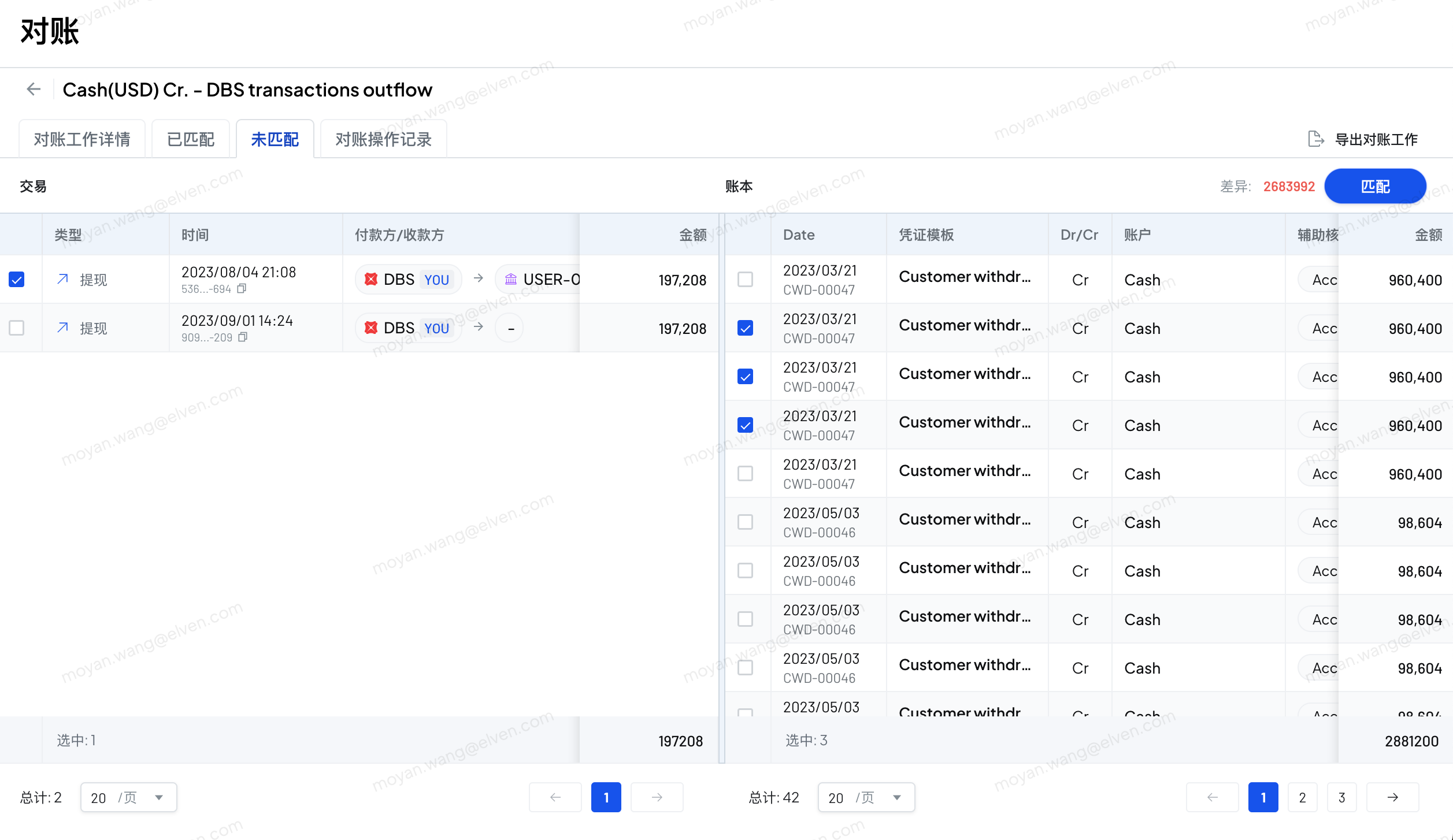
1. 进入“未匹配”标签页。
2. 在左侧面板选择需要手动匹配的交易数据、右侧面板选择需要匹配的账本数据。

   <figure><img src="https://3644585726-files.gitbook.io/~/files/v0/b/gitbook-x-prod.appspot.com/o/spaces%2Fgq0d5M2WNXGfXUM1gfsx%2Fuploads%2FjkVWV6mJ2gr2XQy08Gnr%2Fimage.png?alt=media&amp;token=a7fd41ca-605d-47ce-af2a-bcc30a3f79bf" alt=""><figcaption></figcaption></figure>
3. 点击“匹配”按钮，完成手动匹配。

## 5. 导出对账工作

1. 点击页面右上角“导出对账工作”按钮，即可导出对账匹配记录、未匹配记录、操作记录等。


# 试算平衡表

{% hint style="info" %}
本帮助文档介绍如何在总账模块内访问、调整视图及导出试算平衡表，查看科目的期初、变动和期末余额。
{% endhint %}

## 1. 进入试算平衡表模块

1. 在项目首页，导航到项目&#x7684;**“总账”**&#x9875;面。
2. &#x5728;**“总账”**&#x9875;面中，找到并点击&#x4FA7;**“试算平衡表”**&#x9009;项。

   <figure><img src="https://3644585726-files.gitbook.io/~/files/v0/b/gitbook-x-prod.appspot.com/o/spaces%2Fgq0d5M2WNXGfXUM1gfsx%2Fuploads%2Fv5G3EDA0pYmRRBW4Xypk%2Fimage.png?alt=media&amp;token=e945bab6-f8e0-47f1-a7b3-f6da7bb57dc5" alt=""><figcaption></figcaption></figure>

## 2. 调整试算表视图

1. 选择时间范围。

   <figure><img src="https://3644585726-files.gitbook.io/~/files/v0/b/gitbook-x-prod.appspot.com/o/spaces%2Fgq0d5M2WNXGfXUM1gfsx%2Fuploads%2Fi6IdrxsxlTzRx04odbmu%2Fimage.png?alt=media&amp;token=dd8e9938-2caa-4536-99ad-ec9031b28c4d" alt="" width="375"><figcaption></figcaption></figure>
2. 试算平衡表展示了各科目在所选时间范围内的期初余额、期间变化额和期末余额。
3. 展开科目查看各科目在所选时间内的记账凭证记录。

   <figure><img src="https://3644585726-files.gitbook.io/~/files/v0/b/gitbook-x-prod.appspot.com/o/spaces%2Fgq0d5M2WNXGfXUM1gfsx%2Fuploads%2FaQX5QvY9cJekHxayJpa5%2Fimage.png?alt=media&amp;token=b706a24a-3e5a-46dc-a329-87aa60996928" alt=""><figcaption></figcaption></figure>

## 3. 导出试算平衡表

1. 点击页面右侧“导出”按钮，即可导出试算平衡表。包括科目余额概览、科目记账凭证明细表。


# 科目余额表

{% hint style="info" %}
本帮助文档介绍了如何在总账模块内查找、调整科目余额表，包括调整视图设置（包括时间范围、分组和币种展示），以及导出数据。
{% endhint %}

## 1. 进入科目余额表模块

1. 在项目首页，导航到项目&#x7684;**“总账”**&#x9875;面。
2. &#x5728;**“总账”**&#x9875;面中，找到并点击&#x4FA7;**“科目余额表”**&#x9009;项。

<figure><img src="https://3644585726-files.gitbook.io/~/files/v0/b/gitbook-x-prod.appspot.com/o/spaces%2Fgq0d5M2WNXGfXUM1gfsx%2Fuploads%2Fd1paRePfVUe1plNnVqCY%2Fimage.png?alt=media&amp;token=8315477a-ffd9-415e-9a8b-748128968788" alt=""><figcaption></figcaption></figure>

## 2. 调整科目余额表视图

1. 选择时间范围。
2. 选择一级分组和二级分组字段，支持选择会计科目和辅助核算字段。

   <figure><img src="https://3644585726-files.gitbook.io/~/files/v0/b/gitbook-x-prod.appspot.com/o/spaces%2Fgq0d5M2WNXGfXUM1gfsx%2Fuploads%2FFsyK81M23QMz45LxhYm5%2Fimage.png?alt=media&amp;token=247d0b80-fea2-4c81-bc23-93a9029c12c6" alt=""><figcaption></figcaption></figure>
3. 支持原始币种核算的科目，可以展开原始币种余额明细。

   <figure><img src="https://3644585726-files.gitbook.io/~/files/v0/b/gitbook-x-prod.appspot.com/o/spaces%2Fgq0d5M2WNXGfXUM1gfsx%2Fuploads%2FH3rZzN43IDnFjLZIzsBf%2Fimage.png?alt=media&amp;token=a9df7550-d6f9-4d41-97f9-b8e99589a004" alt=""><figcaption></figcaption></figure>

## 3. 导出科目余额表

1. 点击页面右侧“导出”按钮，即可导出科目余额表。


# 财务报表

{% hint style="info" %}
本帮助文档将介绍如何在财务报表模块内浏览和调整报表，包括资产负债表、利润表和现金流量表，并提供导出功能。
{% endhint %}

## 1. 进入财务报表模块

1. 在项目首页，导航到项目&#x7684;**“财务报表”**&#x9875;面。
2. &#x5728;**“财务报表”**&#x9875;面中，点击顶部选项卡切换要查看的财务报表。
3. 点击“重新生成报表”，基于最新的记账凭证生成报表。

   <figure><img src="https://3644585726-files.gitbook.io/~/files/v0/b/gitbook-x-prod.appspot.com/o/spaces%2Fgq0d5M2WNXGfXUM1gfsx%2Fuploads%2F3lyMkHQdpWz2udPDCVnO%2Fimage.png?alt=media&amp;token=dbee1971-0294-421c-b92f-70fb8c5ce312" alt=""><figcaption></figcaption></figure>

## 2. 调整报告周期和日期范围

1. 报告周期支持按照“年度”、“季度”、“月度”、“日”来报告。

   <figure><img src="https://3644585726-files.gitbook.io/~/files/v0/b/gitbook-x-prod.appspot.com/o/spaces%2Fgq0d5M2WNXGfXUM1gfsx%2Fuploads%2FL7HgWw2QNsxSGY58zZSS%2Fimage.png?alt=media&amp;token=eb0ecc14-fe7b-4dc5-9e32-0edaaf9118bc" alt=""><figcaption></figcaption></figure>
2. 选择不同报告周期后，可以选取对应的日期范围。

## 3. 资产负债表

1. 在资产负债表中，根据项目涉及的加密资产类型，披露相应科目。

   <figure><img src="https://3644585726-files.gitbook.io/~/files/v0/b/gitbook-x-prod.appspot.com/o/spaces%2Fgq0d5M2WNXGfXUM1gfsx%2Fuploads%2F8jc1HwLAXCDD6x9HNBD4%2Fimage.png?alt=media&amp;token=b1c4d85d-934a-4bb0-8cf5-981d1b268abb" alt=""><figcaption></figcaption></figure>

## 4. 利润表

1. 损益表支持列示加密活动相关的收入费用、因为加密活动导致的收益和损失。

   <figure><img src="https://3644585726-files.gitbook.io/~/files/v0/b/gitbook-x-prod.appspot.com/o/spaces%2Fgq0d5M2WNXGfXUM1gfsx%2Fuploads%2FZ6OdP3658To2nKoxOkfS%2Fimage.png?alt=media&amp;token=762f5004-55ed-48de-87a5-92f2ace18dee" alt=""><figcaption></figcaption></figure>

## 5. 现金流量表

1. 现金流量表统计了实体因经营活动、投资活动、融资活动导致的现金变动。

   <figure><img src="https://3644585726-files.gitbook.io/~/files/v0/b/gitbook-x-prod.appspot.com/o/spaces%2Fgq0d5M2WNXGfXUM1gfsx%2Fuploads%2FfGMz9Ch1nkDwA8DQ9Ew5%2Fimage.png?alt=media&amp;token=71244566-60ae-413f-baae-229ee6b1f78a" alt=""><figcaption></figcaption></figure>

\
6\. 导出财务报表
----------

1. 点击右侧“导出”按钮，即可导出所选周期和日期范围的财报。


# 加密资产披露表

{% hint style="info" %}
FASB规定，企业必须详细披露加密资产的持仓、限制及变动情况，包括公允价值、成本基础和流动性风险，以增加透明度。
{% endhint %}

## 1. 进入加密资产披露表模块

1. 在项目首页，导航到项目&#x7684;**“财务报表”**&#x9875;面。
2. &#x5728;**“财务报表”**&#x9875;面中，点击顶部选项卡切换要查看的加密资产披露表。
3. 击“重新生成报表”，基于最新的记账凭证生成披露表。

   <figure><img src="https://3644585726-files.gitbook.io/~/files/v0/b/gitbook-x-prod.appspot.com/o/spaces%2Fgq0d5M2WNXGfXUM1gfsx%2Fuploads%2Fra329f16TuNReSUC9wFd%2Fimage.png?alt=media&amp;token=5f07cbb4-94d3-42f1-ad95-93ad2bd449d0" alt=""><figcaption></figcaption></figure>

## 2. 调整报告周期和日期范围

1. 报告周期支持按照“年度”、“季度”、“月度”、“日”来报告。
2. 选择不同报告周期后，可以选取对应的日期范围。

   <figure><img src="https://3644585726-files.gitbook.io/~/files/v0/b/gitbook-x-prod.appspot.com/o/spaces%2Fgq0d5M2WNXGfXUM1gfsx%2Fuploads%2FNmL6ibYROqett0bkq55j%2Fimage.png?alt=media&amp;token=52f851d7-a6fb-4dbf-92ec-b33e96eb71b8" alt=""><figcaption></figcaption></figure>

## 3. 加密资产持仓表

FASB 要求实体在中期和年度报告披露每个重要加密资产的名称、成本基础、公允价值和持有单位数量，以及未单独报告的加密资产的总公允价值和成本基础。

<figure><img src="https://3644585726-files.gitbook.io/~/files/v0/b/gitbook-x-prod.appspot.com/o/spaces%2Fgq0d5M2WNXGfXUM1gfsx%2Fuploads%2FLszQojPINnUf7qXSuxyy%2Fimage.png?alt=media&amp;token=15c312af-1f7b-446e-9250-23cfb67042af" alt=""><figcaption></figcaption></figure>

## 4. 加密资产限制表

FASB 要求实体披露其加密资产受到合同出售限制的情况、受限制加密资产的公允价值、限制的性质和剩余期限，以及导致限制解除的情况。在与投资者的沟通中，投资者支持要求这一披露，因为它将提供有关实体持有受限制加密资产的流动性风险的额外信息。

## 5. 加密资产变动表

在年度报告期间，实体应提供从开放到加密资产的期末余额的活动的总体调节，分别披露与以下事项有关的期间内变动：a. 新增。b. 处置。c. 以加密资产逐个计算的当期纳入净收益的收益。当期纳入净收益的公允价值变动净收益的每个加密资产持有量应包括在收益行中。d. 以加密资产逐个计算的当期纳入净收益的损失。当期纳入净收益的公允价值变动净损失的每个加密资产持有量应包括在损失行中。

<figure><img src="https://3644585726-files.gitbook.io/~/files/v0/b/gitbook-x-prod.appspot.com/o/spaces%2Fgq0d5M2WNXGfXUM1gfsx%2Fuploads%2FAfdL7VqPJ1FJIIWwNHNi%2Fimage.png?alt=media&amp;token=46dd587b-65a0-429d-a0a0-716f6ac2a8a8" alt=""><figcaption></figcaption></figure>

## 6. 导出加密资产披露表

1. 点击右侧“导出”按钮，即可导出所选周期和日期范围的加密资产披露表。


# 仪表盘

{% hint style="info" %}
通过仪表盘， 您可以查看财务数据的关键指标，包括实时余额数据、资产变化趋势、指定周期的收入、支出、利润等。可视化的展示形式便于您快速掌握财务状况，及时做出决策。
{% endhint %}

## 使用说明

Dashboard整体分为两部分&#x20;

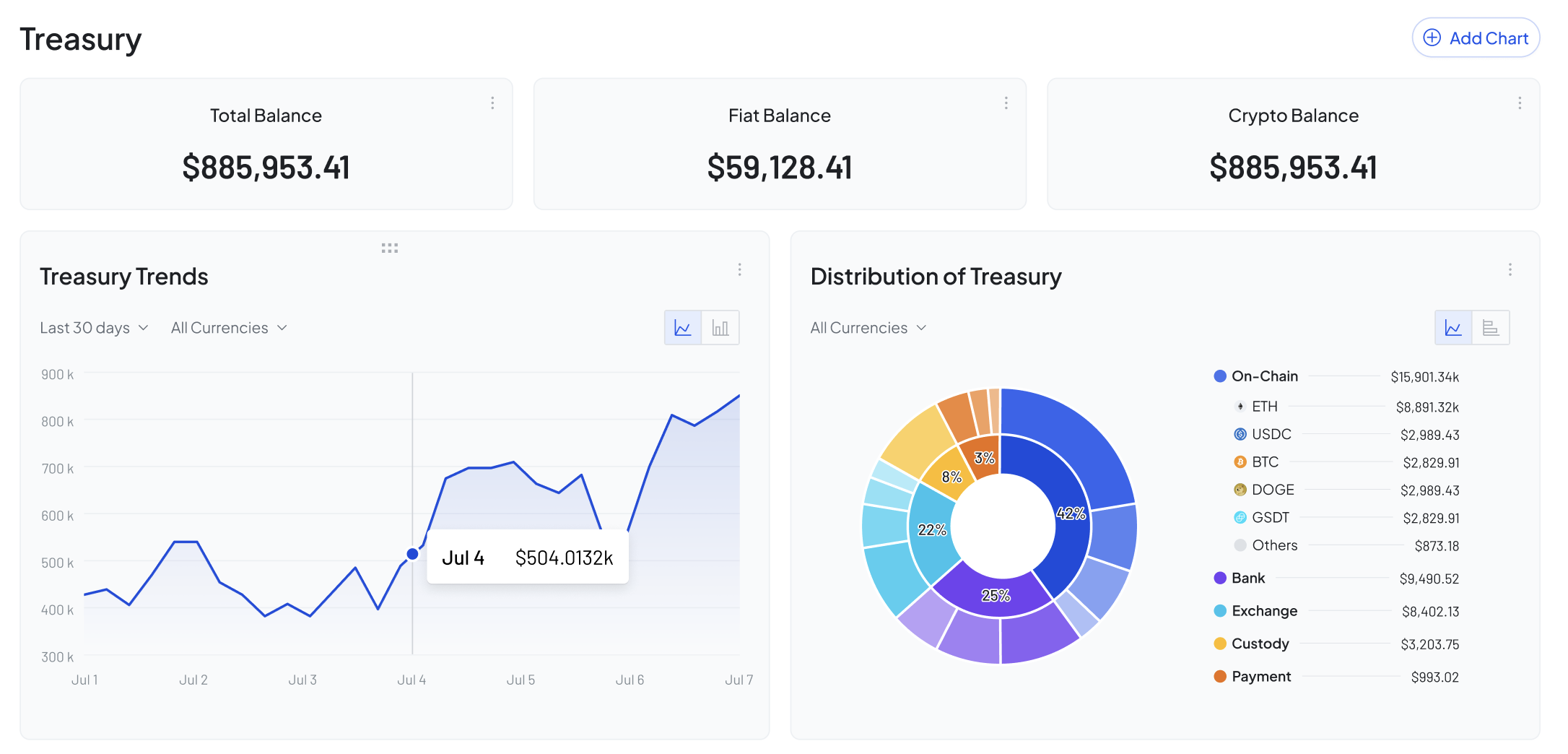
**Treasury**：依据账户余额数据生成，可查看实时余额、资产变化趋势或分布。

<figure><img src="https://3644585726-files.gitbook.io/~/files/v0/b/gitbook-x-prod.appspot.com/o/spaces%2Fgq0d5M2WNXGfXUM1gfsx%2Fuploads%2FQVZ0q36uuqHvtl32wMDq%2Fimage.png?alt=media&amp;token=c4f7a4b5-fe64-4f78-b169-d507ef6e091e" alt=""><figcaption></figcaption></figure>

**Reports**：依据财务报表数据生成，可查看收入、利润、资产变化趋势或分布情况。&#x20;

* 您可以在顶部统一设置时间区间，下面所有图表都会按照您的设置进行更新。

<figure><img src="https://3644585726-files.gitbook.io/~/files/v0/b/gitbook-x-prod.appspot.com/o/spaces%2Fgq0d5M2WNXGfXUM1gfsx%2Fuploads%2FiUPITj6M74eD0O7CUeAO%2Fimage.png?alt=media&amp;token=41ed98f7-1f35-4c13-aef7-79c298bd2408" alt=""><figcaption></figcaption></figure>

### 添加图表：

点击 【添加图表】 ，即可按照您的需求配置图表。

<figure><img src="https://3644585726-files.gitbook.io/~/files/v0/b/gitbook-x-prod.appspot.com/o/spaces%2Fgq0d5M2WNXGfXUM1gfsx%2Fuploads%2FWTtkqbRrDHWKT2b6CGgK%2Fimage.png?alt=media&amp;token=61d43600-ac3a-4e8a-b6a0-ff7ab104777a" alt="" width="563"><figcaption></figcaption></figure>

### 编辑/删除图表：

点击图表更多按钮，选择编辑，即可对已有图表进行编辑。

如您不再需要当前图表，可进行删除。

<figure><img src="https://elvencom.feishu.cn/space/api/box/stream/download/asynccode/?code=NDc3Y2VhYjhkMzEyMDc5OGJiY2Y1ZWJmMzdiZDRhZDNfSjRjNHd5aDZySXhwc0lBWTViZkxVU0NaZDRXbHE5OVNfVG9rZW46QlZWQmJTOEFsbzcxT3h4Uk10TWNWU0l3bjNiXzE3MjQ2MDM0NDM6MTcyNDYwNzA0M19WNA" alt="" width="563"><figcaption></figcaption></figure>

### 更改图表顺序

鼠标放在顶部的拖动icon上，即可拖动更改图表顺序。

<figure><img src="https://3644585726-files.gitbook.io/~/files/v0/b/gitbook-x-prod.appspot.com/o/spaces%2Fgq0d5M2WNXGfXUM1gfsx%2Fuploads%2F7dsPzdN02S5yPgV2IY6t%2Fimage.png?alt=media&amp;token=bd312154-fe5f-4c08-b69f-194e8b977f06" alt=""><figcaption></figcaption></figure>

### 临时更改图标条件

您在查看图表时，可以临时更改 时间范围、币种 等设置，快速查看分析结果。

此更改不会进行保存，如果想后续默认按照更改后的设置查看，需要您进行编辑图表操作。

<figure><img src="https://3644585726-files.gitbook.io/~/files/v0/b/gitbook-x-prod.appspot.com/o/spaces%2Fgq0d5M2WNXGfXUM1gfsx%2Fuploads%2F4YbehhER5KfcKXOhNfMM%2Fimage.png?alt=media&amp;token=488ccf68-b60a-481d-9ca7-675bc635579f" alt="" width="563"><figcaption></figcaption></figure>

### 更改 summary 指标

您可以修改 reports 部分顶部的汇总信息展示的字段内容，点击更多按钮，即可选择您想要查看的指标。

<figure><img src="https://3644585726-files.gitbook.io/~/files/v0/b/gitbook-x-prod.appspot.com/o/spaces%2Fgq0d5M2WNXGfXUM1gfsx%2Fuploads%2FsnCDQqwDBWF4HJXl0Jn3%2Fimage.png?alt=media&amp;token=efab4430-d737-4fd1-9cdd-db4d0cc8917a" alt="" width="563"><figcaption></figcaption></figure>


# 接口授权

## API Key 和 Secret的获取

### 创建新的密钥

系统管理员登录到 Elven 系统，在「项目设置-开放 API」列表，创建新的密钥

<figure><img src="https://3644585726-files.gitbook.io/~/files/v0/b/gitbook-x-prod.appspot.com/o/spaces%2Fgq0d5M2WNXGfXUM1gfsx%2Fuploads%2Fj2J1Ducg4AUeivLOK4jo%2Fimage.png?alt=media&amp;token=48223b5e-b1c5-458b-a6b8-6fba9396181c" alt=""><figcaption></figcaption></figure>

在弹出的窗口中，给密钥进行命名，选择当前密钥在哪个主体下生效，并配置具体接口的权限。

<figure><img src="https://3644585726-files.gitbook.io/~/files/v0/b/gitbook-x-prod.appspot.com/o/spaces%2Fgq0d5M2WNXGfXUM1gfsx%2Fuploads%2FMdEX1jhJlkxrd3EDtVL1%2Fimage.png?alt=media&amp;token=c7cce858-c4a4-4350-b617-fdb1521076b3" alt=""><figcaption></figcaption></figure>

点击创建按钮，新创建的密钥信息会显示在密钥列表中。

### 将API Key 和 Secret的发送给研发人员

点击密钥列表中 Key 和 Secret 后面的复制按钮，即可复制对应信息。分别发送给研发人员即可。

<figure><img src="https://3644585726-files.gitbook.io/~/files/v0/b/gitbook-x-prod.appspot.com/o/spaces%2Fgq0d5M2WNXGfXUM1gfsx%2Fuploads%2FOSgGnAAvpxLqCsgz528L%2Fimage.png?alt=media&amp;token=ae8db73c-ed36-4d65-8718-ff7daead42a2" alt=""><figcaption></figcaption></figure>

## 接口授权的使用 <a href="#elven-api-sign" id="elven-api-sign"></a>

在请求头中提供以下参数

```
elven-api-key  获取到的授权 apiKey
elven-api-sign  base64格式的签名, 例如 LVT5aXA9064gpgZrPXPLJB/Aq9r45yMF10sTZQTteyE=
elven-api-timestamp 以毫秒格式的时间戳, 例如 1721209655047，过期时间是30秒
```

其他sign的算法如下, 把 时间戳, 请求方式, 请求路由拼在一起, 使用secret进行 HMAC SHA256的加密

```javascript
// crypto 采用了 https://github.com/nodejs/node/blob/v16.9.0/lib/crypto.js 库
  /**
   * 生成签名
   * apiSecret: BjGiqCWfHGCrl065dlEBWFO5vLj7Hqiexxx,
   * timestamp: 1721205912758
   * method POST
   *  path  /open/v3/businessData
   */
  buildSign(apiSecret: string, timestamp: number, method: string, path: string) {
    const str = `${timestamp}${method}${path}`
    return crypto.createHmac('sha256', apiSecret).update(str).digest('base64')
  }

```

示例 1

```javascript
[
  'D7JLJ3awwrTdNXtSrPI1GlYE', // key
  'BjGiqCWfHGCrl065dlEBWFO5vLj7Hqie', // secret
  'POST', // method 一定是大写的
  '/open/v3/businessData' // 不能带域名, 只能以 '/' 开始的的path部分
]
{
  'elven-api-key': 'D7JLJ3awwrTdNXtSrPI1GlYE',
  'elven-api-sign': 'LVT5aXA9064gpgZrPXPLJB/Aq9r45yMF10sTZQTteyE=',
  'elven-api-timestamp': 1721209655047
}
```

示例 2

```javascript
[
  'D7JLJ3awwrTdNXtSrPI1GlYE', // key
  'BjGiqCWfHGCrl065dlEBWFO5vLj7Hqie', // secret
  'POST', // method, must be uppercase
  '/open/v3/transaction/source?page=1&limit=10' // path, must start with '/' and with query
]
// headers
{
  'elven-api-key': 'D7JLJ3awwrTdNXtSrPI1GlYE',
  'elven-api-sign': '/AHTH8m1/ZAuPqRNXCzY+iTvmCzjV+IiX0+T/WEsYrg=',
  'elven-api-timestamp': 1721209655047
}
```

示例 python 脚本

{% file src="/files/sfXkVbQGaICB44MTo38b" %}


# 在线接口调试

我们通过 Apifox 提供在线接口调试服务，您可在 Apifox 项目的接口列表 中快速调用并验证接口可用性。

<https://zswsuv3jhf.apifox.cn/doc-5824375><br>

1. 选中接口列表中的某个接口，查看详情，点击右侧”Run in Apifox“

![image.png](https://zswsuv3jhf.apifox.cn/raiz5jee8eiph0eeFooV/api/v1/projects/5755989/resources/489608/image-preview)

2. 在打开的页面选择”正式环境“

![image.png](https://zswsuv3jhf.apifox.cn/raiz5jee8eiph0eeFooV/api/v1/projects/5755989/resources/489610/image-preview)

3. 点击”设置环境变量“

![image.png](https://zswsuv3jhf.apifox.cn/raiz5jee8eiph0eeFooV/api/v1/projects/5755989/resources/489611/image-preview)

4. 点击”设置环境变量“，在弹出的对话框中填入ELVEN-API-KEY、ELVEN-API-SECRET，并点击”保存“，并关闭对话框

![image.png](https://zswsuv3jhf.apifox.cn/raiz5jee8eiph0eeFooV/api/v1/projects/5755989/resources/489613/image-preview)

5. 点击”发送“即可尝试调用接口

![image.png](https://zswsuv3jhf.apifox.cn/raiz5jee8eiph0eeFooV/api/v1/projects/5755989/resources/489614/image-preview)

<br>


# V3

V3


# 上传业务数据

### 接口概述

该接口用于向系统上传业务数据。数据以 JSON 格式传输。

* **请求方式**：`POST`
* **请求 URL**：`https://openapi.elven.com/open/v3/businessData`
* **Content-Type**：`application/json`

### 请求头参数

<table><thead><tr><th width="202">参数名</th><th width="90">类型</th><th width="64">必填</th><th>说明</th></tr></thead><tbody><tr><td>elven-api-key</td><td>String</td><td>是</td><td>分配给您的API密钥</td></tr><tr><td>elven-api-sign</td><td>String</td><td>是</td><td>请求签名，用于验证请求合法性</td></tr><tr><td>elven-api-timestamp</td><td>String</td><td>是</td><td>请求时间戳，毫秒级</td></tr></tbody></table>

[查看详细说明](https://docs.elven.com/v3/openapi/jie-kou-shou-quan#elven-api-sign)

### 请求参数

#### Body 参数（JSON 格式）

<table><thead><tr><th width="246">参数名</th><th width="85">类型</th><th width="62">必填</th><th>说明</th></tr></thead><tbody><tr><td>businessDataTypeName</td><td>String</td><td>是</td><td>业务数据类型名称，需在系统中已创建</td></tr><tr><td>businessDataSourceName</td><td>String</td><td>是</td><td>业务数据来源名称，未创建则自动创建，类型为 <code>openapi</code></td></tr><tr><td>type</td><td>String</td><td>否</td><td>数据类型，TRANSACTION 为业务交易数据，BALANCE业务余额数据，不传默认为 TRANSACTION</td></tr><tr><td>balanceTransformer</td><td>Object</td><td>否</td><td>业务余额字段类型的识别规则</td></tr><tr><td>businessDataList</td><td>Array</td><td>是</td><td>业务数据列表，每个元素为一个业务数据对象</td></tr></tbody></table>

**balanceTransformer**

定义业务余额数据类型的识别规则，只需要在第一次导入业务余额数据时必传

**示例：**

```json
{ 
    "datetimeColumn": 1, 
    "timezone": "UTC", 
    "currencyColumn": 4, 
    "amountColumn": 8, 
    "auxiliaryTypeName": "User", 
    "auxiliaryValueColumn": 0 
} 
```

<table><thead><tr><th width="246">参数名</th><th width="79">必填</th><th>说明</th></tr></thead><tbody><tr><td>datetimeColumn</td><td>是</td><td>businessDataList下时间字段的下标</td></tr><tr><td>timezone</td><td>是</td><td>业务余额数据中时间对应的时区 <a href="/v3/chinese/openapi/shi-qu-xin-xi">具体介绍</a></td></tr><tr><td>currencyColumn</td><td>是</td><td>businessDataList币种字段的下标</td></tr><tr><td>amountColumn</td><td>是</td><td>businessDataList币种数量字段的下标</td></tr><tr><td>auxiliaryTypeName</td><td>否</td><td>辅助核算字段名称，请先在系统创建辅助核算类型</td></tr><tr><td>auxiliaryValueColumn</td><td>否</td><td>businessDataList辅助核算字段的下标</td></tr></tbody></table>

**businessDataList 数组元素**

`businessDataList` 中的每个元素都是一个 JSON 对象，包含您的业务数据字段。

**示例：**

```json
[
    {"a": 100, "b": "buy", "c": "2024-07-01 22:33:44"},
    {"a": 100, "b": "sell", "c": "2024-07-01 23:33:44"},
    {"a": 100, "b": "buy", "c": "2024-07-02 06:33:44"}
]
```

#### 请求示例

```json
{
    "businessDataTypeName": "Settlement",
    "businessDataSourceName": "Settlement-2024-07",
    "businessDataList": [
        {"a": 100, "b": "buy", "c": "2024-07-01 22:33:44"},
        {"a": 100, "b": "sell", "c": "2024-07-01 23:33:44"},
        {"a": 100, "b": "buy", "c": "2024-07-02 06:33:44"}
    ]
}
```

### 响应参数

| 参数名     | 类型      | 说明       |
| ------- | ------- | -------- |
| success | Boolean | 上传任务是否成功 |

#### 响应示例

```json
{
    "success": true
}
```

### 在线调试

您可以通过 Apifox 服务进行接口的在线调试：<https://zswsuv3jhf.apifox.cn/api-253901224>

### 注意事项

* **数据大小限制**：请求体的数据大小限制为 **100KB**。如果超过 100KB，请减少 `businessDataList` 中的数据条数，或者联系 Elven 获取帮助。
* **Content-Type**：请求必须使用 `application/json` 作为 Content-Type。
* **业务数据类型**：请确保提供的 `businessDataTypeName` 已经在系统中创建。
* **业务数据来源**：`businessDataSourceName` 如果不存在，将自动创建，类型为 `openapi`。


# 业务数据 source 查询接口

### 接口概述

该接口用于查询系统中的指定业务数据（integration）的数据源，支持分页查询。

* **请求方式**：`GET`
* **请求 URL**：`https://openapi.elven.com/open/v3/businessData/source`

<table><thead><tr><th width="202">参数名</th><th width="90">类型</th><th width="64">必填</th><th>说明</th></tr></thead><tbody><tr><td>elven-api-key</td><td>String</td><td>是</td><td>分配给您的API密钥</td></tr><tr><td>elven-api-sign</td><td>String</td><td>是</td><td>请求签名，用于验证请求合法性</td></tr><tr><td>elven-api-timestamp</td><td>String</td><td>是</td><td>请求时间戳，毫秒级</td></tr></tbody></table>

[查看详细说明](https://docs.elven.com/v3/openapi/jie-kou-shou-quan#elven-api-sign)

### 请求参数

#### Query 参数

<table><thead><tr><th width="228">参数名</th><th width="119">类型</th><th width="96">必填</th><th>说明</th></tr></thead><tbody><tr><td>page</td><td>Number</td><td>否</td><td>页码，为空视为1</td></tr><tr><td>limit</td><td>Number</td><td>否</td><td>每页条数，为空视为10</td></tr><tr><td>businessDataTypeName</td><td>String</td><td>否</td><td>业务数据 type（integration 名称）<br>为空时不进行关键车匹配<br>大小写不敏感</td></tr></tbody></table>

#### 请求示例

```bash
GET https://openapi.elven.com/open/v3/transaction/source?page=1&limit=10&businessDataTypeName=Settlement
```

### 响应参数

<table><thead><tr><th width="209">参数名</th><th width="94">类型</th><th>说明</th></tr></thead><tbody><tr><td>status</td><td>String</td><td>请求状态，值为 “success” 或 “failed”</td></tr><tr><td>data</td><td>Object</td><td>返回的主要数据</td></tr><tr><td>requestId</td><td>String</td><td>请求的唯一标识符</td></tr></tbody></table>

#### data

<table><thead><tr><th width="209">参数名</th><th width="94">类型</th><th>说明</th></tr></thead><tbody><tr><td>total</td><td>Number</td><td>查询到的的资产总数</td></tr><tr><td>list</td><td>Array</td><td>包含业务数据 source 详细信息的数组</td></tr></tbody></table>

#### list 数组元素

<table><thead><tr><th width="245">参数名</th><th width="91">类型</th><th>说明</th></tr></thead><tbody><tr><td>businessDataSourceId</td><td>String</td><td>sourceID</td></tr><tr><td>businessDataSourceName</td><td>String</td><td>source 名称</td></tr><tr><td>businessDataTypeName</td><td>String</td><td>所属 integration 名称</td></tr></tbody></table>

#### 响应示例

```json
{
    "status": "success",
    "data": {
        "total": 3,
        "list": [
            {
                "businessDataSourceId": "9ewikj1GkOuhc8QewtTI1Cm0qsA3aVn5",
                "businessDataSourceName": "Settlement-2024-07",
                "businessDataTypeName": "Settlement"
            },
            {
                "businessDataSourceId": "1VbbnPaAQaUGMI6Kn2YvqtN9kje8yXic",
                "businessDataSourceName": "Settlement-2024-08",
                "businessDataTypeName": "Settlement"
            },
            {
                "businessDataSourceId": "inBhwcd1lVXRo4pe5YGKaAQ6PE0fOCLN",
                "businessDataSourceName": "Settlement-2024-09",
                "businessDataTypeName": "Settlement"
            }
        ]
    },
    "requestId": "540d5050-2261-4c5a-b019-c8338309d3bc"
}
```


# 删除业务数据 source 接口

### 接口概述

该接口用于删除业务数据下的 OpenAPI 类型数据源（Source）。

* **请求方式**：`DELETE`
* **请求 URL**：`https://openapi.elven.com/open/v3/businessData/source/{:`businessDataSourceId`}`

### 请求头参数

<table><thead><tr><th width="202">参数名</th><th width="90">类型</th><th width="64">必填</th><th>说明</th></tr></thead><tbody><tr><td>elven-api-key</td><td>String</td><td>是</td><td>分配给您的API密钥</td></tr><tr><td>elven-api-sign</td><td>String</td><td>是</td><td>请求签名，用于验证请求合法性</td></tr><tr><td>elven-api-timestamp</td><td>String</td><td>是</td><td>请求时间戳，毫秒级</td></tr></tbody></table>

[查看详细说明](https://docs.elven.com/v3/openapi/jie-kou-shou-quan#elven-api-sign)

### Param参数

<table><thead><tr><th width="143">参数名</th><th width="94">类型</th><th width="64">必填</th><th>说明</th></tr></thead><tbody><tr><td>businessDataSourceId</td><td>String</td><td>是</td><td>要删除的数据源的sourceId</td></tr></tbody></table>

#### 请求示例

```json
DELETE https://openapi.elven.com/open/v3/businessData/source/IbVhRvZbOSCXeBtk5EZ87jz2qupcQvAy-354
```

### 响应参数

<table><thead><tr><th width="209">参数名</th><th width="94">类型</th><th>说明</th></tr></thead><tbody><tr><td>status</td><td>String</td><td>请求状态，值为 “success” 或 “failed”</td></tr><tr><td>data</td><td>Object</td><td>返回的主要数据</td></tr><tr><td>requestId</td><td>String</td><td>请求的唯一标识符</td></tr></tbody></table>

#### 响应示例

```json
{
    "status": "success",
    "data": {
        "businessDataSourceId": "9ewikj1GkOuhc8QewtTI1Cm0qsA3aVn5",
        "entityId": "ivoUwNj1lVXRo4pe5YGKaAQ6PE0fOCLN",
        "businessDataTypeId": "TjmF5BFQHBUzQeihCdS6vcJwNF2KVuLD",
        "name": "Settlement-2024-07",
        "nameLowerCase": "settlement-2024-07",
        "type": "OPENAPI",
        "count": 3,
        "businessDataFileId": "0",
        "status": "FINISHED",
        "createdAt": "2025-03-04T15:27:19.937Z",
        "updatedAt": "2025-03-04T15:27:19.965Z"
    },
    "requestId": "6b70e64c-124b-44fa-ba7f-53081f63e7ab"
}
```


# 账户查询接口

### 接口概述

该接口用于查询系统中的账户列表，支持分页查询。

* **请求方式**：`GET`
* **请求URL**：`https://openapi.elven.com/open/v3/entityAccount`

### 请求头参数

<table><thead><tr><th width="202">参数名</th><th width="90">类型</th><th width="64">必填</th><th>说明</th></tr></thead><tbody><tr><td>elven-api-key</td><td>String</td><td>是</td><td>分配给您的API密钥</td></tr><tr><td>elven-api-sign</td><td>String</td><td>是</td><td>请求签名，用于验证请求合法性</td></tr><tr><td>elven-api-timestamp</td><td>String</td><td>是</td><td>请求时间戳，毫秒级</td></tr></tbody></table>

[查看详细说明](https://docs.elven.com/v3/openapi/jie-kou-shou-quan#elven-api-sign)

### 请求参数

#### Query 参数

<table><thead><tr><th width="109">参数名</th><th width="119">类型</th><th width="96">必填</th><th>说明</th></tr></thead><tbody><tr><td>page</td><td>Number</td><td>否</td><td>页码，为空视为1</td></tr><tr><td>limit</td><td>Number</td><td>否</td><td>每页条数，为空视为10</td></tr></tbody></table>

#### 请求示例

```bash
GET https://openapi.elven.com/open/v3/entityAccount?page=1&limit=10
```

### 响应参数

<table><thead><tr><th width="183">参数名</th><th width="111">类型</th><th>说明</th></tr></thead><tbody><tr><td>total</td><td>Number</td><td>结果数量</td></tr><tr><td>list</td><td>Array</td><td>账户列表</td></tr></tbody></table>

#### list 数组元素

<table><thead><tr><th width="183">参数名</th><th width="112">类型</th><th>说明</th></tr></thead><tbody><tr><td>entityAccountId</td><td>String</td><td>账户的主键ID</td></tr><tr><td>name</td><td>String</td><td>账户名称</td></tr><tr><td>platformId</td><td>String</td><td>平台主键ID</td></tr><tr><td>identity</td><td>String</td><td>账户地址</td></tr><tr><td>memo</td><td>String</td><td>备注信息</td></tr><tr><td>auxiliaryValueList</td><td>Array</td><td><p>账户辅助核算字段信息<br><code>auxiliaryTypeName</code>：辅助核算字段名称</p><p><code>auxiliaryTypeId</code>：辅助核算字段的值</p><p></p><p><code>auxiliaryItemValue</code>：如果当前辅助核算是文本类型的辅助核算字段，会返回对应文本选项内容<br><code>auxiliaryTypeId</code>：如果当前辅助核算是文本类型的辅助核算字段，会返回对应文本选项的 id</p><p><br><code>counterpartyName</code>：如果当前辅助核算是对手方类型的辅助核算字段，会返回对应对手方的名称<br><code>counterpartyId</code>：如果当前辅助核算是对手方类型的辅助核算字段，会返回对应对手方id<br></p></td></tr></tbody></table>

#### 响应示例

```json
{
    "total": 100,
    "list": [
        {
            "entityAccountId": "xxxx",
            "name": "account1",
            "platformId": "xxx",
            "identity": "xxx",
             "auxiliaryValueList": [
                    {
                        "auxiliaryTypeName": "Counterparty",
                        "counterpartyName": "customer01",
                        "counterpartyId": "MHVuIUrKPrUuVB0e519dH8SbTa3N4jDC",
                        "auxiliaryTypeId": "xs4NuYCtH9nPdmiXOCl8qZbFDJ1B6SWY"
                    },
                    {
                        "auxiliaryTypeName": "BU",
                        "auxiliaryItemValue": "BU1",
                        "auxiliaryItemId": "oKSGm0VqRNP0WdT1B7IRYCwryjhFtfi9",
                        "auxiliaryTypeId": "9eCjkxpGkOuhc8QewtTI1Cm0qsA3aVn5"
                    }
                ],
            "memo": ""
        },
        {
            "entityAccountId": "yyyy",
            "name": "account2",
            "platformId": "yyy",
            "identity": "yyy",
            "memo": "这是第二个账户"
        }
    ]
}
```

### 在线调试

您可以通过 Apifox 服务进行接口的在线调试：<https://zswsuv3jhf.apifox.cn/api-253901218>

### 注意事项

* 请求头中的 **elven-api-key**、**elven-api-sign** 和 **elven-api-timestamp** 为必填参数，用于验证请求的合法性和安全性。
* **page** 和 **limit** 参数为可选参数，不传递时默认返回第一页，每页10条数据。
* 返回结果中的 **list** 数组包含账户的详细信息，每一项与添加账户接口的返回值格式一致。


# 添加账户接口

### 接口概述

该接口用于在系统中添加一个新的账户。

* **请求方式**：`POST`
* **请求URL**：`https://openapi.elven.com/open/v3/entityAccount`

### 请求头参数

<table><thead><tr><th width="202">参数名</th><th width="90">类型</th><th width="64">必填</th><th>说明</th></tr></thead><tbody><tr><td>elven-api-key</td><td>String</td><td>是</td><td>分配给您的API密钥</td></tr><tr><td>elven-api-sign</td><td>String</td><td>是</td><td>请求签名，用于验证请求合法性</td></tr><tr><td>elven-api-timestamp</td><td>String</td><td>是</td><td>请求时间戳，毫秒级</td></tr></tbody></table>

[查看详细说明](https://docs.elven.com/v3/openapi/jie-kou-shou-quan#elven-api-sign)

### 请求参数

#### Body 参数（JSON 格式）

<table><thead><tr><th width="192">参数名</th><th width="89">类型</th><th width="70">必填</th><th>说明</th></tr></thead><tbody><tr><td>name</td><td>String</td><td>是</td><td>账户名称</td></tr><tr><td>platformId</td><td>String</td><td>是</td><td>账户所属平台的主键ID，可通过平台查询接口获取</td></tr><tr><td>identity</td><td>String</td><td>是</td><td>账户地址</td></tr><tr><td>memo</td><td>String</td><td>否</td><td>备注信息</td></tr><tr><td>auxiliaryValueList</td><td>Array</td><td>否</td><td>辅助核算字段列表，只支持文本类型</td></tr></tbody></table>

**auxiliaryValueList 数组元素**

<table><thead><tr><th width="197">参数名</th><th width="86">类型</th><th width="72">必填</th><th>说明</th></tr></thead><tbody><tr><td>name</td><td>String</td><td>是</td><td>辅助核算名称</td></tr><tr><td>value</td><td>String</td><td>是</td><td>对应的值，如值不存在则会自动创建</td></tr></tbody></table>

#### 请求示例

```json
{
    "name": "account1",
    "platformId": "zw1dbgFCXmZctjq06FbR4W3Gk8EBn2Iwz",
    "identity": "0xaaa",
    "memo": "这是备注信息",
    "auxiliaryValueList": [
        {
            "name": "counterparty",
            "value": "Counterparty1"
        },
        {
            "name": "text1",
            "value": "value1"
        }
    ]
}
```

### 响应参数

<table><thead><tr><th width="187">参数名</th><th width="109">类型</th><th>说明</th></tr></thead><tbody><tr><td>entityAccountId</td><td>String</td><td>账户的主键ID</td></tr><tr><td>name</td><td>String</td><td>账户名称</td></tr><tr><td>platformId</td><td>String</td><td>平台主键ID</td></tr><tr><td>identity</td><td>String</td><td>账户地址</td></tr><tr><td>memo</td><td>String</td><td>备注信息</td></tr></tbody></table>

#### 响应示例

```json
{
    "entityAccountId": "xxxx",
    "name": "account1",
    "platformId": "xxx",
    "identity": "xxx",
    "memo": ""
}
```

### 在线调试

您可以通过 Apifox 服务进行接口的在线调试：<https://zswsuv3jhf.apifox.cn/api-253901216>

### 注意事项

* 请求头中的 **elven-api-key**、**elven-api-sign** 和 **elven-api-timestamp** 为必填参数，用于验证请求的合法性和安全性。
* **auxiliaryValueList** 仅支持文本类型的辅助核算字段。
* 如果 **auxiliaryValueList** 中的 **value** 不存在，系统会自动创建该值。


# 创建 source 接口

### 接口概述

该接口用于在系统中已有的账户下，创建一个新的 Source。

* **请求方式**：`POST`
* **请求 URL**：`https://openapi.elven.com/open/v3/transaction/source`

### 请求头参数

<table><thead><tr><th width="202">参数名</th><th width="90">类型</th><th width="64">必填</th><th>说明</th></tr></thead><tbody><tr><td>elven-api-key</td><td>String</td><td>是</td><td>分配给您的API密钥</td></tr><tr><td>elven-api-sign</td><td>String</td><td>是</td><td>请求签名，用于验证请求合法性</td></tr><tr><td>elven-api-timestamp</td><td>String</td><td>是</td><td>请求时间戳，毫秒级</td></tr></tbody></table>

[查看详细说明](https://docs.elven.com/v3/openapi/jie-kou-shou-quan#elven-api-sign)

### 请求参数

#### Body 参数（JSON 格式）

<table><thead><tr><th width="202">参数名</th><th width="94">类型</th><th width="66">必填</th><th>说明</th></tr></thead><tbody><tr><td>name</td><td>String</td><td>是</td><td>Source 名称<br>entity 下 source 名称不能重复</td></tr><tr><td>entityAccountId</td><td>String</td><td>是</td><td>Source 所属账户的主键 ID</td></tr><tr><td>type</td><td>String</td><td>否</td><td><p>Source 类型</p><p>OPENAPI_BALANCE 或 OPENAPI_TRANSACTION<br><br>分别对应余额数据源和交易数据源。为空时视为交易数据源</p></td></tr></tbody></table>

#### 请求示例

```json
{
    "name": "MySource",
    "entityAccountId": "abc123",
    "type": "OPENAPI_TRANSACTION"
}
```

### 响应参数

<table><thead><tr><th width="204">参数名</th><th width="98">类型</th><th>说明</th></tr></thead><tbody><tr><td>sourceId</td><td>String</td><td>Source 的主键 ID</td></tr><tr><td>name</td><td>String</td><td>Source 名称</td></tr><tr><td>type</td><td>String</td><td>Source 类型</td></tr><tr><td>entityAccountId</td><td>String</td><td>Source 所属账户的主键 ID</td></tr></tbody></table>

#### 响应示例

```json
{
    "sourceId": "def456",
    "name": "MySource",
    "type": "OPENAPI_TRANSACTION",
    "entityAccountId": "abc123"
}
```

### 在线调试

您可以通过 Apifox 服务进行接口的在线调试：<https://zswsuv3jhf.apifox.cn/api-253901217>

### 注意事项

* 请求头中的 **elven-api-key**、**elven-api-sign** 和 **elven-api-timestamp** 为必填参数，用于验证请求的合法性和安全性。
* **name** 和 **entityAccountId** 为必填参数，不能为空。
* 创建成功后，系统将返回 **sourceId**，用于后续操作。


# 查询 source 接口

### 接口概述

该接口用于查询系统中的 Source 列表，支持分页查询。

* **请求方式**：`GET`
* **请求 URL**：`https://openapi.elven.com/open/v3/transaction/source`

### 请求头参数

<table><thead><tr><th width="202">参数名</th><th width="90">类型</th><th width="64">必填</th><th>说明</th></tr></thead><tbody><tr><td>elven-api-key</td><td>String</td><td>是</td><td>分配给您的API密钥</td></tr><tr><td>elven-api-sign</td><td>String</td><td>是</td><td>请求签名，用于验证请求合法性</td></tr><tr><td>elven-api-timestamp</td><td>String</td><td>是</td><td>请求时间戳，毫秒级</td></tr></tbody></table>

[查看详细说明](https://docs.elven.com/v3/openapi/jie-kou-shou-quan#elven-api-sign)

### 请求参数

#### Query 参数

<table><thead><tr><th width="109">参数名</th><th width="119">类型</th><th width="96">必填</th><th>说明</th></tr></thead><tbody><tr><td>page</td><td>Number</td><td>否</td><td>页码，为空视为1</td></tr><tr><td>limit</td><td>Number</td><td>否</td><td>每页条数，为空视为10</td></tr><tr><td>type</td><td>String</td><td>否</td><td>可填写 <code>OPENAPI_TRANSACTION</code>、<code>OPENAPI_BALANCE</code> ，分别对应交易、余额 source，不填写时将返回所有类型的 source 数据</td></tr></tbody></table>

#### 请求示例

```bash
GET https://openapi.elven.com/open/v3/transaction/source?page=1&limit=10
```

### 响应参数

<table><thead><tr><th width="183">参数名</th><th width="111">类型</th><th>说明</th></tr></thead><tbody><tr><td>total</td><td>Number</td><td>结果数量</td></tr><tr><td>list</td><td>Array</td><td>Source 列表</td></tr></tbody></table>

#### list 数组元素

<table><thead><tr><th width="189">参数名</th><th width="113">类型</th><th>说明</th></tr></thead><tbody><tr><td>sourceId</td><td>String</td><td>Source 的主键 ID</td></tr><tr><td>type</td><td>String</td><td>source 类型</td></tr><tr><td>name</td><td>String</td><td>Source 名称</td></tr><tr><td>entityAccountId</td><td>String</td><td>Source 所属账户的主键 ID</td></tr></tbody></table>

#### 响应示例

<pre class="language-json"><code class="lang-json">{
    "total": 100,
    "list": [
        {
            "sourceId": "xxx",
<strong>            "type": "CSV_BALANCE",
</strong>            "name": "Source1",
            "entityAccountId": "entityAccountId1"
        },
        {
            "sourceId": "yyy",
            "type": "OPENAPI_TRANSACTION",
            "name": "Source2",
            "entityAccountId": "entityAccountId2"
        }
    ]
}
</code></pre>

### 在线调试

您可以通过 Apifox 服务进行接口的在线调试：<https://zswsuv3jhf.apifox.cn/api-253901219>

### 注意事项

* 请求头中的 **elven-api-key**、**elven-api-sign** 和 **elven-api-timestamp** 为必填参数，用于验证请求的合法性和安全性。
* **page** 和 **limit** 参数为可选参数，不传递时默认返回第一页，每页 10 条数据。
* 返回结果中的 **list** 数组包含 Source 的详细信息，每一项与创建 Source 接口的返回值格式一致。


# 删除账户 source 接口

### 接口概述

该接口用于删除账户下的 OpenAPI 类型数据源（Source）。

* **请求方式**：`DELETE`
* **请求 URL**：`https://openapi.elven.com/open/v3/transaction/source/{:sourceId}`

### 请求头参数

<table><thead><tr><th width="202">参数名</th><th width="90">类型</th><th width="64">必填</th><th>说明</th></tr></thead><tbody><tr><td>elven-api-key</td><td>String</td><td>是</td><td>分配给您的API密钥</td></tr><tr><td>elven-api-sign</td><td>String</td><td>是</td><td>请求签名，用于验证请求合法性</td></tr><tr><td>elven-api-timestamp</td><td>String</td><td>是</td><td>请求时间戳，毫秒级</td></tr></tbody></table>

[查看详细说明](https://docs.elven.com/v3/openapi/jie-kou-shou-quan#elven-api-sign)

### Param参数

<table><thead><tr><th width="143">参数名</th><th width="94">类型</th><th width="64">必填</th><th>说明</th></tr></thead><tbody><tr><td>sourceId</td><td>String</td><td>是</td><td>要删除的数据源的sourceId</td></tr></tbody></table>

#### 请求示例

```json
DELETE https://openapi.elven.com/open/v3/transaction/source/QFqBfS2Tn06MiJOFUXGcD
```

### 响应参数

<table><thead><tr><th width="209">参数名</th><th width="94">类型</th><th>说明</th></tr></thead><tbody><tr><td>status</td><td>String</td><td>请求状态，值为 “success” 或 “failed”</td></tr><tr><td>data</td><td>Object</td><td>返回的主要数据</td></tr><tr><td>requestId</td><td>String</td><td>请求的唯一标识符</td></tr></tbody></table>

#### 响应示例

```json
{
    "status": "success",
    "data": {
        "name": "gain/loss"
    },
    "requestId": "11c113b7-f10b-44e5-9c75-845ec12dc0fb"
}
```


# 资产查询接口

### 接口概述

该接口用于查询系统中支持的资产列表，支持分页和关键字搜索，支持仅查询自定义资产。

* **请求方式**：`POST`
* **请求 URL**：`https://openapi.elven.com/open/v3/asset/search`

### 请求头参数

<table><thead><tr><th width="202">参数名</th><th width="90">类型</th><th width="64">必填</th><th>说明</th></tr></thead><tbody><tr><td>elven-api-key</td><td>String</td><td>是</td><td>分配给您的API密钥</td></tr><tr><td>elven-api-sign</td><td>String</td><td>是</td><td>请求签名，用于验证请求合法性</td></tr><tr><td>elven-api-timestamp</td><td>String</td><td>是</td><td>请求时间戳，毫秒级</td></tr></tbody></table>

[查看详细说明](https://docs.elven.com/v3/openapi/jie-kou-shou-quan#elven-api-sign)

### 请求参数

#### Body 参数

<table><thead><tr><th width="143">参数名</th><th width="94">类型</th><th width="64">必填</th><th>说明</th></tr></thead><tbody><tr><td>page</td><td>Number</td><td>否</td><td>页码，为空视认 1</td></tr><tr><td>limit</td><td>Number</td><td>否</td><td>每页条数，为空视为 10</td></tr><tr><td>assetType</td><td>String</td><td>否</td><td><p><code>ALL</code>：查询所有资产数据，包括系统和自定义资产</p><p><code>SYSTEM</code>：只查询系统资产数据</p><p><code>CUSTOM</code>：只查询自定义资产数据可以为空，为空视为 all</p></td></tr><tr><td>symbol</td><td>String</td><td>否</td><td>搜索的关键字，对资产符号进行搜索</td></tr><tr><td>like</td><td>Boolean</td><td>否</td><td><p>是否精准匹配</p><p>为空视为 <code>false</code> </p><p><code>false</code>：模糊匹配，且大小写不敏感 </p><p><code>true</code>：精准匹配，且大小写敏感</p></td></tr></tbody></table>

#### 请求示例

```json
{
	"symbol": "BTC",
	"like": false,
	"page":1,
	"limit":100,
	"assetType":""
}
```

### 响应参数

<table><thead><tr><th width="209">参数名</th><th width="94">类型</th><th>说明</th></tr></thead><tbody><tr><td>status</td><td>String</td><td>请求状态，值为 “success” 或 “failed”</td></tr><tr><td>data</td><td>Object</td><td>返回的主要数据</td></tr><tr><td>requestId</td><td>String</td><td>请求的唯一标识符</td></tr></tbody></table>

#### data

<table><thead><tr><th width="209">参数名</th><th width="94">类型</th><th>说明</th></tr></thead><tbody><tr><td>total</td><td>Number</td><td>查询到的的资产总数</td></tr><tr><td>list</td><td>Array</td><td>包含资产详细信息的数组</td></tr></tbody></table>

#### list 数组元素

<table><thead><tr><th width="210">参数名</th><th width="91">类型</th><th>说明</th></tr></thead><tbody><tr><td>assetId</td><td>String</td><td>币种名称</td></tr><tr><td>assetName</td><td>String</td><td>资产代码，例如 <code>Bitcoin</code></td></tr><tr><td>symbol</td><td>String</td><td>资产代码，例如 <code>BTC</code></td></tr><tr><td>type</td><td>String</td><td>资产类型，取值为：<code>CRYPTO</code> 或 <code>FIAT</code></td></tr></tbody></table>

#### 响应示例

```json
{
    "status": "success",
    "data": {
        "total": 1,
        "list": [
            {
                "assetId": "BTC",
                "assetName": "Bitcoin",
                "symbol": "BTC",
                "type": "CRYPTO"
            }
        ]
    },
    "requestId": "659f96a5-d394-4274-a59c-5027f98f662d"
}
```

### 注意事项

* 请求头中的 **elven-api-key**、**elven-api-sign** 和 **elven-api-timestamp** 为必填参数，用于验证请求的合法性和安全性。
* **page**、**limit**、**symbol** 参数为可选参数，不传递时默认返回第一页，每页 10 条数据，不进行关键字过滤。


# 批量添加资产接口

### 接口概述

该接口用于批量添加系统尚未支持的自定义资产。每次最多可以添加 100 个资产。

* **请求方式**：`POST`
* **请求 URL**：`https://openapi.elven.com/open/v3/asset`

### 请求头参数

<table><thead><tr><th width="202">参数名</th><th width="90">类型</th><th width="64">必填</th><th>说明</th></tr></thead><tbody><tr><td>elven-api-key</td><td>String</td><td>是</td><td>分配给您的API密钥</td></tr><tr><td>elven-api-sign</td><td>String</td><td>是</td><td>请求签名，用于验证请求合法性</td></tr><tr><td>elven-api-timestamp</td><td>String</td><td>是</td><td>请求时间戳，毫秒级</td></tr></tbody></table>

[查看详细说明](https://docs.elven.com/v3/openapi/jie-kou-shou-quan#elven-api-sign)

### 请求参数

<table><thead><tr><th width="160">参数名</th><th width="88">类型</th><th width="68">必填</th><th>说明</th></tr></thead><tbody><tr><td>list</td><td>Array</td><td>是</td><td>包含多条资产信息的数组（每次最多支持 100 条记录）</td></tr></tbody></table>

#### Body 参数（JSON 格式）

**identifications 数组元素**

<table><thead><tr><th width="154">参数名</th><th width="91">类型</th><th width="65">必填</th><th>说明</th></tr></thead><tbody><tr><td>assetName</td><td>String</td><td>是</td><td>资产名称，最大 100 字符。</td></tr><tr><td>symbol</td><td>String</td><td>是</td><td>资产符号，最大 50 字符。仅支持数字、字母、中文、 空格、英文括号、空格以及$</td></tr><tr><td>priceProvider</td><td>String</td><td>否</td><td>价格源选择，为空默认为 <code>NOT_SPECIFIED</code>。可选值：<code>NOT_SPECIFIED</code>/<code>DEFAULT</code></td></tr></tbody></table>

#### 请求示例

```json
{
	"list": [
		{
		    "assetName": "ABC",
		    "symbol": "ABC",
		    "priceProvider": "DEFAULT"
		},
		{
		
		    "assetName": "XYZ",
		    "symbol": "XYZ",
		    "priceProvider": ""	
		}
	]
}
```

### 响应参数

| 参数名       | 类型     | 说明                |
| --------- | ------ | ----------------- |
| status    | String | 请求状态（如 `success`） |
| data      | Array  | 本次创建成功的资产信息       |
| requestId | String | 本次接口调用的 requestId |

#### 响应示例

```json
{
    "status": "success",
    "data": [
        {
            "assetName": "ABC",
            "symbol": "ABC",
            "assetId": "IWG3mw",
            "type": "CRYPTO"
        },
        {
            "assetName": "XYZ",
            "symbol": "XYZ",
            "assetId": "FnObfr",
            "type": "CRYPTO"
        }
    ],
    "requestId": "e1ac5122-6f61-4c5c-8e5a-2d6392dbdbb8"
}
```

### 注意事项

* 请求头中的 **elven-api-key**、**elven-api-sign** 和 **elven-api-timestamp** 为必填参数，用于验证请求的合法性和安全性。
* **assetName** 和 **symbol** 为必填字段，必须提供。


# 币种查询接口

### 接口概述

该接口用于查询系统中支持的币种列表，支持分页和关键字模糊搜索。

* **请求方式**：`GET`
* **请求 URL**：`https://openapi.elven.com/open/v3/currency`

### 请求头参数

<table><thead><tr><th width="202">参数名</th><th width="90">类型</th><th width="64">必填</th><th>说明</th></tr></thead><tbody><tr><td>elven-api-key</td><td>String</td><td>是</td><td>分配给您的API密钥</td></tr><tr><td>elven-api-sign</td><td>String</td><td>是</td><td>请求签名，用于验证请求合法性</td></tr><tr><td>elven-api-timestamp</td><td>String</td><td>是</td><td>请求时间戳，毫秒级</td></tr></tbody></table>

[查看详细说明](https://docs.elven.com/v3/openapi/jie-kou-shou-quan#elven-api-sign)

### 请求参数

#### Query 参数

<table><thead><tr><th width="202">参数名</th><th width="94">类型</th><th width="64">必填</th><th>说明</th></tr></thead><tbody><tr><td>page</td><td>Number</td><td>否</td><td>页码，为空视认 1</td></tr><tr><td>limit</td><td>Number</td><td>否</td><td>每页条数，为空视为 10</td></tr><tr><td>keyword</td><td>String</td><td>否</td><td>模糊搜索的关键字，不区分大小写<br>对币种名称进行搜索</td></tr></tbody></table>

#### 请求示例

```bash
GET https://openapi.elven.com/open/v3/currency?page=1&limit=10&keyword=b
```

### 响应参数

<table><thead><tr><th width="209">参数名</th><th width="94">类型</th><th>说明</th></tr></thead><tbody><tr><td>total</td><td>Number</td><td>币种总数</td></tr><tr><td>list</td><td>Array</td><td>币种列表，每一项包含币种的详细信息</td></tr></tbody></table>

#### list 数组元素

<table><thead><tr><th width="210">参数名</th><th width="91">类型</th><th>说明</th></tr></thead><tbody><tr><td>name</td><td>String</td><td>币种名称</td></tr><tr><td>currency</td><td>String</td><td>币种代码，例如 <code>BTC</code>、<code>USD</code></td></tr><tr><td>type</td><td>String</td><td>币种类型，取值为：<code>CRYPTO</code> 或 <code>FIAT</code></td></tr></tbody></table>

#### 响应示例

```json
{
    "total": 100,
    "list": [
        {
            "name": "Bitcoin",
            "currency": "BTC",
            "type": "CRYPTO"
        },
        {
            "name": "United States Dollar",
            "currency": "USD",
            "type": "FIAT"
        }
    ]
}
```

### 在线调试

您可以通过 Apifox 服务进行接口的在线调试：<https://zswsuv3jhf.apifox.cn/api-253901221>

### 注意事项

* 请求头中的 **elven-api-key**、**elven-api-sign** 和 **elven-api-timestamp** 为必填参数，用于验证请求的合法性和安全性。
* **page**、**limit**、**keyword** 参数为可选参数，不传递时默认返回第一页，每页 10 条数据，不进行关键字过滤。


# 平台查询接口

### 接口概述

该接口用于查询系统中的平台列表，支持分页和关键字模糊搜索。

* **请求方式**：`GET`
* **请求 URL**：`https://openapi.elven.com/open/v3/platform`

### 请求头参数

<table><thead><tr><th width="202">参数名</th><th width="90">类型</th><th width="64">必填</th><th>说明</th></tr></thead><tbody><tr><td>elven-api-key</td><td>String</td><td>是</td><td>分配给您的API密钥</td></tr><tr><td>elven-api-sign</td><td>String</td><td>是</td><td>请求签名，用于验证请求合法性</td></tr><tr><td>elven-api-timestamp</td><td>String</td><td>是</td><td>请求时间戳，毫秒级</td></tr></tbody></table>

[查看详细说明](https://docs.elven.com/v3/openapi/jie-kou-shou-quan#elven-api-sign)

### 请求参数

#### Query 参数

<table><thead><tr><th width="202">参数名</th><th width="94">类型</th><th width="64">必填</th><th>说明</th></tr></thead><tbody><tr><td>page</td><td>Number</td><td>否</td><td>页码，为空视认 1</td></tr><tr><td>limit</td><td>Number</td><td>否</td><td>每页条数，为空视为 10</td></tr><tr><td>keyword</td><td>String</td><td>否</td><td>模糊搜索的关键字，不区分大小写</td></tr></tbody></table>

#### 请求示例

```bash
s
```

### 响应参数

<table><thead><tr><th width="129">参数名</th><th width="96">类型</th><th>说明</th></tr></thead><tbody><tr><td>total</td><td>Number</td><td>结果总数</td></tr><tr><td>list</td><td>Array</td><td>平台列表，每一项包含平台的详细信息</td></tr></tbody></table>

#### list 数组元素

<table><thead><tr><th width="132">参数名</th><th width="100">类型</th><th>说明</th></tr></thead><tbody><tr><td>platformId</td><td>String</td><td>平台的主键 ID</td></tr><tr><td>name</td><td>String</td><td>平台名称</td></tr><tr><td>type</td><td>String</td><td><p>平台类型</p><p>取值为：<code>CHAIN</code>、<code>BANK</code>、<code>EXCHANGE</code>、<code>CUSTODY</code>、<code>PAYMENT</code></p></td></tr></tbody></table>

#### 响应示例

```json
{
    "total": 2,
    "list": [
        {
            "platformId": "platformId123",
            "name": "Bitcoin Network",
            "type": "CHAIN"
        },
        {
            "platformId": "platformId456",
            "name": "Bank of America",
            "type": "BANK"
        }
    ]
}
```

### 在线调试

您可以通过 Apifox 服务进行接口的在线调试：<https://zswsuv3jhf.apifox.cn/api-253901220>

### 注意事项

* 请求头中的 **elven-api-key**、**elven-api-sign** 和 **elven-api-timestamp** 为必填参数，用于验证请求的合法性和安全性。
* **page**、**limit**、**keyword** 参数为可选参数，不传递时默认返回第一页，每页 10 条数据，不进行关键字过滤。


# 导入价格接口

### 接口概述

该接口用于批量导入价格数据到系统中，支持一次性导入多条价格数据。

* **请求方式**：`POST`
* **请求 URL**：`https://openapi.elven.com/open/v3/price`

### 请求头参数

<table><thead><tr><th width="202">参数名</th><th width="90">类型</th><th width="64">必填</th><th>说明</th></tr></thead><tbody><tr><td>elven-api-key</td><td>String</td><td>是</td><td>分配给您的API密钥</td></tr><tr><td>elven-api-sign</td><td>String</td><td>是</td><td>请求签名，用于验证请求合法性</td></tr><tr><td>elven-api-timestamp</td><td>String</td><td>是</td><td>请求时间戳，毫秒级</td></tr></tbody></table>

[查看详细说明](https://docs.elven.com/v3/openapi/jie-kou-shou-quan#elven-api-sign)

### 请求参数

#### Body 参数（JSON 格式）

<table><thead><tr><th>参数名</th><th width="105">类型</th><th width="82">必填</th><th>说明</th></tr></thead><tbody><tr><td>priceProviderId</td><td>String</td><td>是</td><td>价格源 ID<br>系统内创建 OpenAPI 类型的价格源后，可在详情页复制价格源ID</td></tr><tr><td>list</td><td>Array</td><td>是</td><td>包含多条价格记录的数组（每次最多支持 5000 条记录）</td></tr></tbody></table>

**list 数组元素**

<table><thead><tr><th width="133">参数名</th><th width="123">类型</th><th width="88">必填</th><th>说明</th></tr></thead><tbody><tr><td>asset</td><td>String</td><td>是</td><td>币种代码，需区分大小写，可从<a href="/v3/chinese/openapi/v3/bi-zhong-cha-xun-jie-kou">币种查询接口</a>获取当前 entity 所支持的币种</td></tr><tr><td>datetime</td><td>String</td><td>是</td><td>时间，格式为 <code>YYYY-MM-DD HH:mm:ss</code></td></tr><tr><td>price</td><td>Number</td><td>是</td><td>价格</td></tr></tbody></table>

#### 请求示例

```json
{
    "priceProviderId": "priceProviderId91",
    "list": [
        {
            "asset": "BTC",
            "datetime": "2024-11-18 00:00:00",
            "price": 10
        },
        {
            "asset": "ETH",
            "datetime": "2024-11-18 01:00:00",
            "price": 2000
        }
    ]
}

```

#### 响应参数

<table><thead><tr><th width="149">参数名</th><th width="117">类型</th><th>说明</th></tr></thead><tbody><tr><td>status</td><td>String</td><td>请求状态（如 <code>success</code>）</td></tr><tr><td>data</td><td>Boolean</td><td>请求结果（如 <code>true</code> 表示成功）</td></tr></tbody></table>

#### 响应示例

```json
{
    "status": "success",
    "data": true
}
```

### 在线调试

您可以通过 Apifox 服务进行接口的在线调试：<https://zswsuv3jhf.apifox.cn/api-253901225>

### 注意事项

1. **记录数量限制**：每次请求最多支持导入 5000 条价格记录。&#x20;
2. **时间格式**：`datetime` 参数必须严格按照 `YYYY-MM-DD HH:mm:ss` 格式，否则可能导致解析错误。
3. **币种区分大小写**：`asset` 参数需确保符合币种查询接口返回的标准，区分大小写。
4. **时区说明**：价格记录的时间将按照系统设置的时区进行处理，如有时区差异，请在导入前调整数据。
5. **数据完整性**：请确保每条价格记录数据完整且准确，避免因错误数据导致导入失败。
6. **价格精度**：`price` 参数的精度应符合实际业务需求，避免超出系统支持范围。


# 导入账户余额接口

### 接口概述

该接口用于批量导入账户的余额记录，支持一次性导入多个账户、多个币种、多个时间点的余额记录。

* **请求方式**：`POST`
* **请求 URL**：`https://openapi.elven.com/open/v3/account/treasuryBalance`

### 请求头参数

<table><thead><tr><th width="202">参数名</th><th width="90">类型</th><th width="64">必填</th><th>说明</th></tr></thead><tbody><tr><td>elven-api-key</td><td>String</td><td>是</td><td>分配给您的API密钥</td></tr><tr><td>elven-api-sign</td><td>String</td><td>是</td><td>请求签名，用于验证请求合法性</td></tr><tr><td>elven-api-timestamp</td><td>String</td><td>是</td><td>请求时间戳，毫秒级</td></tr></tbody></table>

[查看详细说明](https://docs.elven.com/v3/openapi/jie-kou-shou-quan#elven-api-sign)

### 请求参数

#### Body 参数（JSON 数组）

请求体是一个 JSON 数组，每个元素为一个余额记录对象。

**余额记录对象**

<table><thead><tr><th width="187">参数名</th><th width="95">类型</th><th width="73">必填</th><th>说明</th></tr></thead><tbody><tr><td>entityAccountId</td><td>String</td><td>是</td><td>账户的主键 ID</td></tr><tr><td>sourceId</td><td>String</td><td>否</td><td>存储到哪个余额 source 下<br>不填写时，会自动在对应账户下创建新的余额 source</td></tr><tr><td>currency</td><td>String</td><td>是</td><td>币种代码，需区分大小写，可从<a href="/v3/chinese/openapi/v3/bi-zhong-cha-xun-jie-kou">币种查询接口</a>获取当前 entity 所支持的币种</td></tr><tr><td>datetime</td><td>String</td><td>是</td><td>余额时间，格式为 <code>YYYY-MM-DD HH:mm:ss</code><br>将按照 Entity 设置的时区进行处理</td></tr><tr><td>balance</td><td>Number</td><td>是</td><td>余额数值</td></tr></tbody></table>

#### 请求示例

```json
[
    {
        "entityAccountId": "accountId123",
        "sourceId": "IH1ty3XJlOuHWDEAsQrTn0xkJ4hS319L",
        "currency": "BTC",
        "datetime": "2023-01-01 01:01:01",
        "balance": 10.5
    },
    {
        "entityAccountId": "accountId456",
        "sourceId": "IH1ty3XJlOuHWDEAsQrTn0xkJ412319L",
        "currency": "ETH",
        "datetime": "2023-01-02 02:02:02",
        "balance": 20
    }
]
```

### 响应参数

<table><thead><tr><th width="148">参数名</th><th width="137">类型</th><th>说明</th></tr></thead><tbody><tr><td>success</td><td>Boolean</td><td>导入任务是否成功</td></tr></tbody></table>

#### 响应示例

```json
{
    "success": true
}
```

### 在线调试

您可以通过 Apifox 服务进行接口的在线调试：<https://zswsuv3jhf.apifox.cn/api-253901222>

### 注意事项

* **请求体限制**：每次提交的余额记录条数限制为 **1000** 条。
* **时间格式**：datetime 参数的格式必须严格按照 YYYY-MM-DD HH:mm:ss，否则可能导致解析错误。&#x20;
* **时区说明**：数据导入时，时区将和 Entity 设置的时区保持一致。如原始数据的时区和 Entity 时区不一致，需在导入前处理。


# 导入转账记录接口

### 接口概述

该接口用于批量导入转账记录(Transfer)到系统中，支持一次性导入多条数据。

* **请求方式**：`POST`
* **请求 URL**：`https://openapi.elven.com/open/v3/transaction/transfer`

### 请求头参数

<table><thead><tr><th width="202">参数名</th><th width="90">类型</th><th width="64">必填</th><th>说明</th></tr></thead><tbody><tr><td>elven-api-key</td><td>String</td><td>是</td><td>分配给您的API密钥</td></tr><tr><td>elven-api-sign</td><td>String</td><td>是</td><td>请求签名，用于验证请求合法性</td></tr><tr><td>elven-api-timestamp</td><td>String</td><td>是</td><td>请求时间戳，毫秒级</td></tr></tbody></table>

[查看详细说明](https://docs.elven.com/v3/openapi/jie-kou-shou-quan#elven-api-sign)

### 请求参数

#### Body 参数（JSON 格式）

<table><thead><tr><th width="207">参数名</th><th width="91">类型</th><th width="65">必填</th><th>说明</th></tr></thead><tbody><tr><td>entityAccountId</td><td>String</td><td>是</td><td>账户的主键 ID</td></tr><tr><td>sourceId</td><td>String</td><td>是</td><td>Source 的主键 ID</td></tr><tr><td>timezone</td><td>String</td><td>否</td><td>时区，为空时视为 entity 时区。<a href="/v3/chinese/openapi/shi-qu-xin-xi">具体介绍</a></td></tr><tr><td>list</td><td>Array</td><td>是</td><td>转账记录列表，包含多个对象，每次最多支持 1000 条记录</td></tr></tbody></table>

**list 数组元素**

<table><thead><tr><th width="227">参数名</th><th width="93">类型</th><th width="65">必填</th><th>说明</th></tr></thead><tbody><tr><td>direction</td><td>String</td><td>是</td><td>交易方向，<code>IN</code>（收入）或 <code>OUT</code>（支出）</td></tr><tr><td>amount</td><td>Number</td><td>是</td><td>交易金额</td></tr><tr><td>currency</td><td>String</td><td>是</td><td>币种代码，需区分大小写，可从<a href="/v3/chinese/openapi/v3/bi-zhong-cha-xun-jie-kou">币种查询接口</a>获取当前 entity 所支持的币种</td></tr><tr><td>transactionID</td><td>String</td><td>否</td><td>交易哈希或唯一标识</td></tr><tr><td>type</td><td>String</td><td>是</td><td>交易类型，根据平台类型（platform.type）进行区分，详见下方说明</td></tr><tr><td>datetime</td><td>String</td><td>是</td><td>交易时间，格式为 <code>YYYY-MM-DD HH:mm:ss</code></td></tr><tr><td>counterpartyAccountNo</td><td>String</td><td>否</td><td>对手方的地址或账号</td></tr><tr><td>counterpartyPlatformId</td><td>String</td><td>否</td><td>对手方的平台 ID</td></tr><tr><td>memo</td><td>String</td><td>否</td><td>备注信息</td></tr></tbody></table>

**type 参数说明**

* 当 `platform.type` 为 `CHAIN`，`type` 可选值：
  * `CHAIN_TRANSFER_IN`
  * `CHAIN_TRANSFER_OUT`
  * `CHAIN_TRANSACTION_FEE`
* 当 `platform.type` 为 `BANK`，`type` 可选值：
  * `BANK_DEPOSIT`
  * `BANK_WITHDRAW`
  * `BANK_FEE`
  * `BANK_INCOMING_FX`
  * `BANK_OUTGOING_FX`
* 当 `platform.type` 为 `EXCHANGE`，`type` 可选值：
  * `EXCHANGE_DEPOSIT`
  * `EXCHANGE_WITHDRAW`
  * `EXCHANGE_TRADE_IN`
  * `EXCHANGE_TRADE_OUT`
  * `EXCHANGE_FEE`
  * `EXCHANGE_STAKE`
  * `EXCHANGE_UNSTAKE`
  * `EXCHANGE_REWARD`
  * `EXCHANGE_REALIZED_PNL`
  * `EXCHANGE_BORROW`
  * `EXCHANGE_REPAY`
  * `EXCHANGE_FUNDING_FEE`
  * `EXCHANGE_TRANSFER_IN`
  * `EXCHANGE_TRANSFER_OUT`
* 当 `platform.type` 为 `CUSTODY`，`type` 可选值：
  * `CUSTODY_DEPOSIT`
  * `CUSTODY_WITHDRAW`
  * `CUSTODY_FEE`
* 当 `platform.type` 为 `PAYMENT`，`type` 可选值：
  * `PAYMENT_COMPLETED`
  * `PAYMENT_CHARGE_BACK`
  * `PAYMENT_REFUND`
  * `PAYMENT_FEE`
  * `PAYMENT_PAYOUT`
  * `PAYMENT_INCOMING_FX`
  * `PAYMENT_OUTGOING_FX`

#### 请求示例

```json
{
    "entityAccountId": "accountId123",
    "sourceId": "sourceId456",
    "list": [
        {
            "direction": "IN",
            "amount": 10,
            "currency": "BTC",
            "transactionID": "0xaaa",
            "type": "CHAIN_TRANSFER_IN",
            "datetime": "2024-01-01 01:11:11",
            "counterpartyAccountNo": "0xsss",
            "counterpartyPlatformId": "platformId789",
            "memo": "交易备注"
        },
        {
            "direction": "OUT",
            "amount": 5,
            "currency": "ETH",
            "transactionID": "0xbbb",
            "type": "CHAIN_TRANSFER_OUT",
            "datetime": "2024-01-02 02:22:22",
            "counterpartyAccountNo": "0xttt",
            "counterpartyPlatformId": "platformId012",
            "memo": "另一笔交易备注"
        }
    ]
}
```

#### 响应参数

<table><thead><tr><th>参数名</th><th width="137">类型</th><th>说明</th></tr></thead><tbody><tr><td>status</td><td>String</td><td>请求状态（如 <code>success</code>）</td></tr><tr><td>data</td><td>Boolean</td><td>请求结果（如 <code>true</code> 表示成功）</td></tr></tbody></table>

#### 响应示例

```json
{
    "status": "success",
    "data": true
}

```

### 在线调试

您可以通过 Apifox 服务进行接口的在线调试：<https://zswsuv3jhf.apifox.cn/api-253901215>

### 注意事项

1. **异步处理**：该接口调用成功后只是将数据导入到预处理数据库，系统需要一段时间来处理导入的数据，处理完成后才会显示在转账记录列表内。
2. **记录数量限制**：每次请求最多支持导入 5**000** 条交易记录。
3. **数据完整性**：请确保提供的数据完整且准确，避免因数据错误导致导入失败。
4. **时间格式**：`datetime` 参数的格式必须严格按照 `YYYY-MM-DD HH:mm:ss`，否则可能导致解析错误。。
5. **时区说明**：数据导入时，如果未提供时区字段。时区将和 Entity 设置的时区保持一致。
6. **交易类型**：`type` 参数必须根据对应的 `platform.type` 选择正确的值，否则可能导致交易分类错误。


# 导入交易记录接口

### 接口概述

该接口用于批量导入交易记录到系统中，支持一次性导入多条交易数据。

* **请求方式**：`POST`
* **请求 URL**：`https://openapi.elven.com/open/v3/transaction/trade`

### 请求头参数

<table><thead><tr><th width="202">参数名</th><th width="90">类型</th><th width="64">必填</th><th>说明</th></tr></thead><tbody><tr><td>elven-api-key</td><td>String</td><td>是</td><td>分配给您的API密钥</td></tr><tr><td>elven-api-sign</td><td>String</td><td>是</td><td>请求签名，用于验证请求合法性</td></tr><tr><td>elven-api-timestamp</td><td>String</td><td>是</td><td>请求时间戳，毫秒级</td></tr></tbody></table>

[查看详细说明](https://docs.elven.com/v3/openapi/jie-kou-shou-quan#elven-api-sign)

### 请求参数

#### Body 参数（JSON 格式）

<table><thead><tr><th width="207">参数名</th><th width="91">类型</th><th width="65">必填</th><th>说明</th></tr></thead><tbody><tr><td>entityAccountId</td><td>String</td><td>是</td><td>账户的主键 ID</td></tr><tr><td>sourceId</td><td>String</td><td>是</td><td>Source 的主键 ID</td></tr><tr><td>timezone</td><td>String</td><td>否</td><td>时区，为空时视为 entity 时区。<a href="/v3/chinese/openapi/shi-qu-xin-xi">具体介绍</a></td></tr><tr><td>list</td><td>Array</td><td>是</td><td>包含多条交易记录的数组（每次最多支持 5000 条记录）</td></tr></tbody></table>

**list 数组元素**

<table><thead><tr><th width="171">参数名</th><th width="95">类型</th><th width="57">必填</th><th>说明</th></tr></thead><tbody><tr><td>datetime</td><td>String</td><td>是</td><td>交易时间，格式为 <code>YYYY-MM-DD HH:mm:ss</code></td></tr><tr><td>tradeID</td><td>String</td><td>否</td><td>交易哈希或唯一标识</td></tr><tr><td>type</td><td>String</td><td>是</td><td>交易类型</td></tr><tr><td>positionSide</td><td>String</td><td>否</td><td>合约持仓方向（枚举值：LONG/SHORT）。仅在 type 为 <code>FUTURE_OPEN</code> 或 <code>FUTURE_CLOSE</code> 时必填</td></tr><tr><td>baseAsset</td><td>String</td><td>是</td><td>标的资产名称（最大 200 字符）<br>SPOT_BUY/SPOT_SELL/SWAP类型的交易，此字段需要填写对应加密货币的币种代码，区分大小写<br>FOREIGN_EXCHANGE类型的交易，此字段需要填写对应法币的币种代码，区分大小写<br>可从<a href="/v3/chinese/openapi/v3/bi-zhong-cha-xun-jie-kou">币种查询接口</a>获取当前 entity 所支持的币种</td></tr><tr><td>baseAmount</td><td>Number</td><td>是</td><td>标的资产金额</td></tr><tr><td>counterAsset</td><td>String</td><td>是</td><td>计价资产币种代码，需区分大小写，可从<a href="/v3/chinese/openapi/v3/bi-zhong-cha-xun-jie-kou">币种查询接口</a>获取当前 entity 所支持的币种</td></tr><tr><td>counterAmount</td><td>Number</td><td>是</td><td>计价资产金额</td></tr><tr><td>feeAsset</td><td>String</td><td>否</td><td>手续费币种代码，需区分大小写，可从<a href="/v3/chinese/openapi/v3/bi-zhong-cha-xun-jie-kou">币种查询接口</a>获取当前 entity 所支持的币种</td></tr><tr><td>feeAmount</td><td>Number</td><td>否</td><td>手续费金额</td></tr><tr><td>memo</td><td>String</td><td>否</td><td>备注信息</td></tr></tbody></table>

**type 参数说明**

<table><thead><tr><th width="254">交易类型</th><th>说明</th></tr></thead><tbody><tr><td>FUTURE_OPEN</td><td>开仓</td></tr><tr><td>FUTURE_CLOSE</td><td>平仓</td></tr><tr><td>OPTION_BUY</td><td>期权买入</td></tr><tr><td>OPTION_SELL</td><td>期权卖出</td></tr><tr><td>OPTION_EXERCISE</td><td>期权行权</td></tr><tr><td>SPOT_BUY</td><td>现货买入</td></tr><tr><td>SPOT_SELL</td><td>现货卖出</td></tr><tr><td>FOREIGN_EXCHANGE</td><td>外汇交易</td></tr><tr><td>SWAP</td><td>兑换</td></tr></tbody></table>

#### **PositionSide 参数说明**

| type          | positionSide 是否必填 |
| ------------- | ----------------- |
| FUTURE\_OPEN  | 必填                |
| FUTURE\_CLOSE | 必填                |
| 其他类型          | 必须为空              |

#### 请求示例

```json
{
    "entityAccountId": "QfgBd6vH2ptevhqZjNTn06MiJOFUXGcD",
    "sourceId": "RHFjsy6UIgM1rdxvefXVsJy8L3NOhBmQ",
    "timezone": "UTC",
    "list": [
        {
            "datetime": "2023-11-01 11:13:00",
            "tradeID": "12341",
            "type": "FUTURE_OPEN",
            "positionSide": "LONG",
            "baseAsset": "Binance-ETHUSDT-PERP1",
            "baseAmount": 0.0081,
            "counterAsset": "USDT",
            "counterAmount": 16.793,
            "feeAsset": "USDT",
            "feeAmount": 0.01,
            "memo": ""
        },
        {
            "datetime": "2023-11-01 11:13:00",
            "tradeID": "12342",
            "type": "FUTURE_CLOSE",
            "positionSide": "LONG",
            "baseAsset": "Binance-ETHUSDT-PERP1",
            "baseAmount": 1.0081,
            "counterAsset": "USDT",
            "counterAmount": 17.793,
            "feeAsset": "USDT",
            "feeAmount": 1.01,
            "memo": ""
        }
    ]
}

```

#### 响应参数

| 参数名    | 类型      | 说明                  |
| ------ | ------- | ------------------- |
| status | String  | 请求状态（如 `success`）   |
| data   | Boolean | 请求结果（如 `true` 表示成功） |

#### 响应示例

```json
{
    "status": "success",
    "data": true
}

```

### 在线调试

您可以通过 Apifox 服务进行接口的在线调试：<https://zswsuv3jhf.apifox.cn/api-253901226>

### 注意事项

1. **异步处理**：该接口调用成功后只是将数据导入到预处理数据库，系统需要一段时间来处理导入的交易数据，处理完成后才会显示在用户交易列表内。
2. **记录数量限制**：每次请求最多支持导入 **5000** 条交易记录。
3. **数据完整性**：请确保提供的交易数据完整且准确，避免因数据错误导致导入失败。
4. **时间格式**：`datetime` 参数的格式必须严格按照 `YYYY-MM-DD HH:mm:ss`，否则可能导致解析错误。
5. **交易类型**：`type` 参数必须选择正确的值，具体规则见上文。


# 导入损益记录接口

### 接口概述

该接口用于批量导入损益记录到系统中，支持一次性导入多条损益记录数据。

* **请求方式**：`POST`
* **请求 URL**：`https://openapi.elven.com/open/v3/transaction/gainLoss`

### 请求头参数

<table><thead><tr><th width="202">参数名</th><th width="90">类型</th><th width="64">必填</th><th>说明</th></tr></thead><tbody><tr><td>elven-api-key</td><td>String</td><td>是</td><td>分配给您的API密钥</td></tr><tr><td>elven-api-sign</td><td>String</td><td>是</td><td>请求签名，用于验证请求合法性</td></tr><tr><td>elven-api-timestamp</td><td>String</td><td>是</td><td>请求时间戳，毫秒级</td></tr></tbody></table>

[查看详细说明](https://docs.elven.com/v3/openapi/jie-kou-shou-quan#elven-api-sign)

### 请求参数

#### Body 参数（JSON 格式）

<table><thead><tr><th width="207">参数名</th><th width="91">类型</th><th width="65">必填</th><th>说明</th></tr></thead><tbody><tr><td>entityAccountId</td><td>String</td><td>是</td><td>账户的主键 ID</td></tr><tr><td>sourceId</td><td>String</td><td>是</td><td>Source 的主键 ID</td></tr><tr><td>timezone</td><td>String</td><td>否</td><td>时区，为空时视为 entity 时区。<a href="/v3/chinese/openapi/shi-qu-xin-xi">具体介绍</a></td></tr><tr><td>list</td><td>Array</td><td>是</td><td>包含多条损益记录的数组（每次最多支持 5000 条记录）</td></tr></tbody></table>

**list 数组元素**

<table><thead><tr><th width="173">参数名</th><th width="95">类型</th><th width="70">必填</th><th>说明</th></tr></thead><tbody><tr><td>datetime</td><td>String</td><td>是</td><td>交易时间，格式为 <code>YYYY-MM-DD HH:mm:ss</code></td></tr><tr><td>gainLossID</td><td>String</td><td>否</td><td>损益记录唯一标识</td></tr><tr><td>type</td><td>String</td><td>是</td><td>损益交易类型</td></tr><tr><td>positionSide</td><td>String</td><td>否</td><td>合约持仓方向（枚举值：LONG/SHORT）。仅在 type 为 <code>FUTURE_REALIZED</code> 或 <code>FUTURE_UNREALIZED</code> 时必填</td></tr><tr><td>asset</td><td>String</td><td>是</td><td>标的资产名称，最大 200 字符</td></tr><tr><td>gainLossAsset</td><td>String</td><td>是</td><td>收益（损失）计量的资产币种代码，需区分大小写，可从<a href="/v3/chinese/openapi/v3/bi-zhong-cha-xun-jie-kou">币种查询接口</a>获取当前 entity 所支持的币种</td></tr><tr><td>gainLossAmount</td><td>Number</td><td>是</td><td>收益（损失）金额</td></tr><tr><td>memo</td><td>String</td><td>否</td><td>备注信息</td></tr></tbody></table>

**type 参数说明**

| 类型                  | 说明          |
| ------------------- | ----------- |
| FUTURE\_REALIZED    | 合约已实现收益（损失） |
| FUTURE\_UNREALIZED  | 合约未实现收益（损失） |
| OPTIONS\_REALIZED   | 期权已实现收益（损失） |
| OPTIONS\_UNREALIZED | 期权未实现收益（损失） |

#### **PositionSide 参数说明**

| type                | positionSide 是否必填 |
| ------------------- | ----------------- |
| FUTURE\_REALIZED    | 必填（LONG/SHORT）    |
| FUTURE\_UNREALIZED  | 必填（LONG/SHORT）    |
| OPTIONS\_REALIZED   | 必须为空              |
| OPTIONS\_UNREALIZED | 必须为空              |

#### 请求示例

```json
{
    "entityAccountId": "QfgBd6vH2ptevhqZjNTn06MiJOFUXGcD",
    "sourceId": "RHFjsy6UIgM1rdxvefXVsJy8L3NOhBmQ",
    "timezone": "UTC",
    "list": [
        {
            "datetime": "2024-08-01 15:59:00",
            "gainLossID": "123458",
            "type": "FUTURE_UNREALIZED",
            "asset": "ETHUSDT-PERP1",
            "positionSide": "LONG",
            "gainLossAsset": "USDT",
            "gainLossAmount": 500,
            "memo": ""
        },
        {
            "datetime": "2024-08-01 16:00:00",
            "gainLossID": "123459",
            "type": "FUTURE_REALIZED",
            "asset": "ETHUSDT-PERP1",
            "positionSide": "LONG",
            "gainLossAsset": "USDT",
            "gainLossAmount": 600,
            "memo": ""
        }
    ]
}

```

#### 响应参数

<table><thead><tr><th width="149">参数名</th><th width="117">类型</th><th>说明</th></tr></thead><tbody><tr><td>status</td><td>String</td><td>请求状态（如 <code>success</code>）</td></tr><tr><td>data</td><td>Boolean</td><td>请求结果（如 <code>true</code> 表示成功）</td></tr></tbody></table>

#### 响应示例

```json
{
    "status": "success",
    "data": true
}

```

### 在线调试

您可以通过 Apifox 服务进行接口的在线调试：<https://zswsuv3jhf.apifox.cn/api-253901227>

### 注意事项

1. **异步处理**：该接口调用成功后只是将数据导入到预处理数据库，系统需要一段时间来处理导入的损益记录数据，处理完成后才会显示在用户损益记录列表内。
2. **记录数量限制**：每次请求最多支持导入 **5000** 条损益记录。
3. **数据完整性**：请确保提供的交易数据完整且准确，避免因数据错误导致导入失败。
4. **时间格式**：`datetime` 参数的格式必须严格按照 `YYYY-MM-DD HH:mm:ss`，否则可能导致解析错误。
5. **交易类型**：`type` 参数必须选择正确的值，具体规则见上文。


# 添加对手方接口

### 接口概述

该接口用于在系统中添加或更新对手方信息。

* **请求方式**：`POST`
* **请求 URL**：`https://openapi.elven.com/open/v3/counterparty`

### 请求头参数

<table><thead><tr><th width="202">参数名</th><th width="90">类型</th><th width="64">必填</th><th>说明</th></tr></thead><tbody><tr><td>elven-api-key</td><td>String</td><td>是</td><td>分配给您的API密钥</td></tr><tr><td>elven-api-sign</td><td>String</td><td>是</td><td>请求签名，用于验证请求合法性</td></tr><tr><td>elven-api-timestamp</td><td>String</td><td>是</td><td>请求时间戳，毫秒级</td></tr></tbody></table>

[查看详细说明](https://docs.elven.com/v3/openapi/jie-kou-shou-quan#elven-api-sign)

### 请求参数

#### Body 参数（JSON 格式）

<table><thead><tr><th width="154">参数名</th><th width="91">类型</th><th width="65">必填</th><th>说明</th></tr></thead><tbody><tr><td>name</td><td>String</td><td>是</td><td>对手方名称；如果名称已存在且类型相同，则进行更新</td></tr><tr><td>platformId</td><td>String</td><td>否</td><td>对手方所属平台的主键ID，可通过平台查询接口获取</td></tr><tr><td>accountNo</td><td>String</td><td>否</td><td>对手方的地址或账号，可为空</td></tr><tr><td>type</td><td>String</td><td>是</td><td>对手方类型，可选值：<code>INDIVIDUAL</code>（个人）、<code>ORGANIZATION</code>（组织）</td></tr><tr><td>tags</td><td>Array</td><td>否</td><td>标签列表，只进行追加操作，不会覆盖已有标签</td></tr><tr><td>memo</td><td>String</td><td>否</td><td>备注信息</td></tr><tr><td>identifications</td><td>Array</td><td>否</td><td>识别码列表，用于存储对手方的特定标识信息</td></tr></tbody></table>

**identifications 数组元素**

<table><thead><tr><th width="160">参数名</th><th width="88">类型</th><th width="68">必填</th><th>说明</th></tr></thead><tbody><tr><td>name</td><td>String</td><td>是</td><td>识别码名称；如果名称相同，则 <code>code</code> 会覆盖现有的值</td></tr><tr><td>code</td><td>String</td><td>是</td><td>识别码代码</td></tr></tbody></table>

#### 请求示例

```json
{
    "name": "对手方A",
    "platformId": "platformId123",
    "accountNo": "address123",
    "type": "ORGANIZATION",
    "tags": ["合作伙伴", "重要客户"],
    "memo": "这是一个重要的对手方",
    "identifications": [
        {
            "name": "税号",
            "code": "1234567890"
        },
        {
            "name": "营业执照",
            "code": "ABCDEFGH"
        }
    ]
}
```

### 响应参数

<table><thead><tr><th width="165">参数名</th><th width="101">类型</th><th>说明</th></tr></thead><tbody><tr><td>counterpartyId</td><td>String</td><td>对手方的主键 ID</td></tr></tbody></table>

#### 响应示例

```json
{
    "counterpartyId": "counterpartyId456"
}
```

### 在线调试

您可以通过 Apifox 服务进行接口的在线调试：<https://zswsuv3jhf.apifox.cn/api-253901223>

### 注意事项

* 请求头中的 **elven-api-key**、**elven-api-sign** 和 **elven-api-timestamp** 为必填参数，用于验证请求的合法性和安全性。
* **name** 和 **type** 为必填字段，必须提供。
* 如果对手方名称已存在，且类型也相同，则会对现有对手方进行更新操作。


# 查询账户计算余额

### 接口概述

该接口用于查询系统中已有账户的计算余额数据。单次最多查询 20 个账户的余额数据。每个账户最多返回 100 个币种的余额数据。

* **请求方式**：`POST`
* **请求 URL**：`https://openapi.elven.com//open/v3/entityAccount/treasuryBalances`

### 请求头参数

<table><thead><tr><th width="202">参数名</th><th width="90">类型</th><th width="64">必填</th><th>说明</th></tr></thead><tbody><tr><td>elven-api-key</td><td>String</td><td>是</td><td>分配给您的API密钥</td></tr><tr><td>elven-api-sign</td><td>String</td><td>是</td><td>请求签名，用于验证请求合法性</td></tr><tr><td>elven-api-timestamp</td><td>String</td><td>是</td><td>请求时间戳，毫秒级</td></tr></tbody></table>

[查看详细说明](https://docs.elven.com/v3/openapi/jie-kou-shou-quan#elven-api-sign)

### 请求参数

#### Body 参数

<table><thead><tr><th width="214.921875">参数名</th><th width="94">类型</th><th width="91.96875">必填</th><th>说明</th></tr></thead><tbody><tr><td>entityAccountNameList</td><td>array</td><td>是</td><td>要查询的账户名称数组</td></tr></tbody></table>

#### 请求示例

```json
{
    "entityAccountNameList": [
        "B2C2",
        "Co bo",
        "BCB"
    ]
}
```

### 响应参数

<table><thead><tr><th width="209">参数名</th><th width="94">类型</th><th>说明</th></tr></thead><tbody><tr><td>status</td><td>String</td><td>请求状态，值为 “success” 或 “failed”</td></tr><tr><td>data</td><td>Object</td><td>返回的主要数据</td></tr><tr><td>requestId</td><td>String</td><td>请求的唯一标识符</td></tr></tbody></table>

#### data

<table><thead><tr><th width="209">参数名</th><th width="94">类型</th><th>说明</th></tr></thead><tbody><tr><td>entityAccountname</td><td>String</td><td>账户名称</td></tr><tr><td>entityAccountId</td><td>String</td><td>账户 id</td></tr><tr><td>currencyList</td><td>Array</td><td>账户余额信息</td></tr></tbody></table>

#### currencyList 数组元素

<table><thead><tr><th width="210">参数名</th><th width="91">类型</th><th>说明</th></tr></thead><tbody><tr><td>currency</td><td>String</td><td>币种名称</td></tr><tr><td>currencyId</td><td>String</td><td>币种AssetID</td></tr><tr><td>balance</td><td>String</td><td>原始币种数量</td></tr><tr><td>balanceFC</td><td>String</td><td>报告币种金额</td></tr></tbody></table>

#### 响应示例

```json
{
    "status": "success",
    "data": [
        {
            "entityAccountId": "yBKdI5FKAhz3Q9GPIVcXgWln8opYRDvx",
            "currencyList": [
                {
                    "currency": "BTC",
                    "currencyId": "BTC",
                    "balanceFC": 43568.076457664,
                    "balance": "0.4"
                },
                {
                    "currency": "ETH",
                    "currencyId": "ETH",
                    "balanceFC": 31319.96663412,
                    "balance": "12"
                },
                {
                    "currency": "USDT",
                    "currencyId": "USDT",
                    "balanceFC": 5000.63065,
                    "balance": "5000"
                },
                {
                    "currency": "TRX",
                    "currencyId": "TRX",
                    "balanceFC": 0,
                    "balance": "0"
                },
                {
                    "currency": "EUR",
                    "currencyId": "EUR",
                    "balanceFC": 3657.471606279999,
                    "balance": "3120.199999999999"
                },
                {
                    "currency": "USD",
                    "currencyId": "USD",
                    "balanceFC": -50000,
                    "balance": "-50000"
                }
            ],
            "entityAccountname": "B2C2"
        },
        {
            "entityAccountId": "Wufv1hsNsXviCQE81o7HhR2yZpwdnrjB",
            "currencyList": [
                {
                    "currency": "USD",
                    "currencyId": "USD",
                    "balanceFC": 200,
                    "balance": "200"
                },
                {
                    "currency": "EUR",
                    "currencyId": "EUR",
                    "balanceFC": 11721.914,
                    "balance": "10000"
                },
                {
                    "currency": "JPY",
                    "currencyId": "JPY",
                    "balanceFC": 20427.42,
                    "balance": "3000000"
                },
                {
                    "currency": "SGD",
                    "currencyId": "SGD",
                    "balanceFC": -156.257934,
                    "balance": "-200"
                },
                {
                    "currency": "CHF",
                    "currencyId": "CHF",
                    "balanceFC": 68791.6468766974,
                    "balance": "54785.53"
                }
            ],
            "entityAccountname": "BCB"
        },
        {
            "entityAccountId": "s3AEVolAlLGeum4yrNVUQvt58oxsbc0E",
            "currencyList": [
                {
                    "currency": "BTC",
                    "currencyId": "BTC",
                    "balanceFC": 21653.33399945901,
                    "balance": "0.1988"
                },
                {
                    "currency": "ETH",
                    "currencyId": "ETH",
                    "balanceFC": 13045.288102554881,
                    "balance": "4.9982"
                },
                {
                    "currency": "TRX",
                    "currencyId": "TRX",
                    "balanceFC": 0,
                    "balance": "0"
                },
                {
                    "currency": "USDT",
                    "currencyId": "USDT",
                    "balanceFC": 1005.12676065,
                    "balance": "1005"
                }
            ],
            "entityAccountname": "Co bo"
        }
    ],
    "requestId": "5faff672-8a38-4c56-a6e7-04c5dc693a01"
}
```

### 注意事项

* 请求头中的 **elven-api-key**、**elven-api-sign** 和 **elven-api-timestamp** 为必填参数，用于验证请求的合法性和安全性。
* 单次最多支持 20 个账户名称，超出将返回错误。
* entityAccountNameList 不能为空，不能包含重复项。
* 若有一个或多个账户未匹配到，接口调用失败，并返回未识别的账户名称。


# V4

V4 版本在 V3 版本的基础上增强了接口能力，基本保持了原有的功能一致性。


# 导入价格接口

### 接口概述

该接口用于批量导入价格数据到系统中，支持一次性导入多条价格数据。新增按照**资产代码**传递资产信息的能力。（原有 V3 版本接口，必须使用 Elven 系统的资产 id 来传递资产信息）

* **请求方式**：`POST`
* **请求 URL**：`https://openapi.elven.com/open/v4/price`

### 请求头参数

<table><thead><tr><th width="202">参数名</th><th width="90">类型</th><th width="64">必填</th><th>说明</th></tr></thead><tbody><tr><td>elven-api-key</td><td>String</td><td>是</td><td>分配给您的API密钥</td></tr><tr><td>elven-api-sign</td><td>String</td><td>是</td><td>请求签名，用于验证请求合法性</td></tr><tr><td>elven-api-timestamp</td><td>String</td><td>是</td><td>请求时间戳，毫秒级</td></tr></tbody></table>

[查看详细说明](https://docs.elven.com/v3/openapi/jie-kou-shou-quan#elven-api-sign)

### 请求参数

#### Body 参数（JSON 格式）

<table><thead><tr><th width="168">参数名</th><th width="105">类型</th><th width="69">必填</th><th>说明</th></tr></thead><tbody><tr><td>priceProviderId</td><td>String</td><td>是</td><td>价格源 ID<br>系统内创建 OpenAPI 类型的价格源后，可在详情页复制价格源ID</td></tr><tr><td>list</td><td>Array</td><td>是</td><td>包含多条价格记录的数组（每次最多支持 5000 条记录）</td></tr></tbody></table>

**list 数组元素**

<table><thead><tr><th width="123">参数名</th><th width="97">类型</th><th width="88">必填</th><th>说明</th></tr></thead><tbody><tr><td>assetID</td><td>String</td><td>否</td><td>币种ID，需区分大小写，可从<a href="/v3/chinese/openapi/v3/zi-chan-cha-xun-jie-kou">资产查询接口</a>当前 entity 所支持的币种<br><code>assetID</code>和<code>symbol</code> 至少填写一个<br>都填写时，只会识别<code>assetID</code></td></tr><tr><td>symbol</td><td>String</td><td>否</td><td>币种symbol，需区分大小写，可从<a href="/v3/chinese/openapi/v3/zi-chan-cha-xun-jie-kou">资产查询接口</a>当前 entity 所支持的币种<br><code>assetID</code>和<code>symbol</code> 至少填写一个<br>都填写时，只会识别<code>assetID</code></td></tr><tr><td>datetime</td><td>String</td><td>是</td><td>时间，格式为 <code>YYYY-MM-DD HH:mm:ss</code></td></tr><tr><td>price</td><td>Number</td><td>是</td><td>价格</td></tr></tbody></table>

#### 请求示例

```json
{
    "priceProviderId":"0LNz1biTPhUnftbgv8Yc7DwFdC0Nle6a",
    "list":[
        {
            "assetID":"BTC",
             "symbol":"",
            "datetime":"2024-11-20 00:00:00",
            "price":10
        },
         {
            "assetID":"",
             "symbol":"SOL",
            "datetime":"2024-11-20 00:00:00",
            "price":10
        }
    ]
}
```

#### 响应参数

<table><thead><tr><th width="149">参数名</th><th width="117">类型</th><th>说明</th></tr></thead><tbody><tr><td>status</td><td>String</td><td>请求状态（如 <code>success</code>）</td></tr><tr><td>data</td><td>Boolean</td><td>请求结果（如 <code>true</code> 表示成功）</td></tr></tbody></table>

#### 响应示例

````json
```json
{
    "status": "success",
    "data": true,
    "requestId": "02952fee-a0e1-4e0a-b6a3-d3956516d0a6"
}
```
````

### 注意事项

1. **记录数量限制**：每次请求最多支持导入 5000 条价格记录。&#x20;
2. **时间格式**：`datetime` 参数必须严格按照 `YYYY-MM-DD HH:mm:ss` 格式，否则可能导致解析错误。
3. **时区说明**：价格记录的时间将按照系统设置的时区进行处理，如有时区差异，请在导入前调整数据。
4. **数据完整性**：请确保每条价格记录数据完整且准确，避免因错误数据导致导入失败。
5. **价格精度**：`price` 参数的精度应符合实际业务需求，避免超出系统支持范围。


# 导入账户余额接口

### 接口概述

该接口用于批量导入账户的余额记录，支持一次性导入多个账户、多个币种、多个时间点的余额记录。新增按照**资产代码**传递资产信息的能力。（原有 V3 版本接口，必须使用 Elven 系统的资产 id 来传递资产信息）

* **请求方式**：`POST`
* **请求 URL**：`https://openapi.elven.com/open/v4/account/treasuryBalance`

### 请求头参数

<table><thead><tr><th width="202">参数名</th><th width="90">类型</th><th width="64">必填</th><th>说明</th></tr></thead><tbody><tr><td>elven-api-key</td><td>String</td><td>是</td><td>分配给您的API密钥</td></tr><tr><td>elven-api-sign</td><td>String</td><td>是</td><td>请求签名，用于验证请求合法性</td></tr><tr><td>elven-api-timestamp</td><td>String</td><td>是</td><td>请求时间戳，毫秒级</td></tr></tbody></table>

[查看详细说明](https://docs.elven.com/v3/openapi/jie-kou-shou-quan#elven-api-sign)

### 请求参数

#### Body 参数（JSON 数组）

请求体是一个 JSON 数组，每个元素为一个余额记录对象。

**余额记录对象**

<table><thead><tr><th width="187">参数名</th><th width="95">类型</th><th width="73">必填</th><th>说明</th></tr></thead><tbody><tr><td>entityAccountId</td><td>String</td><td>是</td><td>账户的主键 ID</td></tr><tr><td>sourceId</td><td>String</td><td>否</td><td>存储到哪个余额 source 下<br>不填写时，会自动在对应账户下创建新的余额 source</td></tr><tr><td>assetID</td><td>String</td><td>否</td><td>币种ID，需区分大小写，可从<a href="/v3/chinese/openapi/v3/zi-chan-cha-xun-jie-kou">资产查询接口</a>当前 entity 所支持的币种<br><code>assetID</code>和<code>symbol</code> 至少填写一个<br>都填写时，只会识别<code>assetID</code></td></tr><tr><td>symbol</td><td>String</td><td>否</td><td>币种代码，需区分大小写，可从<a href="/v3/chinese/openapi/v3/zi-chan-cha-xun-jie-kou">资产查询接口</a>当前 entity 所支持的币种<br><code>assetID</code>和<code>symbol</code> 至少填写一个<br>都填写时，只会识别<code>assetID</code></td></tr><tr><td>datetime</td><td>String</td><td>是</td><td>余额时间，格式为 <code>YYYY-MM-DD HH:mm:ss</code><br>将按照 Entity 设置的时区进行处理</td></tr><tr><td>balance</td><td>Number</td><td>是</td><td>余额数值</td></tr></tbody></table>

#### 请求示例

```json
[
    {
        "entityAccountId": "w597WQZ5SzfKegoGB8qF1XRA2D39dr0U",
        "sourceId": "IH1ty3XJlOuHWDEAsQrTn0xkJ4hS319L",
        "assetID": "BTC",
        "symbol": "",
        "datetime": "2020-01-01 11:11:11",
        "balance": 10
    },
    {
        "entityAccountId": "19jQnm3AQaUGMI6Kn2YvqtN9kje8yXic",
        "sourceId": "IH1ty3XJlOuHWDEAsQrTn0xkJ4h1219L",
        "assetID": "",
        "symbol": "SOL",
        "datetime": "2020-01-01 11:11:11",
        "balance": 10
    }
]
```

### 响应参数

<table><thead><tr><th width="148">参数名</th><th width="137">类型</th><th>说明</th></tr></thead><tbody><tr><td>success</td><td>Boolean</td><td>导入任务是否成功</td></tr></tbody></table>

#### 响应示例

```json
{
    "status": "success",
    "data": true,
    "requestId": "3f785786-a5a4-4907-8674-e6784bcc92ea"
}
```

### 在线调试

您可以通过 Apifox 服务进行接口的在线调试：<https://zswsuv3jhf.apifox.cn/api-253901222>

### 注意事项

* **请求体限制**：每次提交的余额记录条数限制为 **1000** 条。
* **时间格式**：datetime 参数的格式必须严格按照 YYYY-MM-DD HH:mm:ss，否则可能导致解析错误。&#x20;
* **时区说明**：数据导入时，时区将和 Entity 设置的时区保持一致。如原始数据的时区和 Entity 时区不一致，需在导入前处理。


# 导入记账凭证接口

### 接口概述

该接口用于批量导入记账凭证，一次性最多导入 1000 条数据。

* **请求方式**：`POST`
* **请求 URL**：`https://openapi.elven.com/open/v4/externalJournal`

**导入规则**：

* 单次最多导入 **1000 条 Journal**；
* **任意一条**数据校验失败，则**整批回滚**并返回**出错的行号与原因**；
* 导入后，Journal 的 **journalType 固定为 `GENERAL_JOURNAL`**；
* 每条 Journal 的 `entryList` 必须**借贷平衡**（以 `amountFC` 校验）；
* Journal 所属 **Source 必须为 OpenAPI 类型**；如名称不存在，系统自动创建同名 OpenAPI Source。

### 请求头参数

<table><thead><tr><th width="202">参数名</th><th width="90">类型</th><th width="64">必填</th><th>说明</th></tr></thead><tbody><tr><td>elven-api-key</td><td>String</td><td>是</td><td>分配给您的API密钥</td></tr><tr><td>elven-api-sign</td><td>String</td><td>是</td><td>请求签名，用于验证请求合法性</td></tr><tr><td>elven-api-timestamp</td><td>String</td><td>是</td><td>请求时间戳，毫秒级</td></tr></tbody></table>

[查看详细说明](https://docs.elven.com/v3/openapi/jie-kou-shou-quan#elven-api-sign)

### 请求参数

#### Body 参数（JSON 数组）

请求体是一个 JSON 数组，每个元素为一个记账凭证记录对象。

**余额记录对象**

<table><thead><tr><th width="223.74609375">参数名</th><th width="88.2265625">类型</th><th width="78.81640625">必填</th><th>说明</th></tr></thead><tbody><tr><td>journalImportSourceName</td><td>String</td><td>是</td><td><strong>本次导入的 Source 名称（仅支持 OpenAPI 类型）</strong>。如不存在将自动创建；最大 100 字符。若存在<strong>同名 CSV 类型 Source</strong>，则本次导入失败；若存在<strong>同名 OpenAPI Source</strong>，则导入到该 Source。</td></tr><tr><td>timezone</td><td>String</td><td>否</td><td><code>datetime</code> 的时区；为空时默认使用 Entity 时区。参见<a href="https://docs.elven.com/v3/~/revisions/y0ldstKm87X4xSBoZRzJ/openapi/shi-qu-xin-xi"><strong>时区信息</strong></a>。</td></tr><tr><td>useAccountID</td><td>Boolean</td><td>否</td><td><p>是否使用 AccountID 来导入科目信息。不填写视为 False。<br><br>设置为 False 时：</p><p><code>mappingRuleName</code>  必填。</p><p>entryList 中的 <code>accountName</code> 必填。</p><p>entryList 中的 <code>AccountID</code>必须为空。<br><br>设置为 True 时：</p><p><code>mappingRuleName</code>  必须为空。</p><p>entryList 中的 <code>accountName</code> 必须为空。</p><p>entryList 中的 <code>AccountID</code>必填，且必须可以匹配到系统已有的科目。</p></td></tr><tr><td>mappingRuleName</td><td>String</td><td>否</td><td>科目映射规则名称。需提前在系统内配置好。</td></tr><tr><td>functionalCurrency</td><td>String</td><td>否</td><td>报告币种 Symbol；为空则使用当前 Entity 的报告币种。若不为空，系统将按价格源<strong>换算为报告币种</strong>，并把<strong>原币种与金额</strong>追加写入到 <code>memo</code>（若已有 <code>memo</code>，则在最前方拼接）。</td></tr><tr><td>journalList</td><td>Array</td><td>是</td><td><strong>Journal 列表</strong>，单次最多 <strong>1000 条</strong>。</td></tr><tr><td>autoCreateCustomAssets</td><td>Boolean</td><td>否</td><td>是否自动将无法匹配到已有资产的originalCurrency 创建为自定义资产。不填写视为 False</td></tr></tbody></table>

#### **`journalList` 数组元素**

<table><thead><tr><th width="133.28125">参数名</th><th width="78.89453125">类型</th><th width="68.60546875">必填</th><th>说明</th></tr></thead><tbody><tr><td>journalNo</td><td>String</td><td>是</td><td>Journal 编号</td></tr><tr><td>datetime</td><td>String</td><td>是</td><td>记账时间，格式：<code>YYYY-MM-DD HH:mm:ss</code></td></tr><tr><td>memo</td><td>String</td><td>否</td><td>备注</td></tr><tr><td>referenceNo</td><td>String</td><td>否</td><td>参考编号</td></tr><tr><td>entryLines</td><td>Array</td><td>是</td><td><p><strong>分录列表</strong>，<strong>必须借贷平衡</strong></p><p>（以 <code>amountFC</code> 作为最终平衡校验基准）。</p></td></tr></tbody></table>

#### `entryList` 数组元素

<table><thead><tr><th width="182.8125">参数名</th><th width="99.3984375">类型</th><th width="109.59375">必填</th><th>说明</th></tr></thead><tbody><tr><td>accountName</td><td>String</td><td>否</td><td><p>科目名称<br><code>useAccountID</code> 设置为 True 时必须为空。</p><p><code>useAccountID</code> 设置为 False 时必填，且可以通过映射关系匹配到已有的科目。</p></td></tr><tr><td>accountID</td><td>String</td><td>否</td><td>科目ID<br><code>useAccountID</code> 设置为 True 时必填，且可以匹配到已有的科目。<br><code>useAccountID</code> 设置为 False 时必须为空。</td></tr><tr><td>originalCurrency</td><td>String</td><td>是</td><td>原始币种 Symbol</td></tr><tr><td>amount</td><td>String</td><td>是</td><td>原始币种金额（字符串格式，保留精度）</td></tr><tr><td>amountFC</td><td>String</td><td>是</td><td>报告币种金额（字符串格式，保留精度）</td></tr><tr><td>balanceType</td><td>String</td><td>是</td><td>借贷方向，枚举：<code>Dr</code> / <code>Cr</code></td></tr><tr><td>auxiliaryValueList</td><td>Array</td><td>是</td><td>辅助核算字段列表，<strong>最多 10 个</strong></td></tr></tbody></table>

#### `auxiliaryValueList` 数组元素

<table><thead><tr><th width="204.328125">参数名</th><th width="96.9296875">类型</th><th width="93.7734375">必填</th><th>说明</th></tr></thead><tbody><tr><td>auxiliaryCodeName</td><td>String</td><td>否</td><td>辅助核算字段名称；需与系统已有字段一致；<strong>仅支持“自定义选项（Custom Options）类型”</strong></td></tr><tr><td>value</td><td>String</td><td>否</td><td>具体值；当 <code>auxiliaryCodeName</code> 不为空时<strong>必填</strong>。若未匹配到已有选项，系统将自动创建。</td></tr></tbody></table>

#### 请求示例

```json
{
  "journalImportSourceName": "journal_import_20250812",
  "timezone": "",
  "functionalCurrency": "USDT",
  "useAccountID": false,
  "mappingRuleName": "import_from_internal_system",
  "autoCreateCustomAssets": false,
  "journalList": [
    {
      "journalNo": "JN202508130001",
      "datetime": "2025-08-17 10:30:00",
      "memo": "",
      "referenceNo": "REF-INT-001",
      "entryLines": [
        {
          "accountName": "Crypto assets",
          "originalCurrency": "BTC",
          "amount": 0.5,
          "amountFC": 100,
          "balanceType": "Dr",
          "auxiliaryValueList": [
            {
              "auxiliaryCodeName": "Entity",
              "value": "Entity01"
            },
            {
              "auxiliaryCodeName": "Project",
              "value": "Project01"
            }
          ]
        },
        {
          "accountName": "Revenue",
          "originalCurrency": "BTC",
          "amount": 0.5,
          "amountFC": 100,
          "balanceType": "Dr",
          "auxiliaryValueList": [
            {
              "auxiliaryCodeName": "Entity",
              "value": "Entity02"
            },
            {
              "auxiliaryCodeName": "Project",
              "value": "Project02"
            }
          ]
        },
        {
          "accountName": "Unrestricted Crypto assets",
          "originalCurrency": "BTC",
          "amount": 0.5,
          "amountFC": 100,
          "balanceType": "Cr",
          "auxiliaryValueList": [
            {
              "auxiliaryCodeName": "Entity",
              "value": "Entity02"
            },
            {
              "auxiliaryCodeName": "Project",
              "value": "Project02"
            }
          ]
        },
        {
          "accountName": "Revenue",
          "originalCurrency": "BTC",
          "amount": 0.5,
          "amountFC": 100,
          "balanceType": "Cr",
          "auxiliaryValueList": [
            {
              "auxiliaryCodeName": "Entity",
              "value": "Entity03"
            },
            {
              "auxiliaryCodeName": "Project",
              "value": "Project03"
            }
          ]
        }
      ]
    }
  ]
}
  
```

### 响应参数

<table><thead><tr><th width="148">参数名</th><th width="137">类型</th><th>说明</th></tr></thead><tbody><tr><td>success</td><td>Boolean</td><td>数据已通过校验，系统将异步进行数据创建。</td></tr></tbody></table>

#### 响应示例

```json
{
    "status": "success",
    "data": true,
    "requestId": "3f785786-a5a4-4907-8674-e6784bcc92ea"
}
```

#### **注意事项**

1. **异步处理**：本接口调用成功仅表示数据被系统**接收**并进入**预处理数据库**；系统会在后台完成解析、映射与校验，处理完成后结果才会反映在 Journal 列表中。
2. **整批回滚**：任意一条数据不合法将导致**整批回滚**；请根据失败响应中的 `errorRowIndex / errorMessage` 修复后再提交。
3. **数量限制**：单次请求最多导入 **1000 条 Journal**；单个 Journal 的 `entryList` 建议不超过 **5000** 条。
4. **时间格式**：`datetime` 必须严格使用 `YYYY-MM-DD HH:mm:ss`；请结合 `timezone` 确保时间语义正确。
5. **时区说明**：若未提供 `timezone`，系统默认采用当前 Entity 的时区。
6. **映射要求**：`mappingRuleName` 必须存在且可用；`accountName` 必须能被映射规则识别，否则报错。
7. **币种换算**：若提供 `functionalCurrency`，系统将按价格源换算并在 `memo` 前部追加“原币种与金额”信息（若已有 `memo` 则拼接在最前）。
8. **借贷平衡**：以 `amountFC` 为最终平衡校验基准；

#### 错误信息（示例）

| sourceName 匹配到已有的 CSV 数据源                | sourceName matches an existing CSV data source. Please use a different name.                                                                                                           |
| ---------------------------------------- | -------------------------------------------------------------------------------------------------------------------------------------------------------------------------------------- |
| timezone 内容无法匹配到枚举值                      | timezone value does not match any valid enum. Please follow the API specification.                                                                                                     |
| functionalCurrency 匹配到 0 个/多个资产          | functionalCurrency '未识别到的原始数据的文本' matched zero or multiple assets. Please add it as a custom asset in the Asset list, or create a mapping rule of type "Custom Data" in Asset Mapping. |
| mappingRlueName 未匹配到已有科目映射规则             | mappingRuleName does not match any existing account mapping rule. Please manage mapping rules in Ledger → Chart of Account → Account Mapping → Import to Eleven.                       |
| journalList 格式不符合要求                      | journalList format is invalid.                                                                                                                                                         |
| datetime 无法识别                            | datetime is invalid. Please use the format YYYY-MM-DD HH:mm:ss.                                                                                                                        |
| entryList 格式不符合要求                        | entryList format is invalid.                                                                                                                                                           |
| <p>accountName 没有提前配置映射规则<br></p>        | accountName '未识别到的原始数据的文本' has no configured mapping rule. Please manage mapping rules in Ledger → Chart of Account → Account Mapping → Import to Eleven.                              |
| originalCurrency 匹配到 0 个/多个资产            | originalCurrency '未识别到的原始数据的文本' matched zero or multiple assets. Please add it as a custom asset in the Asset list, or create a mapping rule of type "Custom Data" in Asset Mapping.   |
| amount 无法识别为数字                           | amount is not a valid number.                                                                                                                                                          |
| amountFC 无法识别为数字                         | amountFC is not a valid number.                                                                                                                                                        |
| balanceType 未匹配到枚举值                      | balanceType does not match any valid enum. Please use Dr or Cr.                                                                                                                        |
| auxiliaryValueList 格式不符合要求               | auxiliaryValueList format is invalid.                                                                                                                                                  |
| auxiliaryCodeName 未匹配到系统中已有的自定义类型的辅助核算字段 | auxiliaryCodeName '未识别到的原始数据的文本' does not match any existing auxiliary code of type "Custom Options".                                                                                  |
| auxiliaryValueList name 不为空时、 value 为空   | auxiliaryValueList.value is required when name is not empty. If the current entry has no value for the auxiliary code, do not include the name in auxiliaryValueList.                  |
| 单条 entry 的辅助核算数量超过 10 个                  | The number of auxiliary values in a single entry exceeds the maximum limit of 10.                                                                                                      |
| journal 借贷不平衡                            | Debit and credit amountFC values do not balance in the journal.                                                                                                                        |


# 删除记账凭证接口

### 接口概述

该接口用于删除主体下已有的记账凭证，每次删除一条。

* **请求方式**：`DELETE`
* **请求 URL**：`https://openapi.elven.com/open/v4/journal`

### 请求头参数

<table><thead><tr><th width="202">参数名</th><th width="90">类型</th><th width="64">必填</th><th>说明</th></tr></thead><tbody><tr><td>elven-api-key</td><td>String</td><td>是</td><td>分配给您的API密钥</td></tr><tr><td>elven-api-sign</td><td>String</td><td>是</td><td>请求签名，用于验证请求合法性</td></tr><tr><td>elven-api-timestamp</td><td>String</td><td>是</td><td>请求时间戳，毫秒级</td></tr></tbody></table>

[查看详细说明](https://docs.elven.com/v3/openapi/jie-kou-shou-quan#elven-api-sign)

### Body参数

<table><thead><tr><th width="240.33203125">参数名</th><th width="94">类型</th><th width="64">必填</th><th>说明</th></tr></thead><tbody><tr><td>journalNo</td><td>String</td><td>是</td><td>要删除的数据源的sourceId</td></tr><tr><td>journalImportSourceName</td><td>String</td><td>否</td><td>Journal 所属的 Source 名称。若传入，则仅在该 Source 范围内删除；若不传，则不限制。</td></tr></tbody></table>

#### 请求示例

```json
{
    "journalNo":"abcde-00001",
    "journalImportSourceName":""
}
```

### 响应参数

<table><thead><tr><th width="209">参数名</th><th width="94">类型</th><th>说明</th></tr></thead><tbody><tr><td>status</td><td>String</td><td>请求状态，值为 “success” 或 “failed”</td></tr><tr><td>data</td><td>Object</td><td>返回的主要数据，如果成功删除将会返回删除数据的 <code>journalNo</code></td></tr><tr><td>requestId</td><td>String</td><td>请求的唯一标识符</td></tr></tbody></table>

#### 响应示例

```json
{
    "status": "success",
    "data": {
        "journalNo": "JN202508130003"
    },
    "requestId": "7e7e1d7c-0665-43d3-8f0e-7dd3b64438f8"
}
```

**注意事项**

1. **单次仅能删除 1 条 Journal**。
2. 被删除的 Journal 不可恢复，请谨慎调用。
3. 若同时提供 `journalNo` 与 `journalImportSourceName`，则系统仅在该 Source 范围内删除 Journal。
4. 系统会严格校验 Journal 状态，满足限制条件的 Journal 将拒绝删除并返回错误信息。
5. 操作会完整记录到安全日志，便于审计。

**错误信息**

<table><thead><tr><th width="320.12890625">错误原因</th><th>报错文案</th></tr></thead><tbody><tr><td><code>journalNo</code> 没有匹配到 Journal</td><td>No journal was matched for the provided Journal No.</td></tr><tr><td><code>journalNo</code> 匹配到多个 Journal</td><td>Multiple journals were matched for the provided Journal No.</td></tr><tr><td>匹配到已经在对账任务中匹配或者解释的 Journal</td><td>The journal is matched or explained in a reconciliation task and cannot be deleted.</td></tr><tr><td>匹配到已审核状态 Journal</td><td>The journal is approved and cannot be deleted.</td></tr><tr><td>匹配到 Valuation Automation 生成的 Journal</td><td>The journal was generated by valuation automation and cannot be deleted.</td></tr></tbody></table>


# 导入账户流水接口

### 接口概述

该接口用于批量导入转账记录(Transfer)到系统中，支持一次性导入多条数据。新增按照**资产代码**传递资产信息的能力。（原有 V3 版本接口，必须使用 Elven 系统的资产 id 来传递资产信息）

* **请求方式**：`POST`
* **请求 URL**：`https://openapi.elven.com/open/v4/transaction/transfer`

### 请求头参数

<table><thead><tr><th width="202">参数名</th><th width="90">类型</th><th width="64">必填</th><th>说明</th></tr></thead><tbody><tr><td>elven-api-key</td><td>String</td><td>是</td><td>分配给您的API密钥</td></tr><tr><td>elven-api-sign</td><td>String</td><td>是</td><td>请求签名，用于验证请求合法性</td></tr><tr><td>elven-api-timestamp</td><td>String</td><td>是</td><td>请求时间戳，毫秒级</td></tr></tbody></table>

[查看详细说明](https://docs.elven.com/v3/openapi/jie-kou-shou-quan#elven-api-sign)

### 请求参数

#### Body 参数（JSON 格式）

<table><thead><tr><th width="207">参数名</th><th width="91">类型</th><th width="65">必填</th><th>说明</th></tr></thead><tbody><tr><td>entityAccountId</td><td>String</td><td>是</td><td>账户的主键 ID</td></tr><tr><td>sourceId</td><td>String</td><td>是</td><td>Source 的主键 ID</td></tr><tr><td>timezone</td><td>String</td><td>否</td><td>时区，为空时视为 entity 时区。<a href="/v3/chinese/openapi/shi-qu-xin-xi">具体介绍</a></td></tr><tr><td>list</td><td>Array</td><td>是</td><td>转账记录列表，包含多个对象，每次最多支持 1000 条记录</td></tr></tbody></table>

**list 数组元素**

<table><thead><tr><th width="227">参数名</th><th width="93">类型</th><th width="65">必填</th><th>说明</th></tr></thead><tbody><tr><td>direction</td><td>String</td><td>是</td><td>交易方向，<code>IN</code>（收入）或 <code>OUT</code>（支出）</td></tr><tr><td>amount</td><td>Number</td><td>是</td><td>交易金额</td></tr><tr><td>assetID</td><td>String</td><td>否</td><td>资产ID，需区分大小写，可从<a href="/v3/chinese/openapi/v3/zi-chan-cha-xun-jie-kou">资产查询接口</a>获取当前 entity 所支持的资产以及对应 ID<br><code>assetID</code>/和<code>symbol</code> 至少填写一个<br>都填写时，将只会识别<code>assetID</code></td></tr><tr><td>symbol</td><td>String</td><td>否</td><td>资产代码，需区分大小写，可从<a href="/v3/chinese/openapi/v3/zi-chan-cha-xun-jie-kou">资产查询接口</a>获取当前 entity 所支持的资产以及对应symbol<br>assetID/和symbol 至少填写一个<br>都填写时，将只会识别<code>assetID</code></td></tr><tr><td>transactionID</td><td>String</td><td>否</td><td>交易哈希或唯一标识</td></tr><tr><td>type</td><td>String</td><td>是</td><td>交易类型，根据平台类型（platform.type）进行区分，详见下方说明</td></tr><tr><td>datetime</td><td>String</td><td>是</td><td>交易时间，格式为 <code>YYYY-MM-DD HH:mm:ss</code></td></tr><tr><td>counterpartyAccountNo</td><td>String</td><td>否</td><td>对手方的地址或账号</td></tr><tr><td>counterpartyPlatformId</td><td>String</td><td>否</td><td>对手方的平台 ID</td></tr><tr><td>memo</td><td>String</td><td>否</td><td>备注信息</td></tr><tr><td>auxiliaryValueList</td><td>Array</td><td>否</td><td>辅助核算字段列表。若不设置可不传该字段或传空数组；<br>若传非空数组，则每项中的 <code>key</code> 和 <code>value</code> 均必填，且 <code>key</code>必须匹配当前主体下已配置的辅助核算字段名称</td></tr></tbody></table>

**type 参数说明**

* 当 `platform.type` 为 `CHAIN`，`type` 可选值：
  * `CHAIN_TRANSFER_IN`
  * `CHAIN_TRANSFER_OUT`
  * `CHAIN_TRANSACTION_FEE`
* 当 `platform.type` 为 `BANK`，`type` 可选值：
  * `BANK_DEPOSIT`
  * `BANK_WITHDRAW`
  * `BANK_FEE`
  * `BANK_INCOMING_FX`
  * `BANK_OUTGOING_FX`
* 当 `platform.type` 为 `EXCHANGE`，`type` 可选值：
  * `EXCHANGE_DEPOSIT`
  * `EXCHANGE_WITHDRAW`
  * `EXCHANGE_TRADE_IN`
  * `EXCHANGE_TRADE_OUT`
  * `EXCHANGE_FEE`
  * `EXCHANGE_STAKE`
  * `EXCHANGE_UNSTAKE`
  * `EXCHANGE_REWARD`
  * `EXCHANGE_REALIZED_PNL`
  * `EXCHANGE_BORROW`
  * `EXCHANGE_REPAY`
  * `EXCHANGE_FUNDING_FEE`
  * `EXCHANGE_TRANSFER_IN`
  * `EXCHANGE_TRANSFER_OUT`
* 当 `platform.type` 为 `CUSTODY`，`type` 可选值：
  * `CUSTODY_DEPOSIT`
  * `CUSTODY_WITHDRAW`
  * `CUSTODY_FEE`
* 当 `platform.type` 为 `PAYMENT`，`type` 可选值：
  * `PAYMENT_COMPLETED`
  * `PAYMENT_CHARGE_BACK`
  * `PAYMENT_REFUND`
  * `PAYMENT_FEE`
  * `PAYMENT_PAYOUT`
  * `PAYMENT_INCOMING_FX`
  * `PAYMENT_OUTGOING_FX`

#### auxiliaryValueList 数组元素

<table><thead><tr><th width="86.73828125">参数名</th><th width="91.109375">类型</th><th width="77.09765625">必填</th><th>说明</th></tr></thead><tbody><tr><td>key</td><td>String</td><td>是</td><td>辅助核算字段的名称，需与系统内已创建的辅助字段名称一致</td></tr><tr><td>value</td><td>String</td><td>是</td><td>辅助字段的值，不可为空</td></tr></tbody></table>

#### 请求示例

```json
{
    "entityAccountId": "19Pcnm3AQaUGMI6Kn2YvqtN9kje8yXic",
    "sourceId": "86w0LfZPdHkQKac8uGVNmU9jSzEBJXxy",
    "timezone":"MET",
    "list": [
        {
            "direction": "IN",
            "amount": 109,
            "assetID": "",
            "symbol": "SOL",
            "transactionID": "0xaaa111",
            "type": "CHAIN_TRANSFER_IN",
            "datetime": "2024-08-01 12:00:00",
            "counterpartyAccountNo": "0xsss",
            "memo": "this is memo",
            "auxiliaryValueList":[
              { "key": "BU", "value": "BU1" },
              { "key": "Cost Center", "value": "XX" }
              ]
        }
    ]
}
```

#### 响应参数

<table><thead><tr><th>参数名</th><th width="137">类型</th><th>说明</th></tr></thead><tbody><tr><td>status</td><td>String</td><td>请求状态（如 <code>success</code>）</td></tr><tr><td>data</td><td>Boolean</td><td>请求结果（如 <code>true</code> 表示成功）</td></tr></tbody></table>

#### 响应示例

```json
{
    "status": "success",
    "data": true
}

```

### 注意事项

1. **异步处理**：该接口调用成功后只是将数据导入到预处理数据库，系统需要一段时间来处理导入的数据，处理完成后才会显示在转账记录列表内。
2. **记录数量限制**：每次请求最多支持导入 5**000** 条交易记录。
3. **数据完整性**：请确保提供的数据完整且准确，避免因数据错误导致导入失败。
4. **时间格式**：`datetime` 参数的格式必须严格按照 `YYYY-MM-DD HH:mm:ss`，否则可能导致解析错误。。
5. **时区说明**：数据导入时，如果未提供时区字段。时区将和 Entity 设置的时区保持一致。
6. **交易类型**：`type` 参数必须根据对应的 `platform.type` 选择正确的值，否则可能导致交易分类错误。


# 导入交易记录接口

### 接口概述

该接口用于批量导入交易记录到系统中，支持一次性导入多条交易数据。新增按照**资产代码**传递资产信息的能力。（原有 V3 版本接口，必须使用 Elven 系统的资产 id 来传递资产信息）

* **请求方式**：`POST`
* **请求 URL**：`https://openapi.elven.com/open/v4/transaction/trade`

### 请求头参数

<table><thead><tr><th width="202">参数名</th><th width="90">类型</th><th width="64">必填</th><th>说明</th></tr></thead><tbody><tr><td>elven-api-key</td><td>String</td><td>是</td><td>分配给您的API密钥</td></tr><tr><td>elven-api-sign</td><td>String</td><td>是</td><td>请求签名，用于验证请求合法性</td></tr><tr><td>elven-api-timestamp</td><td>String</td><td>是</td><td>请求时间戳，毫秒级</td></tr></tbody></table>

[查看详细说明](https://docs.elven.com/v3/openapi/jie-kou-shou-quan#elven-api-sign)

### 请求参数

#### Body 参数（JSON 格式）

<table><thead><tr><th width="207">参数名</th><th width="91">类型</th><th width="65">必填</th><th>说明</th></tr></thead><tbody><tr><td>entityAccountId</td><td>String</td><td>是</td><td>账户的主键 ID</td></tr><tr><td>sourceId</td><td>String</td><td>是</td><td>Source 的主键 ID</td></tr><tr><td>timezone</td><td>String</td><td>否</td><td>时区，为空时视为 entity 时区。<a href="/v3/chinese/openapi/shi-qu-xin-xi">具体介绍</a></td></tr><tr><td>list</td><td>Array</td><td>是</td><td>包含多条交易记录的数组（每次最多支持 5000 条记录）</td></tr></tbody></table>

**list 数组元素**

<table><thead><tr><th width="203">参数名</th><th width="95">类型</th><th width="57">必填</th><th>说明</th></tr></thead><tbody><tr><td>datetime</td><td>String</td><td>是</td><td>交易时间，格式为 <code>YYYY-MM-DD HH:mm:ss</code></td></tr><tr><td>tradeID</td><td>String</td><td>否</td><td>交易哈希或唯一标识</td></tr><tr><td>type</td><td>String</td><td>是</td><td>交易类型</td></tr><tr><td>positionSide</td><td>String</td><td>否</td><td>合约持仓方向（枚举值：LONG/SHORT）。仅在 type 为 <code>FUTURE_OPEN</code> 或 <code>FUTURE_CLOSE</code> 时必填</td></tr><tr><td>baseAssetID</td><td>String</td><td>否</td><td><p>标的资产名称（最大 200 字符）<br>SPOT_BUY/SPOT_SELL/SWAP类型的交易，需要填写对应加密货币的币种 ID/Symbol，区分大小写<br>FOREIGN_EXCHANGE类型的交易，需要填写对应法币的币种 ID/Symbol，区分大小写<br>可从<a href="/v3/chinese/openapi/v3/zi-chan-cha-xun-jie-kou">资产查询接口</a>当前 entity 所支持的币种<br><code>baseAssetID</code>和<code>baseAssetSymbol</code>至少填写一个</p><p>都填写时，只会识别<code>baseAssetID</code><br><code>FUTURE_OPEN</code>、<code>FUTURE_CLOSE</code>、<code>FUTURE_ONEWAY_BUY</code>、<code>FUTURE_ONEWAY_SELL</code>  类型的的transfer将只会识别<code>baseAssetSymbol</code></p></td></tr><tr><td>baseAssetSymbol</td><td>String</td><td>否</td><td><p>标的资产名称（最大 200 字符）<br>SPOT_BUY/SPOT_SELL/SWAP类型的交易，需要填写对应加密货币的币种 ID/Symbol，区分大小写<br>FOREIGN_EXCHANGE类型的交易，需要填写对应法币的币种 ID/Symbol，区分大小写<br>可从<a href="/v3/chinese/openapi/v3/zi-chan-cha-xun-jie-kou">资产查询接口</a>当前 entity 所支持的币种<br><code>baseAssetID</code>和<code>baseAssetSymbol</code>至少填写一个</p><p>都填写时，只会识别<code>baseAssetID</code></p></td></tr><tr><td>baseAmount</td><td>Number</td><td>是</td><td>标的资产金额</td></tr><tr><td>counterAssetID</td><td>String</td><td>否</td><td>计价资产币种ID，需区分大小写，可从<a href="/v3/chinese/openapi/v3/zi-chan-cha-xun-jie-kou">资产查询接口</a>当前 entity 所支持的币种<br><code>counterAssetID</code> 和<code>counterAssetSymbol</code> 都填写时，只会识别<code>counterAssetID</code></td></tr><tr><td>counterAssetSymbol</td><td>String</td><td>否</td><td>计价资产币种代码，需区分大小写，可从<a href="/v3/chinese/openapi/v3/zi-chan-cha-xun-jie-kou">资产查询接口</a>当前 entity 所支持的币种<br><code>counterAssetID</code> 和<code>counterAssetSymbol</code> 都填写时，只会识别<code>counterAssetID</code></td></tr><tr><td>counterAmount</td><td>Number</td><td>是</td><td>计价资产金额</td></tr><tr><td>feeAssetID</td><td>String</td><td>否</td><td>手续费币种ID，需区分大小写，可从<a href="/v3/chinese/openapi/v3/zi-chan-cha-xun-jie-kou">资产查询接口</a>当前 entity 所支持的币种<br><code>feeAssetID</code> 和<code>feeAssetSymbol</code> 都填写时，只会识别<code>feeAssetID</code></td></tr><tr><td>feeAssetSymbol</td><td>String</td><td>否</td><td>手续费币种代码，需区分大小写，可从<a href="/v3/chinese/openapi/v3/zi-chan-cha-xun-jie-kou">资产查询接口</a>当前 entity 所支持的币种<br><code>feeAssetID</code> 和<code>feeAssetSymbol</code> 都填写时，只会识别<code>feeAssetID</code></td></tr><tr><td>feeAmount</td><td>Number</td><td>否</td><td>手续费金额</td></tr><tr><td>memo</td><td>String</td><td>否</td><td>备注信息</td></tr></tbody></table>

**type 参数说明**

<table><thead><tr><th width="254">交易类型</th><th>说明</th></tr></thead><tbody><tr><td>FUTURE_OPEN</td><td>开仓</td></tr><tr><td>FUTURE_CLOSE</td><td>平仓</td></tr><tr><td></td><td></td></tr><tr><td></td><td></td></tr><tr><td>OPTION_BUY</td><td>期权买入</td></tr><tr><td>OPTION_SELL</td><td>期权卖出</td></tr><tr><td>OPTION_EXERCISE</td><td>期权行权</td></tr><tr><td>SPOT_BUY</td><td>现货买入</td></tr><tr><td>SPOT_SELL</td><td>现货卖出</td></tr><tr><td>FOREIGN_EXCHANGE</td><td>外汇交易</td></tr><tr><td>SWAP</td><td>兑换</td></tr></tbody></table>

#### **PositionSide 参数说明**

| type          | positionSide 是否必填 |
| ------------- | ----------------- |
| FUTURE\_OPEN  | 必填                |
| FUTURE\_CLOSE | 必填                |
| 其他类型          | 必须为空              |

#### 请求示例

```json
{
    "entityAccountId": "w597WQZ5SzfKegoGB8qF1XRA2D39dr0U",
    "sourceId": "mKEd2CxfIvclgwCMqOpn8m9iYZ16Bde4",
    "timezone":"UTC",
    "list": [
        {
        	"datetime": "2025-01-02 11:13:00",
            "tradeID": "12341",
            "type": "FUTURE_ONEWAY_BUY",
            "positionSide":"BOTH",
            "baseAssetID":"",
            "baseAssetSymbol":"Binance-ETHUSDT-PERP1",
            "baseAmount":1,
            "counterAssetID":"USDT",
            "counterAssetSymbol":"Binance-ETHUSDT-PERP1",
            "counterAmount":2,
            "feeAssetSymbol":"USDT",
            "feeAssetID":"USDT",
            "feeAmount":3,
            "memo":"231",
            "originalType":"231"
        }
    ]
}
```

#### 响应参数

| 参数名    | 类型      | 说明                  |
| ------ | ------- | ------------------- |
| status | String  | 请求状态（如 `success`）   |
| data   | Boolean | 请求结果（如 `true` 表示成功） |

#### 响应示例

```json
{
    "status": "success",
    "data": true
}

```

### 注意事项

1. **异步处理**：该接口调用成功后只是将数据导入到预处理数据库，系统需要一段时间来处理导入的交易数据，处理完成后才会显示在用户交易列表内。
2. **记录数量限制**：每次请求最多支持导入 **5000** 条交易记录。
3. **数据完整性**：请确保提供的交易数据完整且准确，避免因数据错误导致导入失败。
4. **时间格式**：`datetime` 参数的格式必须严格按照 `YYYY-MM-DD HH:mm:ss`，否则可能导致解析错误。
5. **交易类型**：`type` 参数必须选择正确的值，具体规则见上文。


# 导入损益记录接口

### 接口概述

该接口用于批量导入损益记录到系统中，支持一次性导入多条损益记录数据。新增按照**资产代码**传递资产信息的能力。（原有 V3 版本接口，必须使用 Elven 系统的资产 id 来传递资产信息）

* **请求方式**：`POST`
* **请求 URL**：`https://openapi.elven.com/open/v4/transaction/gainLoss`

### 请求头参数

<table><thead><tr><th width="202">参数名</th><th width="90">类型</th><th width="64">必填</th><th>说明</th></tr></thead><tbody><tr><td>elven-api-key</td><td>String</td><td>是</td><td>分配给您的API密钥</td></tr><tr><td>elven-api-sign</td><td>String</td><td>是</td><td>请求签名，用于验证请求合法性</td></tr><tr><td>elven-api-timestamp</td><td>String</td><td>是</td><td>请求时间戳，毫秒级</td></tr></tbody></table>

[查看详细说明](https://docs.elven.com/v3/openapi/jie-kou-shou-quan#elven-api-sign)

### 请求参数

#### Body 参数（JSON 格式）

<table><thead><tr><th width="207">参数名</th><th width="91">类型</th><th width="65">必填</th><th>说明</th></tr></thead><tbody><tr><td>entityAccountId</td><td>String</td><td>是</td><td>账户的主键 ID</td></tr><tr><td>sourceId</td><td>String</td><td>是</td><td>Source 的主键 ID</td></tr><tr><td>timezone</td><td>String</td><td>否</td><td>时区，为空时视为 entity 时区。<a href="/v3/chinese/openapi/shi-qu-xin-xi">具体介绍</a></td></tr><tr><td>list</td><td>Array</td><td>是</td><td>包含多条损益记录的数组（每次最多支持 5000 条记录）</td></tr></tbody></table>

**list 数组元素**

<table><thead><tr><th width="216">参数名</th><th width="95">类型</th><th width="70">必填</th><th>说明</th></tr></thead><tbody><tr><td>datetime</td><td>String</td><td>是</td><td>交易时间，格式为 <code>YYYY-MM-DD HH:mm:ss</code></td></tr><tr><td>gainLossID</td><td>String</td><td>否</td><td>损益记录唯一标识</td></tr><tr><td>type</td><td>String</td><td>是</td><td>损益交易类型</td></tr><tr><td>positionSide</td><td>String</td><td>否</td><td>合约持仓方向（枚举值：LONG/SHORT）。仅在 type 为 <code>FUTURE_REALIZED</code> 或 <code>FUTURE_UNREALIZED</code> 时必填</td></tr><tr><td>baseAssetSymbol</td><td>String</td><td>是</td><td>标的资产名称，最大 200 字符</td></tr><tr><td>gainLossAssetID</td><td>String</td><td>否</td><td><p>收益（损失）计量的资产币种ID，需区分大小写，可从<a href="/v3/chinese/openapi/v3/zi-chan-cha-xun-jie-kou">资产查询接口</a>当前 entity 所支持的币种<br><code>gainLossAssetID</code> 和<code>gainLossAssetSymbol</code>至少填写一个</p><p>都填写时，只会识别<code>gainLossAssetID</code></p></td></tr><tr><td>gainLossAssetSymbol</td><td>String</td><td>否</td><td><p>收益（损失）计量的资产币种代码，需区分大小写，可从<a href="/v3/chinese/openapi/v3/zi-chan-cha-xun-jie-kou">资产查询接口</a>当前 entity 所支持的币种<br><code>gainLossAssetID</code> 和<code>gainLossAssetSymbol</code>至少填写一个</p><p>都填写时，只会识别<code>gainLossAssetID</code></p></td></tr><tr><td>gainLossAmount</td><td>Number</td><td>是</td><td>收益（损失）金额</td></tr><tr><td>memo</td><td>String</td><td>否</td><td>备注信息</td></tr><tr><td>originalType</td><td>String</td><td>否</td><td>原始交易类型信息</td></tr></tbody></table>

**type 参数说明**

| 类型                  | 说明          |
| ------------------- | ----------- |
| FUTURE\_REALIZED    | 合约已实现收益（损失） |
| FUTURE\_UNREALIZED  | 合约未实现收益（损失） |
| OPTIONS\_REALIZED   | 期权已实现收益（损失） |
| OPTIONS\_UNREALIZED | 期权未实现收益（损失） |

#### **PositionSide 参数说明**

| type                | positionSide 是否必填 |
| ------------------- | ----------------- |
| FUTURE\_REALIZED    | 必填（LONG/SHORT）    |
| FUTURE\_UNREALIZED  | 必填（LONG/SHORT）    |
| OPTIONS\_REALIZED   | 必须为空              |
| OPTIONS\_UNREALIZED | 必须为空              |

#### 请求示例

```json
{  "entityAccountId": "w597WQZ5SzfKegoGB8qF1XRA2D39dr0U",
    "sourceId": "mKEd2CxfIvclgwCMqOpn8m9iYZ16Bde4",
    "timezone":"UTC",
    "list": [
        {
            "datetime": "2024-08-01 15:59:00",
            "gainLossID": "123458",
            "type": "FUTURE_UNREALIZED",
            "baseAssetSymbol":"ETHSOL-PERP1",
            "positionSide":"LONG",
            "gainLossAssetID":"",
            "gainLossAssetSymbol":"USDT",
            "gainLossAmount":700,
            "memo":"",
            "originalType":"8888"
        }
    ]
}
```

#### 响应参数

<table><thead><tr><th width="149">参数名</th><th width="117">类型</th><th>说明</th></tr></thead><tbody><tr><td>status</td><td>String</td><td>请求状态（如 <code>success</code>）</td></tr><tr><td>data</td><td>Boolean</td><td>请求结果（如 <code>true</code> 表示成功）</td></tr></tbody></table>

#### 响应示例

```json
{
    "status": "success",
    "data": true,
    "requestId": "478ec893-2496-4823-8e04-0797fb06f687"
}
```

### 注意事项

1. **异步处理**：该接口调用成功后只是将数据导入到预处理数据库，系统需要一段时间来处理导入的损益记录数据，处理完成后才会显示在用户损益记录列表内。
2. **记录数量限制**：每次请求最多支持导入 **5000** 条损益记录。
3. **数据完整性**：请确保提供的交易数据完整且准确，避免因数据错误导致导入失败。
4. **时间格式**：`datetime` 参数的格式必须严格按照 `YYYY-MM-DD HH:mm:ss`，否则可能导致解析错误。
5. **交易类型**：`type` 参数必须选择正确的值，具体规则见上文。


# 时区信息

在请求接口时，如果需要设置时区，请确保传递以下参数：

#### **参数名**

`timezone`

#### **参数要求**

* **类型**: `String`
* **是否必填**: 否（如不填写，默认以主体配置的时区处理）。
* **大小写敏感：**&#x786E;保时区名称的拼写与标准一致（区分大小写）。

#### **支持的时区列表**

以下是支持的时区和对应的 UTC 偏移值，请根据业务需求选择正确的 `name` 值：

```
[
  {name: 'Africa/Abidjan', offset: 'UTC+00:00'},
  {name: 'Africa/Accra', offset: 'UTC+00:00'},
  {name: 'Africa/Addis_Ababa', offset: 'UTC+03:00'},
  {name: 'Africa/Algiers', offset: 'UTC+01:00'},
  {name: 'Africa/Asmara', offset: 'UTC+03:00'},
  {name: 'Africa/Asmera', offset: 'UTC+03:00'},
  {name: 'Africa/Bamako', offset: 'UTC+00:00'},
  {name: 'Africa/Bangui', offset: 'UTC+01:00'},
  {name: 'Africa/Banjul', offset: 'UTC+00:00'},
  {name: 'Africa/Bissau', offset: 'UTC+00:00'},
  {name: 'Africa/Blantyre', offset: 'UTC+02:00'},
  {name: 'Africa/Brazzaville', offset: 'UTC+01:00'},
  {name: 'Africa/Bujumbura', offset: 'UTC+02:00'},
  {name: 'Africa/Cairo', offset: 'UTC+02:00'},
  {name: 'Africa/Casablanca', offset: 'UTC+01:00'},
  {name: 'Africa/Ceuta', offset: 'UTC+01:00'},
  {name: 'Africa/Conakry', offset: 'UTC+00:00'},
  {name: 'Africa/Dakar', offset: 'UTC+00:00'},
  {name: 'Africa/Dar_es_Salaam', offset: 'UTC+03:00'},
  {name: 'Africa/Djibouti', offset: 'UTC+03:00'},
  {name: 'Africa/Douala', offset: 'UTC+01:00'},
  {name: 'Africa/El_Aaiun', offset: 'UTC+01:00'},
  {name: 'Africa/Freetown', offset: 'UTC+00:00'},
  {name: 'Africa/Gaborone', offset: 'UTC+02:00'},
  {name: 'Africa/Harare', offset: 'UTC+02:00'},
  {name: 'Africa/Johannesburg', offset: 'UTC+02:00'},
  {name: 'Africa/Juba', offset: 'UTC+02:00'},
  {name: 'Africa/Kampala', offset: 'UTC+03:00'},
  {name: 'Africa/Khartoum', offset: 'UTC+02:00'},
  {name: 'Africa/Kigali', offset: 'UTC+02:00'},
  {name: 'Africa/Kinshasa', offset: 'UTC+01:00'},
  {name: 'Africa/Lagos', offset: 'UTC+01:00'},
  {name: 'Africa/Libreville', offset: 'UTC+01:00'},
  {name: 'Africa/Lome', offset: 'UTC+00:00'},
  {name: 'Africa/Luanda', offset: 'UTC+01:00'},
  {name: 'Africa/Lubumbashi', offset: 'UTC+02:00'},
  {name: 'Africa/Lusaka', offset: 'UTC+02:00'},
  {name: 'Africa/Malabo', offset: 'UTC+01:00'},
  {name: 'Africa/Maputo', offset: 'UTC+02:00'},
  {name: 'Africa/Maseru', offset: 'UTC+02:00'},
  {name: 'Africa/Mbabane', offset: 'UTC+02:00'},
  {name: 'Africa/Mogadishu', offset: 'UTC+03:00'},
  {name: 'Africa/Monrovia', offset: 'UTC+00:00'},
  {name: 'Africa/Nairobi', offset: 'UTC+03:00'},
  {name: 'Africa/Ndjamena', offset: 'UTC+01:00'},
  {name: 'Africa/Niamey', offset: 'UTC+01:00'},
  {name: 'Africa/Nouakchott', offset: 'UTC+00:00'},
  {name: 'Africa/Ouagadougou', offset: 'UTC+00:00'},
  {name: 'Africa/Porto-Novo', offset: 'UTC+01:00'},
  {name: 'Africa/Sao_Tome', offset: 'UTC+00:00'},
  {name: 'Africa/Timbuktu', offset: 'UTC+00:00'},
  {name: 'Africa/Tripoli', offset: 'UTC+02:00'},
  {name: 'Africa/Tunis', offset: 'UTC+01:00'},
  {name: 'Africa/Windhoek', offset: 'UTC+02:00'},
  {name: 'America/Adak', offset: 'UTC-10:00'},
  {name: 'America/Anchorage', offset: 'UTC-09:00'},
  {name: 'America/Anguilla', offset: 'UTC-04:00'},
  {name: 'America/Antigua', offset: 'UTC-04:00'},
  {name: 'America/Araguaina', offset: 'UTC-03:00'},
  {name: 'America/Argentina/Buenos_Aires', offset: 'UTC-03:00'},
  {name: 'America/Argentina/Catamarca', offset: 'UTC-03:00'},
  {name: 'America/Argentina/ComodRivadavia', offset: 'UTC-03:00'},
  {name: 'America/Argentina/Cordoba', offset: 'UTC-03:00'},
  {name: 'America/Argentina/Jujuy', offset: 'UTC-03:00'},
  {name: 'America/Argentina/La_Rioja', offset: 'UTC-03:00'},
  {name: 'America/Argentina/Mendoza', offset: 'UTC-03:00'},
  {name: 'America/Argentina/Rio_Gallegos', offset: 'UTC-03:00'},
  {name: 'America/Argentina/Salta', offset: 'UTC-03:00'},
  {name: 'America/Argentina/San_Juan', offset: 'UTC-03:00'},
  {name: 'America/Argentina/San_Luis', offset: 'UTC-03:00'},
  {name: 'America/Argentina/Tucuman', offset: 'UTC-03:00'},
  {name: 'America/Argentina/Ushuaia', offset: 'UTC-03:00'},
  {name: 'America/Aruba', offset: 'UTC-04:00'},
  {name: 'America/Asuncion', offset: 'UTC-03:00'},
  {name: 'America/Atikokan', offset: 'UTC-05:00'},
  {name: 'America/Atka', offset: 'UTC-10:00'},
  {name: 'America/Bahia', offset: 'UTC-03:00'},
  {name: 'America/Bahia_Banderas', offset: 'UTC-06:00'},
  {name: 'America/Barbados', offset: 'UTC-04:00'},
  {name: 'America/Belem', offset: 'UTC-03:00'},
  {name: 'America/Belize', offset: 'UTC-06:00'},
  {name: 'America/Blanc-Sablon', offset: 'UTC-04:00'},
  {name: 'America/Boa_Vista', offset: 'UTC-04:00'},
  {name: 'America/Bogota', offset: 'UTC-05:00'},
  {name: 'America/Boise', offset: 'UTC-07:00'},
  {name: 'America/Buenos_Aires', offset: 'UTC-03:00'},
  {name: 'America/Cambridge_Bay', offset: 'UTC-07:00'},
  {name: 'America/Campo_Grande', offset: 'UTC-04:00'},
  {name: 'America/Cancun', offset: 'UTC-05:00'},
  {name: 'America/Caracas', offset: 'UTC-04:00'},
  {name: 'America/Catamarca', offset: 'UTC-03:00'},
  {name: 'America/Cayenne', offset: 'UTC-03:00'},
  {name: 'America/Cayman', offset: 'UTC-05:00'},
  {name: 'America/Chicago', offset: 'UTC-06:00'},
  {name: 'America/Coral_Harbour', offset: 'UTC-05:00'},
  {name: 'America/Cordoba', offset: 'UTC-03:00'},
  {name: 'America/Costa_Rica', offset: 'UTC-06:00'},
  {name: 'America/Creston', offset: 'UTC-07:00'},
  {name: 'America/Cuiaba', offset: 'UTC-04:00'},
  {name: 'America/Curacao', offset: 'UTC-04:00'},
  {name: 'America/Danmarkshavn', offset: 'UTC+00:00'},
  {name: 'America/Dawson', offset: 'UTC-07:00'},
  {name: 'America/Dawson_Creek', offset: 'UTC-07:00'},
  {name: 'America/Denver', offset: 'UTC-07:00'},
  {name: 'America/Detroit', offset: 'UTC-05:00'},
  {name: 'America/Dominica', offset: 'UTC-04:00'},
  {name: 'America/Edmonton', offset: 'UTC-07:00'},
  {name: 'America/Eirunepe', offset: 'UTC-05:00'},
  {name: 'America/El_Salvador', offset: 'UTC-06:00'},
  {name: 'America/Ensenada', offset: 'UTC-08:00'},
  {name: 'America/Fort_Nelson', offset: 'UTC-07:00'},
  {name: 'America/Fort_Wayne', offset: 'UTC-05:00'},
  {name: 'America/Fortaleza', offset: 'UTC-03:00'},
  {name: 'America/Glace_Bay', offset: 'UTC-04:00'},
  {name: 'America/Godthab', offset: 'UTC-02:00'},
  {name: 'America/Goose_Bay', offset: 'UTC-04:00'},
  {name: 'America/Grand_Turk', offset: 'UTC-05:00'},
  {name: 'America/Grenada', offset: 'UTC-04:00'},
  {name: 'America/Guadeloupe', offset: 'UTC-04:00'},
  {name: 'America/Guatemala', offset: 'UTC-06:00'},
  {name: 'America/Guayaquil', offset: 'UTC-05:00'},
  {name: 'America/Guyana', offset: 'UTC-04:00'},
  {name: 'America/Halifax', offset: 'UTC-04:00'},
  {name: 'America/Havana', offset: 'UTC-05:00'},
  {name: 'America/Hermosillo', offset: 'UTC-07:00'},
  {name: 'America/Indiana/Indianapolis', offset: 'UTC-05:00'},
  {name: 'America/Indiana/Knox', offset: 'UTC-06:00'},
  {name: 'America/Indiana/Marengo', offset: 'UTC-05:00'},
  {name: 'America/Indiana/Petersburg', offset: 'UTC-05:00'},
  {name: 'America/Indiana/Tell_City', offset: 'UTC-06:00'},
  {name: 'America/Indiana/Vevay', offset: 'UTC-05:00'},
  {name: 'America/Indiana/Vincennes', offset: 'UTC-05:00'},
  {name: 'America/Indiana/Winamac', offset: 'UTC-05:00'},
  {name: 'America/Indianapolis', offset: 'UTC-05:00'},
  {name: 'America/Inuvik', offset: 'UTC-07:00'},
  {name: 'America/Iqaluit', offset: 'UTC-05:00'},
  {name: 'America/Jamaica', offset: 'UTC-05:00'},
  {name: 'America/Jujuy', offset: 'UTC-03:00'},
  {name: 'America/Juneau', offset: 'UTC-09:00'},
  {name: 'America/Kentucky/Louisville', offset: 'UTC-05:00'},
  {name: 'America/Kentucky/Monticello', offset: 'UTC-05:00'},
  {name: 'America/Knox_IN', offset: 'UTC-06:00'},
  {name: 'America/Kralendijk', offset: 'UTC-04:00'},
  {name: 'America/La_Paz', offset: 'UTC-04:00'},
  {name: 'America/Lima', offset: 'UTC-05:00'},
  {name: 'America/Los_Angeles', offset: 'UTC-08:00'},
  {name: 'America/Louisville', offset: 'UTC-05:00'},
  {name: 'America/Lower_Princes', offset: 'UTC-04:00'},
  {name: 'America/Maceio', offset: 'UTC-03:00'},
  {name: 'America/Managua', offset: 'UTC-06:00'},
  {name: 'America/Manaus', offset: 'UTC-04:00'},
  {name: 'America/Marigot', offset: 'UTC-04:00'},
  {name: 'America/Martinique', offset: 'UTC-04:00'},
  {name: 'America/Matamoros', offset: 'UTC-06:00'},
  {name: 'America/Mazatlan', offset: 'UTC-07:00'},
  {name: 'America/Mendoza', offset: 'UTC-03:00'},
  {name: 'America/Menominee', offset: 'UTC-06:00'},
  {name: 'America/Merida', offset: 'UTC-06:00'},
  {name: 'America/Metlakatla', offset: 'UTC-09:00'},
  {name: 'America/Mexico_City', offset: 'UTC-06:00'},
  {name: 'America/Miquelon', offset: 'UTC-03:00'},
  {name: 'America/Moncton', offset: 'UTC-04:00'},
  {name: 'America/Monterrey', offset: 'UTC-06:00'},
  {name: 'America/Montevideo', offset: 'UTC-03:00'},
  {name: 'America/Montreal', offset: 'UTC-05:00'},
  {name: 'America/Montserrat', offset: 'UTC-04:00'},
  {name: 'America/Nassau', offset: 'UTC-05:00'},
  {name: 'America/New_York', offset: 'UTC-05:00'},
  {name: 'America/Nipigon', offset: 'UTC-05:00'},
  {name: 'America/Nome', offset: 'UTC-09:00'},
  {name: 'America/Noronha', offset: 'UTC-02:00'},
  {name: 'America/North_Dakota/Beulah', offset: 'UTC-06:00'},
  {name: 'America/North_Dakota/Center', offset: 'UTC-06:00'},
  {name: 'America/North_Dakota/New_Salem', offset: 'UTC-06:00'},
  {name: 'America/Nuuk', offset: 'UTC-02:00'},
  {name: 'America/Ojinaga', offset: 'UTC-06:00'},
  {name: 'America/Panama', offset: 'UTC-05:00'},
  {name: 'America/Pangnirtung', offset: 'UTC-05:00'},
  {name: 'America/Paramaribo', offset: 'UTC-03:00'},
  {name: 'America/Phoenix', offset: 'UTC-07:00'},
  {name: 'America/Port_of_Spain', offset: 'UTC-04:00'},
  {name: 'America/Port-au-Prince', offset: 'UTC-05:00'},
  {name: 'America/Porto_Acre', offset: 'UTC-05:00'},
  {name: 'America/Porto_Velho', offset: 'UTC-04:00'},
  {name: 'America/Puerto_Rico', offset: 'UTC-04:00'},
  {name: 'America/Punta_Arenas', offset: 'UTC-03:00'},
  {name: 'America/Rainy_River', offset: 'UTC-06:00'},
  {name: 'America/Rankin_Inlet', offset: 'UTC-06:00'},
  {name: 'America/Recife', offset: 'UTC-03:00'},
  {name: 'America/Regina', offset: 'UTC-06:00'},
  {name: 'America/Resolute', offset: 'UTC-06:00'},
  {name: 'America/Rio_Branco', offset: 'UTC-05:00'},
  {name: 'America/Rosario', offset: 'UTC-03:00'},
  {name: 'America/Santa_Isabel', offset: 'UTC-08:00'},
  {name: 'America/Santarem', offset: 'UTC-03:00'},
  {name: 'America/Santiago', offset: 'UTC-04:00'},
  {name: 'America/Santo_Domingo', offset: 'UTC-04:00'},
  {name: 'America/Sao_Paulo', offset: 'UTC-03:00'},
  {name: 'America/Scoresbysund', offset: 'UTC-01:00'},
  {name: 'America/Shiprock', offset: 'UTC-07:00'},
  {name: 'America/Sitka', offset: 'UTC-09:00'},
  {name: 'America/St_Barthelemy', offset: 'UTC-04:00'},
  {name: 'America/St_Kitts', offset: 'UTC-04:00'},
  {name: 'America/St_Lucia', offset: 'UTC-04:00'},
  {name: 'America/St_Thomas', offset: 'UTC-04:00'},
  {name: 'America/St_Vincent', offset: 'UTC-04:00'},
  {name: 'America/Swift_Current', offset: 'UTC-06:00'},
  {name: 'America/Tegucigalpa', offset: 'UTC-06:00'},
  {name: 'America/Thule', offset: 'UTC-04:00'},
  {name: 'America/Thunder_Bay', offset: 'UTC-05:00'},
  {name: 'America/Tijuana', offset: 'UTC-08:00'},
  {name: 'America/Toronto', offset: 'UTC-05:00'},
  {name: 'America/Tortola', offset: 'UTC-04:00'},
  {name: 'America/Vancouver', offset: 'UTC-08:00'},
  {name: 'America/Virgin', offset: 'UTC-04:00'},
  {name: 'America/Whitehorse', offset: 'UTC-07:00'},
  {name: 'America/Winnipeg', offset: 'UTC-06:00'},
  {name: 'America/Yakutat', offset: 'UTC-09:00'},
  {name: 'America/Yellowknife', offset: 'UTC-07:00'},
  {name: 'Antarctica/Casey', offset: 'UTC+11:00'},
  {name: 'Antarctica/Davis', offset: 'UTC+07:00'},
  {name: 'Antarctica/DumontDUrville', offset: 'UTC+10:00'},
  {name: 'Antarctica/Macquarie', offset: 'UTC+10:00'},
  {name: 'Antarctica/Mawson', offset: 'UTC+05:00'},
  {name: 'Antarctica/McMurdo', offset: 'UTC+12:00'},
  {name: 'Antarctica/Palmer', offset: 'UTC-03:00'},
  {name: 'Antarctica/Rothera', offset: 'UTC-03:00'},
  {name: 'Antarctica/South_Pole', offset: 'UTC+12:00'},
  {name: 'Antarctica/Syowa', offset: 'UTC+03:00'},
  {name: 'Antarctica/Troll', offset: 'UTC+00:00'},
  {name: 'Antarctica/Vostok', offset: 'UTC+06:00'},
  {name: 'Arctic/Longyearbyen', offset: 'UTC+01:00'},
  {name: 'Asia/Aden', offset: 'UTC+03:00'},
  {name: 'Asia/Almaty', offset: 'UTC+06:00'},
  {name: 'Asia/Amman', offset: 'UTC+03:00'},
  {name: 'Asia/Anadyr', offset: 'UTC+12:00'},
  {name: 'Asia/Aqtau', offset: 'UTC+05:00'},
  {name: 'Asia/Aqtobe', offset: 'UTC+05:00'},
  {name: 'Asia/Ashgabat', offset: 'UTC+05:00'},
  {name: 'Asia/Ashkhabad', offset: 'UTC+05:00'},
  {name: 'Asia/Atyrau', offset: 'UTC+05:00'},
  {name: 'Asia/Baghdad', offset: 'UTC+03:00'},
  {name: 'Asia/Bahrain', offset: 'UTC+03:00'},
  {name: 'Asia/Baku', offset: 'UTC+04:00'},
  {name: 'Asia/Bangkok', offset: 'UTC+07:00'},
  {name: 'Asia/Barnaul', offset: 'UTC+07:00'},
  {name: 'Asia/Beirut', offset: 'UTC+02:00'},
  {name: 'Asia/Bishkek', offset: 'UTC+06:00'},
  {name: 'Asia/Brunei', offset: 'UTC+08:00'},
  {name: 'Asia/Chita', offset: 'UTC+09:00'},
  {name: 'Asia/Choibalsan', offset: 'UTC+08:00'},
  {name: 'Asia/Chongqing', offset: 'UTC+08:00'},
  {name: 'Asia/Chungking', offset: 'UTC+08:00'},
  {name: 'Asia/Dacca', offset: 'UTC+06:00'},
  {name: 'Asia/Damascus', offset: 'UTC+03:00'},
  {name: 'Asia/Dhaka', offset: 'UTC+06:00'},
  {name: 'Asia/Dili', offset: 'UTC+09:00'},
  {name: 'Asia/Dubai', offset: 'UTC+04:00'},
  {name: 'Asia/Dushanbe', offset: 'UTC+05:00'},
  {name: 'Asia/Famagusta', offset: 'UTC+02:00'},
  {name: 'Asia/Gaza', offset: 'UTC+02:00'},
  {name: 'Asia/Harbin', offset: 'UTC+08:00'},
  {name: 'Asia/Hebron', offset: 'UTC+02:00'},
  {name: 'Asia/Ho_Chi_Minh', offset: 'UTC+07:00'},
  {name: 'Asia/Hong_Kong', offset: 'UTC+08:00'},
  {name: 'Asia/Hovd', offset: 'UTC+07:00'},
  {name: 'Asia/Irkutsk', offset: 'UTC+08:00'},
  {name: 'Asia/Istanbul', offset: 'UTC+03:00'},
  {name: 'Asia/Jakarta', offset: 'UTC+07:00'},
  {name: 'Asia/Jayapura', offset: 'UTC+09:00'},
  {name: 'Asia/Jerusalem', offset: 'UTC+02:00'},
  {name: 'Asia/Kamchatka', offset: 'UTC+12:00'},
  {name: 'Asia/Karachi', offset: 'UTC+05:00'},
  {name: 'Asia/Kashgar', offset: 'UTC+06:00'},
  {name: 'Asia/Khandyga', offset: 'UTC+09:00'},
  {name: 'Asia/Krasnoyarsk', offset: 'UTC+07:00'},
  {name: 'Asia/Kuala_Lumpur', offset: 'UTC+08:00'},
  {name: 'Asia/Kuching', offset: 'UTC+08:00'},
  {name: 'Asia/Kuwait', offset: 'UTC+03:00'},
  {name: 'Asia/Macao', offset: 'UTC+08:00'},
  {name: 'Asia/Macau', offset: 'UTC+08:00'},
  {name: 'Asia/Magadan', offset: 'UTC+11:00'},
  {name: 'Asia/Makassar', offset: 'UTC+08:00'},
  {name: 'Asia/Manila', offset: 'UTC+08:00'},
  {name: 'Asia/Muscat', offset: 'UTC+04:00'},
  {name: 'Asia/Nicosia', offset: 'UTC+02:00'},
  {name: 'Asia/Novokuznetsk', offset: 'UTC+07:00'},
  {name: 'Asia/Novosibirsk', offset: 'UTC+07:00'},
  {name: 'Asia/Omsk', offset: 'UTC+06:00'},
  {name: 'Asia/Oral', offset: 'UTC+05:00'},
  {name: 'Asia/Phnom_Penh', offset: 'UTC+07:00'},
  {name: 'Asia/Pontianak', offset: 'UTC+07:00'},
  {name: 'Asia/Pyongyang', offset: 'UTC+09:00'},
  {name: 'Asia/Qatar', offset: 'UTC+03:00'},
  {name: 'Asia/Qostanay', offset: 'UTC+06:00'},
  {name: 'Asia/Qyzylorda', offset: 'UTC+05:00'},
  {name: 'Asia/Riyadh', offset: 'UTC+03:00'},
  {name: 'Asia/Saigon', offset: 'UTC+07:00'},
  {name: 'Asia/Sakhalin', offset: 'UTC+11:00'},
  {name: 'Asia/Samarkand', offset: 'UTC+05:00'},
  {name: 'Asia/Seoul', offset: 'UTC+09:00'},
  {name: 'Asia/Shanghai', offset: 'UTC+08:00'},
  {name: 'Asia/Singapore', offset: 'UTC+08:00'},
  {name: 'Asia/Srednekolymsk', offset: 'UTC+11:00'},
  {name: 'Asia/Taipei', offset: 'UTC+08:00'},
  {name: 'Asia/Tashkent', offset: 'UTC+05:00'},
  {name: 'Asia/Tbilisi', offset: 'UTC+04:00'},
  {name: 'Asia/Tel_Aviv', offset: 'UTC+02:00'},
  {name: 'Asia/Thimbu', offset: 'UTC+06:00'},
  {name: 'Asia/Thimphu', offset: 'UTC+06:00'},
  {name: 'Asia/Tokyo', offset: 'UTC+09:00'},
  {name: 'Asia/Tomsk', offset: 'UTC+07:00'},
  {name: 'Asia/Ujung_Pandang', offset: 'UTC+08:00'},
  {name: 'Asia/Ulaanbaatar', offset: 'UTC+08:00'},
  {name: 'Asia/Ulan_Bator', offset: 'UTC+08:00'},
  {name: 'Asia/Urumqi', offset: 'UTC+06:00'},
  {name: 'Asia/Ust-Nera', offset: 'UTC+10:00'},
  {name: 'Asia/Vientiane', offset: 'UTC+07:00'},
  {name: 'Asia/Vladivostok', offset: 'UTC+10:00'},
  {name: 'Asia/Yakutsk', offset: 'UTC+09:00'},
  {name: 'Asia/Yekaterinburg', offset: 'UTC+05:00'},
  {name: 'Asia/Yerevan', offset: 'UTC+04:00'},
  {name: 'Atlantic/Azores', offset: 'UTC-01:00'},
  {name: 'Atlantic/Bermuda', offset: 'UTC-04:00'},
  {name: 'Atlantic/Canary', offset: 'UTC+00:00'},
  {name: 'Atlantic/Cape_Verde', offset: 'UTC-01:00'},
  {name: 'Atlantic/Faeroe', offset: 'UTC+00:00'},
  {name: 'Atlantic/Faroe', offset: 'UTC+00:00'},
  {name: 'Atlantic/Jan_Mayen', offset: 'UTC+01:00'},
  {name: 'Atlantic/Madeira', offset: 'UTC+00:00'},
  {name: 'Atlantic/Reykjavik', offset: 'UTC+00:00'},
  {name: 'Atlantic/South_Georgia', offset: 'UTC-02:00'},
  {name: 'Atlantic/St_Helena', offset: 'UTC+00:00'},
  {name: 'Atlantic/Stanley', offset: 'UTC-03:00'},
  {name: 'Australia/ACT', offset: 'UTC+10:00'},
  {name: 'Australia/Brisbane', offset: 'UTC+10:00'},
  {name: 'Australia/Canberra', offset: 'UTC+10:00'},
  {name: 'Australia/Currie', offset: 'UTC+10:00'},
  {name: 'Australia/Hobart', offset: 'UTC+10:00'},
  {name: 'Australia/Lindeman', offset: 'UTC+10:00'},
  {name: 'Australia/Melbourne', offset: 'UTC+10:00'},
  {name: 'Australia/NSW', offset: 'UTC+10:00'},
  {name: 'Australia/Perth', offset: 'UTC+08:00'},
  {name: 'Australia/Queensland', offset: 'UTC+10:00'},
  {name: 'Australia/Sydney', offset: 'UTC+10:00'},
  {name: 'Australia/Tasmania', offset: 'UTC+10:00'},
  {name: 'Australia/Victoria', offset: 'UTC+10:00'},
  {name: 'Australia/West', offset: 'UTC+08:00'},
  {name: 'Brazil/Acre', offset: 'UTC-05:00'},
  {name: 'Brazil/DeNoronha', offset: 'UTC-02:00'},
  {name: 'Brazil/East', offset: 'UTC-03:00'},
  {name: 'Brazil/West', offset: 'UTC-04:00'},
  {name: 'Canada/Atlantic', offset: 'UTC-04:00'},
  {name: 'Canada/Central', offset: 'UTC-06:00'},
  {name: 'Canada/Eastern', offset: 'UTC-05:00'},
  {name: 'Canada/Mountain', offset: 'UTC-07:00'},
  {name: 'Canada/Pacific', offset: 'UTC-08:00'},
  {name: 'Canada/Saskatchewan', offset: 'UTC-06:00'},
  {name: 'Canada/Yukon', offset: 'UTC-07:00'},
  {name: 'CET', offset: 'UTC+01:00'},
  {name: 'Chile/Continental', offset: 'UTC-04:00'},
  {name: 'Chile/EasterIsland', offset: 'UTC-06:00'},
  {name: 'CST6CDT', offset: 'UTC-06:00'},
  {name: 'Cuba', offset: 'UTC-05:00'},
  {name: 'EET', offset: 'UTC+02:00'},
  {name: 'Egypt', offset: 'UTC+02:00'},
  {name: 'Eire', offset: 'UTC+01:00'},
  {name: 'EST', offset: 'UTC-05:00'},
  {name: 'EST5EDT', offset: 'UTC-05:00'},
  {name: 'Etc/GMT', offset: 'UTC+00:00'},
  {name: 'Etc/GMT-0', offset: 'UTC+00:00'},
  {name: 'Etc/GMT-1', offset: 'UTC+01:00'},
  {name: 'Etc/GMT-2', offset: 'UTC+02:00'},
  {name: 'Etc/GMT-3', offset: 'UTC+03:00'},
  {name: 'Etc/GMT-4', offset: 'UTC+04:00'},
  {name: 'Etc/GMT-5', offset: 'UTC+05:00'},
  {name: 'Etc/GMT-6', offset: 'UTC+06:00'},
  {name: 'Etc/GMT-7', offset: 'UTC+07:00'},
  {name: 'Etc/GMT-8', offset: 'UTC+08:00'},
  {name: 'Etc/GMT-9', offset: 'UTC+09:00'},
  {name: 'Etc/GMT-10', offset: 'UTC+10:00'},
  {name: 'Etc/GMT-11', offset: 'UTC+11:00'},
  {name: 'Etc/GMT-12', offset: 'UTC+12:00'},
  {name: 'Etc/GMT-13', offset: 'UTC+13:00'},
  {name: 'Etc/GMT-14', offset: 'UTC+14:00'},
  {name: 'Etc/GMT+0', offset: 'UTC+00:00'},
  {name: 'Etc/GMT+1', offset: 'UTC-01:00'},
  {name: 'Etc/GMT+2', offset: 'UTC-02:00'},
  {name: 'Etc/GMT+3', offset: 'UTC-03:00'},
  {name: 'Etc/GMT+4', offset: 'UTC-04:00'},
  {name: 'Etc/GMT+5', offset: 'UTC-05:00'},
  {name: 'Etc/GMT+6', offset: 'UTC-06:00'},
  {name: 'Etc/GMT+7', offset: 'UTC-07:00'},
  {name: 'Etc/GMT+8', offset: 'UTC-08:00'},
  {name: 'Etc/GMT+9', offset: 'UTC-09:00'},
  {name: 'Etc/GMT+10', offset: 'UTC-10:00'},
  {name: 'Etc/GMT+11', offset: 'UTC-11:00'},
  {name: 'Etc/GMT+12', offset: 'UTC-12:00'},
  {name: 'Etc/GMT0', offset: 'UTC+00:00'},
  {name: 'Etc/Greenwich', offset: 'UTC+00:00'},
  {name: 'Etc/UCT', offset: 'UTC+00:00'},
  {name: 'Etc/Universal', offset: 'UTC+00:00'},
  {name: 'Etc/UTC', offset: 'UTC+00:00'},
  {name: 'Etc/Zulu', offset: 'UTC+00:00'},
  {name: 'Europe/Amsterdam', offset: 'UTC+01:00'},
  {name: 'Europe/Andorra', offset: 'UTC+01:00'},
  {name: 'Europe/Astrakhan', offset: 'UTC+04:00'},
  {name: 'Europe/Athens', offset: 'UTC+02:00'},
  {name: 'Europe/Belfast', offset: 'UTC+00:00'},
  {name: 'Europe/Belgrade', offset: 'UTC+01:00'},
  {name: 'Europe/Berlin', offset: 'UTC+01:00'},
  {name: 'Europe/Bratislava', offset: 'UTC+01:00'},
  {name: 'Europe/Brussels', offset: 'UTC+01:00'},
  {name: 'Europe/Bucharest', offset: 'UTC+02:00'},
  {name: 'Europe/Budapest', offset: 'UTC+01:00'},
  {name: 'Europe/Busingen', offset: 'UTC+01:00'},
  {name: 'Europe/Chisinau', offset: 'UTC+02:00'},
  {name: 'Europe/Copenhagen', offset: 'UTC+01:00'},
  {name: 'Europe/Dublin', offset: 'UTC+01:00'},
  {name: 'Europe/Gibraltar', offset: 'UTC+01:00'},
  {name: 'Europe/Guernsey', offset: 'UTC+00:00'},
  {name: 'Europe/Helsinki', offset: 'UTC+02:00'},
  {name: 'Europe/Isle_of_Man', offset: 'UTC+00:00'},
  {name: 'Europe/Istanbul', offset: 'UTC+03:00'},
  {name: 'Europe/Jersey', offset: 'UTC+00:00'},
  {name: 'Europe/Kaliningrad', offset: 'UTC+02:00'},
  {name: 'Europe/Kiev', offset: 'UTC+02:00'},
  {name: 'Europe/Kirov', offset: 'UTC+03:00'},
  {name: 'Europe/Kyiv', offset: 'UTC+02:00'},
  {name: 'Europe/Lisbon', offset: 'UTC+00:00'},
  {name: 'Europe/Ljubljana', offset: 'UTC+01:00'},
  {name: 'Europe/London', offset: 'UTC+00:00'},
  {name: 'Europe/Luxembourg', offset: 'UTC+01:00'},
  {name: 'Europe/Madrid', offset: 'UTC+01:00'},
  {name: 'Europe/Malta', offset: 'UTC+01:00'},
  {name: 'Europe/Mariehamn', offset: 'UTC+02:00'},
  {name: 'Europe/Minsk', offset: 'UTC+03:00'},
  {name: 'Europe/Monaco', offset: 'UTC+01:00'},
  {name: 'Europe/Moscow', offset: 'UTC+03:00'},
  {name: 'Europe/Nicosia', offset: 'UTC+02:00'},
  {name: 'Europe/Oslo', offset: 'UTC+01:00'},
  {name: 'Europe/Paris', offset: 'UTC+01:00'},
  {name: 'Europe/Podgorica', offset: 'UTC+01:00'},
  {name: 'Europe/Prague', offset: 'UTC+01:00'},
  {name: 'Europe/Riga', offset: 'UTC+02:00'},
  {name: 'Europe/Rome', offset: 'UTC+01:00'},
  {name: 'Europe/Samara', offset: 'UTC+04:00'},
  {name: 'Europe/San_Marino', offset: 'UTC+01:00'},
  {name: 'Europe/Sarajevo', offset: 'UTC+01:00'},
  {name: 'Europe/Saratov', offset: 'UTC+04:00'},
  {name: 'Europe/Simferopol', offset: 'UTC+03:00'},
  {name: 'Europe/Skopje', offset: 'UTC+01:00'},
  {name: 'Europe/Sofia', offset: 'UTC+02:00'},
  {name: 'Europe/Stockholm', offset: 'UTC+01:00'},
  {name: 'Europe/Tallinn', offset: 'UTC+02:00'},
  {name: 'Europe/Tirane', offset: 'UTC+01:00'},
  {name: 'Europe/Tiraspol', offset: 'UTC+02:00'},
  {name: 'Europe/Ulyanovsk', offset: 'UTC+04:00'},
  {name: 'Europe/Uzhgorod', offset: 'UTC+02:00'},
  {name: 'Europe/Vaduz', offset: 'UTC+01:00'},
  {name: 'Europe/Vatican', offset: 'UTC+01:00'},
  {name: 'Europe/Vienna', offset: 'UTC+01:00'},
  {name: 'Europe/Vilnius', offset: 'UTC+02:00'},
  {name: 'Europe/Volgograd', offset: 'UTC+03:00'},
  {name: 'Europe/Warsaw', offset: 'UTC+01:00'},
  {name: 'Europe/Zagreb', offset: 'UTC+01:00'},
  {name: 'Europe/Zaporozhye', offset: 'UTC+02:00'},
  {name: 'Europe/Zurich', offset: 'UTC+01:00'},
  {name: 'Factory', offset: 'UTC+00:00'},
  {name: 'GB', offset: 'UTC+00:00'},
  {name: 'GB-Eire', offset: 'UTC+00:00'},
  {name: 'GMT', offset: 'UTC+00:00'},
  {name: 'GMT-0', offset: 'UTC+00:00'},
  {name: 'GMT+0', offset: 'UTC+00:00'},
  {name: 'GMT0', offset: 'UTC+00:00'},
  {name: 'Greenwich', offset: 'UTC+00:00'},
  {name: 'Hongkong', offset: 'UTC+08:00'},
  {name: 'HST', offset: 'UTC-10:00'},
  {name: 'Iceland', offset: 'UTC+00:00'},
  {name: 'Indian/Antananarivo', offset: 'UTC+03:00'},
  {name: 'Indian/Chagos', offset: 'UTC+06:00'},
  {name: 'Indian/Christmas', offset: 'UTC+07:00'},
  {name: 'Indian/Comoro', offset: 'UTC+03:00'},
  {name: 'Indian/Kerguelen', offset: 'UTC+05:00'},
  {name: 'Indian/Mahe', offset: 'UTC+04:00'},
  {name: 'Indian/Maldives', offset: 'UTC+05:00'},
  {name: 'Indian/Mauritius', offset: 'UTC+04:00'},
  {name: 'Indian/Mayotte', offset: 'UTC+03:00'},
  {name: 'Indian/Reunion', offset: 'UTC+04:00'},
  {name: 'Israel', offset: 'UTC+02:00'},
  {name: 'Jamaica', offset: 'UTC-05:00'},
  {name: 'Japan', offset: 'UTC+09:00'},
  {name: 'Kwajalein', offset: 'UTC+12:00'},
  {name: 'Libya', offset: 'UTC+02:00'},
  {name: 'MET', offset: 'UTC+01:00'},
  {name: 'Mexico/BajaNorte', offset: 'UTC-08:00'},
  {name: 'Mexico/BajaSur', offset: 'UTC-07:00'},
  {name: 'Mexico/General', offset: 'UTC-06:00'},
  {name: 'MST', offset: 'UTC-07:00'},
  {name: 'MST7MDT', offset: 'UTC-07:00'},
  {name: 'Navajo', offset: 'UTC-07:00'},
  {name: 'NZ', offset: 'UTC+12:00'},
  {name: 'Pacific/Apia', offset: 'UTC+13:00'},
  {name: 'Pacific/Auckland', offset: 'UTC+12:00'},
  {name: 'Pacific/Bougainville', offset: 'UTC+11:00'},
  {name: 'Pacific/Chuuk', offset: 'UTC+10:00'},
  {name: 'Pacific/Easter', offset: 'UTC-06:00'},
  {name: 'Pacific/Efate', offset: 'UTC+11:00'},
  {name: 'Pacific/Enderbury', offset: 'UTC+13:00'},
  {name: 'Pacific/Fakaofo', offset: 'UTC+13:00'},
  {name: 'Pacific/Fiji', offset: 'UTC+12:00'},
  {name: 'Pacific/Funafuti', offset: 'UTC+12:00'},
  {name: 'Pacific/Galapagos', offset: 'UTC-06:00'},
  {name: 'Pacific/Gambier', offset: 'UTC-09:00'},
  {name: 'Pacific/Guadalcanal', offset: 'UTC+11:00'},
  {name: 'Pacific/Guam', offset: 'UTC+10:00'},
  {name: 'Pacific/Honolulu', offset: 'UTC-10:00'},
  {name: 'Pacific/Johnston', offset: 'UTC-10:00'},
  {name: 'Pacific/Kanton', offset: 'UTC+13:00'},
  {name: 'Pacific/Kiritimati', offset: 'UTC+14:00'},
  {name: 'Pacific/Kosrae', offset: 'UTC+11:00'},
  {name: 'Pacific/Kwajalein', offset: 'UTC+12:00'},
  {name: 'Pacific/Majuro', offset: 'UTC+12:00'},
  {name: 'Pacific/Midway', offset: 'UTC-11:00'},
  {name: 'Pacific/Nauru', offset: 'UTC+12:00'},
  {name: 'Pacific/Niue', offset: 'UTC-11:00'},
  {name: 'Pacific/Norfolk', offset: 'UTC+11:00'},
  {name: 'Pacific/Noumea', offset: 'UTC+11:00'},
  {name: 'Pacific/Pago_Pago', offset: 'UTC-11:00'},
  {name: 'Pacific/Palau', offset: 'UTC+09:00'},
  {name: 'Pacific/Pitcairn', offset: 'UTC-08:00'},
  {name: 'Pacific/Pohnpei', offset: 'UTC+11:00'},
  {name: 'Pacific/Ponape', offset: 'UTC+11:00'},
  {name: 'Pacific/Port_Moresby', offset: 'UTC+10:00'},
  {name: 'Pacific/Rarotonga', offset: 'UTC-10:00'},
  {name: 'Pacific/Saipan', offset: 'UTC+10:00'},
  {name: 'Pacific/Samoa', offset: 'UTC-11:00'},
  {name: 'Pacific/Tahiti', offset: 'UTC-10:00'},
  {name: 'Pacific/Tarawa', offset: 'UTC+12:00'},
  {name: 'Pacific/Tongatapu', offset: 'UTC+13:00'},
  {name: 'Pacific/Truk', offset: 'UTC+10:00'},
  {name: 'Pacific/Wake', offset: 'UTC+12:00'},
  {name: 'Pacific/Wallis', offset: 'UTC+12:00'},
  {name: 'Pacific/Yap', offset: 'UTC+10:00'},
  {name: 'Poland', offset: 'UTC+01:00'},
  {name: 'Portugal', offset: 'UTC+00:00'},
  {name: 'PRC', offset: 'UTC+08:00'},
  {name: 'PST8PDT', offset: 'UTC-08:00'},
  {name: 'ROC', offset: 'UTC+08:00'},
  {name: 'ROK', offset: 'UTC+09:00'},
  {name: 'Singapore', offset: 'UTC+08:00'},
  {name: 'Turkey', offset: 'UTC+03:00'},
  {name: 'UCT', offset: 'UTC+00:00'},
  {name: 'Universal', offset: 'UTC+00:00'},
  {name: 'US/Alaska', offset: 'UTC-09:00'},
  {name: 'US/Aleutian', offset: 'UTC-10:00'},
  {name: 'US/Arizona', offset: 'UTC-07:00'},
  {name: 'US/Central', offset: 'UTC-06:00'},
  {name: 'US/East-Indiana', offset: 'UTC-05:00'},
  {name: 'US/Eastern', offset: 'UTC-05:00'},
  {name: 'US/Hawaii', offset: 'UTC-10:00'},
  {name: 'US/Indiana-Starke', offset: 'UTC-06:00'},
  {name: 'US/Michigan', offset: 'UTC-05:00'},
  {name: 'US/Mountain', offset: 'UTC-07:00'},
  {name: 'US/Pacific', offset: 'UTC-08:00'},
  {name: 'US/Samoa', offset: 'UTC-11:00'},
  {name: 'UTC', offset: 'UTC+00:00'},
  {name: 'W-SU', offset: 'UTC+03:00'},
  {name: 'WET', offset: 'UTC+00:00'},
  {name: 'Zulu', offset: 'UTC+00:00'},
]

```


# Getting Started

Account and System configurations

<table data-card-size="large" data-view="cards"><thead><tr><th></th><th></th><th data-hidden></th><th data-hidden data-card-target data-type="content-ref"></th></tr></thead><tbody><tr><td><a href="https://docs.elven.com/v3/chinese/">Getting started with Elven</a></td><td>Learn how to register and set up your Elven account</td><td></td><td><a href="broken://pages/r4NNy6zafyqukoyVWcFf">Broken link</a></td></tr><tr><td><a href="https://docs.elven.com/v3/chinese/"><strong>Creating projects and entities</strong></a></td><td>Learn how to create new projects in Elven,  and add and manage entities in the project</td><td></td><td><a href="broken://pages/vdgycS9TzEyJ3StKL0Fi">Broken link</a></td></tr><tr><td><a href="/v3/system-configuration/inviting-team-members">Invite team members onto Elven</a></td><td>Learn how to invite members into your project, and manage their permissions</td><td></td><td></td></tr><tr><td><a href="https://docs.elven.com/v3/chinese/">Viewing activity logs</a></td><td>Learn how to view and filter activity logs</td><td></td><td></td></tr></tbody></table>

## Financial configurations

<table data-card-size="large" data-view="cards"><thead><tr><th></th><th></th><th></th><th data-hidden data-type="number"></th></tr></thead><tbody><tr><td><a href="/v3/financial-configuration/configure-chart-of-accounts">Setting up Chart of Accounts</a></td><td></td><td></td><td>null</td></tr><tr><td><a href="/v3/financial-configuration/configure-journal-types">Configure Journal types</a></td><td></td><td></td><td>null</td></tr><tr><td><a href="/v3/financial-configuration/configure-auxiliary-accounting">Configure Auxiliary Accounting</a></td><td></td><td></td><td>null</td></tr><tr><td><a href="/v3/financial-configuration/setting-account-opening-balance">Setting Account Opening Balance</a></td><td></td><td></td><td>null</td></tr></tbody></table>

##


# Getting started with Elven

Welcome to Elven - The Professional Crypto Asset Financial Software.

Elven helps you simplify cryptocurrency transaction bookkeeping, generate financial reports, and sync transaction data with traditional financial software. To help you get started for free, here are the steps to set up your Elven account:

### **Create Your Account**

1. Go to [app.elven.com](https://app.elven.com/) or click "Get Started" on the Elven homepage.
2. Enter your email address or sign up using your Google account to receive a one-time passcode.

<figure><img src="https://3801373389-files.gitbook.io/~/files/v0/b/gitbook-x-prod.appspot.com/o/spaces%2FZpsCLWkj8gJHSSvPWpHg%2Fuploads%2F3iM8zkSslH3M8ymnKtJw%2Fimage.png?alt=media&amp;token=ee5d26d1-b20c-4751-93e5-ead84fa56e9b" alt=""><figcaption></figcaption></figure>

### Create your first project

Enter details in the required fields&#x20;

<table><thead><tr><th width="269">Field</th><th>Description</th></tr></thead><tbody><tr><td>Project name</td><td>Project title or firm name</td></tr><tr><td>Entity logo</td><td>Associated logo for the listed project</td></tr><tr><td>Country/Region</td><td>Country or region of the listed project</td></tr><tr><td>Timezone</td><td>UTC Timezone to be used as the standard base timezone for records to be translated into<br><em>Note: this will not be configurable upon project creation</em></td></tr><tr><td>Starting Date</td><td>Date from which Elven will start taking into account your records from. Records dated prior to the [Starting Date] here will not be accounted for by our system<br><em>Note: this will not be configurable upon project creation</em></td></tr><tr><td>Functional currency</td><td>Currency in which your transactions are based and valued upon<br><em>Note: this will not be configurable upon project creation</em></td></tr><tr><td>Preferred currency unit</td><td>denomination to be used for figures to be displayed in.<br>(Single, Thousands, Millions, Billions)</td></tr></tbody></table>

<figure><img src="https://3801373389-files.gitbook.io/~/files/v0/b/gitbook-x-prod.appspot.com/o/spaces%2FZpsCLWkj8gJHSSvPWpHg%2Fuploads%2FTODZpRVIvoxeINrjH7CR%2Fimage.png?alt=media&amp;token=c10f42a0-70ab-4e87-9357-a547cbf6f9a5" alt=""><figcaption></figcaption></figure>

Click on "Create Project" and your first project is now ready!

### Free account features:&#x20;

* Add accounts and transactions&#x20;
* Transaction management and labeling&#x20;
* Custom accounting accounts&#x20;
* Custom business activity labels&#x20;
* Trial balance and details&#x20;
* Three financial statements&#x20;
* Crypto asset disclosure form&#x20;

### Upgrade your account&#x20;

Our premium version supports higher volume of transactions, adding of multiple entities, and advanced features such as reconciliation.&#x20;

Please contact our friendly team for a demo at <hi@elven.com>.


# Project and Entities

{% hint style="info" %}
This page illustrates the relationship between Project and Entities, and how to create, modify, delete entities
{% endhint %}

## Project and Entity management

Each project can support multiple entities, allowing for the separate processing of financial data of each entity.

* Each entity has its own data sources, transactions, and reports. All data between entities is completely isolated.
* Projects are used to manage the general information of entities, member permissions, and operation logs.

## Creating a new Entity

1. Navigate to **Settings** > **Entities**.
2. Click on **Add Entity**, and fill in the general information to create a new entity.

<figure><img src="https://3801373389-files.gitbook.io/~/files/v0/b/gitbook-x-prod.appspot.com/o/spaces%2FZpsCLWkj8gJHSSvPWpHg%2Fuploads%2FE9rwkahXEoE77CViAEen%2Fimage.png?alt=media&amp;token=5944b99e-995c-408e-958c-6ab6749dbd44" alt=""><figcaption></figcaption></figure>

## Updating Entity general information

1. Navigate to **Settings** > **General**.
2. In the list of entities, click on the **Gear** icon on the right side of the entity to modify its information.
3. note: The Timezone, Starting Date, Functional Currency of an entity cannot be modified once the entity has been created.

<figure><img src="https://3801373389-files.gitbook.io/~/files/v0/b/gitbook-x-prod.appspot.com/o/spaces%2FZpsCLWkj8gJHSSvPWpHg%2Fuploads%2FN1bIuuMAuOPPLvU218B4%2Fimage.png?alt=media&amp;token=f4b91c31-dbba-4141-b89e-84c9c7f72383" alt="" width="375"><figcaption></figcaption></figure>

## Deleting an Entity

1. Navigate to **Settings** > **General**
2. In the list of entities, click on the **Thrashcan** icon on the right side of the entity to remove it. Click on **Delete** in the popup confirmation to delete this entity.
3. note: This action is irreversible, please proceed with caution.


# Choose an Accounting Start Date

## Overview &#x20;

In Elven, one of the most important decisions is choosing your accounting start date. &#x20;

{% hint style="info" %}
**What is an accounting start date?** &#x20;

The accounting start date is the day you begin bookkeeping in Elven. All content before this date is reflected in Elven by setting initial balances, and Elven will only import transaction details from after this date. In other words, this day marks the transition from your old system to conducting business in Elven. &#x20;
{% endhint %}

{% hint style="warning" %}
Note: Once the accounting start date is set, it cannot be changed. Choose carefully! &#x20;
{% endhint %}

## Impact &#x20;

Once the accounting start time is set, the following effects occur: &#x20;

### Data Access &#x20;

Elven does not fetch historical transactions earlier than this time. &#x20;

For instance, if you set the accounting start time as January 1, 2024, when you add a wallet account to Elven, even if it contains transactions before January 1, 2024, Elven will only fetch transactions from after that date. &#x20;

In such cases, to ensure the account balance check passes correctly, you need to manually enter the balance data of the wallet as of January 1, 2024. &#x20;

### Initial Balance of Accounting Items &#x20;

If your entity already has accounting data before the chosen start date, such as migrating from an old financial system to Elven, you need to manually enter the initial balances of accounting items as of January 1, 2024. ([How to set account opening balance](/v3/financial-configuration/setting-account-opening-balance))


# Inviting team members

This document will guide you to invite members into your project, including invitation portals, permission settings, email confirmation, and member management.

### Accessing the members management page

1. After logging into your Elven portal,&#x20;
2. navigate to the left side menu bar **Settings**

<div align="left"><figure><img src="https://3801373389-files.gitbook.io/~/files/v0/b/gitbook-x-prod.appspot.com/o/spaces%2FZpsCLWkj8gJHSSvPWpHg%2Fuploads%2FgXpDG6BqcDiFlVfmZcrH%2Felven_entity_settings.png?alt=media&amp;token=6e5c6294-1751-417d-b3b4-b4cfc93f7b86" alt="" width="147"><figcaption></figcaption></figure></div>

3. Then click on "Members"\
   ![](https://3801373389-files.gitbook.io/~/files/v0/b/gitbook-x-prod.appspot.com/o/spaces%2FZpsCLWkj8gJHSSvPWpHg%2Fuploads%2FUNzrz6SjSfIcgGIeAVA7%2Felven_settings_members.png?alt=media\&token=8d2d9322-ff33-4c0d-8790-382be26fff41)
4. You can now have a view of all members in your Project, and the associated permissions.

### Adding new members

1. From the members management page
2. Select the "Add Member" button located at the upper right corner of the page
3. Enter the new team member's email address, and select the relevant entitlements of the member. \
   You can also select "Set as Administrator" to grant all permissions.

<figure><img src="https://3801373389-files.gitbook.io/~/files/v0/b/gitbook-x-prod.appspot.com/o/spaces%2FZpsCLWkj8gJHSSvPWpHg%2Fuploads%2FCSRK0yXFWU30CpssbiC3%2Felven_members_add_form.png?alt=media&amp;token=c0a0a84a-30c9-418c-a979-59a39b46a52f" alt=""><figcaption></figcaption></figure>

5. After clicking on "Add", an email will be sent to the entered email address, inviting them to join the project.\
   If the invitee does not receive the invitation email, you can return to the **Members** page and click on the "Resend invitation" link beside the member's name.

### Manage members

1. You can view all invited and verified members on the **Members** page.
2. Click the \[Pencil] icon on the right side of the member to update their module permissions.&#x20;
3. Check the "Set as Administrator" box to grant the member permission to all modules.
4. To remove a member, click the \[Thrash Bin] icon on the right side of the member.


# Viewing activity logs

{% hint style="info" %}
This page illustrates activity logs in the project security management module, including activity, time, entity, members and other information. It also supports filtering by activity type, subject, and member.viewing&#x20;
{% endhint %}

## 1. Accessing project security management

1. Navigate to **Settings** > **Security**.

## 2. Viewing activity logs

1. The system logs details such as the activity, time, entity, member, IP address, and client information.

<figure><img src="https://3801373389-files.gitbook.io/~/files/v0/b/gitbook-x-prod.appspot.com/o/spaces%2FZpsCLWkj8gJHSSvPWpHg%2Fuploads%2FhpEY8tNQZtJT0uAZwY2R%2Fimage.png?alt=media&amp;token=a36c87cb-38c0-4c77-9f41-e1365a5763d7" alt=""><figcaption></figcaption></figure>

2. You can filter the list by activity type, entity, or members.

<figure><img src="https://3801373389-files.gitbook.io/~/files/v0/b/gitbook-x-prod.appspot.com/o/spaces%2FZpsCLWkj8gJHSSvPWpHg%2Fuploads%2FnPaqJrTZwlHqseA7nZT3%2Fimage.png?alt=media&amp;token=0822938d-3f62-4f94-8e41-69bf004759b2" alt="" width="375"><figcaption></figcaption></figure>


# Configure Chart of Accounts

{% hint style="info" %}
This document illustrates how to add, edit and delete accounts in the Chart of Accounts management. It includes configuring account types, code, names and specific attributes related to the account, such as recording in the original currency, whether the account is a cash account, as well as handling restrictions for accounts already used in bookkeeping.&#x20;
{% endhint %}

## 1. Accessing the Charts of Accounts management page

1. On the project homepage, navigate to **Ledger** > **Chart of Account**

<figure><img src="https://3801373389-files.gitbook.io/~/files/v0/b/gitbook-x-prod.appspot.com/o/spaces%2FZpsCLWkj8gJHSSvPWpHg%2Fuploads%2Fy2yhAx9k1nT3u2Ut4IEz%2FCleanShot%202025-10-03%20at%2014.26.19%402x.png?alt=media&amp;token=c1a2415f-47d4-45f4-9fc1-f08a14ffd205" alt=""><figcaption></figcaption></figure>

## 2. Adding a new Account

1. Find and click the "**Add New"** button in the upper right corner of the page to open a new account creation window.

<figure><img src="https://3801373389-files.gitbook.io/~/files/v0/b/gitbook-x-prod.appspot.com/o/spaces%2FZpsCLWkj8gJHSSvPWpHg%2Fuploads%2FY9UGE6qfk2IxUIw00FLZ%2FCleanShot%202025-10-03%20at%2014.27.15%402x.png?alt=media&amp;token=7bd740b9-edca-4411-afba-76b3ccc499b7" alt="" width="375"><figcaption></figcaption></figure>

2. Select the account type.
3. enter the account code - only numbers are allowed, and code must be unique.
4. Enter the account name.
5. Select the account's balance direction
6. Optional: Add auxiliary accounting fields.
7. Enable original currency accounting: For asset/liability accounts, check this option to support accounting in the original transaction currency.
8. Is it a cash account: For asset accounts, checking this option will allow the cash flow statement to track changes in the account's fiat balance.

## 3. Editing an Account

1. Find the "**Pencil"** icon on the right side of the Account and click to open the Edit account window.

<figure><img src="https://3801373389-files.gitbook.io/~/files/v0/b/gitbook-x-prod.appspot.com/o/spaces%2FZpsCLWkj8gJHSSvPWpHg%2Fuploads%2FHe2T707U11LlAhitu3ZN%2FCleanShot%202025-10-03%20at%2014.29.18%402x.png?alt=media&amp;token=3c8f081c-d0e0-44ae-b2e2-8e2a6ff6a9b9" alt="" width="375"><figcaption></figcaption></figure>

2. You can edit the account code, name, and cash account type
3. Only accounts yet to be involved in bookkeeping can have the balance direction, auxiliary accounting and Enable original currency accounting edited.

## 4. Deleting an Account

1. Find the **"Thrashcan"** button on the right side of the account and click to delete it.
2. Accounts that have already been involved in bookkeeping cannot be deleted.


# Configure Journal types

{% hint style="info" %}
This page illustrates a detailed guide on how to add, edit, and delete Journal entries in the **Voucher Template Management** module. It includes instructions for setting template names, codes, accounts, and handling restrictions for templates already used in bookkeeping.
{% endhint %}

## 1. Accessing Journal type management

1. On the project homepage, navigate to the **Ledger** page.
2. In the **Ledger** page, find and click the **Journal Type** option on the top.

<figure><img src="https://3801373389-files.gitbook.io/~/files/v0/b/gitbook-x-prod.appspot.com/o/spaces%2FZpsCLWkj8gJHSSvPWpHg%2Fuploads%2FzteHfhzrEVOTvHtMLsPx%2FCleanShot%202025-10-03%20at%2014.31.13%402x.png?alt=media&amp;token=9a49efa1-d632-4e70-8a52-81e1f2b77698" alt=""><figcaption></figcaption></figure>

## 2. Adding a new Journal type

1. Find and click the **"Add New"** button in the upper right corner to open the new Journal type window

<figure><img src="https://3801373389-files.gitbook.io/~/files/v0/b/gitbook-x-prod.appspot.com/o/spaces%2FZpsCLWkj8gJHSSvPWpHg%2Fuploads%2F0rWrVwPOFJpcw8TQo9l2%2FCleanShot%202025-10-03%20at%2014.31.51%402x.png?alt=media&amp;token=3b84aa9b-0a87-4ca1-8c90-f4545a4a03cc" alt=""><figcaption></figcaption></figure>

2. Enter the desired Journal type name.
3. Enter the Journal type's ID (only numbers allow, and ID must be unique).
4. Enter the journal type's prefix in the **Code** field.
5. Select the cash flow statement associated with this Journal type in the **Activity** field
6. Select the OTC inventory type in the **Broker inventory type** field.
7. Add the associated debit and credit accounts for this Journal type
8. Click **"Save"** and the Journal type is now added.

## 3. Editing a Journal type

1. Find the **"Pencil" icon** located on the right side of the Journal type and click to open the Edit Journal Type window.

   <figure><img src="https://3801373389-files.gitbook.io/~/files/v0/b/gitbook-x-prod.appspot.com/o/spaces%2FZpsCLWkj8gJHSSvPWpHg%2Fuploads%2FYnNwNJpFdE4BvUWNqkms%2FCleanShot%202025-10-03%20at%2014.32.22%402x.png?alt=media&amp;token=ff61fe0e-f776-407c-8d7c-dc47ed173006" alt=""><figcaption></figcaption></figure>
2. The Name, ID, and accounts can be edited
3. If the journal type has already been used in bookkeeping, the debit and credit accounts cannot be edited.

## 4. Deleting a Journal type

1. Find the **"Thrashcan" icon** location on the right side of the Journal type and click to delete it.
2. Journal types that have already been used in bookkeeping cannot be deleted.


# Configure Auxiliary Accounting

{% hint style="info" %}
This page illustrates how to add, edit and delte auxiliary accounting fields in the **Auxiliary accounting management** module. It includes setting field types, adding customized options, and managing fields used in bookkeeping
{% endhint %}

## 1. Accessing Auxiliary Accounting Management

1. On the project homepage, navigate to the **Ledger** page.
2. In the **Ledger** page, find and click the **Auxiliary Code** option on the top.

<figure><img src="https://3801373389-files.gitbook.io/~/files/v0/b/gitbook-x-prod.appspot.com/o/spaces%2FZpsCLWkj8gJHSSvPWpHg%2Fuploads%2FwmmRKy3dOnoFkyXAfNu8%2FCleanShot%202025-10-03%20at%2014.33.13%402x.png?alt=media&amp;token=725809f9-55ed-48ed-8948-cfe9e59a44a7" alt=""><figcaption></figcaption></figure>

## 2. Adding an Auxiliary code

1. Find and click the "Add New" button located at the upper right corner to open the **Add Auxiliary code** window.

   <figure><img src="https://3801373389-files.gitbook.io/~/files/v0/b/gitbook-x-prod.appspot.com/o/spaces%2FZpsCLWkj8gJHSSvPWpHg%2Fuploads%2FArH7cO91PilmtcnAiEu8%2FCleanShot%202025-10-03%20at%2014.33.53%402x.png?alt=media&amp;token=5bf3f77c-a7a6-4f7e-938c-ea765dbc8cc8" alt=""><figcaption></figcaption></figure>
2. Enter the desired Auxiliary code name.
3. Select the Auxiliary code type: You can create fields with data from Counterparty or your own Custom Options.
4. For Custom Options, enter options in **"+Add new option"**.

   <figure><img src="https://3801373389-files.gitbook.io/~/files/v0/b/gitbook-x-prod.appspot.com/o/spaces%2FZpsCLWkj8gJHSSvPWpHg%2Fuploads%2FKT97Yv3LTvjRehFZwE4n%2FCleanShot%202025-10-03%20at%2014.34.19%402x.png?alt=media&amp;token=2c6c6766-5612-48ba-bbc8-4ba39d82acf5" alt=""><figcaption></figcaption></figure>
5. Click on **"Save"** and the Auxiliary code is added

## 3. Editing an Auxiliary code

1. Find the **"Pencil" icon** located on the right side of the Journal type and click to open the Edit Auxiliary code window.

   <figure><img src="https://3801373389-files.gitbook.io/~/files/v0/b/gitbook-x-prod.appspot.com/o/spaces%2FZpsCLWkj8gJHSSvPWpHg%2Fuploads%2FqZLGds9t5J0GSWjOppiO%2FCleanShot%202025-10-03%20at%2014.34.45%402x.png?alt=media&amp;token=268cae70-8e04-42f5-a9f4-9e461a123a48" alt=""><figcaption></figcaption></figure>
2. For Auxiliary codes with Counterparty type, only the name can be edited.
3. For Auxiliary codes with Custom Option type, both the name and options can be edited.

## 4. Deleting an Auxiliary code

1. Find the **"Thrashcan" icon** location on the right side of the Auxiliary code and click to delete it.
2. Auxiliary codes that have already been used in bookkeeping cannot be deleted.


# Setting Account Opening Balance

{% hint style="info" %}
This page illustrates how to set up initial account balances in the general ledger system, including navigation path, account selection, data entry, and balance verification steps.
{% endhint %}

## 1. Accessing the Charts of Accounts management page

1. On the project homepage, navigate to **Ledger** > **Chart of Account**
2. Click the **"Opening Balance"** button in the top right corner to begin entering account initial balances.

<figure><img src="https://3801373389-files.gitbook.io/~/files/v0/b/gitbook-x-prod.appspot.com/o/spaces%2FZpsCLWkj8gJHSSvPWpHg%2Fuploads%2FpyD8loVcSkjYtxIKQIZB%2Fimage.png?alt=media&amp;token=7c2b69fc-14a8-4f23-a8fc-162eff4f1059" alt=""><figcaption></figcaption></figure>

## 2. Enter Account Opening Balances

1. Select accounts from assets, liabilities, and equity categories to enter initial balances.&#x20;
2. Support for entering amounts in original currencies.&#x20;
3. Support for entering initial balances with auxiliary accounting dimensions.&#x20;
4. When the entered initial balances satisfy the equation Assets = Liabilities + Owner's Equity, click the **"Save"** button to complete the setup.

<figure><img src="https://3801373389-files.gitbook.io/~/files/v0/b/gitbook-x-prod.appspot.com/o/spaces%2FZpsCLWkj8gJHSSvPWpHg%2Fuploads%2Fj0lksiBZ0sIvY838baM6%2Fimage.png?alt=media&amp;token=d04f01c0-9523-4f54-84ed-65f62a049076" alt=""><figcaption></figcaption></figure>


# Importing account balances

The batch import balance feature allows you to efficiently upload balance data for multiple accounts, currencies, and time points.

Navigate to the Accounts-Treasury list, and click "Add Balance" to access the Balance list.

<figure><img src="https://3801373389-files.gitbook.io/~/files/v0/b/gitbook-x-prod.appspot.com/o/spaces%2FZpsCLWkj8gJHSSvPWpHg%2Fuploads%2FzNt7Ekxw9u60UjlEXWGv%2Fimage.png?alt=media&amp;token=5e2368e7-e2e0-4e13-a956-c0d49e666568" alt=""><figcaption></figcaption></figure>

Within the Balance list, select Import. Complete the provided template according to the system’s format, then upload the file to import the balance data.

<figure><img src="https://3801373389-files.gitbook.io/~/files/v0/b/gitbook-x-prod.appspot.com/o/spaces%2FZpsCLWkj8gJHSSvPWpHg%2Fuploads%2FaYmqSjiGKsFKcRBG5xgT%2F1723435210490.png?alt=media&amp;token=69d8e416-0ce5-42a2-98bd-c1ba01a4054b" alt=""><figcaption></figcaption></figure>

<figure><img src="https://3801373389-files.gitbook.io/~/files/v0/b/gitbook-x-prod.appspot.com/o/spaces%2FZpsCLWkj8gJHSSvPWpHg%2Fuploads%2FeB6rUa5W1uT6gWc2ypye%2Fimage.png?alt=media&amp;token=3ba25e6c-9c80-4b2c-8b08-82c6d9388466" alt="" width="375"><figcaption></figcaption></figure>

You can track the import progress within the Balance list.

* If any records fail to import, you can download the error report, correct the issues, and re-upload the file.

<figure><img src="https://3801373389-files.gitbook.io/~/files/v0/b/gitbook-x-prod.appspot.com/o/spaces%2FZpsCLWkj8gJHSSvPWpHg%2Fuploads%2FJZuIB0Ok7VK4YQJreQxD%2Fimage.png?alt=media&amp;token=a6313442-9020-46ec-91cc-42258e09f042" alt=""><figcaption></figcaption></figure>


# Importing transactions


# Importing derivatives transactions

This page illustrates how to import crytocurrency derivatives data from exchanges, including contract's position opening and closing, options buying and selling, as well as PnL related to these transactions.&#x20;

## **For Exchanges that provide API for Derivatives data**

1. Adding Exchange Account: When adding an account, select the data range you wish to include
2. Data Sync: After saving the settings, Elven will automatically sync derivatives trading data such as USD-margined contracts, coin-margined contracts, and options via API

## **For Exchanges that not provide API for Derivatives data**

You can import the derivatives trading data via CSV files.

1. Download CSV template: Obtain the template and transform your data into the specified format.
2. Upload CSV file: After transforming the data into the template's format, upload the file to import the trading data.

## **Viewing Trading data**

From the project homepage, enter the **Transactions** page to view the imported derivatives trading data.

1. **Transfer tab:** Records the financial flows related to derivatives, such as funding fees and transaction fees.
2. **Trade tab:** Displays derivatives trading data, including contract openings, closings, and buying, selling.
3. **Gain/Loss tab:** Shows the profits and losses from derivatives.

<figure><img src="https://elvencom.feishu.cn/space/api/box/stream/download/asynccode/?code=ZDIxZDU4MDdhMjBlYmMxZmM0NDRiZDJkZTAzMzkyMDRfanBwOVlFYmFSOVZ2NHp3c29UMzNxM2FEcHBpMzVLWGFfVG9rZW46VzNsamJpVTM4b0drSHF4dzlJRGM0bFFDbnByXzE3MjQ5Mjg4NDc6MTcyNDkzMjQ0N19WNA" alt=""><figcaption></figcaption></figure>


# Verifying account balances

{% hint style="info" %}
This page explains how to manually perform a balance verification and review the results.

Balance verification helps ensure that, for a given account and time period, the following equation holds:

> Opening Balance + Transactions = Closing Balance

You can create verification tasks by selecting specific accounts and a time range. Subtasks will then be automatically generated based on account and currency. If needed, you can also choose to receive an email notification when the task is complete.
{% endhint %}

## View the Balance Verification Task List

From the project homepage, go to the **Account-Treasury** page.

In the account list, click the “Balance” button on the right, and choose “Verify” from the dropdown menu to open the balance verification task list.

<figure><img src="https://3801373389-files.gitbook.io/~/files/v0/b/gitbook-x-prod.appspot.com/o/spaces%2FZpsCLWkj8gJHSSvPWpHg%2Fuploads%2FlKWYOyO37MsDC46pbPm3%2Fimage.png?alt=media&amp;token=8a5a812b-d179-4ca8-ae5f-2a1a7c67f370" alt=""><figcaption></figcaption></figure>

By default, the list shows all previously created tasks and their current statuses.

<figure><img src="https://3801373389-files.gitbook.io/~/files/v0/b/gitbook-x-prod.appspot.com/o/spaces%2FZpsCLWkj8gJHSSvPWpHg%2Fuploads%2F9eESwHS7pYbe4dfLmo2S%2Fimage.png?alt=media&amp;token=2a7c2fd3-c7ed-43dc-abf3-f26cf30ca898" alt=""><figcaption></figcaption></figure>

## Create a Balance Verification Task

Click the “Add Task” button in the top-right corner to open the task creation window.

<figure><img src="https://3801373389-files.gitbook.io/~/files/v0/b/gitbook-x-prod.appspot.com/o/spaces%2FZpsCLWkj8gJHSSvPWpHg%2Fuploads%2FRUZPmySYWiaCrjDibE6e%2Fimage.png?alt=media&amp;token=67bb401a-727a-4565-ba90-a55746175995" alt="" width="563"><figcaption></figcaption></figure>

You can select the accounts and the time range you’d like to verify.

If you’d like to be notified by email when the verification is complete, you can add one or more task subscribers.

Once confirmed, a separate task will be created for each selected account and date range, and the verification will start automatically.

***

## View Task Details

Click any task in the list to view its details.

Each task is automatically broken down into subtasks based on available balance snapshots within the selected time period.

<figure><img src="https://3801373389-files.gitbook.io/~/files/v0/b/gitbook-x-prod.appspot.com/o/spaces%2FZpsCLWkj8gJHSSvPWpHg%2Fuploads%2FdMPcz0SWsq4IQ67HiY9m%2Fimage.png?alt=media&amp;token=5dbf3af7-c0a1-45f9-9063-8d314a3a4b99" alt=""><figcaption></figcaption></figure>

Subtasks are grouped into Pending and Passed based on their verification result.

You can click on any subtask to view its detailed verification process:

* The opening and closing balance snapshots are the source data used for verification
* The transaction list shows all activity during the selected time period
* The calculated closing balance is derived from:

  Opening Balance + Transactions
* The difference is calculated as:

  Calculated Closing Balance - Closing Snapshot

<figure><img src="https://3801373389-files.gitbook.io/~/files/v0/b/gitbook-x-prod.appspot.com/o/spaces%2FZpsCLWkj8gJHSSvPWpHg%2Fuploads%2FydXq144dtdR31DScwzfP%2Fimage.png?alt=media&amp;token=4e606557-1cf8-46cd-b703-b67c13e87fb6" alt=""><figcaption></figcaption></figure>

If the difference falls within the configured tolerance, the subtask is marked as Passed; otherwise, it’s marked as Failed.

***

## Handle Failed Verifications

For any subtask that fails verification, you can take appropriate actions depending on the cause:

* If the issue is due to timing inaccuracy or other acceptable discrepancies, you can add an explanation and mark the task as accepted
* If there are missing or incorrect transactions, fix the data and re-run the verification
* If the balance snapshot is incorrect, delete the faulty data, import the correct data, and then re-run the task

***

## Re-run a Verification Task

From the task list:

* You can click the refresh icon on an individual task to re-run it
* Or select multiple tasks and use the batch re-verify option

<figure><img src="https://3801373389-files.gitbook.io/~/files/v0/b/gitbook-x-prod.appspot.com/o/spaces%2FZpsCLWkj8gJHSSvPWpHg%2Fuploads%2Fpmc3MR7jTvaYbyGn1htB%2Fimage.png?alt=media&amp;token=e243e624-bad9-4351-8f87-a67be3817b85" alt=""><figcaption></figcaption></figure>

***

## Set Verification Tolerance

Click the “Tolerance” button at the top right of the task list to adjust the balance verification tolerance settings.

You can set the tolerance by either original currency difference or reporting currency amount difference.

Once updated, all existing tasks will be re-verified using the new tolerance settings.

<figure><img src="https://3801373389-files.gitbook.io/~/files/v0/b/gitbook-x-prod.appspot.com/o/spaces%2FZpsCLWkj8gJHSSvPWpHg%2Fuploads%2F3qLT8sz40CcPRfJWAieq%2Fimage.png?alt=media&amp;token=eb3977e8-295f-4ed2-a369-e28d65a544d5" alt=""><figcaption></figcaption></figure>

<br>


# Counterparty Accounts Management


# Managing counterparties

{% hint style="info" %}
This page illustrates how to manage counterparty information in the **Counterparty** module. Users can view both identified and unidentified counterparties and create counterparties manually or quickly based on unidentified ones. Additionally, the document covers how to edit and delete counterparties, as well as how to use the batch import feature to upload counterparty information.
{% endhint %}

## Counterparty List

1. On the project homepage, navigate to the **Accounts** page
2. Switch into the **Counterparty** tab to view counterparty information
3. Counterparties are categorized into two: Named and Unnamed.
   1. Named: These are saved contacts, including details such as name, type(individual or organisation), account information, indentification code, contact information, tags and notes.&#x20;
   2. Unnamed: These are counterparties automatically read from the transaction list but not yet saved as named counterparties. They usually only contain account information.&#x20;

<figure><img src="broken://files/JlyUvTuNf9HOfRwDZnHd" alt=""><figcaption></figcaption></figure>

## Adding Counterparties&#x20;

1. **Manual Creation:** You can manually create a counterparty by entering details such as name, type, account information, identification code, etc. The system will check if the account already exists to avoid duplicate entries.

<figure><img src="broken://files/wm5bDW8QCchrSqvm3scA" alt=""><figcaption></figcaption></figure>

2. **Creating Unnamed Counterparty:** You can quickly create a counterparty by filling in additional information based on an unidentified counterparty. Alternatively, you can merge an unidentified counterparty into an existing one.

<figure><img src="broken://files/bwCHuhXYNwYl5fao9r9o" alt=""><figcaption></figcaption></figure>

## Editing a Counterparty

1. In the named counterparty list, click the **"Pencil"** icon on the right to make changes.

## Deleting a Counterparty

1. In the identified counterparty list, click the **"Thrashcan"** icon on the right to delete the counterparty.

## Batch importing of Counterparties

1. Click on the **"Import"** button in the upper right corner of the counterparty tab, download the import template, and fill it out accordingly
2. Upload the CSV in the template's format to import counterparties in bulk.


# Automated counterparty identification

When new transaction data is imported, the system will automatically attempt to identify the counterparty based on the account information in the transaction. If you’ve already provided account details in the Counterparty Management section, this process typically requires no further action.<br>

However, there are specific scenarios where the default system rules may not correctly identify the counterparty:

1. **Non-Unique Account to Counterparty Mapping:** In some cases, multiple counterparties might be using the same account for transactions.
2. **Transactions Without Account Information:** When importing transaction data via business data, the original data may lack explicit account information.

\
To address these scenarios, you can create custom Counterparty Identification Rules:

1. **Identifying Counterparties via Identification Code in Memo**:
   1. Please remind the counterparty to include the identification code in the memo field when making the transaction.
   2. Assign a unique identification code to each counterparty in the Counterparty Management section (you can bulk import these using a CSV file if they are already managed in your business system).
   3. Create custom rules that extract and use the identification code from the memo to accurately identify the counterparty.
2. **Identifying Counterparties via Account Information in Memo**:
   1. If the memo field in the original business data contains account information, you can set up custom rules to extract the account details from the memo and use them to identify the counterparty.

## Steps to follow

<figure><img src="https://3801373389-files.gitbook.io/~/files/v0/b/gitbook-x-prod.appspot.com/o/spaces%2FZpsCLWkj8gJHSSvPWpHg%2Fuploads%2FNxogNxjMdKSPZ4z7lDLA%2Fimage.png?alt=media&amp;token=8d845bfe-8e3c-4faa-919f-5581fc5bacb2" alt=""><figcaption></figcaption></figure>

1. Managing Rules in Automation - Identify Counterparty:
   1. Default System Rules:
      1. The system comes with pre-configured rules that identify counterparties based on account information. If no match is found, the transaction is marked as an “unnamed counterparty.”
      2. System rules cannot be modified but can be enabled or disabled as needed.
   2. Custom Rules:

      1. You can add multiple custom rules to handle transactions under different circumstances.

      <figure><img src="https://3801373389-files.gitbook.io/~/files/v0/b/gitbook-x-prod.appspot.com/o/spaces%2FZpsCLWkj8gJHSSvPWpHg%2Fuploads%2FluIMiTlx3w3efbsHDmGi%2Fimage.png?alt=media&amp;token=3daa200f-d61a-43b3-9d62-dd5aea780f57" alt=""><figcaption></figcaption></figure>
2. Setting Rule Conditions:

   1. Define conditions based on Platform Type, Platform, Account, and Datetime to filter which transactions a rule should apply to. This allows you to manage transactions from different data sources with specific rules.
   2. Alternatively, you may choose to apply a rule without setting any conditions.

   <figure><img src="https://3801373389-files.gitbook.io/~/files/v0/b/gitbook-x-prod.appspot.com/o/spaces%2FZpsCLWkj8gJHSSvPWpHg%2Fuploads%2FouksCSO8LQirOIP50aXh%2Fimage.png?alt=media&amp;token=6da1c519-1345-4a75-9263-b7c43fbee1c1" alt=""><figcaption></figcaption></figure>
3. Defining Actions:

   1. You can specify whether to identify counterparties based on the account or identification code.
   2. If using account-based identification, provide a regular expression to extract the account information from the memo field.
   3. If using identification code-based identification, provide a regular expression and specify the identification code key in the system’s counterparty records.
   4. You can also set whether the match should be case-sensitive.

   <figure><img src="https://3801373389-files.gitbook.io/~/files/v0/b/gitbook-x-prod.appspot.com/o/spaces%2FZpsCLWkj8gJHSSvPWpHg%2Fuploads%2F4QjTdar22qVwJFxIvSjA%2Fimage.png?alt=media&amp;token=fcc7bdb4-8ab3-46f2-93b1-145e71b61d9c" alt=""><figcaption></figcaption></figure>

\
**Execution of Rules:**

1. For each transaction, the system will attempt to identify the counterparty by executing the rules in order of priority.
2. Once a rule successfully identifies a counterparty, no further rules will be applied to that transaction.
3. When new transactions are received, the system will automatically execute the counterparty identification rules for those transactions.
   1. If you need to re-identify counterparties for all transactions, you can click on "Manually execute all rules" in the list.

\
**Adjusting Rule Priority:**

1. You can adjust the priority of rules by dragging them into the desired order in the rule list.
2. Rules at the top of the list have the highest priority, with priority decreasing down the list.

\
\
\
\ <br>


# Transactions overview

{% hint style="info" %}
This page illustrates how to summarize and manage all accounts' transaction data in the **Transaction management** module
{% endhint %}

1. The system consolidates transactions from all accounts for management under the **Transaction** page.
2. Based on the type of business activity, transactions are divided into three lists: **Transfer**, **Trade**, and **Gain/Loss**.
3. In each list, you can view basic transaction information, there is a filtering feature that helps with locating data, and a feature that allows export of transaction data.

<figure><img src="broken://files/H8pm2BvP3NuVz1YzAx8r" alt=""><figcaption></figcaption></figure>

Click on a transaction in the list to view more details about the transaction.

<figure><img src="broken://files/6g7n0opzA67YsToHejD3" alt=""><figcaption></figcaption></figure>

Additionally, in the **Transaction management** module you can manage automation rules related to transactions

1. Automatic bookkeeping rules for transaction data
2. Automatic bookkeeping rules for business data
3. Counterparty identification rules for transaction data


# Accounting with transaction data


# Tagging of transactions

{% hint style="info" %}
This page illustrates how to add, edit, or clear tags for transactions in the Transaction Management module. It includes detailed steps for generating, selecting journal entries, and managing transaction tags.&#x20;
{% endhint %}

## 1. Accessing Transaction Management module

1. From the project homepage, navigate to the **Transaction** page

   <figure><img src="broken://files/2BKkwT51THbNZhaUUzcH" alt=""><figcaption></figcaption></figure>

## 2. Tagging Transactions

1. Click on the **"Categorize"** button on the right side of the transaction.

   <figure><img src="broken://files/yrv1VU8MLsi1K2eCkv9q" alt=""><figcaption></figcaption></figure>
2. Select the type of journal entry to generate.
3. Click on the **"Create"** button to complete the transaction tagging

## 3. Clearing/Updating Transaction tags

1. Hover over the **"three dots"** icon on the right side of the transaction to open a menu with more options&#x20;

   <figure><img src="broken://files/QX2HGqsyvL0joxTrlbdy" alt="" width="375"><figcaption></figcaption></figure>
2. Click "Recategorize" to open the Journal entry window. Reselect a journal type and click **"Save"** to change the transaction tag and the generated journal entry. &#x20;
3. Click "Remove category" to clear the transaction tagging and delete the generated journal entry.


# Rule based tagging

{% hint style="info" %}
This page illustrates how to create, execute, edit and delete automated bookkeeping rules in the **Transaction Data Automation** module. It covers how to filter transaction data using multiple conditions, set rule priorities, and manage the generated journal entries.
{% endhint %}

## 1. Accessing the Transaction Data Automation module

1. From the project homepage, navigate to the **Transaction** page.&#x20;
2. In the **Transaction** page, click on the **Automation** tab on the top of the page.
3. Select the "Transfer -> Journals" sub-tab.

   <figure><img src="broken://files/tps4f0DBgvAIIXKQOVqg" alt=""><figcaption></figcaption></figure>

## 2. Adding new Automated Bookkeeping rules

1. From the above page, click the **"+Add Rule"** button on the upper right corner of the page.&#x20;

   <figure><img src="broken://files/x2vbTHCKxbUYJWHkeYo2" alt=""><figcaption></figcaption></figure>
2. Enter a name for the rule.
3. Configure the conditions for which the transaction data will be filtered and selected based on.&#x20;

   (You can set conditions such as transaction direction, platform, currency, amount, time, and more.)
4. Select the type of journal entries to create for transactions meeting the above configured conditions.

   <figure><img src="broken://files/rBqtyrHjvzdJUV8sk3Tp" alt=""><figcaption></figcaption></figure>
5. Save the bookkeeping rule.&#x20;

## &#x20;3. Executing the automated Bookkeeping rules

1. Click the **"Manually execute all rules"** button in the upper right corner of the page to execute all rules.

   <figure><img src="broken://files/RX3e0NN5dbmdmZKOVDwL" alt="" width="375"><figcaption></figcaption></figure>
2. Automated transaction rules cannot be executed individually. Each time, all rules are executed in order of priority, with the system generating journal entries according to the first rule that matches the transaction.&#x20;

## 4. Editing Automated Bookkeeping rules

1. Click on the **"pencil"** icon on the right side of the rule to open the **Edit Rule** window.
2. After updating the rule, rerun the rules to generate new journal entries and will replace the existing ones.
3. You can adjust the priority of rules by dragging the handles located on the left side of each rule.&#x20;

## 5. Deleting Automated Bookkeeping rules

1. Click on the **"thrashcan" icon** on the right side of the rule to trigger deletion
2. Deleting a rule will not delete the already generated journal entries created by this rule.


# Accounting with business data


# Importing business data using API

## Obtaining API authorization keys

Log into the Elven system, and navitage to the Entity for which you wish to integrate your business data using API. Click on the **Ledger** page, then locate an **"Integrations"** button at the upper right corner of your screen.

<figure><img src="broken://files/VMDaAZJTTaeZIkE1vOyi" alt=""><figcaption></figcaption></figure>

In the pop-up **Integration** management window, click on the **"+Add new integration"** button.

<figure><img src="broken://files/RZwDx22IK7LtD7snmTrS" alt="" width="563"><figcaption></figcaption></figure>

Set a desired label name for the new data type, and click the **"Add"** button.

<figure><img src="broken://files/lO3UPq0i2px4onAnDDk7" alt="" width="563"><figcaption></figcaption></figure>

Once the data type has been added, you can now add new data. Click the **"Add data"** button, and select "OpenAPI Integration" from the dropdown menu.

<figure><img src="broken://files/5umHacfqunhpghORyhWD" alt="" width="563"><figcaption></figcaption></figure>

In the pop-up OpenAPI Integration window, click on the "Create" button.

<figure><img src="broken://files/Dp1pTXeA1wlEzT2cfjOe" alt="" width="563"><figcaption></figcaption></figure>

In the next window, name the newly created API key.

<figure><img src="broken://files/fGofeUB789qfyBrP2l1p" alt="" width="563"><figcaption></figcaption></figure>

Click on the "Create" button to finalize creation of the new API key.

You can click on the "Copy" icon next to each Key/Secret to copy it's content into your clipboard for use.

<figure><img src="broken://files/IYGTEGKW9EyFvMWl7ZcC" alt=""><figcaption></figcaption></figure>

## Authenticating API endpoint

Provide the following parameters in the Request header.

```javascript
elven-api-key  The obtained apiKey
elven-api-sign  Signature in base64 format, e.g. LVT5aXA9064gpgZrPXPLJB/Aq9r45yMF10sTZQTteyE=
elven-api-timestamp Timestamp in milliseconds, e.g. 1721209655047, expiry is 30seconds
```

Generate the signature by concatenating the timestamp, request method, and path, then use the apisecret in a HMAC SHA256 encryption.

```javascript
// crypto uses https://github.com/nodejs/node/blob/v16.9.0/lib/crypto.js 库
  /**
   * Generate signature
   * apiSecret: BjGiqCWfHGCrl065dlEBWFO5vLj7Hqiexxx,
   * timestamp: 1721205912758
   * method POST
   *  path  /open/v3/businessData
   */
  buildSign(apiSecret: string, timestamp: number, method: string, path: string) {
    const str = `${timestamp}${method}${path}`
    return crypto.createHmac('sha256', apiSecret).update(str).digest('base64')
  }

```

Sample outcome:

```javascript
[
  'D7JLJ3awwrTdNXtSrPI1GlYE', // key
  'BjGiqCWfHGCrl065dlEBWFO5vLj7Hqie', // secret
  'POST', // method in CAPS
  '/open/v3/businessData' // not including domain, only the path starting with /
]
{
  'elven-api-key': 'D7JLJ3awwrTdNXtSrPI1GlYE',
  'elven-api-sign': 'LVT5aXA9064gpgZrPXPLJB/Aq9r45yMF10sTZQTteyE=',
  'elven-api-timestamp': 1721209655047
}
```

## Uploading business data

```javascript
POST https://openapi.elven.com/open/v3/businessData

header
{
  elven-api-key: aaaa
  elven-api-sign: bbbbbbbbbbbb
  elven-api-timestamp: 22222222
}

body
{
       businessDataTypeName: 'Settlement', // Data type that has been created
       businessDataSourceName: 'Settlement-2024-07',// For OpenAPI types that has not been created.
       businessDataList: [
               {"a": 100, "b": "buy", "c": "2024-07-01 22:33:44"},
               {"a": 100, "b": "sell", "c": "2024-07-01 23:33:44"},
               {"a": 100, "b": "buy", "c": "2024-07-02 06:33:44"},
       ]
}
```


# Importing business data with CSV file

{% hint style="info" %}
This page illustrates how to add and edit integration types in the Integration Management module, upload and view business data, manage the identification status of the data and generation of journal entries.
{% endhint %}

## 1. Accessing Integration Management

1. On the project homepage, navigate to the **Ledger** page.
2. In the **Ledger** page, click the **"Integration"** button on the upper right corner of your page.

<figure><img src="broken://files/lngNPDWpRZt9GUpfOjQO" alt=""><figcaption></figcaption></figure>

## 2. Add/Edit Integration types

1. Click the "+ Add new integration" button, and enter a name for the data to create a integration type.

   <figure><img src="broken://files/ePM2ZOITr0h9IfnGk5yv" alt=""><figcaption></figcaption></figure>
2. Click on the "pencil" icon on the side to change the name of an integration type.&#x20;

   <figure><img src="broken://files/9augH6n2ESaXFdBTnLtp" alt=""><figcaption></figcaption></figure>

## 3. Adding Business Data

1. Click on the **"Add Data"** button and select **"CSV Upload"**.

   <figure><img src="broken://files/yfGoNcAuhnsGnj0kCko3" alt=""><figcaption></figcaption></figure>
2. Upload your CSV data in the window to add it into Elven.
3. The format of CSV file must be consistent within each integration type, otherwise data importing will fail.&#x20;

## 4. View Business Data

1. Click on the underlined number next to the data name to open the data explorer window.

   <figure><img src="broken://files/OycFeYs0VXYAJ139n8Wd" alt=""><figcaption></figcaption></figure>
2. In the data explorer window, you can view the business data uploaded and its identifcation status. For business data that has bookkeeping rules set, the identification status will show the number of generated journal entries.


# Automated bookkeeping of business data

{% hint style="info" %}
This page illustrates how to set up and manage automated bookkeeping rules in the Business Data Automation module, including adding, executing, editing and deleting rules.
{% endhint %}

## 1. Accessing Business Data Automation module

1. On the project homepage, navigate to the **Transaction** page.
2. In the **Transaction** page, select the **Automation** tab on the upper side of the page.
3. Select the **"Business Data -> Journals"** sub-tab.

<figure><img src="https://3801373389-files.gitbook.io/~/files/v0/b/gitbook-x-prod.appspot.com/o/spaces%2FZpsCLWkj8gJHSSvPWpHg%2Fuploads%2FHxClA8rev2Gg40odFCgB%2Fimage.png?alt=media&amp;token=9f10fcc2-2d82-4530-99c8-1dc77867bc66" alt=""><figcaption></figcaption></figure>

## 2. Adding an Automated Bookkeeping rule

1. Click the **"+ Add Rule"** button on the upper right corner of the page.

<figure><img src="https://3801373389-files.gitbook.io/~/files/v0/b/gitbook-x-prod.appspot.com/o/spaces%2FZpsCLWkj8gJHSSvPWpHg%2Fuploads%2F7PeqSQTaPWRsJzU5Dv7z%2Fimage.png?alt=media&amp;token=65673fcc-7584-40ac-b360-e71e035a7809" alt="" width="563"><figcaption></figcaption></figure>

2. Enter a name for the rule.
3. Select the integration type for the business data.
4. Configure the conditions for which the business data will be filtered and processed based on.
5. Select the type of journal entries to create for business data that meets the configured conditions.
6. Input the value computations for the required journal entries; for currency, auxiliary accounting fields, etc. You can select specific columns from the business data. For numerical values, you can either select a column or input a formula.

<figure><img src="https://3801373389-files.gitbook.io/~/files/v0/b/gitbook-x-prod.appspot.com/o/spaces%2FZpsCLWkj8gJHSSvPWpHg%2Fuploads%2FDeBKV5EZosLWM54ElDU3%2Fimage.png?alt=media&amp;token=1ccca979-5ad1-43f3-a146-2c9542be1ed0" alt=""><figcaption></figcaption></figure>

7. Save the automated bookkeeping rule.

## &#x20;3. Executing the Automated bookkeeping rules

1. Click the **"Manually execute all rules"** at the upper right corner of page to execute all rules.
2. You can also click the **"play" icon** beside each rule to execute that individual rule.

<figure><img src="https://3801373389-files.gitbook.io/~/files/v0/b/gitbook-x-prod.appspot.com/o/spaces%2FZpsCLWkj8gJHSSvPWpHg%2Fuploads%2FTnLbF1veJmx4infFurY9%2Fimage.png?alt=media&amp;token=8335d55c-9937-4c72-a4a1-3a4fef974e1a" alt=""><figcaption></figcaption></figure>

3. Once the journals have been verified and confirmed on the Ledger page, click on the **Post to Ledger** button on the upper right corner of the page.

<figure><img src="https://3801373389-files.gitbook.io/~/files/v0/b/gitbook-x-prod.appspot.com/o/spaces%2FZpsCLWkj8gJHSSvPWpHg%2Fuploads%2FlARedmwJ4HP7shwEc95G%2Fimage.png?alt=media&amp;token=1ce0577f-ad74-4733-920a-3af0b19d2f23" alt=""><figcaption></figcaption></figure>

## 4. Updating Automated Bookkeeping rules

1. Click on the **"pencil" icon** next to the rule to open the Edit Rule window.
2. After updating the rule, re-run it to generate new journal entries replacing the original existing journal entries.

## 5. Deleting Automated Bookkeeping rules

1. Click on the **"thrashcan" icon** next to the rule to trigger deletion
2. Deleting the rule will not delete the journal entries that were generated based on this rule.&#x20;


---

[Next Page](https://docs.elven.com/v3/llms-full.txt/1)