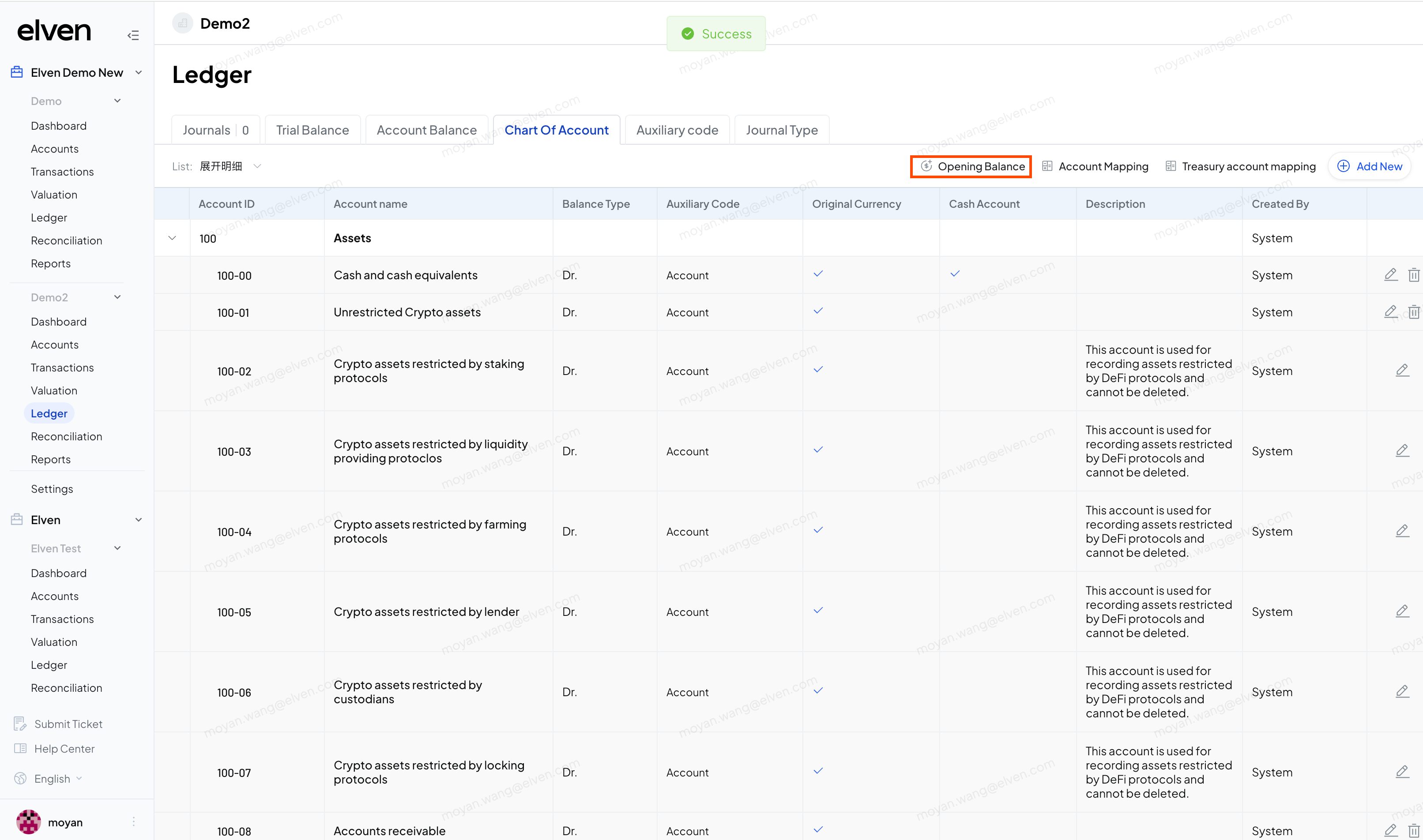
# Setting Account Opening Balance
{% hint style="info" %}
This page illustrates how to set up initial account balances in the general ledger system, including navigation path, account selection, data entry, and balance verification steps.
{% endhint %}
## 1. Accessing the Charts of Accounts management page
1. On the project homepage, navigate to **Ledger** > **Chart of Account**
2. Click the **"Opening Balance"** button in the top right corner to begin entering account initial balances.
## 2. Enter Account Opening Balances
1. Select accounts from assets, liabilities, and equity categories to enter initial balances.
2. Support for entering amounts in original currencies.
3. Support for entering initial balances with auxiliary accounting dimensions.
4. When the entered initial balances satisfy the equation Assets = Liabilities + Owner's Equity, click the **"Save"** button to complete the setup.